
When your iPhone 13's keyboard starts suggesting bizarre words or its predictions feel completely off, it can slow you down. The issue often stems from a minor software hiccup or a setting that needs a refresh. Let's get your predictive text working smoothly again.
Toggle Predictive Text Off and On
This is the quickest fix and often the most effective. It forces the keyboard's prediction engine to restart. Open any app where you can type, like Messages or Notes. Tap to bring up the keyboard, then press and hold the emoji or globe icon in the bottom left corner.
From the pop-up menu, tap Keyboard Settings. On the next screen, simply toggle the switch for Predictive Text off, wait a moment, and then toggle it back on. Go back and test it. I've seen this resolve the issue immediately on many iPhone 13 models running iOS 18.
Restart Your iPhone 13
A simple restart clears out temporary system glitches that can affect the keyboard. For your iPhone 13, press and quickly release the Volume Up button, then press and quickly release the Volume Down button. Finally, press and hold the Side button until you see the Apple logo appear, then let go.
This force restart sequence is a bit different from older iPhones, but it's the standard method for the iPhone 13 and later. Once your phone boots back up, check if the predictions are more accurate.
Reset All Keyboard Dictionary
If the keyboard has learned bad habits or corrupted data, you can wipe its learned dictionary clean. This will erase all the custom words you've added by rejecting corrections. Go to Settings > General > Transfer or Reset iPhone.
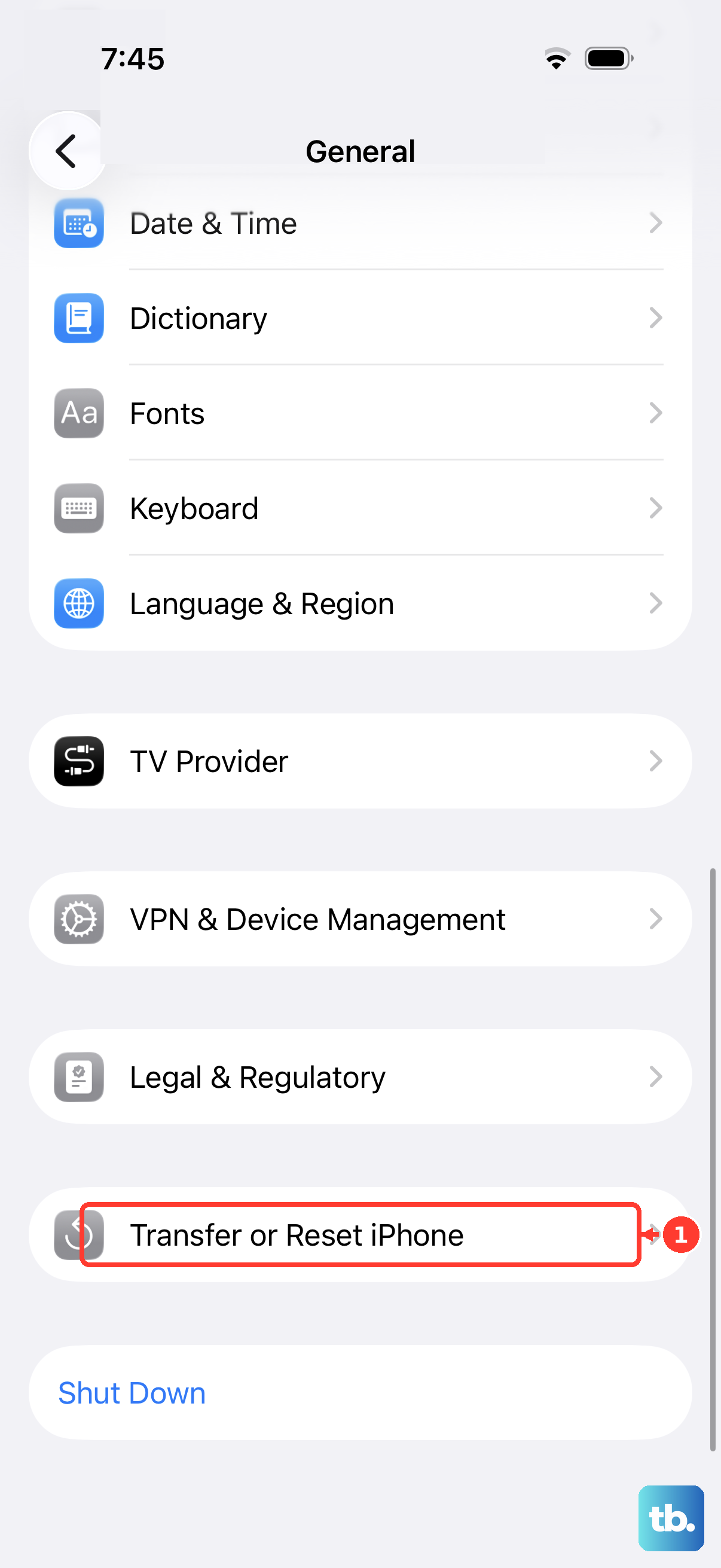
Tap Reset at the bottom. On the reset menu, select Reset Keyboard Dictionary. You'll need to enter your passcode to confirm. Remember, this will delete any slang, names, or special terms you've taught your phone, so you'll have to re-teach it.
Check Your Text Replacement Entries
Sometimes, a problematic text replacement shortcut can interfere with normal predictions. It's worth reviewing your list. Head to Settings > General > Keyboard, then tap Text Replacement.
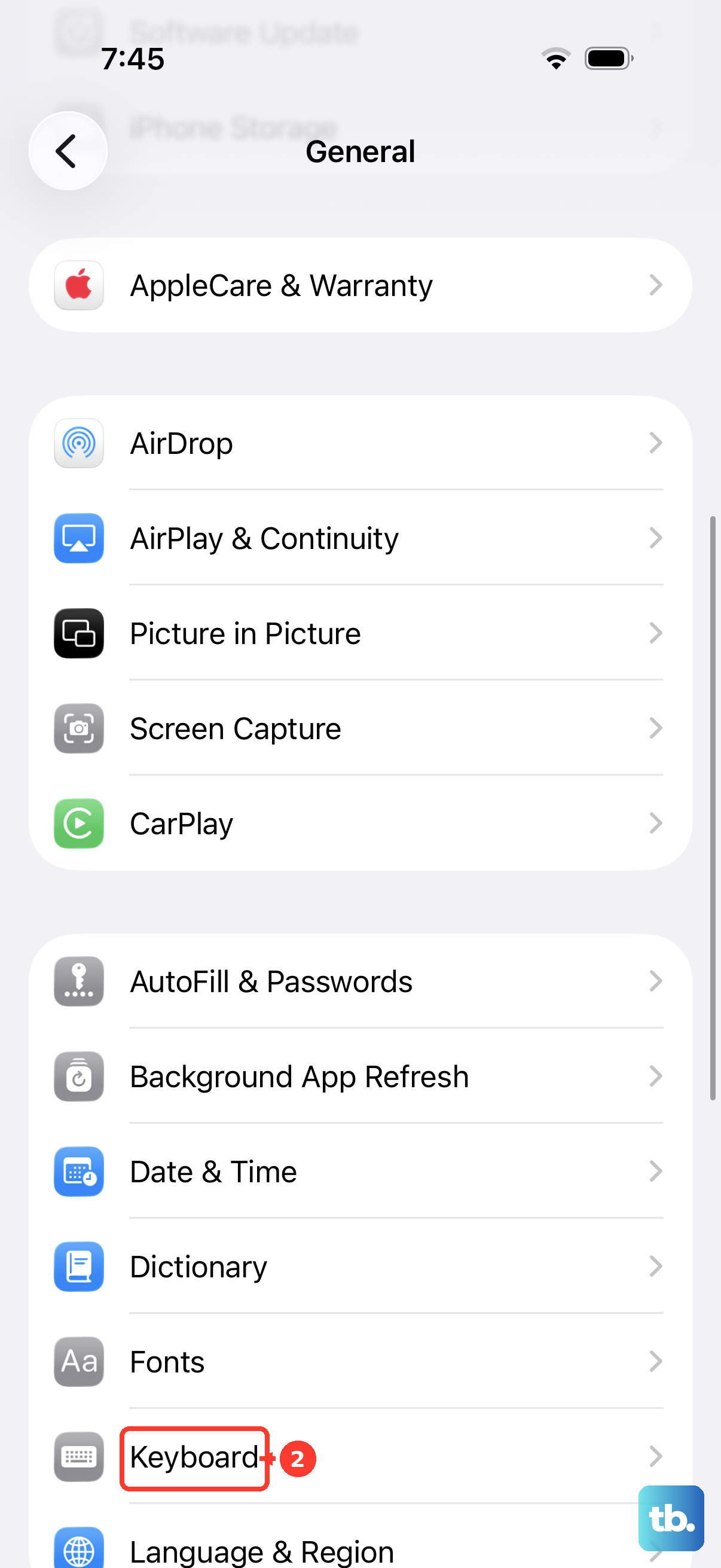
Scroll through the list. If you see any old or strange shortcuts you don't recognize, swipe left on them to delete. This cleans up the data the keyboard uses to make its suggestions and can eliminate conflicts.
Update iOS to the Latest Version
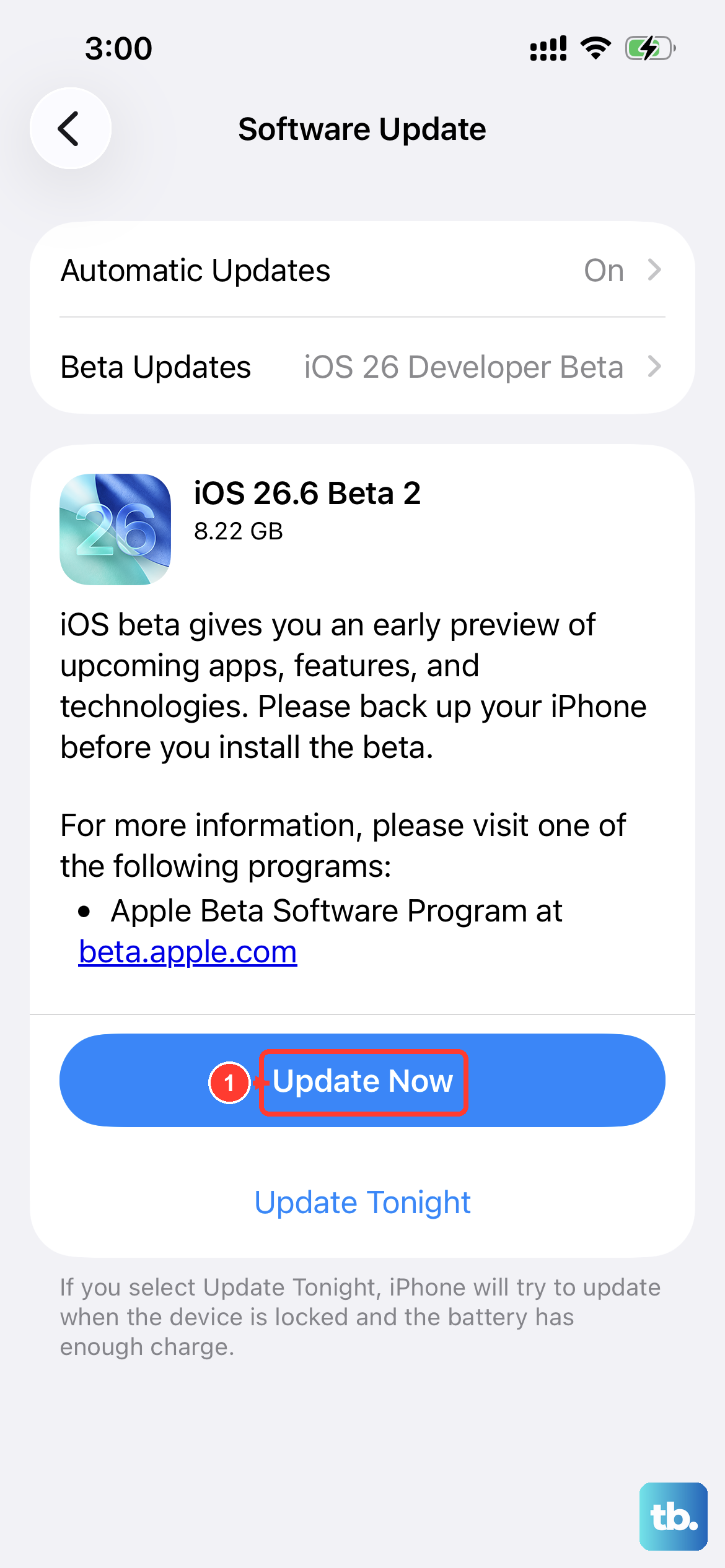
Apple frequently releases iOS updates that include bug fixes for system components like the keyboard. Since you're on iOS 18, make sure you have the latest minor update installed. Connect to Wi-Fi and plug your iPhone 13 into power using a reliable Lightning cable to ensure the update doesn't fail.
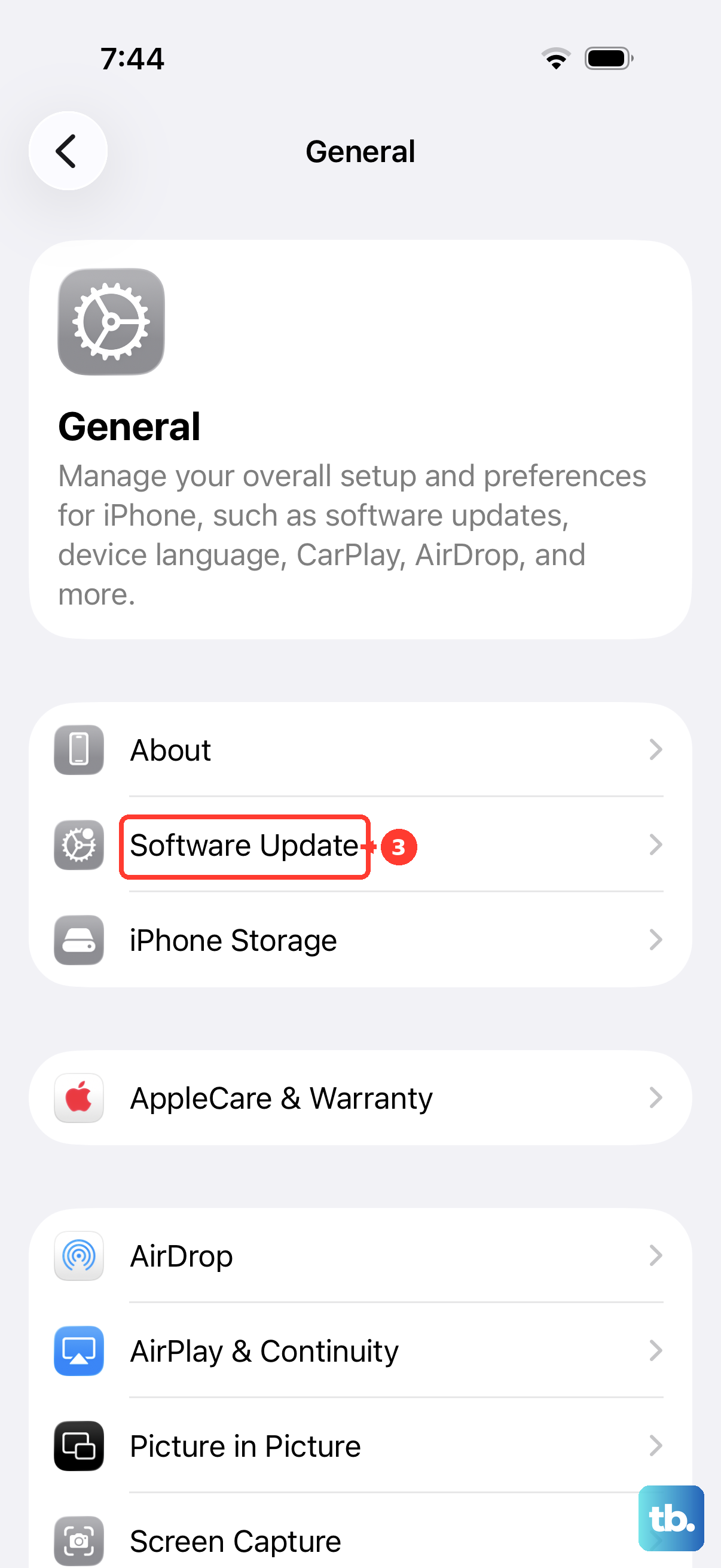
Go to Settings > General > Software Update. If an update is available, tap Download and Install. An update can often resolve underlying software bugs causing prediction errors.
Toggle Off "Auto-Correction" Temporarily
While this doesn't fix predictions directly, turning off auto-correction can help diagnose the issue. If predictions are wrong but auto-correction is aggressively changing your words, the experience is doubly frustrating. Go to Settings > General > Keyboard.
Toggle Auto-Correction off. Now, when you type, you'll only see the predictions above the keyboard without automatic changes. If the predictions are still bad, you know the core prediction engine is the problem. If the experience improves, you can turn auto-correction back on later after trying the other resets.