
Your iPhone 14 builds up temporary files and cached data as you use it, which can eat into your storage and slow things down. Clearing this digital clutter is a great way to free up space and keep your phone running fast. Since iOS doesn't have a single "clear all cache" button, you need to tackle it in a few specific places.
Clear Safari Cache and Data
Your web browser is often the biggest culprit for cached files. To wipe it clean, open Settings > Safari and scroll down to tap Clear History and Website Data. Confirm your choice. This will log you out of websites and clear your history, cookies, and all cached site data.
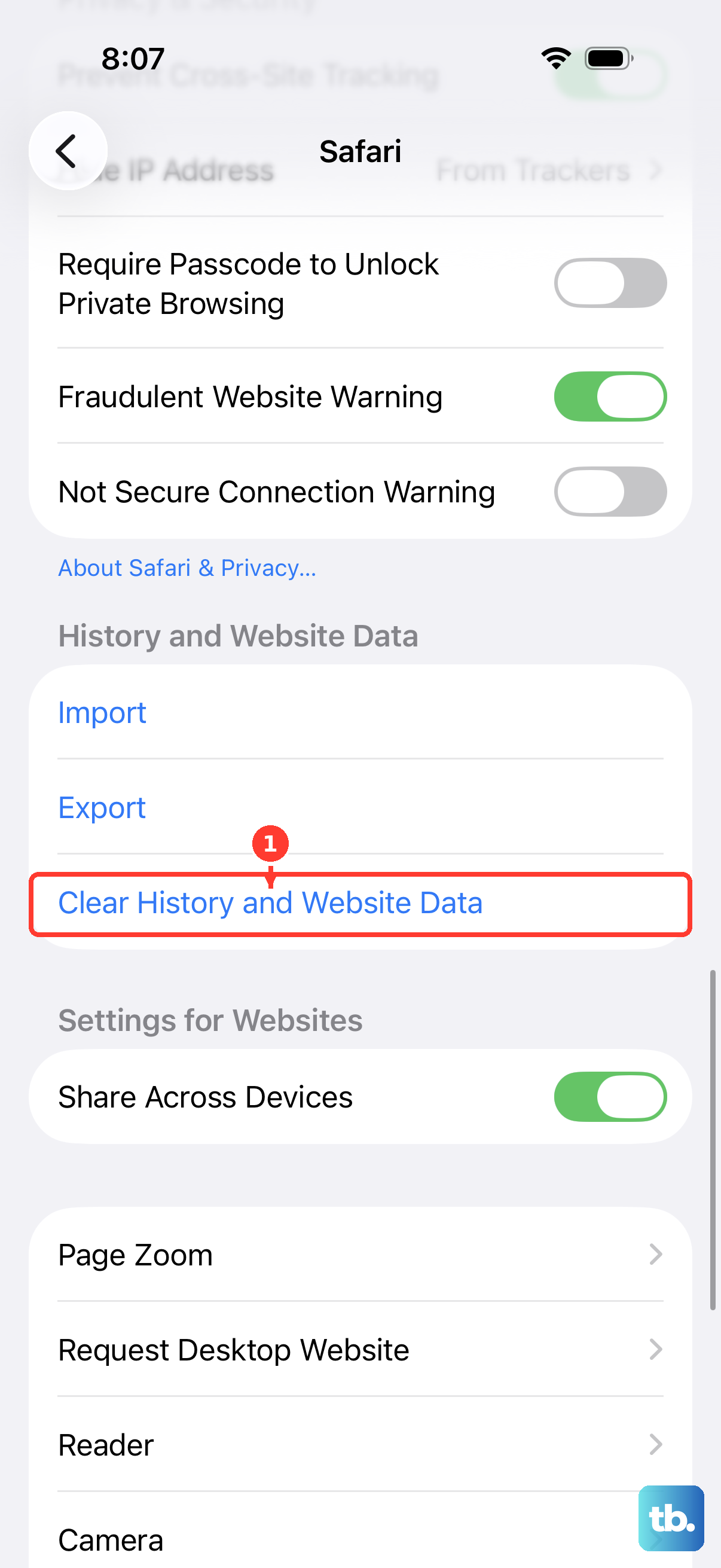
If you want to keep your browsing history but still dump the cached files, there's another path. Go to Settings > Safari > Advanced > Website Data and tap Remove All Website Data. This method targets just the cached files, leaving your history list intact.
Use Offload App to Clear App Cache
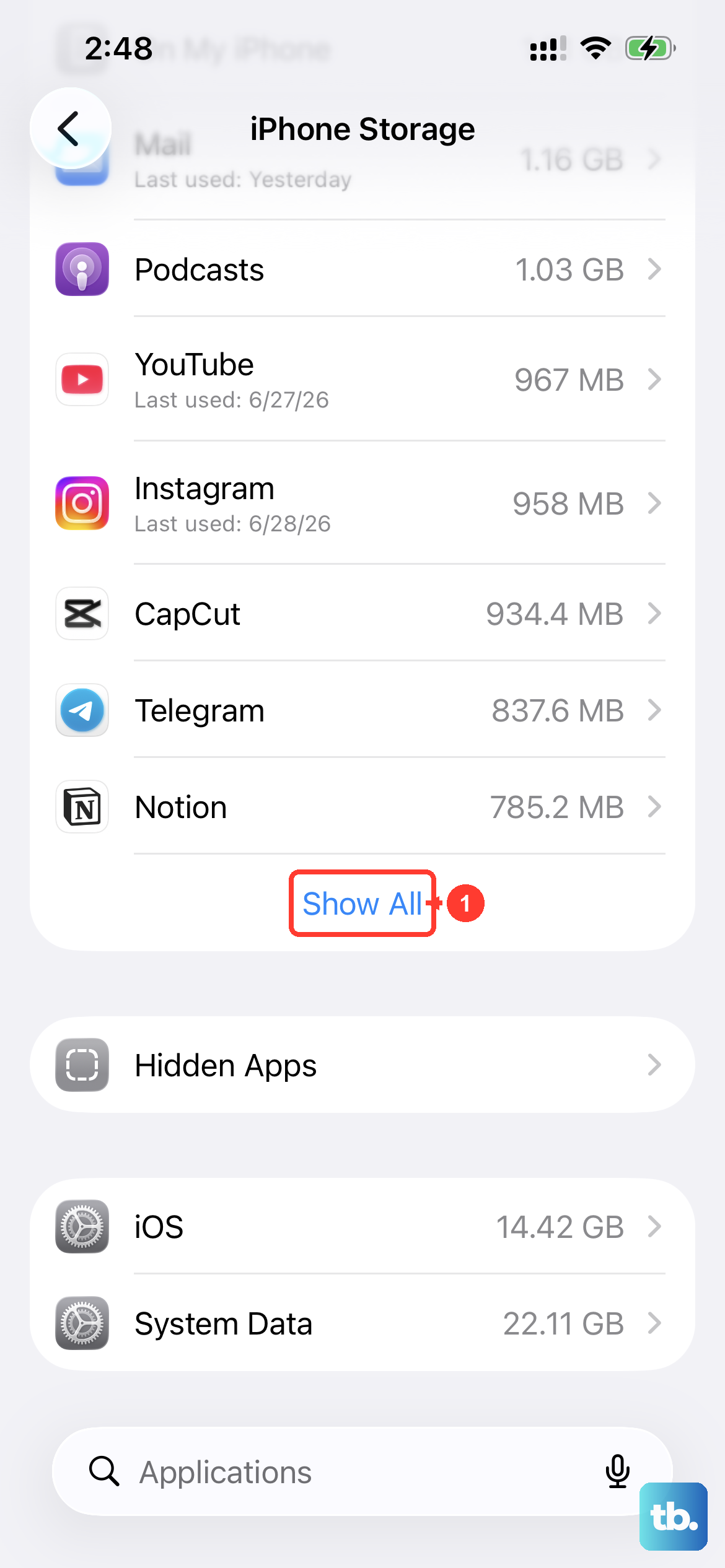
iOS doesn't let you clear an app's cache directly, but offloading is the next best thing. Head to Settings > General > iPhone Storage. After the list loads, tap on any app, like Instagram or Spotify. You'll see an option for Offload App. Tapping this removes the app itself but keeps all your documents and data.
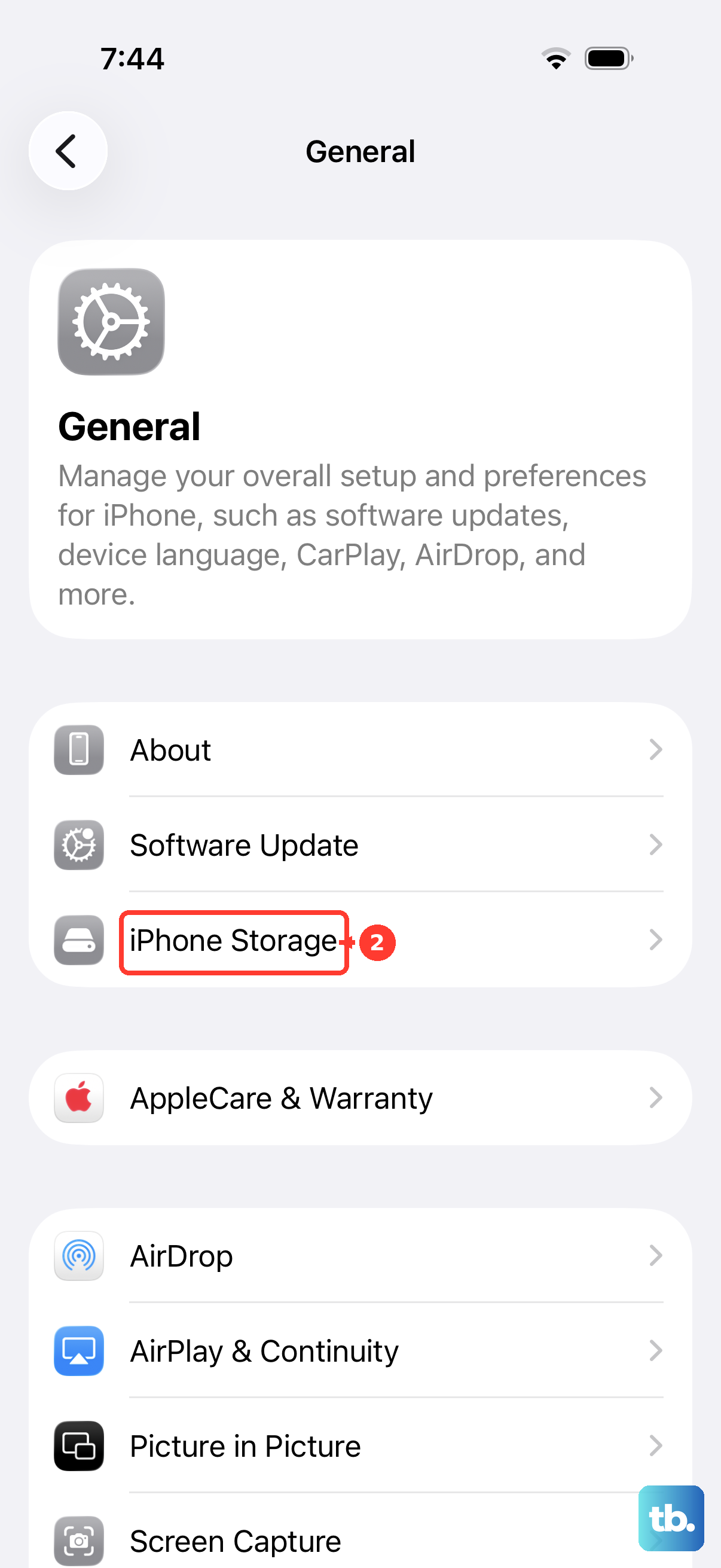
You can then reinstall the app from the App Store. This process deletes the temporary cache files the app had stored. It's perfect for social media and streaming apps that tend to hoard gigabytes of data over time without you noticing.
Delete and Reinstall Apps for a Deep Clean
For a more thorough reset, delete the app completely. Press and hold its icon on the Home Screen, tap Remove App, and then choose Delete App. This erases the app and all of its associated data, including the cache. Then, just download it fresh from the App Store.
You'll have to sign back in and set up your preferences again, so I'd save this for apps that are really misbehaving or taking up a shocking amount of space. It's a guaranteed way to start from scratch.
Manage Your Messages Storage
The Messages app can silently fill up with photos, videos, and GIFs from your chats. To see the damage and clean it out, go to Settings > General > iPhone Storage and tap on Messages. You'll get a detailed breakdown by category.
Tap into sections like Photos or Videos to review and delete items you don't need. You can also set messages to auto-delete. Go to Settings > Messages > Keep Messages and change it from Forever to 30 Days or 1 Year to prevent future buildup.
Clear System Cache with a Restart
A simple restart clears out various system caches and frees up RAM. To restart your iPhone 14, quickly press and release the Volume Up button, then the Volume Down button. Next, press and hold the Side button until you see the Apple logo appear, then let go.
Doing this once a week can help prevent sluggishness. If you're having trouble with websites not loading correctly, try toggling Airplane Mode on and off in Settings first, as that flushes the DNS cache.
Use Built-in Storage Recommendations
Your iPhone 14 is pretty smart about managing its own storage. Go to Settings > General > iPhone Storage and look at the recommendations at the top of the screen. iOS might suggest enabling Offload Unused Apps automatically, reviewing large attachments, or clearing out your Recently Deleted album in Photos.
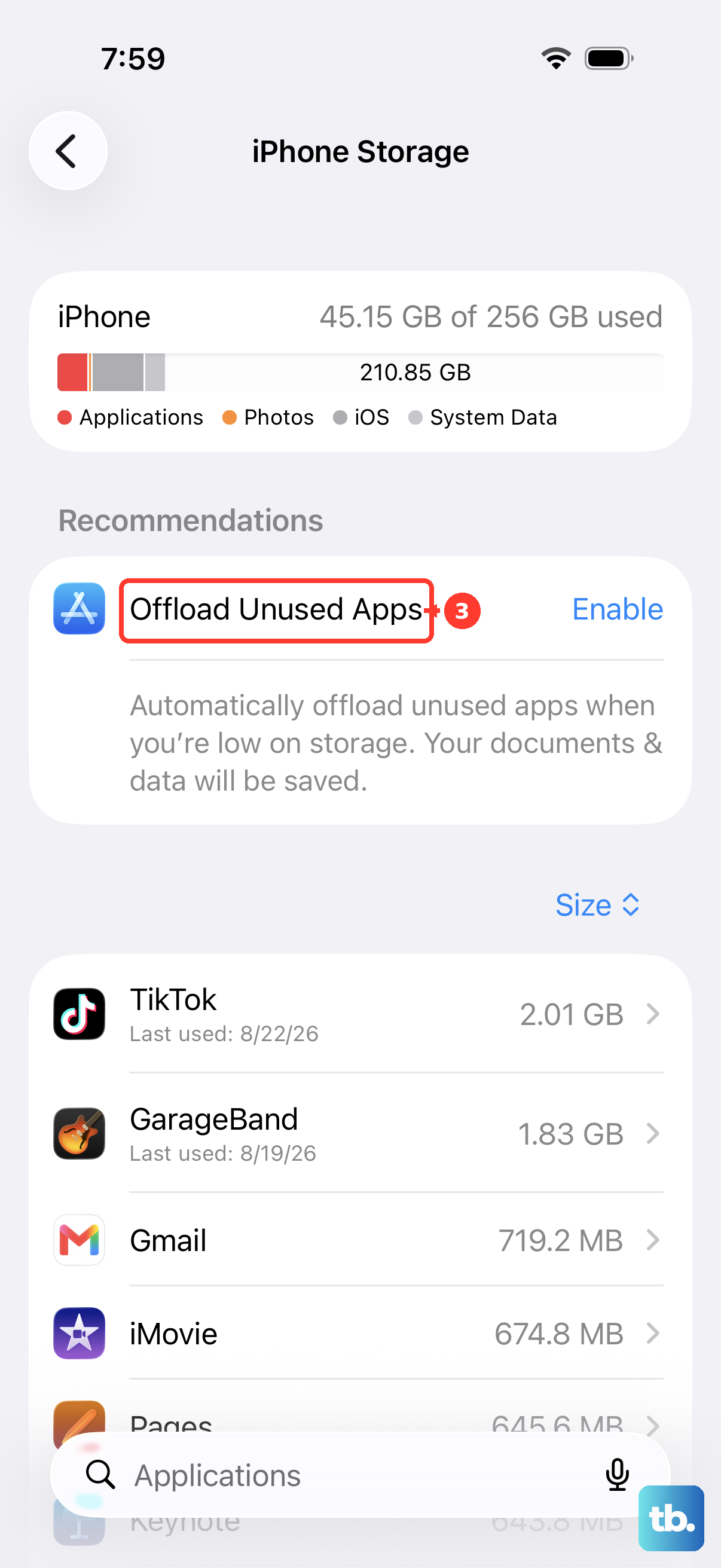
Following these suggestions is the easiest way to keep space free without having to dig through every app manually. It handles a lot of the maintenance for you.
Check for Software Updates
Sometimes, storage and performance bugs are tied to the software itself. Apple has released updates to fix issues like charging problems after an iOS update, which can be related to system file management. Keeping your phone updated can prevent these glitches.
Go to Settings > General > Software Update to see if a newer version of iOS is available. I'd make sure your phone is plugged into power and connected to Wi-Fi before you start the update.