
Your Google Pixel 9 Pro uses cached data to make apps load faster, but over time this temporary storage can get cluttered. If you're noticing apps freezing, storage filling up mysteriously, or general sluggishness, clearing out this cache is a great first step. It's a safe process that won't delete your personal information or app logins.
Clear an Individual App's Cache
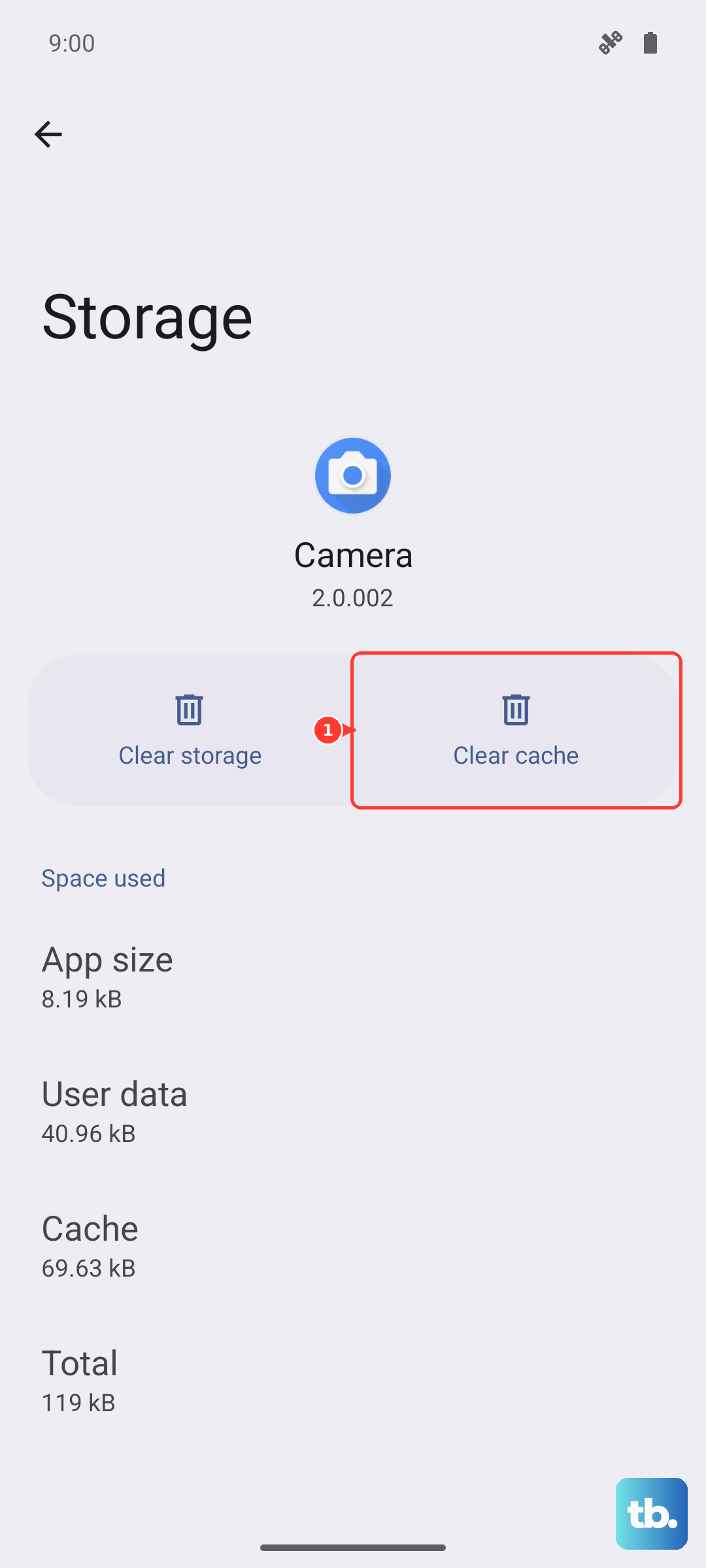
For a specific misbehaving app, head to your Settings and tap on Apps. You'll see a list of all your installed applications. Tap on the app you're having trouble with, then select Storage & cache.
On this screen, tap the Clear cache button. This instantly removes the temporary files that app has stored. Your account data, saved preferences, and login information will remain untouched, so you can pick up right where you left off.
I'd focus on apps that are typically cache-heavy, like Chrome, Instagram, YouTube, Spotify, or any large games. These are the usual suspects when you're running low on space.
Use the System-Wide Cache Cleaner
Android 15 on the Pixel 9 Pro includes a handy feature to clear cached data from all your apps at once. Open Settings and go to Storage. At the top, you'll see a breakdown of your used space.
Look for an entry labeled Cached data and tap on it. A confirmation prompt will appear, asking if you want to clear cached data for all apps. Confirm, and the system will wipe those temporary files in one go. This is perfect for a quick, broad cleanup.
Clear Your Chrome Browser Cache
Since Chrome is your default browser, its cache can grow very large. Open the Chrome app and tap the three-dot menu icon in the top right. Go to History > Clear browsing data.
On the next screen, select Cached images and files. You can choose a time range, like "Last hour" or "All time." Make sure to leave "Cookies and site data" unchecked if you want to stay logged into your websites. Tap Clear data to finish.
Wipe the System Cache Partition
If your phone is acting glitchy after a system update, clearing the system cache partition can help. First, power off your Pixel 9 Pro completely. Then, press and hold the Power button and Volume Down button together.
When the bootloader screen appears, use the volume buttons to highlight Recovery Mode and press the power button to select it. You'll see an Android robot with an exclamation mark. Press and hold Power, then tap Volume Up once to enter the menu.
Use the volume buttons to navigate to Wipe cache partition and select it with the power button. Confirm the action. Once it's done, select Reboot system now. This process only deletes system temporary files and is completely safe for your photos and apps.
Manage Files with Google's Tools
The pre-installed Files by Google app is excellent for this. Open it and tap the Clean tab at the bottom. The app will scan and show you categories like "Junk Files," which is largely cached data, and "Large Files." You can review and delete what you don't need with a few taps.
For photos and videos, using Google Photos with its AI features like Magic Eraser is great. Once your media is safely backed up to the cloud, you can use the "Free up space" tool within Photos to remove the local copies from your phone, reclaiming significant storage.
Clear Out Messages and Downloads
Don't forget about your Messages app. Long conversations, especially group chats full of photos and videos, can consume gigabytes. Open Messages, review old chats, and delete the ones you don't need.
Also, check your Downloads folder. You can find it in the Files app. It's easy to forget about PDFs, APK files, or images you downloaded once and no longer require. Clearing these out manually can free up a surprising amount of space.
Perform a Simple Restart
Sometimes, the easiest fix is the best one. A restart clears your phone's active memory (RAM) and flushes minor system caches. Just press and hold the Power button until the power menu appears, then tap Restart.
If your screen is unresponsive, you can force a restart by holding down the Power button for about 30 seconds until the device powers off and boots back up. Doing this every few days helps keep performance snappy.
Review Your Storage Breakdown
For a big-picture view, go to Settings > Storage. Here, Android 15 will show you exactly what's using space, broken down into Apps, Images, Videos, and more. Tap into each category to see details and manage files directly.
This is also where you can enable features like Adaptive Charging, which helps preserve your battery's long-term health by intelligently managing overnight charging cycles. A healthier battery contributes to more consistent overall performance.