
Your iPad (11th generation) accumulates temporary files and cached data from apps and websites as you use it. This cache is meant to speed things up, but over time it can take up a surprising amount of space and even cause apps to slow down or misbehave. Clearing it out is a great way to reclaim storage and keep your iPad running smoothly.
Clear Safari's Cache and Data
Safari is often the biggest contributor to cached data on your iPad. To wipe it clean, open the Settings app and tap Safari. Scroll down and tap Clear History and Website Data, then confirm. This removes your browsing history, cookies, and all cached website files.
You'll be signed out of most websites after doing this, so it's a good idea to have your passwords handy. If you want to keep your browsing history but still clear the cached files, there's another path. Go to Settings > Safari > Advanced > Website Data and tap Remove All Website Data.
Offload Apps to Clear Their Cache
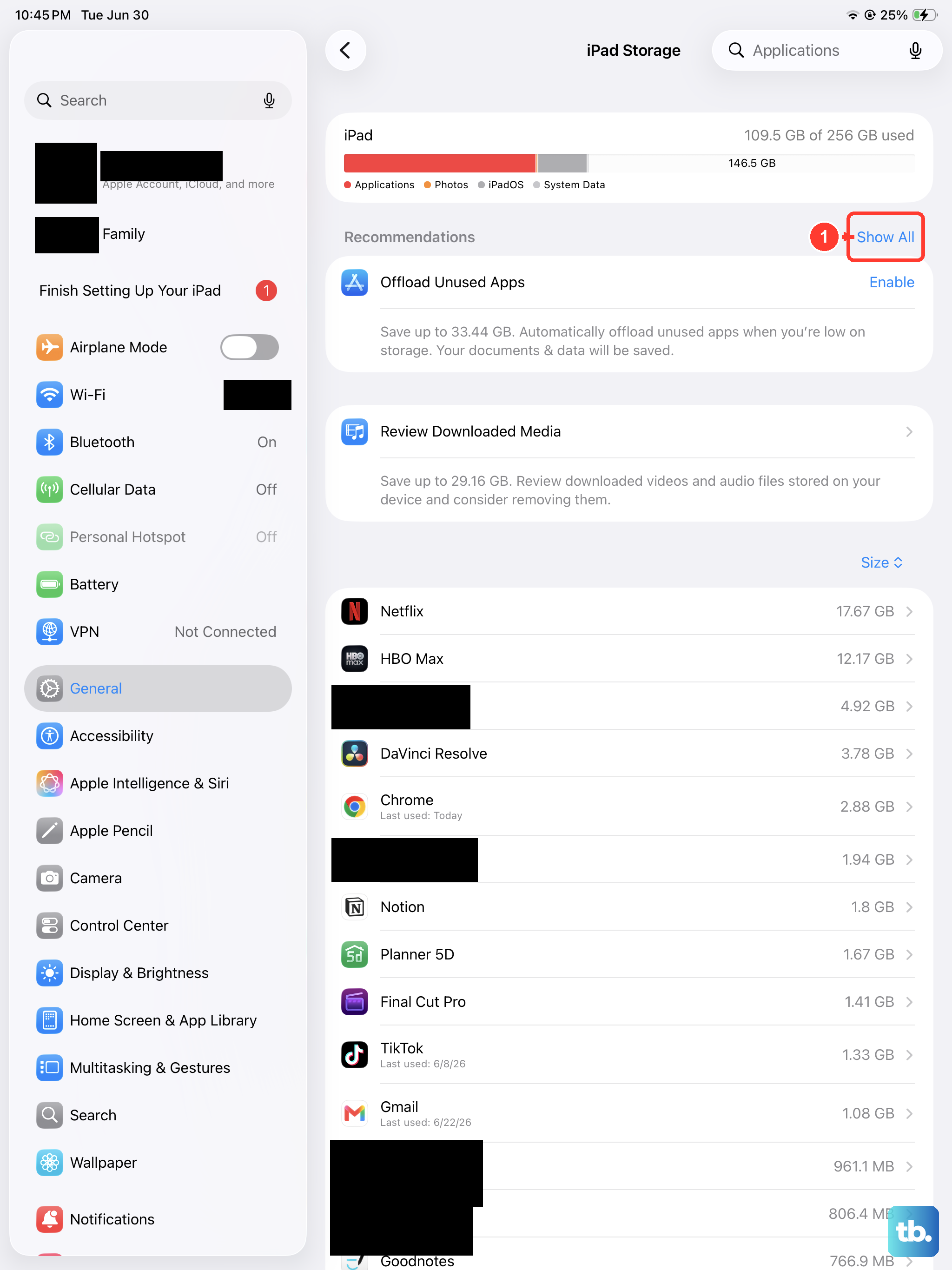
iPadOS doesn't have a simple "clear cache" button for individual apps, but offloading is an excellent workaround. Head to Settings > General > iPad Storage. You'll see a list of all your apps sorted by how much space they use.
Tap on any app, like a social media or streaming app, and you'll see an option for Offload App. Tapping this removes the app itself but keeps all its documents and data on your iPad. You can then reinstall the app from the App Store, which gives you a fresh version without the gigabytes of accumulated cache. Your login and settings will still be there.
Delete and Reinstall Problem Apps
For a more thorough clean, you can delete an app completely and then reinstall it. Press and hold the app's icon on your home screen until the menu appears, tap Remove App, and then choose Delete App. This erases the app and all of its associated data, including cache and downloaded files.
After deleting, just head to the App Store to download it again. You'll need to sign back in and set up any preferences, but you'll start with a completely clean slate. I've found this especially effective for apps like Instagram, YouTube, and games that tend to hoard old data.
Manage Messages Storage
The Messages app can silently consume many gigabytes with photos, videos, and message threads. To see the breakdown, go to Settings > General > iPad Storage, then tap on Messages. Here, you can review large attachments and conversations.
You can also set messages to auto-delete. Go to Settings > Messages > Keep Messages and change it from Forever to 30 Days or 1 Year. This prevents your message history from growing indefinitely and helps manage space automatically.
Flush the DNS Cache
If websites are taking a long time to load or failing to connect, your iPad's DNS cache might be the issue. The quickest fix is to toggle Airplane Mode. Swipe down from the top-right corner to open Control Center and tap the Airplane Mode icon to turn it on.
Wait about 10 seconds, then tap it again to turn Airplane Mode off. This forces your iPad to clear its network cache and fetch fresh address information for websites. A simple restart, which we'll cover next, also does this trick.
Use Built-in Storage Recommendations
Your iPad is pretty smart about managing its own space. Go to Settings > General > iPad Storage and look at the recommendations at the top of the screen. iPadOS might suggest enabling Offload Unused Apps automatically, reviewing large attachments, or clearing out your Recently Deleted album in Photos.
Tapping these suggestions lets the system handle a lot of the cleanup for you. It's a good first stop before you start manually digging through apps.
Restart Your iPad
Never underestimate the power of a restart. It clears out temporary system files, frees up RAM, and can resolve a lot of minor glitches. To restart your iPad (11th generation), quickly press and release the Volume Up button, then quickly press and release the Volume Down button.
Finally, press and hold the Top button until you see the Apple logo appear on the screen, then let go. Making a habit of doing this every couple of weeks helps keep performance snappy. For a deeper system refresh, especially if you're on the latest iPadOS, you can also try a forced restart using the same button sequence, holding the Top button until the device restarts.