
Your Google Pixel 9 uses cached data to make apps load faster, but that temporary storage can get cluttered over time. If you're noticing apps stuttering, storage filling up, or just general sluggishness, clearing out that cache is a great first step. It's a safe process that won't delete your personal data or log you out of accounts.
Clear an Individual App's Cache
This is the most precise way to target a problematic app. Head to Settings > Apps and select the app that's acting up. Tap on Storage & cache and then hit the Clear cache button.
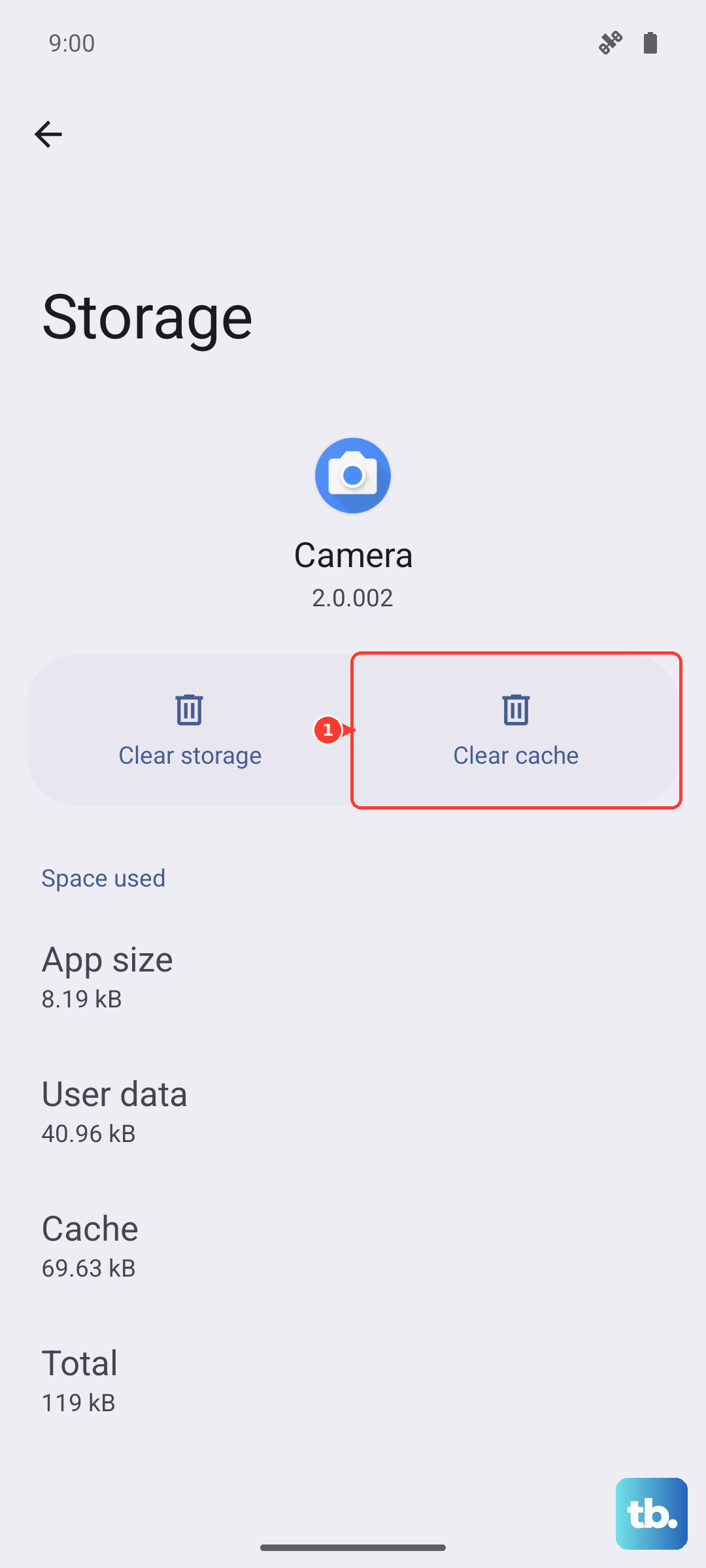
This only removes temporary files the app has stored. Your login info, saved preferences, and downloaded content within the app will stay right where they are. I'd start with apps like Chrome, Instagram, YouTube, or any large games, as they tend to build up the biggest caches.
Use Files and Per-App Cache Cleanup
Pixel 9 does not have a current Android 15 button that clears every app cache at once. For broad cleanup, open Files by Google and review its cleanup suggestions, or go to Settings > Storage to see which categories are taking space.
For app behavior problems, use the per-app cache step above. Clearing a specific app's cache is safer than using third-party cache-cleaner apps or looking for an old system-wide cache control that is no longer there.
Clear Your Chrome Browser Cache
Since Chrome is the default browser, its cache can get particularly large. Open Chrome, tap the three-dot menu, and go to Settings > Privacy and security > Clear browsing data.
Make sure Cached images and files is checked. You can choose a time range, but "All time" gives you the cleanest slate. Tap Clear data to finish. Your saved passwords and bookmarks won't be affected.
Skip Recovery Cache Wipes
Current Pixel recovery guidance is for factory reset and Fastboot recovery, not routine cache maintenance. If your Pixel 9 is lagging after an update, restart it and clear the cache for the specific apps causing trouble first.
Do not choose recovery wipe options unless you intentionally want to erase the phone after backing it up. The old Wipe cache partition maintenance step is not part of Google's current Pixel recovery instructions.
Manage Files with Google's Built-In Tool
The Pixel 9 comes with the Files app pre-installed. Open it and tap the Clean tab at the bottom. The app will scan for junk files, large duplicates, unused apps, and screenshots you can safely delete.
It's a very intuitive way to see exactly what's hogging space. You can review its suggestions before deleting anything, which gives you full control over what gets removed.
Review Messages and Downloads
Don't forget about the storage used by old text threads full of photos and videos. Open your Messages app and clean out lengthy conversations. Also, check your Downloads folder by opening the Files app, old PDFs, APK files, and other items you grabbed once can linger there for ages.
Perform a Simple Restart
Sometimes, the quickest fix is the best one. A restart clears out the phone's active memory and can clear temporary glitches. On Pixel 9, press and hold the Power and Volume Up buttons together for a few seconds, then tap Restart.
Making this a weekly habit can prevent minor software hiccups from building up into bigger performance issues on your Pixel.
Check Detailed Storage Breakdown
For a full picture, go to Settings > Storage. Here, you'll see a detailed chart of what's using space. Tap into categories like Apps, Images, and Videos to see the largest files.
This is also where you can manage photos backed up to Google Photos. If you have Backup enabled, you can use the "Free up space" option within the Google Photos app to safely remove local copies that are already secure in the cloud.