
If your Google Pixel 9 Pro is refusing to send picture messages or group chats, it's a frustrating roadblock. The issue often comes down to a setting, a network hiccup, or a quirk with the messaging app itself. Let's walk through the most effective fixes to get your MMS flowing again.
Start With Mobile Data and a Restart
MMS can't use Wi-Fi to send. It needs an active mobile data connection. Swipe down twice from the top of your screen and make sure the mobile data icon is on. If you have a weak signal, that could be the culprit, especially with the Tensor G4 modem which can be less robust in fringe areas.
Before diving deeper, give your Pixel a fresh start. Press and hold the power button for about 30 seconds until you feel it vibrate and the Google logo appears. This force restart can clear out temporary glitches that might be hanging up the messaging service.
Verify Your Messages App Settings
Open the Google Messages app on your Pixel 9 Pro. Tap your profile picture in the top right, then go to Messages settings > Advanced. Here, make sure "Auto-download MMS" is enabled. Also, toggle on "Auto-download MMS when roaming" if you're traveling.
While you're in settings, check that Google Messages is set as your default SMS app. Go to your phone's main Settings > Apps > Default apps and confirm "Messages" is selected for SMS.
Clear the Messages App Cache
Corrupted temporary files can cause all sorts of app misbehavior. Go to your phone's Settings > Apps > See all apps. Find and tap on "Messages." Select Storage & cache and then tap Clear cache.
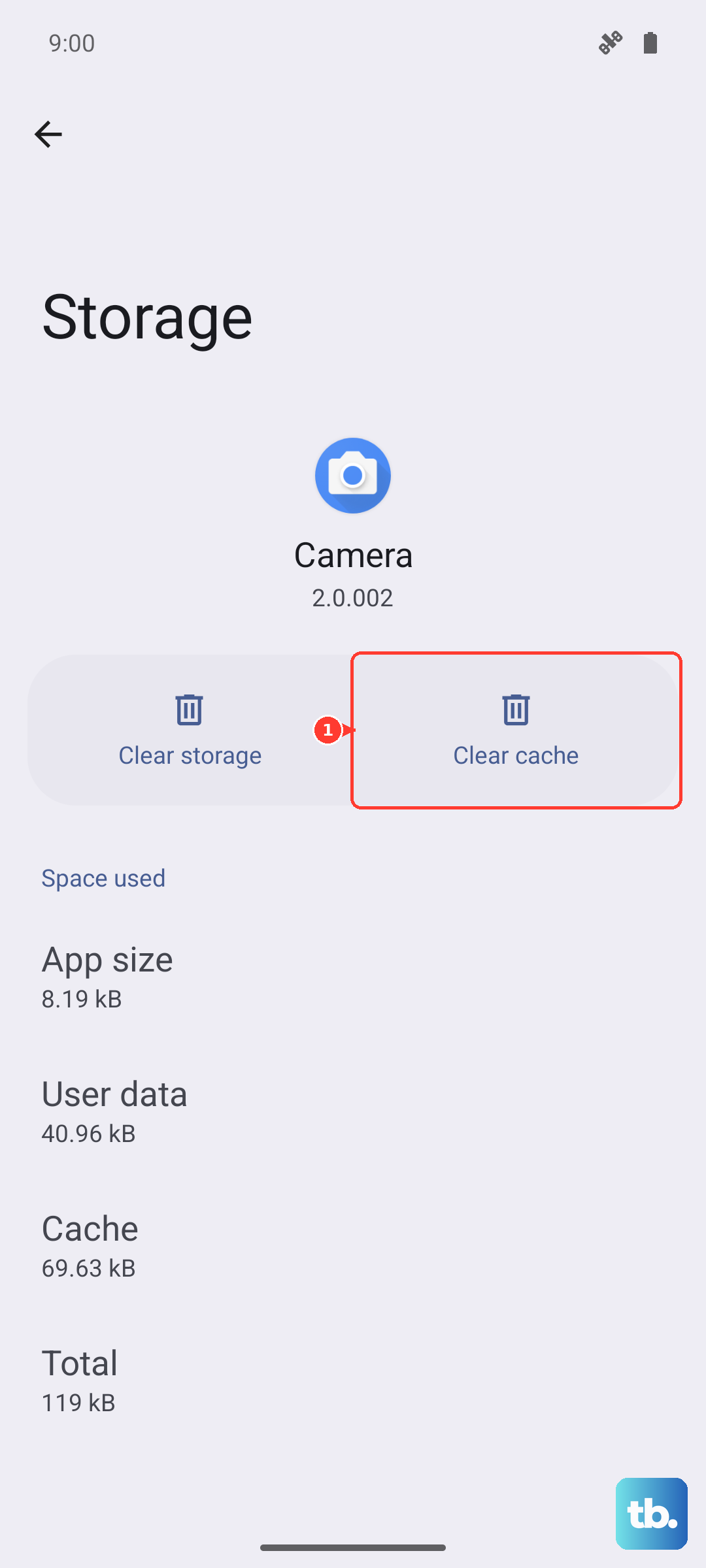
This won't delete any of your conversations. If the problem persists, you can go back and tap "Clear storage" or "Manage space" > "Clear all data." Be warned, this will erase your message history within the app, so only do this if you're okay with that.
Check Your APN Settings
Incorrect Access Point Name (APN) settings are a classic cause of MMS failures. These tell your phone how to connect to your carrier's multimedia service. Go to Settings > Network & internet > Internet.
Tap the gear icon next to your mobile carrier's name. Scroll down and tap Access Point Names. Your Pixel should have the correct settings automatically, but it's worth checking. If you see multiple APNs, make sure the right one is selected (it will have a filled-in circle).
If things look off, the safest move is to contact your carrier (like Google Fi, T-Mobile, or Verizon) and ask for the correct APN settings for the Pixel 9 Pro on Android 15. You can usually find these on their support website as well.
Reset Your Network Settings
This is a more comprehensive step that can resolve deeper network conflicts. It will wipe all your saved Wi-Fi networks, Bluetooth pairings, and cellular settings, returning them to factory defaults.
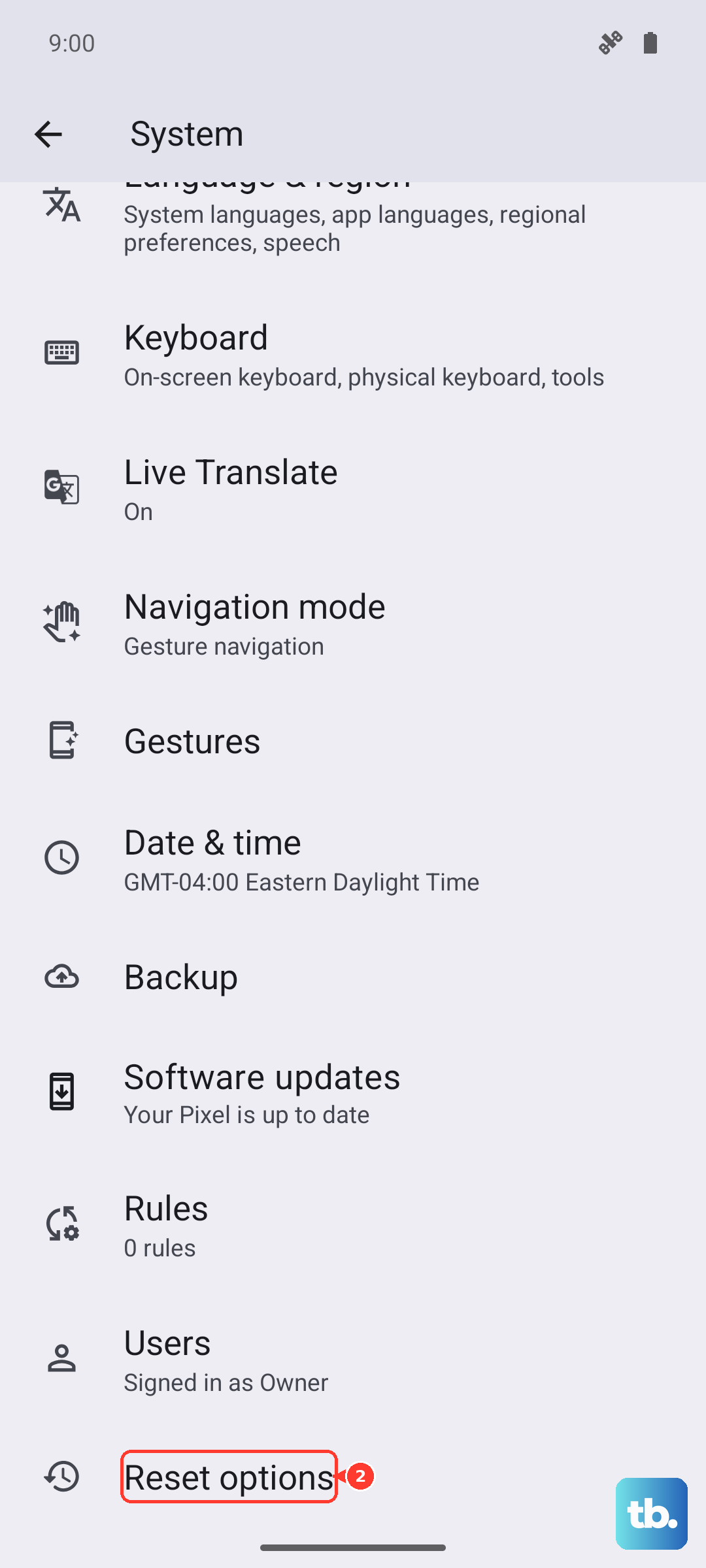
Go to Settings > System > Reset options. Tap Reset Wi-Fi, mobile & Bluetooth and confirm. After your phone reboots, you'll need to reconnect to Wi-Fi and re-pair Bluetooth devices, but it often clears up stubborn MMS issues.
Ensure You Have Enough Storage
Your phone needs a bit of free space to process and send multimedia messages. If your Pixel 9 Pro's storage is completely full, it can fail silently. Open the Files app and tap "Clean" to get recommendations for freeing up space.
You can also check manually. Go to Settings > Storage. I'd recommend having at least a few hundred megabytes free. Old message threads crammed with videos and photos are a good place to start cleaning.
Update Your Software and Carrier Services
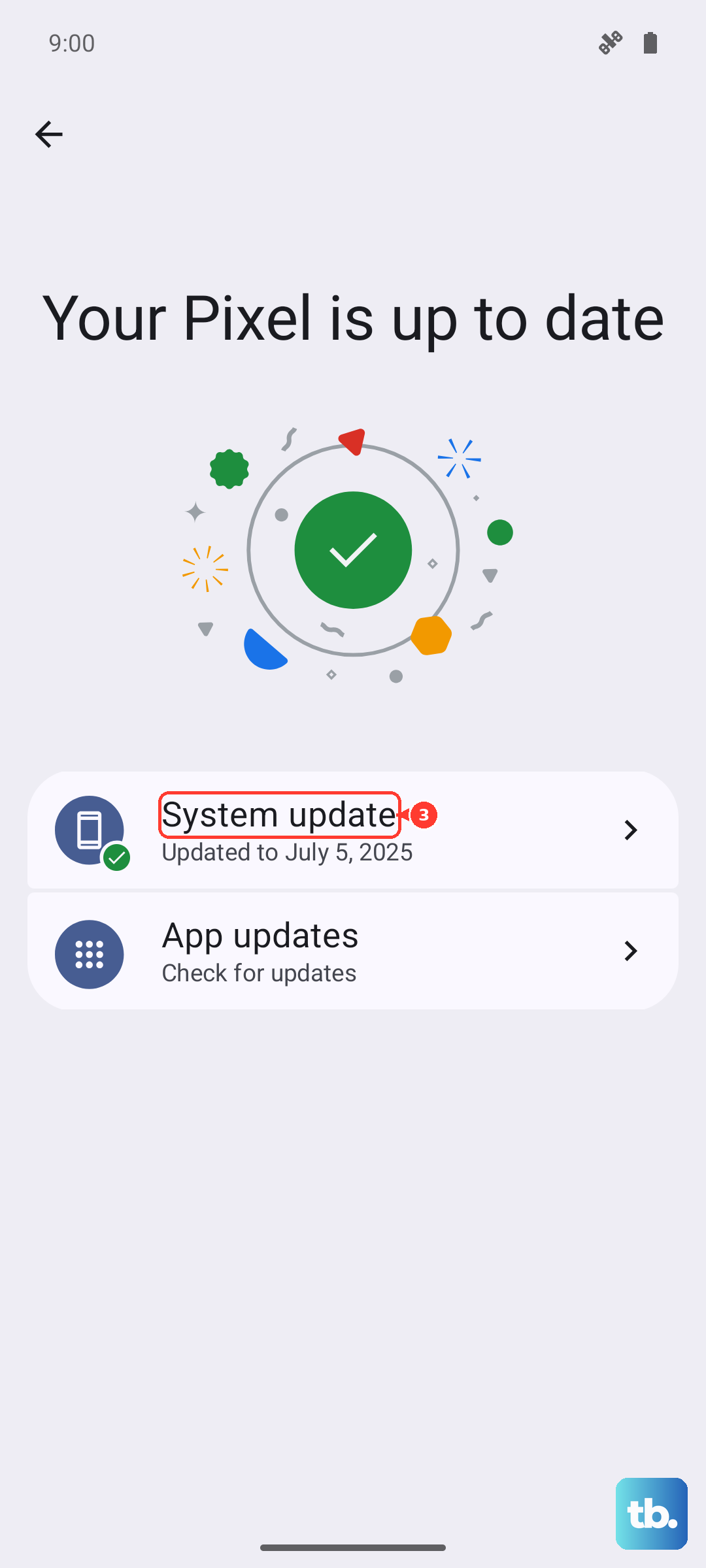
An outdated system can have bugs that break MMS. Go to Settings > System > System update to check for the latest Android 15 update. Install it if available.
Also, open the Google Play Store, tap your profile picture, and go to Manage apps & device > Manage > Updates available. Look for updates to "Carrier Services" and "Google Messages." These are critical for network communication.
Try Disabling Chat Features (RCS)
Sometimes, the advanced "Chat features" (RCS) can get stuck and interfere with standard MMS. In the Google Messages app, tap your profile picture > Messages settings > Chat features.
Toggle "Enable chat features" off. Wait a moment, then try sending an MMS. If it goes through, the issue is with the RCS connection. You can try toggling it back on later, or keep it off to use standard SMS/MMS for the time being.
Check for Carrier Outages or Configuration
It's worth a quick search online for "[Your Carrier] network outage" to see if others are reporting issues. You can also contact your carrier's support directly. Ask them to verify your line is properly provisioned for MMS and that there are no account-level blocks.
They can sometimes refresh your connection on their end, which can solve the problem instantly. This is a good step if you've recently switched your SIM card or changed plans.
Test With a Different Messaging App
If all else fails, this will tell you if the problem is with the Google Messages app specifically. Download a simple, alternative app like "Simple SMS Messenger" from the Play Store.
Set it as your default app temporarily and try sending an MMS. If it works, the issue is isolated to Google Messages. You can then try uninstalling updates to that app via the Play Store or continue using the alternative.