
Picture messages not downloading on your Google Pixel 9a is a common snag, especially when you're trying to see a photo or video someone just sent you. The issue usually boils down to a network hiccup, a setting that got switched off, or a temporary glitch in the messaging app itself.
Let's walk through the fixes, starting with the quick ones you can try in about a minute.
Restart Your Pixel 9a
It sounds too simple, but a restart clears out temporary software bugs that can block downloads. Just press and hold the power button for about 30 seconds until you feel the phone vibrate and the Google logo appears. This force restart is often the fastest fix.
Check Your Mobile Data and Signal
MMS messages, which is what picture messages usually are, require mobile data to download. They won't come through on Wi-Fi alone. Swipe down from the top of your screen twice to open the Quick Settings panel and make sure mobile data is turned on.
Also, take a glance at your signal bars. The Pixel 9a's Tensor G4 modem can sometimes struggle in weak coverage areas. If you have one bar or less, try moving to a different spot or even stepping outside.
Force Stop and Relaunch Messages
If the Google Messages app is acting up, giving it a fresh start can help. Go to Settings > Apps > See all apps. Find and tap on Messages, then tap Force stop. Open the app again and check if the picture downloads.
Enable Auto-Download for MMS
Your phone might be set to wait for your permission before downloading media, which can look like a failure. Open the Google Messages app, tap your profile picture in the top right, and go to Messages settings.
Tap on Photos & media. Here, make sure Auto-download MMS is turned on. While you're here, also check the setting for Auto-download when roaming if you're traveling.
Clear the Messages App Cache
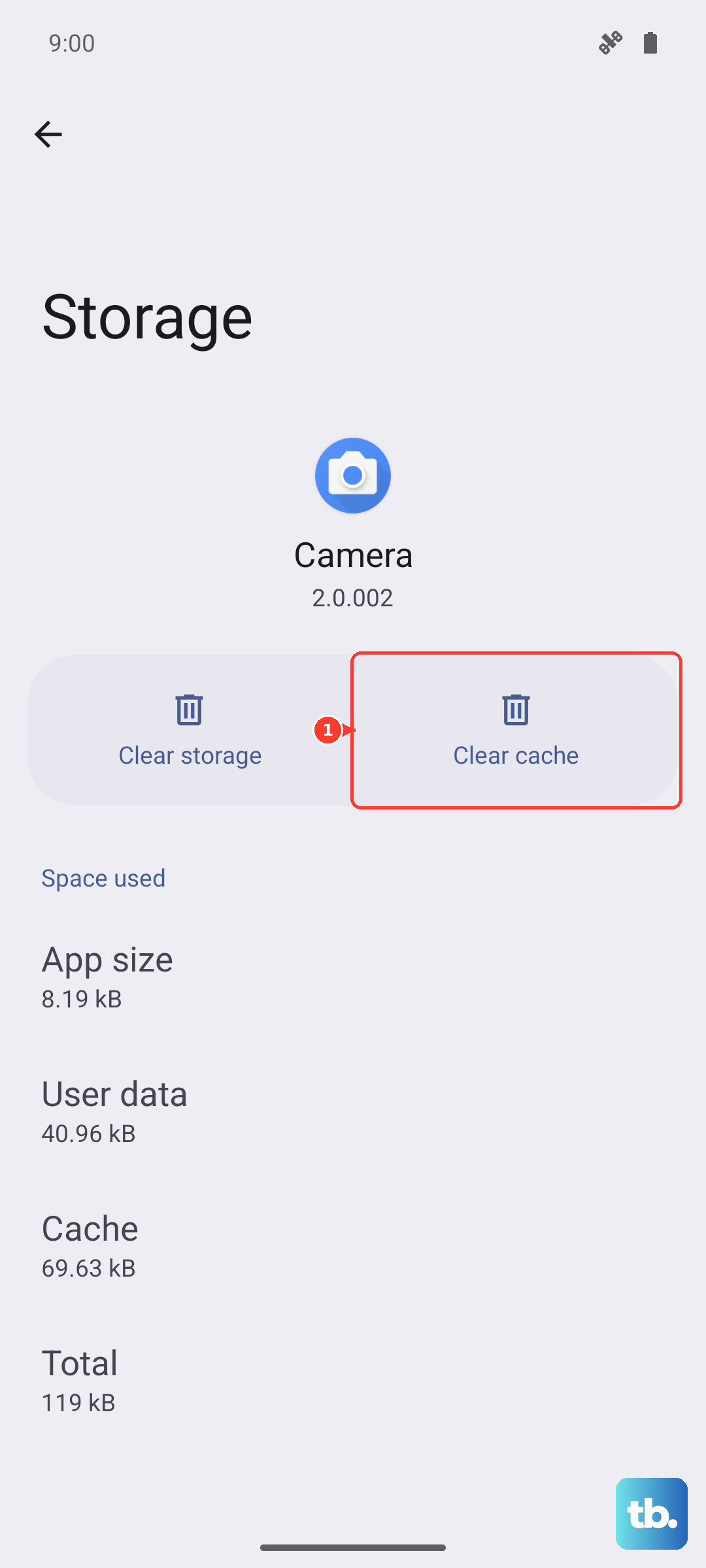
Corrupted temporary files can cause all sorts of weird behavior. Clearing the app's cache is a safe way to clean these out without losing your conversations. Head back to Settings > Apps > Messages.
Tap on Storage & cache, then tap Clear cache. This only takes a second. For more stubborn issues, you can tap Clear storage, but be warned this will erase your message history and you'll need to set the app up again.
Check for a Software Update
Google frequently releases updates for Android that squash bugs, including ones related to messaging. Keeping your Pixel 9a on Android 15 up to date is important. Go to Settings > System > System update and tap Check for update.
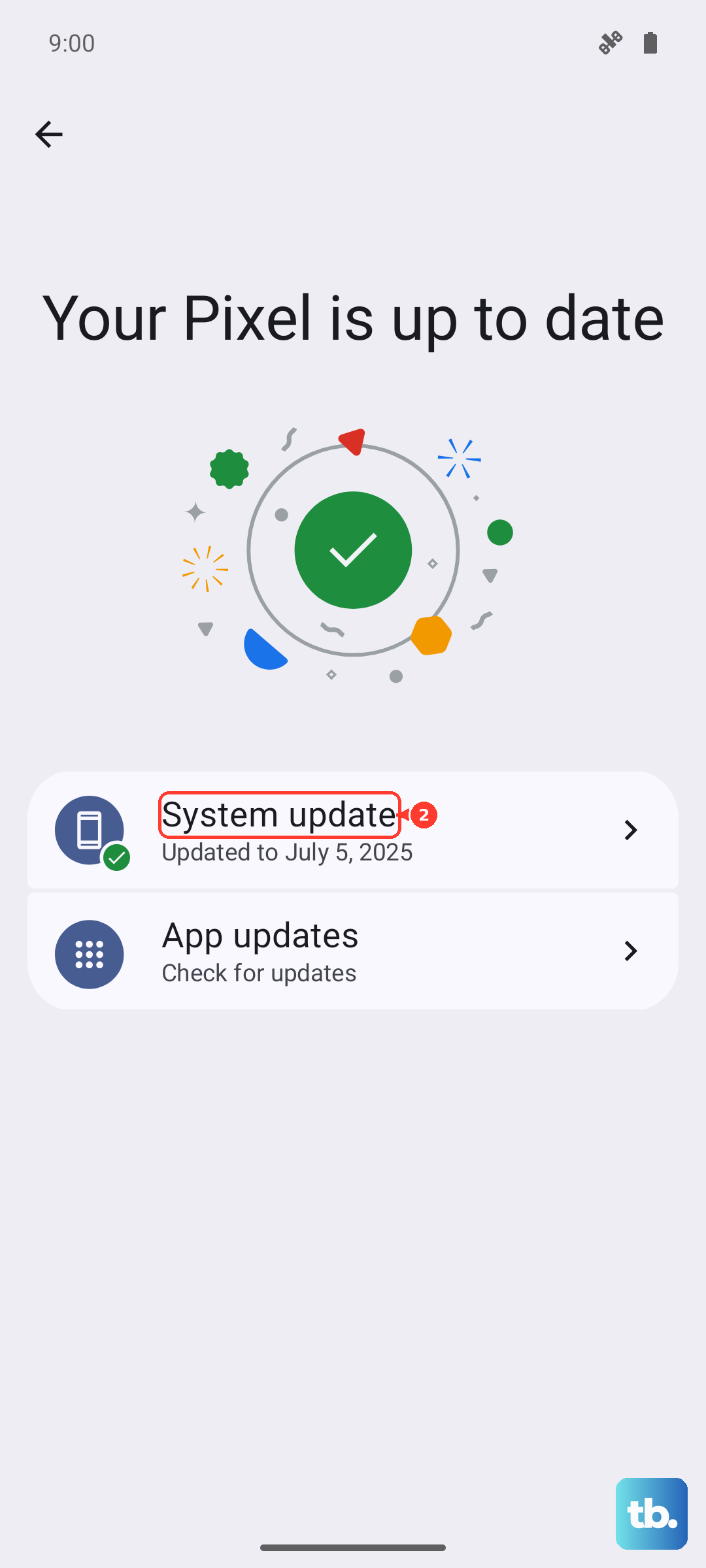
If an update is available, I'd install it. It's a good idea to plug your phone into a charger first, as the process can take a few minutes and uses battery.
Review Your APN Settings
Incorrect Access Point Name (APN) settings from your carrier will break MMS. These settings tell your phone how to connect to your carrier's multimedia service. You can view them by going to Settings > Network & internet > SIMs.
Tap on your active SIM, then Access Point Names. Don't change anything here unless you know the correct values. The best move is to contact your carrier's support or visit their website and search for "APN settings for Pixel." They can provide the exact details you need to enter.
Reset Your Network Settings
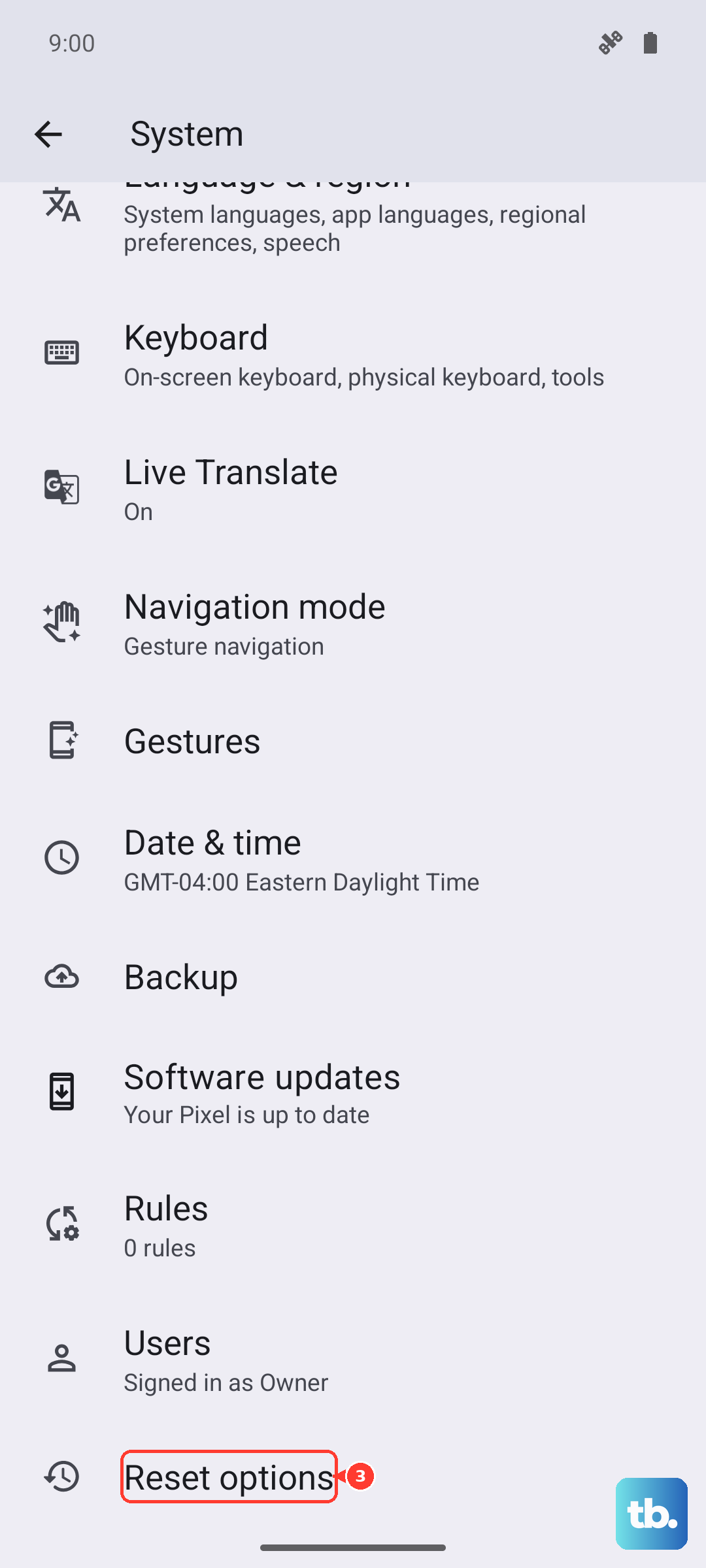
This is a more thorough step that resets all Wi-Fi, mobile data, and Bluetooth connections back to default. It won't delete your personal files, but you will have to reconnect to Wi-Fi networks and re-pair Bluetooth devices.
On your Pixel 9a, go to Settings > System > Reset options. Tap on Reset Wi-Fi, mobile & Bluetooth and confirm. After the phone reboots, test your picture messages again.
Try a Different Messaging App
As a diagnostic step, you can see if the problem is with the Google Messages app itself. Download another popular app like Textra or your carrier's messaging app from the Play Store. Set it as your default, then have a friend send you a test picture.
If the picture downloads in the new app, the issue is likely with Google Messages. You can stick with the new app or try clearing Google Messages data as mentioned earlier before switching back.
If you're still stuck, your final step should be contacting your mobile carrier. There could be a provisioning issue with your line or a temporary outage in your area affecting MMS. They can check your account and network status from their end.











