
If your Google Pixel 10 is starting to feel sluggish, you're not alone. Even a powerful phone running Android 15 can slow down over time as apps pile up and storage fills. The good news is there are several straightforward things you can do to get it running smoothly again without needing a factory reset.
I'd start with a simple restart. It's the quickest fix and clears out any temporary glitches or background processes that might be hogging resources. Just press and hold the Power button and Volume Up button together for about ten seconds until you see the Google logo appear.
Check for Software Updates
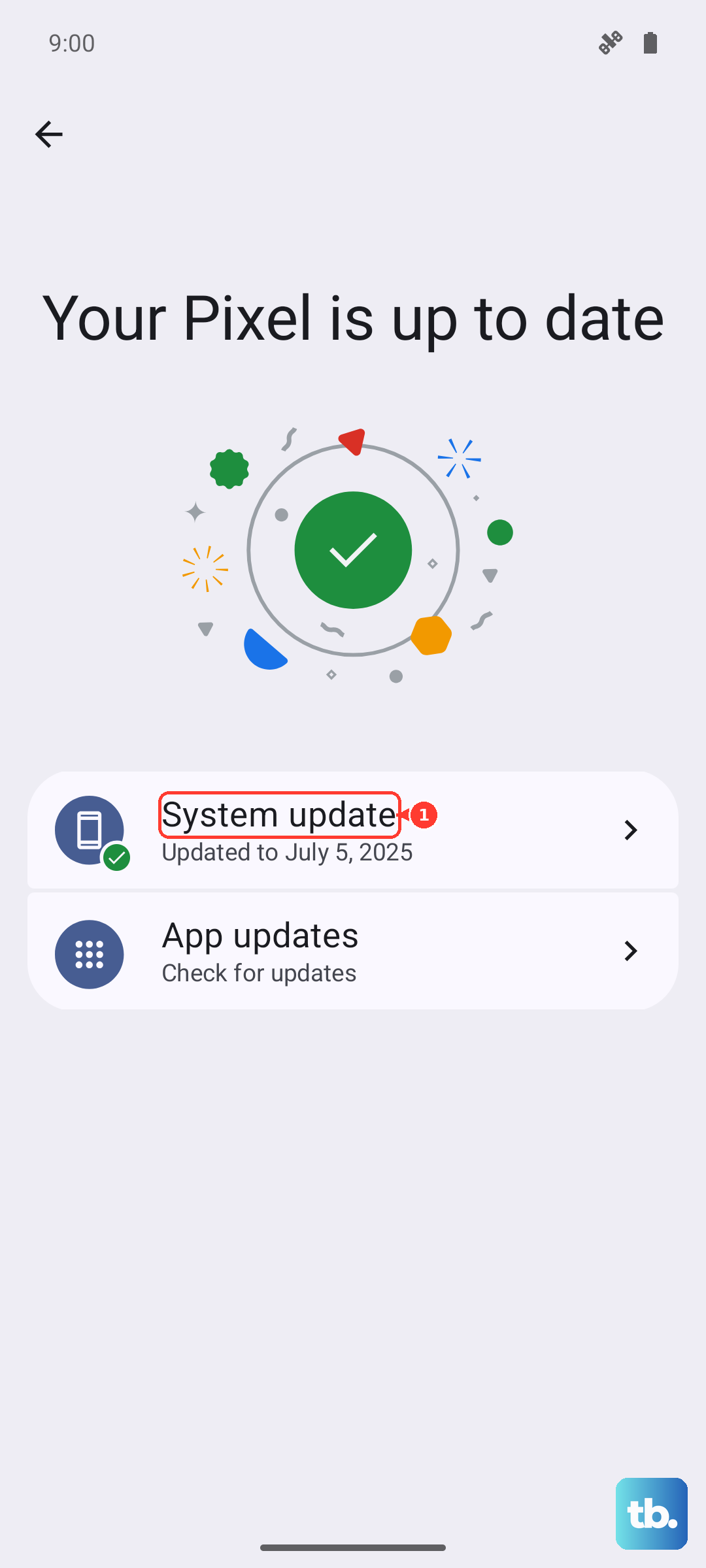
Google is constantly pushing out updates that include performance improvements and bug fixes. Make sure you're running the latest version of Android. Go to Settings > System > System update and tap "Check for update." If an update is available, install it while your phone is plugged into its charger.
Free Up Storage Space
When your internal storage gets too full, everything slows down. Android needs free space to operate efficiently. Head to Settings > Storage to see what's taking up the most room.
You'll likely find that photos, videos, and downloaded files are the main culprits. Use Google Photos to back up your pictures to the cloud and then free up space on the device. Also, look through your Downloads folder and clear out any old files you no longer need.
Manage Your Apps
Too many apps running or updating in the background is a common cause of lag. Start by checking for app updates in the Google Play Store. Outdated apps can have bugs that hurt performance.
Next, review which apps are allowed to run in the background. Go to Settings > Apps, select an app, and tap "Battery." You can change its background restriction setting to "Restricted" for apps that don't need to be constantly active.
Clear App Caches
Over time, apps store temporary data, or cache, that can become corrupted and slow things down. You can clear the cache for individual apps without losing your login info or personal data. Go to Settings > Apps, select the app, then tap "Storage & cache." Finally, tap "Clear cache."
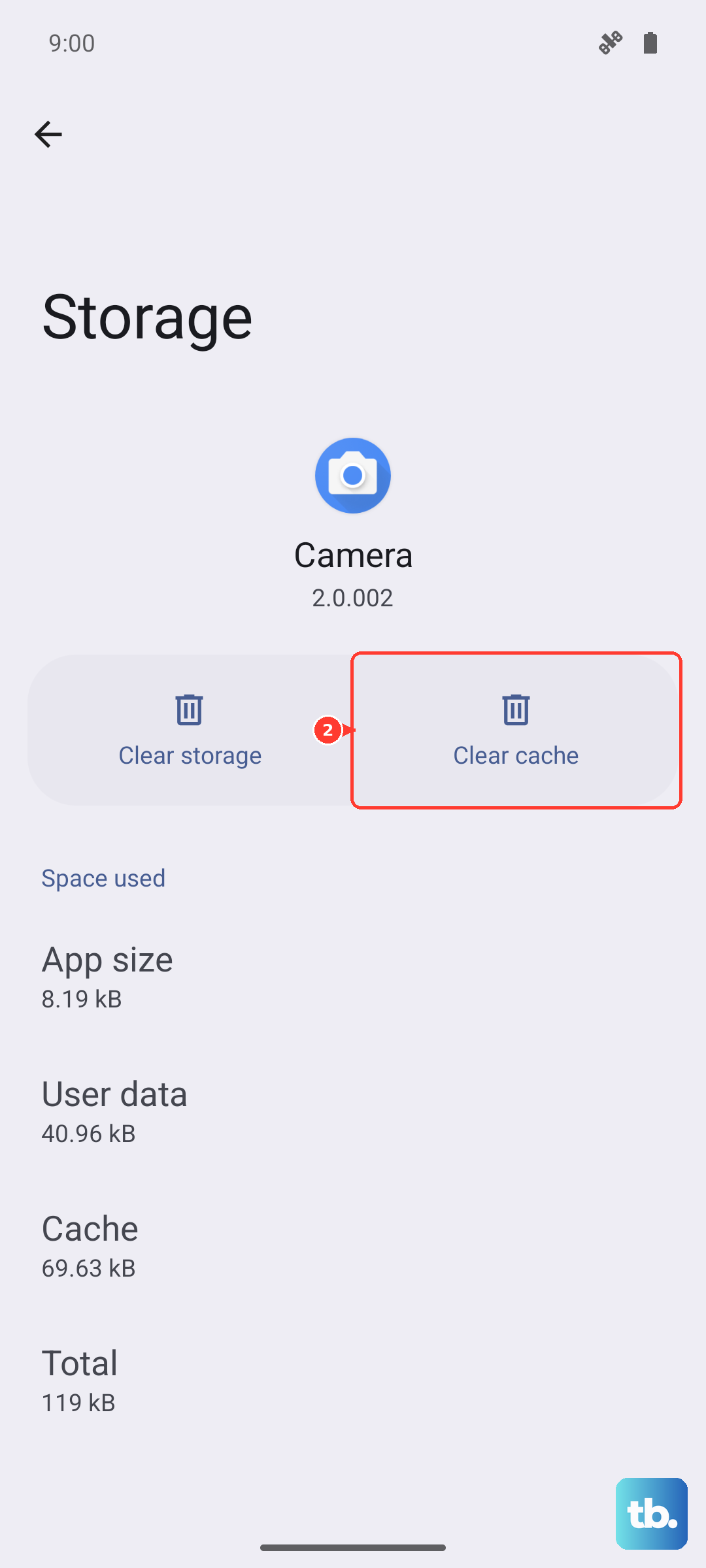
Focus on apps you use frequently, like Chrome, Google Maps, or social media apps. This can free up a surprising amount of space and often resolves minor hiccups.
Review Your Home Screen and Widgets
Live wallpapers and widgets that constantly update can drain your Pixel 10's resources. If you're using an animated wallpaper, try switching to a static one for a while to see if it makes a difference.
Also, take a look at your widgets. Long-press on any widget you don't actively use and drag it to the "Remove" option at the top of the screen. Keeping only essential widgets can help your home screen feel more responsive.
Enable Adaptive Battery
Your Pixel 10 has a smart feature called Adaptive Battery that learns how you use apps and limits battery for ones you rarely open. This can prevent background slowdowns. Make sure it's turned on by going to Settings > Battery > Adaptive preferences and toggling on "Adaptive Battery."
Reduce Animations
The smooth transition animations in Android look great, but they can make an already slow phone feel slower. You can speed up or turn off these animations in the developer options. First, you need to enable Developer Options by going to Settings > About phone and tapping "Build number" seven times.
Then, go back to Settings > System > Developer options. Scroll down to the "Drawing" section and look for "Window animation scale," "Transition animation scale," and "Animator duration scale." Try changing each of these from 1x to .5x to speed them up.
Check for Problematic Apps
Sometimes, one misbehaving app is the root of all your performance problems. Go to Settings > Battery > Battery usage to see which apps have been using the most power recently. An app with unusually high battery usage might also be causing slowdowns.
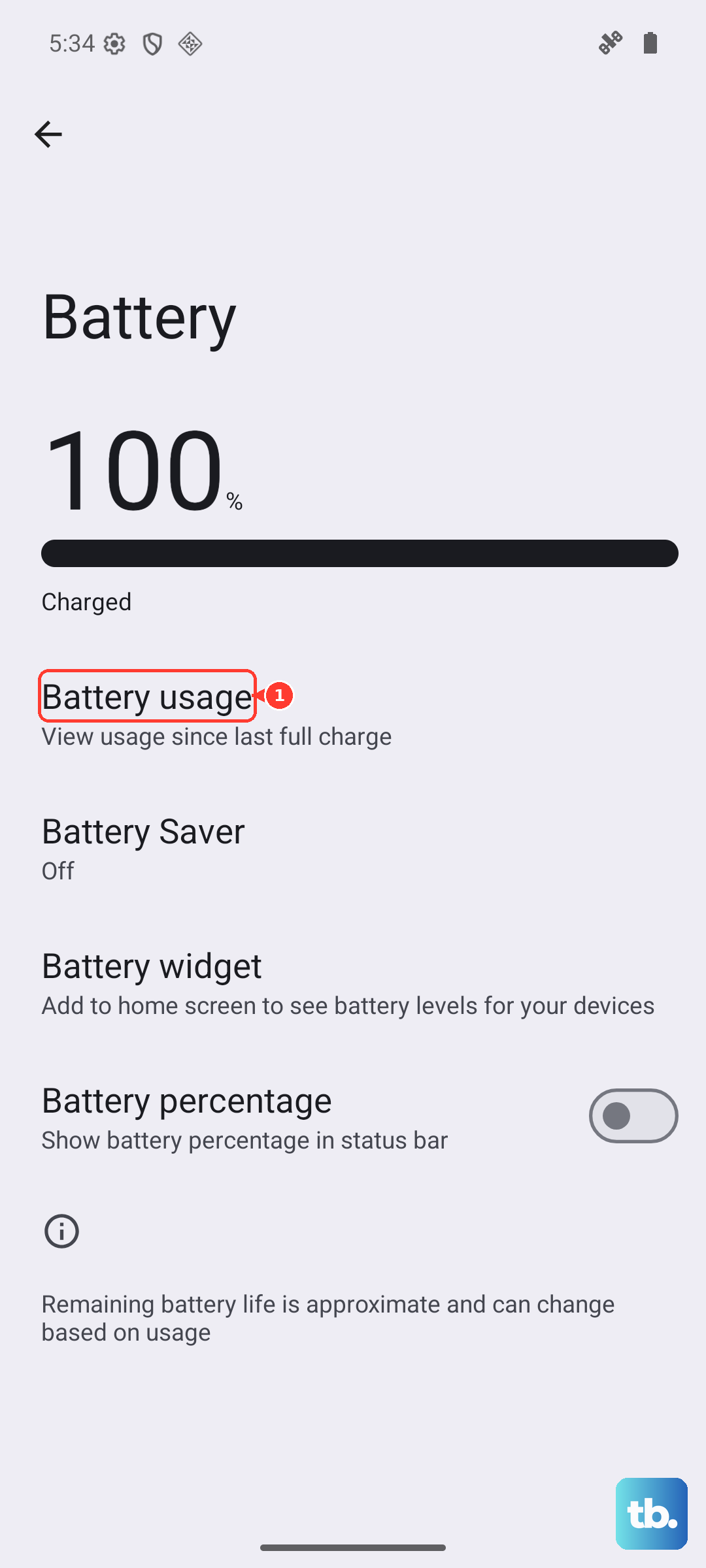
If you spot a suspect, try force stopping it from its app info page or uninstalling it temporarily to see if your phone's performance improves.
Perform a Soft Reset
If your phone is feeling particularly unresponsive, a more thorough reset than a standard restart can help. This doesn't erase any data. Simply press and hold the Power button and Volume Up button together until the power menu appears, then tap and hold the "Restart" option on your screen until you see a confirmation message. This triggers a soft reset that can clear deeper system caches.
Consider a Factory Reset
This is the last resort, but if you've tried everything else and your Pixel 10 is still slow, a factory reset can make it feel like new again. This will erase all your data, so you must back up everything important first. You can initiate it by going to Settings > System > Reset options > Erase all data (factory reset).
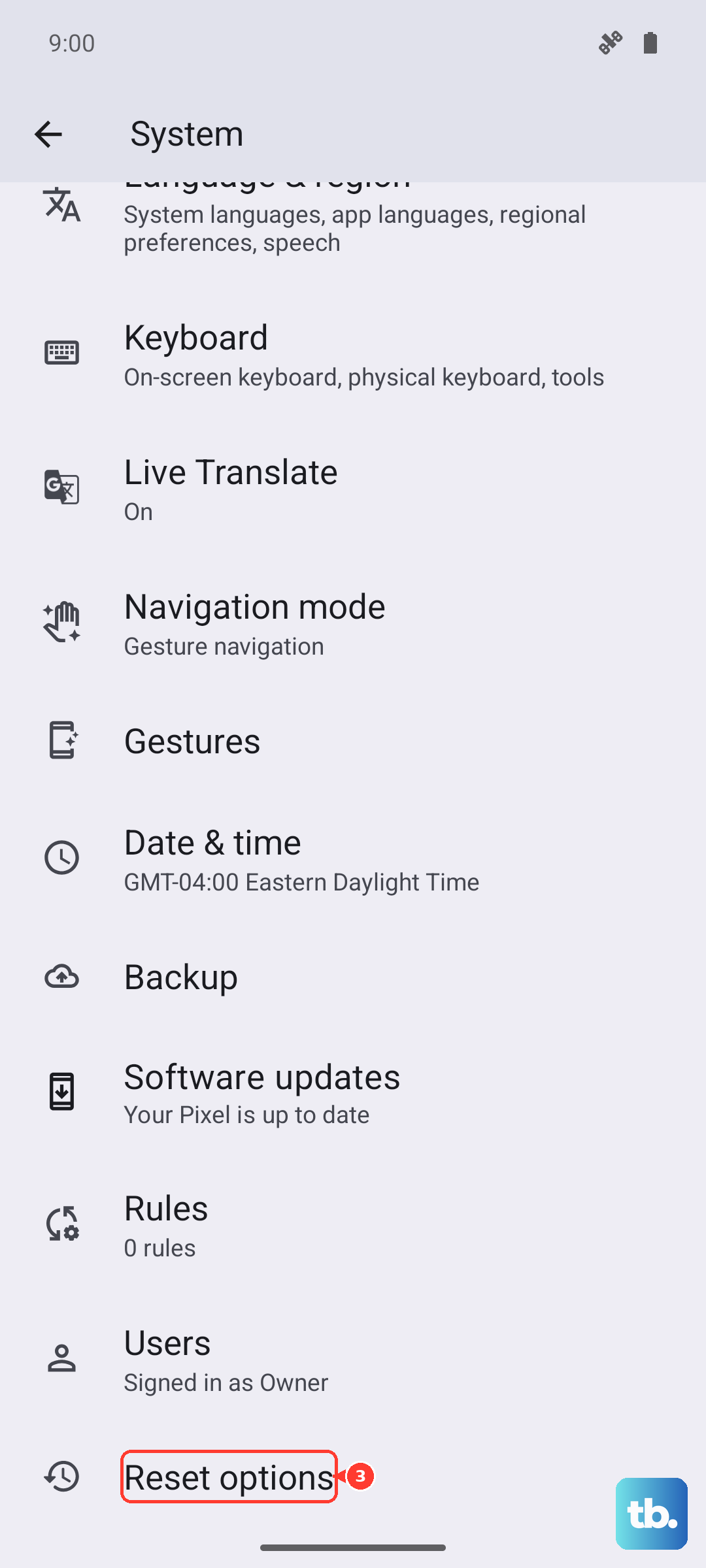
After the reset, you can choose to set up the phone as new instead of restoring from a backup. This ensures you're not bringing back any old software issues that might have been causing the lag.











