If your Google Pixel 9a is running out of juice way too fast, you're not imagining it. The good news is that a few quick checks and settings tweaks can usually get you back to a full day of use. I'd start by looking at what's actually using your power.
Check Battery Usage and Health
Head into your phone's settings to see the full picture. Go to Settings > Battery > Battery usage.

This screen shows you exactly which apps have been draining your battery over the last 24 hours. Look for any apps using a surprisingly high percentage, especially if they're running in the background. This is your first clue.
While you're there, tap on "Battery Health" to see your battery's current capacity. If it's significantly degraded, that's a hardware issue, but on a 2025 phone, it's more likely a software or settings problem.
Manage App Background Activity
Android 15 is pretty good at managing apps, but some can be sneaky. From the Battery usage screen, tap on any app that's using too much power. You'll see an option for "Background restriction".
Tapping "Restrict" will prevent that app from running in the background at all. This is perfect for apps you only use actively, like a shopping app or a game. For essential apps like your messaging service, you might want to leave it alone.
Adjust Your Display Settings
The screen is almost always the biggest battery user. A simple fix is to turn down the brightness. You can do this quickly from the notification shade, or set it to adaptive brightness in Settings > Display.
Also, consider shortening the screen timeout. Go to Settings > Display > Screen timeout and set it to 30 seconds or one minute. This ensures your screen turns off quickly when you're not using it.
Enable Dark theme. It's easier on the eyes and saves power, especially with darker wallpapers. You can find it in Settings > Display > Dark theme.
Control Location Services
Having your location on all the time for dozens of apps is a major drain. Go to Settings > Location. Here, you can turn it off completely, or better yet, review app permissions.
Tap "App location permissions" to see which apps can access your location. For most apps, change the setting to "Allow only while using the app." This stops apps like weather or social media from constantly tracking you in the background.
Update Your Software and Apps
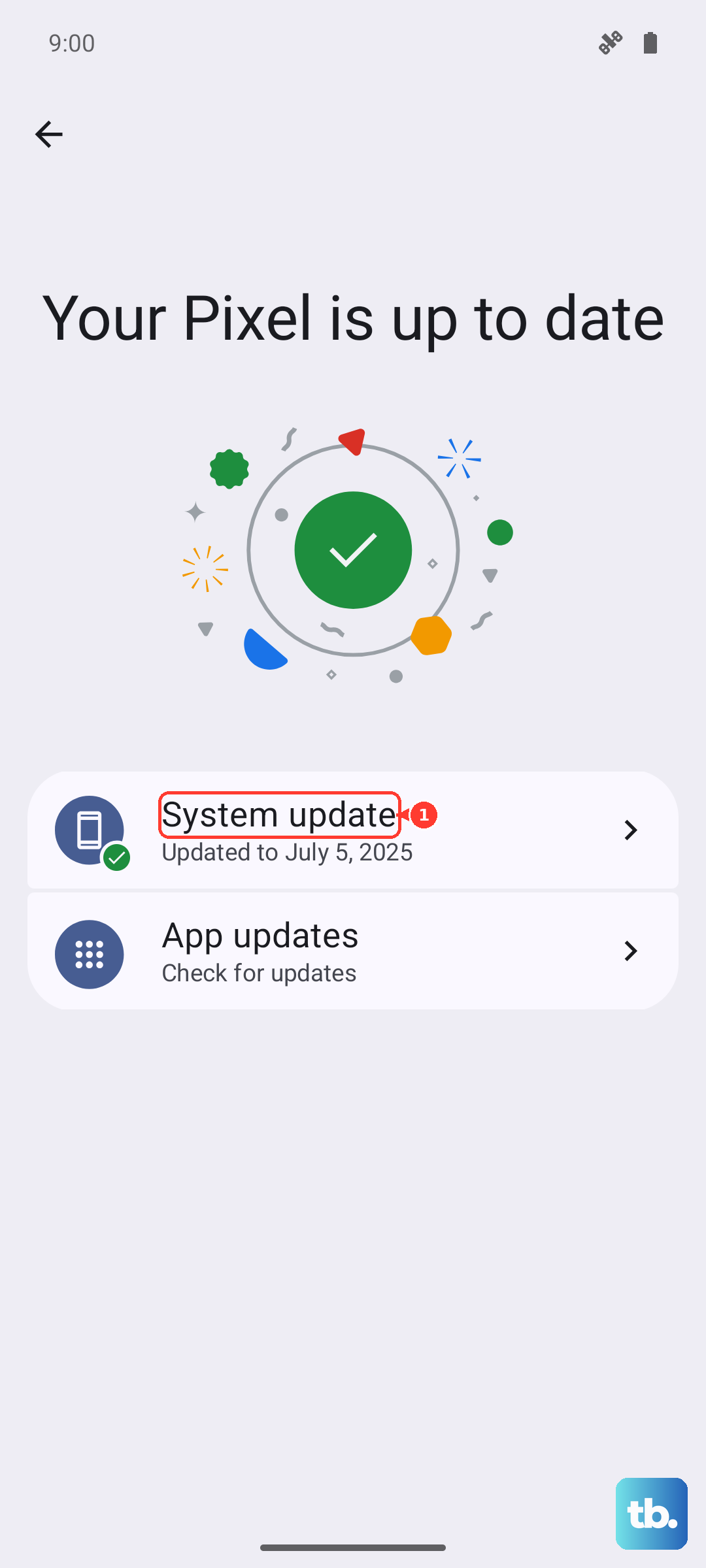
Outdated software can have bugs that hurt battery life. Check for a system update by going to Settings > System > System update.
It's just as important to update your apps. Open the Google Play Store, tap your profile icon, and go to "Manage apps & device." Install any available updates, as developers often release optimizations.
Review Connectivity Settings
Turn off Wi-Fi and Bluetooth when you're not using them. Your phone spends energy searching for networks and devices. You can turn them off easily from the quick settings panel you swipe down from the top of the screen.
If you're in an area with very weak cellular signal, your Pixel 9a's modem has to work harder, which drains the battery faster. In those situations, putting the phone in Airplane mode or using Wi-Fi calling can help.
Use Battery Saver Modes
Your Pixel has powerful tools built right in. Adaptive Battery learns your usage patterns over time and tries to limit battery for apps you don't use often. Make sure it's on in Settings > Battery > Adaptive preferences.
For a quick boost, turn on Battery Saver. It limits background activity, location services, and other features. You can turn it on manually or set it to activate automatically at 15% or 30%.
When you're in a real pinch, use Extreme Battery Saver. It strips things down to just the essentials like calls, messages, and a few chosen apps. This can add many hours of life when your battery is critically low.
Optimize Charging Habits
How you charge matters for long-term health. Use Adaptive Charging. If you plug in at night and have an alarm set, your Pixel 9a will slow charge to 100% just before you wake up, which is better for the battery.
For the fastest charge, use the right gear. The Pixel 9a supports up to 23W wired charging. To hit that max speed, you need a USB-C charger that supports USB Power Delivery (PD) and is rated for 30W or more. Since the Pixel 9a doesn't come with a charger in the box, you'll need to buy a compatible USB-C charger, and third-party ones vary.
Wireless charging is convenient but slower, capped at 7.5W on this model. It's fine for overnight, but for a quick top-up, plugging in is much faster.
Perform a Force Restart
Sometimes a simple software glitch can cause runaway battery drain. If your phone feels warm or the battery percentage is dropping while you're not using it, try a force restart.
Just press and hold the Power button for about 30 seconds. Keep holding it until you see the Google logo appear on the screen. This clears the phone's memory and can stop any misbehaving processes.
Reset All Settings
If you've tried everything and the drain persists, a settings reset can help. This won't delete your photos, apps, or personal data. It just resets all your system settings like Wi-Fi passwords, Bluetooth pairings, and display preferences back to default.
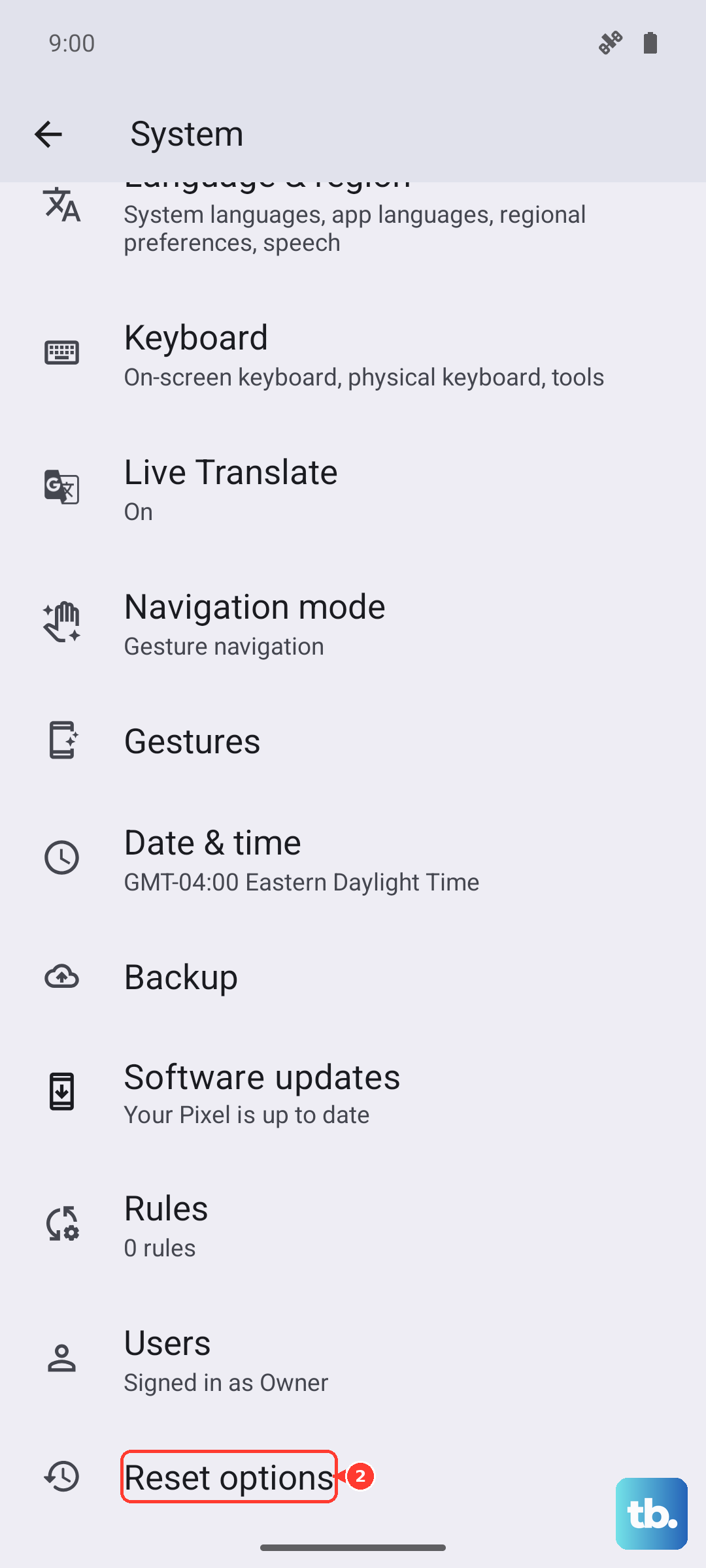
Go to Settings > System > Reset options. Then, tap "Reset all settings" and confirm. After the phone reboots, you'll need to reconfigure your preferences, but it often resolves deep-seated software conflicts.