When your Pixel 9a's keyboard freezes up or lags behind your taps, it can make texting or searching feel impossible. This is usually a software hiccup, and there are several straightforward ways to get it responding smoothly again.
Force Stop and Restart Gboard
This is the quickest fix and often solves the problem in seconds. It clears any temporary glitch in the keyboard app, which is typically Gboard on your Pixel.
Open Settings and go to Apps > See all apps. Find and tap on Gboard in the list. On the app info page, tap Force stop and confirm. Then, just open any app where you type to test it.
Restart Your Pixel 9a
A full phone reboot clears the system's working memory and can resolve conflicts that cause the keyboard to stutter. Just press and hold the Power button, then tap Restart on the screen.
If the screen is completely unresponsive, you can force a restart. Press and hold the Power button for about 30 seconds until you feel the phone vibrate and see the Google logo appear.
Clear the Keyboard App's Cache
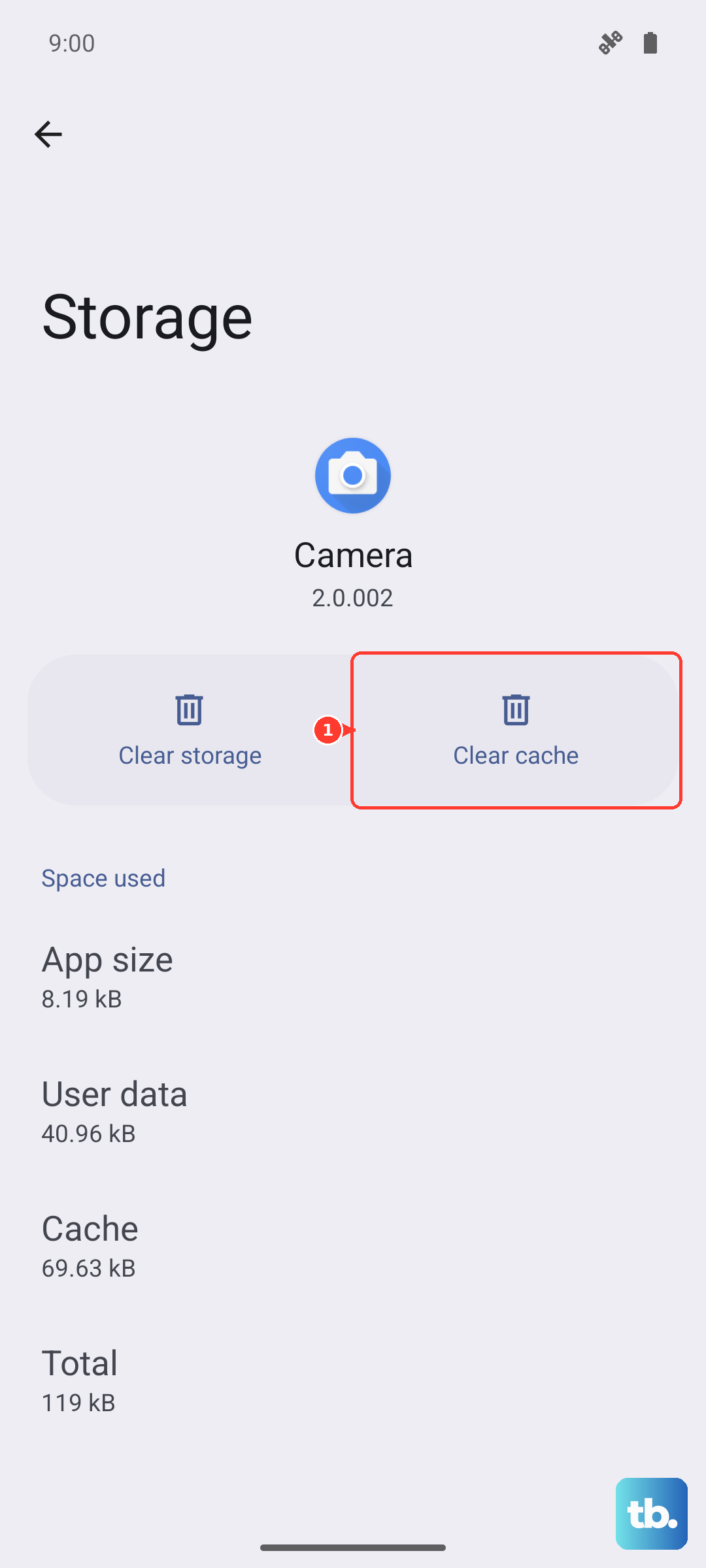
Corrupted temporary files in the app's cache can lead to performance issues. Clearing this cache won't delete your personal dictionary or saved texts.
Go back to Settings > Apps > Gboard. Tap Storage & cache, then hit Clear cache. After doing this, test the keyboard to see if the lag is gone.
Update Gboard and Android
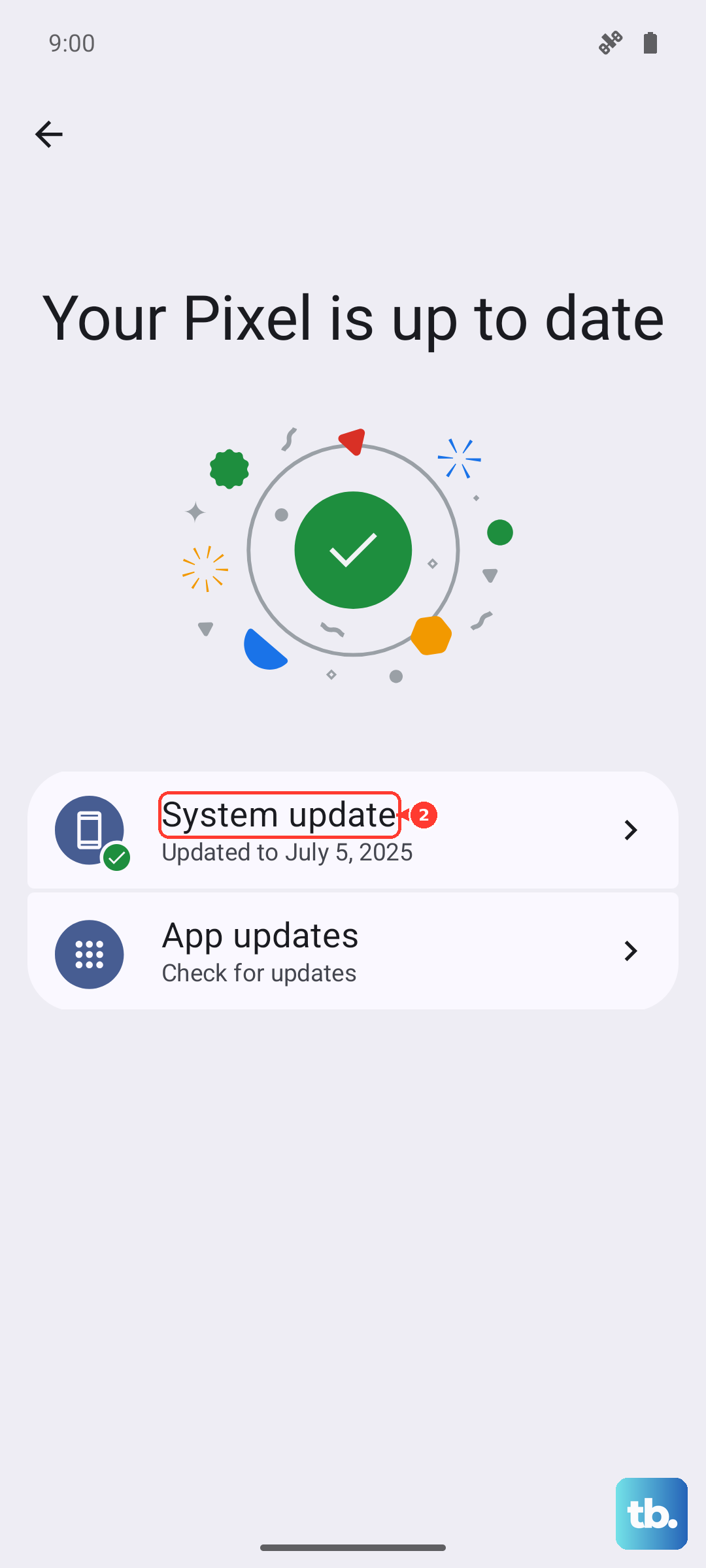
An outdated app or operating system can have bugs that affect typing. It's a good idea to check for updates for both.
Open the Google Play Store, tap your profile icon, and go to Manage apps & device. Under "Updates available," see if Gboard is listed. For system updates, go to Settings > System > System update to check for the latest Android 15 patches.
Check for Problematic Apps in Safe Mode
If the keyboard works fine in Safe Mode, a third-party app you installed is likely interfering. Booting into Safe Mode temporarily disables all downloaded apps.
Press and hold the Power button and Volume Up button together until the power menu appears. Then, touch and hold the Restart option on your screen. Your phone will reboot into Safe Mode, which will be indicated in the bottom corner. Test your keyboard here. If it works, restart normally and try uninstalling recent apps one by one to find the culprit.
Reset Gboard's Settings
If a custom setting is causing conflict, resetting the keyboard to its defaults can help. Note that this will erase your personalized dictionary, themes, and any custom text shortcuts.
Navigate to Settings > System > Languages & input > On-screen keyboard. Tap Gboard, then scroll down and select Advanced. At the bottom, you'll find the option to Delete learned words and data or reset settings, which will wipe its memory and preferences.
Try a Different Keyboard App
Sometimes, the simplest workaround is to switch keyboards entirely. This can immediately tell you if the problem is with Gboard specifically or a deeper system issue.
Head to the Play Store and install an alternative like Microsoft SwiftKey or OpenBoard. After installing, go to Settings > System > Languages & input > On-screen keyboard and enable your new keyboard. You can then switch between them by tapping the keyboard icon in your navigation bar.
Check Device Performance and Storage
General system slowdowns can manifest as keyboard lag. If your Pixel 9a's storage is nearly full or an app is consuming excessive resources in the background, it can affect everything.
Take a look at your available storage in Settings > Storage. If it's critically low, try freeing up some space. Also, consider enabling Extreme Battery Saver for a short time if your battery is very low, as this aggressively limits background activity and might smooth things out temporarily.
Reset App Preferences or All Settings
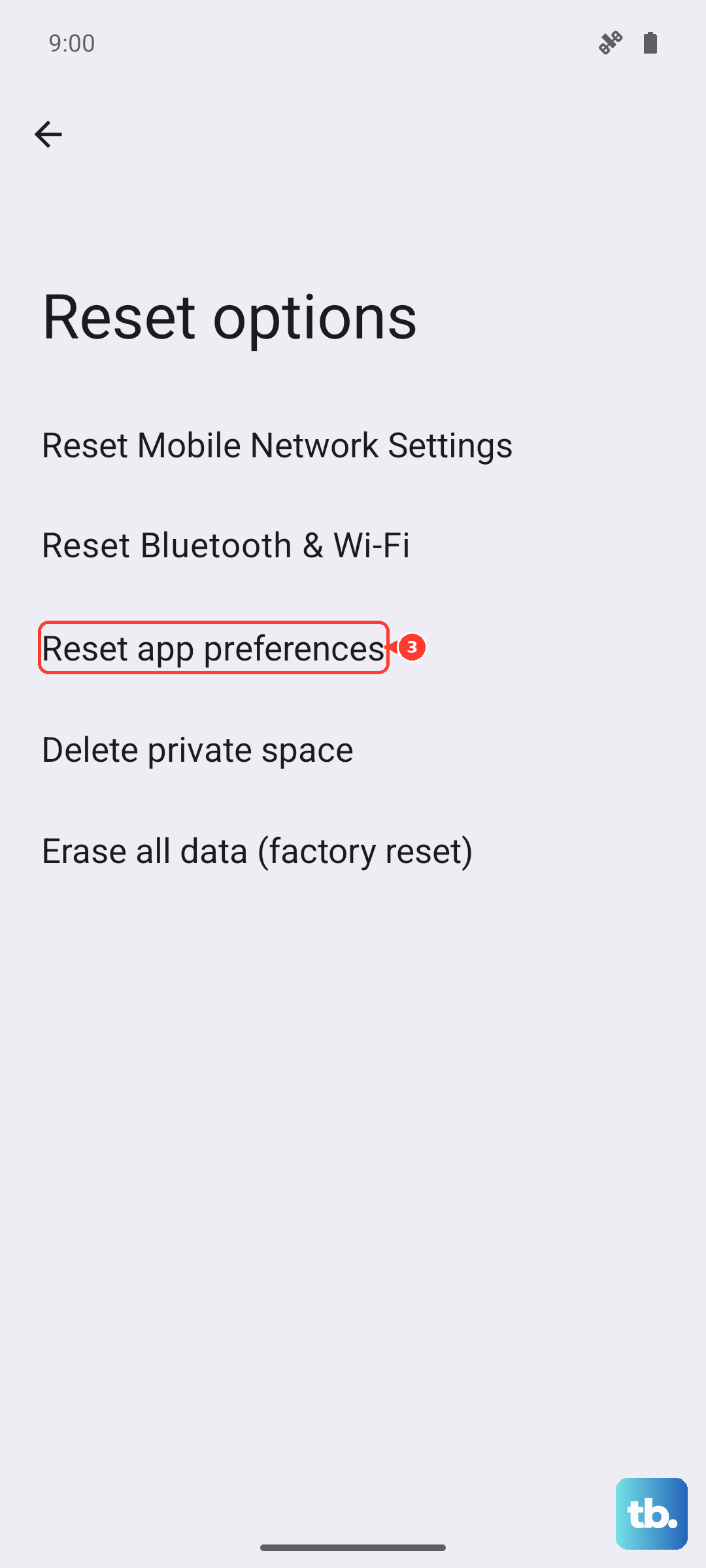
This is a broader step that resets system settings related to notifications, default apps, and background restrictions without deleting your personal data. It can clear up misconfigured permissions that might be hindering the keyboard.
Go to Settings > System > Reset options. Tap Reset app preferences. If the issue persists, you can go back to the same menu and choose Reset all settings. This will revert Wi-Fi, Bluetooth, and display settings to factory defaults, so you'll need to set those up again.