If your Google Pixel 9 Pro's battery is draining faster than you'd expect, you're not alone. It's a common issue, especially with a phone that packs so much power into a slim design. The good news is there are several straightforward settings you can adjust to get your battery life back on track.
Check What's Draining Your Battery
Before you start changing settings, it's smart to see what's actually using your power. Head to Settings > Battery > Battery usage. This screen shows you exactly which apps and services have been consuming battery over the last 24 hours.
Look for any app using a surprisingly high percentage. Social media apps, games, and navigation apps are often the biggest culprits. If you see "Mobile network standby" using a lot, that could point to the Tensor G4 modem working harder in a weak signal area, which is a known battery drain.
Adjust Your Display Settings
The screen is one of the biggest battery users on any phone. On your Pixel 9 Pro, you can make a few key adjustments. First, consider lowering the brightness. You can do this quickly from the notification shade, or set it in Settings > Display.
Next, enable Dark theme. Since the Pixel 9 Pro has an OLED screen, using dark backgrounds means the individual pixels turn off, saving a significant amount of power. You can turn it on in Settings > Display > Dark theme.
Also, reduce your screen timeout. A shorter time before the screen sleeps saves power. Go to Settings > Display > Screen timeout (on Pixel phones, Settings > Display & touch > Screen timeout) and set it to 30 seconds or 1 minute.
Manage App Background Activity
Many apps run in the background, updating content and checking for notifications. This constant activity is a major drain. You can restrict this for most apps. Go to Settings > Apps, select a power-hungry app, then tap Battery and choose Restricted.
This tells the app it can't run background tasks, which will save battery. Be aware you might not get notifications from that app until you open it again. It's a great setting for apps you don't need instant updates from.
Control Location Services
Having your location on all the time allows apps to provide relevant info, but it also makes your phone work harder. You can manage this in Settings > Location. Tap App location permissions to review which apps can access your location.
For most apps, you can set the permission to "Allow only while using the app." This prevents them from tracking your location in the background. Also, consider turning off Wi-Fi scanning and Bluetooth scanning at the bottom of the Location settings page.
Update Your Software and Apps
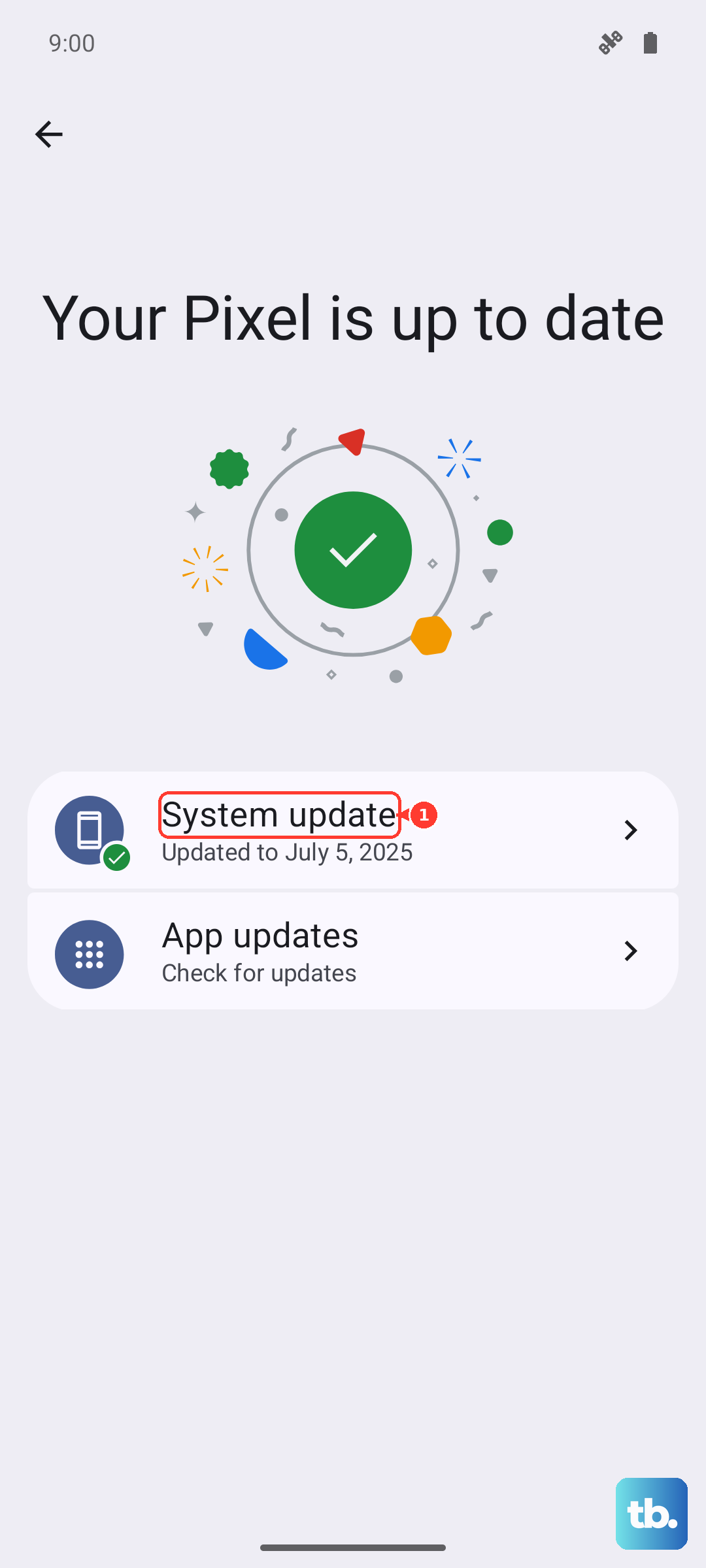
Google frequently releases updates that include battery life optimizations. Make sure your Pixel is running the latest version of Android. Check by going to Settings > System > System update.
Outdated apps can also be inefficient and drain battery. Open the Google Play Store, tap your profile icon, and go to Manage apps & device. Under "Updates available," you can update all your apps at once.
Use Adaptive Features
Your Pixel 9 Pro has smart features designed to help. Adaptive Battery learns your app usage patterns over time and limits battery for apps you don't use often. Make sure it's on in Settings > Battery > Adaptive preferences.
For overnight charging, enable Adaptive Charging. This slows down charging as you sleep, aiming to hit 100% just before you wake up. It's better for long-term battery health. You can find it in the same Battery settings menu.
Be Mindful of Camera and AI Features
The Pixel's camera and AI tools are incredible, but they use a lot of processing power. Extended photo and video sessions, especially using 4K recording or lots of Magic Eraser edits in Google Photos, can warm up the phone and drain the battery quickly.
I'd recommend doing heavy editing sessions while plugged in if possible. It's a trade-off for having those powerful features right on your device.
Check Your Network Connections
If you're in an area with a weak cellular signal, your phone will boost its radio power to stay connected, which drains the battery fast. When you can, switch to Wi-Fi. Also, turn off Bluetooth and NFC if you aren't using them.
You can find quick toggles for these in the notification shade. Simply swipe down from the top of the screen twice to see the full grid of icons.
Try a Force Restart
Sometimes, a background process or app gets stuck and causes excessive battery drain. A simple force restart can clear this out. Press and hold the Power button on the side of your Pixel 9 Pro for about 30 seconds, until you see the Google logo appear and the phone restarts.
This doesn't delete any data. It's just a deeper reboot that can resolve temporary software glitches affecting battery life.
Review Your Widgets and Always-On Display
Widgets that update frequently, like weather or news widgets, can pull data in the background. Consider removing any you don't actively use by long-pressing on them on your home screen and tapping "Remove."
The Always-On Display is useful but does use some power. If you need to squeeze out every last percent, you can turn it off in Settings > Display > Lock screen > Always show time and info.
Reset All Settings
If you've tried everything and the drain persists, a settings reset can help. This will revert all your system settings (like Wi-Fi passwords, Bluetooth pairings, and display preferences) back to default without touching your personal data like photos or messages.
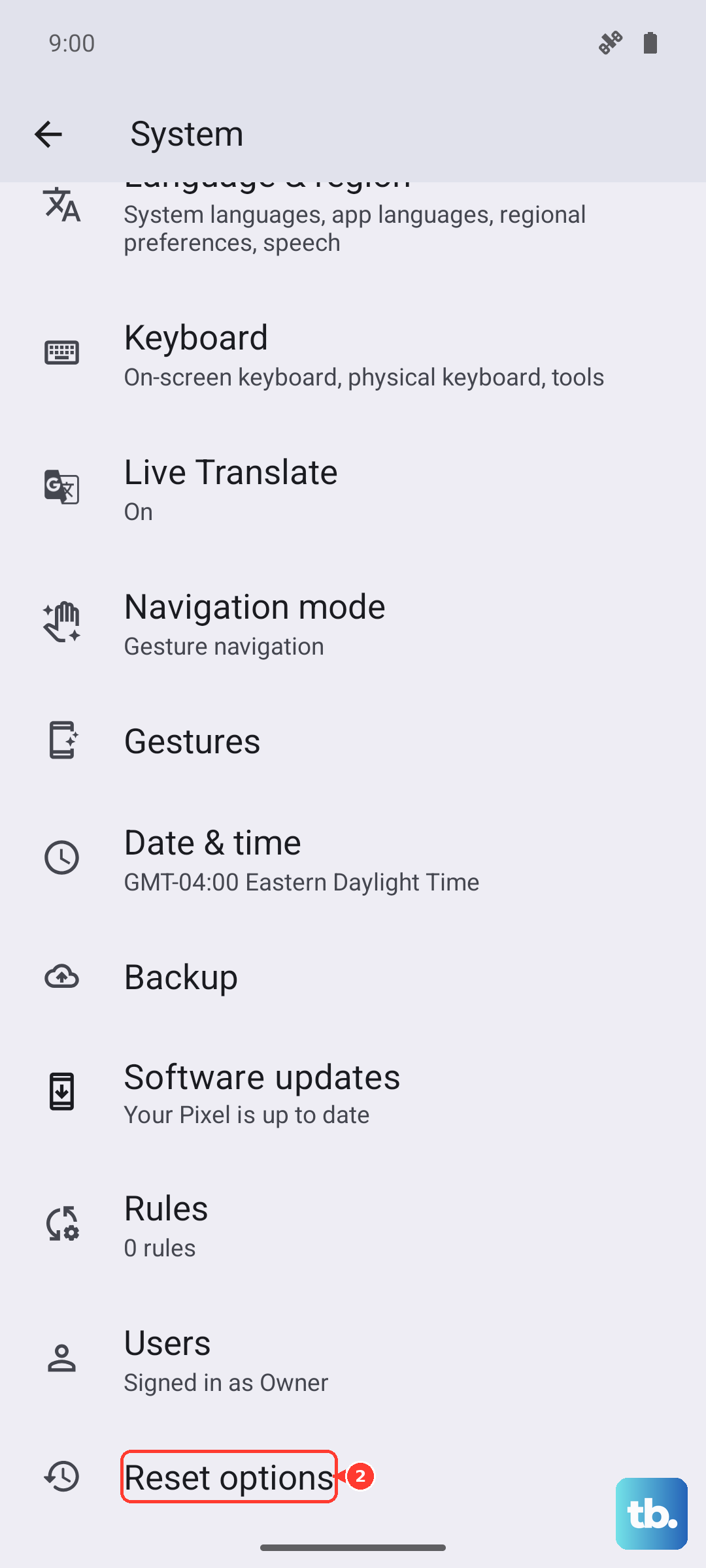
Go to Settings > System > Reset options and tap Reset all settings. You'll have to set up your preferences again, but it can eliminate a problematic setting that's hard to track down.