
Your Samsung Galaxy Tab S11 Ultra's battery degrades over time, and knowing its health helps you decide whether to adjust your charging habits or seek a replacement. Samsung includes built-in tools to check battery status and optimize charging. Here's how to use them on your tablet.
Check Battery Health in Device Care
Go to Settings > Battery and device care > Battery on your Tab S11 Ultra. Look for a battery health indicator. On Android 16 with One UI 8, Samsung shows a label like "Normal," "Weak," or "Needs replacement." It doesn't display an exact percentage like Apple does, but it gives you a clear status.
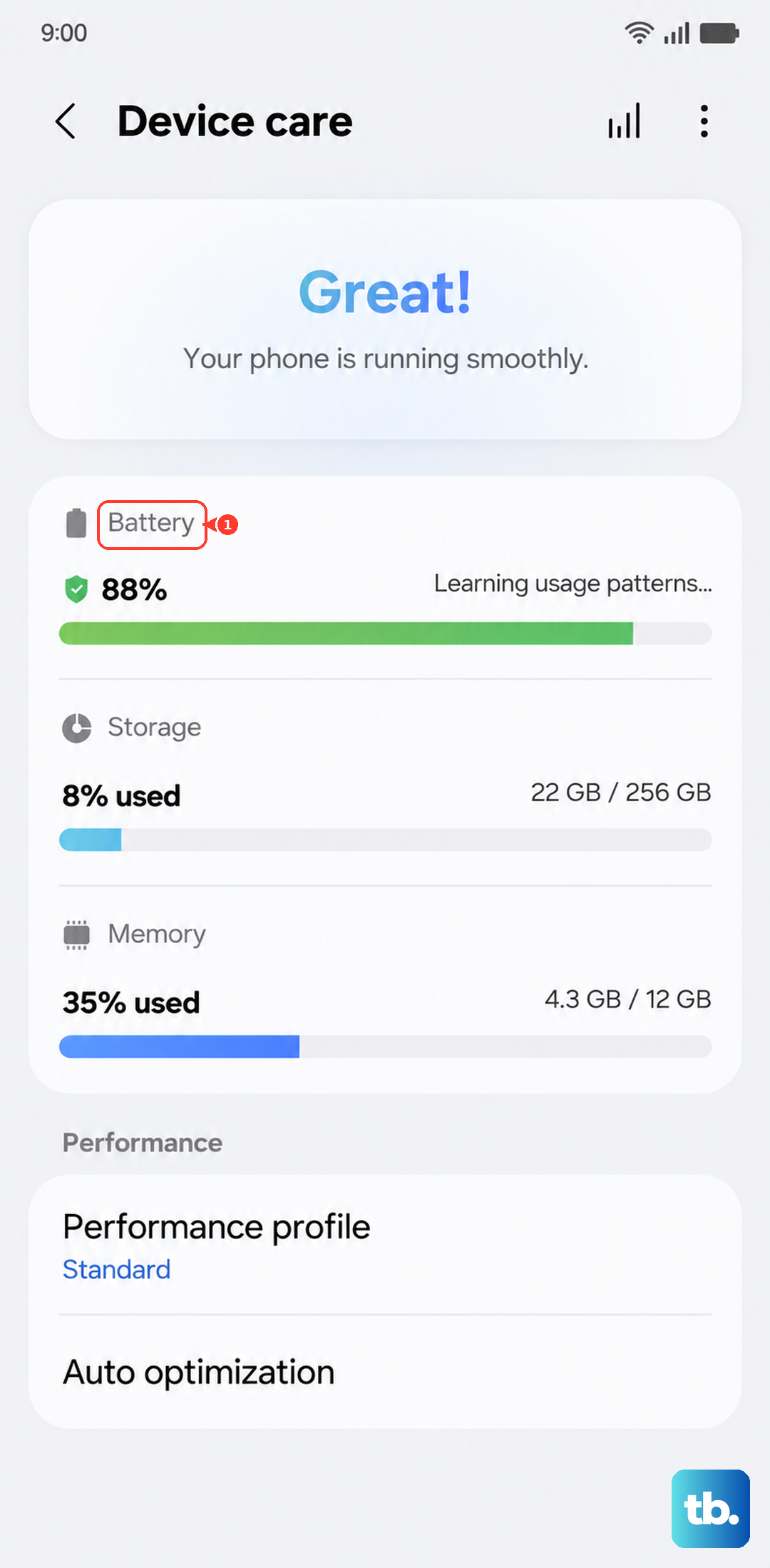
While the battery is still fairly new, you should see "Normal." If you've had the tablet for over a year and notice faster drain, this screen will tell you if the battery has degraded noticeably.
Check Battery Health with Samsung Members
Open the Samsung Members app (pre-installed on your tablet). Tap Get help (or Support), then tap Interactive checks or Phone diagnostics (don't worry about the "phone" label, it works on tablets too).
Select Battery to run a diagnostic test. This gives you more detailed information about your battery's health status, including whether it's holding charge properly. The test takes about a minute and reports any detected issues.
Check Battery Usage by App
Go to Settings > Battery and device care > Battery and tap Battery usage (or scroll down). You'll see which apps consumed the most battery since the last full charge. Tap any app to see screen time versus background usage.
If an app you rarely use shows high battery consumption, it might be running excessively in the background. You can tap Background usage limits to put that app to sleep when you're not using it.
Enable Battery Protection
Go to Settings > Battery and device care > Battery > More battery settings and look for Battery protection. Toggle it on and choose between Maximum (caps at 80%), Adaptive (learns your schedule, charges to 100% right before you unplug), and Basic (caps at 85%).
On the Tab S11 Ultra, I'd recommend Adaptive battery protection. It limits wear during long charging sessions while still giving you full capacity when you need it. This significantly extends the battery's lifespan over time.
Fix Charging Issues After Full Drain
The Tab S11 Ultra has a known quirk: if the battery drains completely while the tablet is off, the charging indicator may take up to 10 minutes to appear. Don't panic if you plug it in and see nothing at first. Leave it connected to the charger for at least 15 minutes.
If it still doesn't respond, try a force restart. Press and hold the Power button and Volume Down button simultaneously for 10-15 seconds until the device restarts. This can wake up a deeply discharged battery and kick-start charging.
Another known issue is a faulty charging port causing intermittent charging. Make sure the USB-C port is clean and free of lint or debris. Use a wall outlet directly, not a power strip or extension cord, as voltage drops can confuse the charging circuitry.
Use the Right Charger and Cable
The Tab S11 Ultra supports up to 45W wired charging via USB-C. For the fastest and safest charging, use Samsung's 45W travel adapter (or a certified USB-PD alternative). Cheap cables often cause slow or unreliable charging, which can make you think your battery is failing when it's just a connection issue.
Wireless charging works at up to 15W with a Qi-compatible pad. If you use wireless charging, make sure the pad supports fast Qi charging and that the tablet is centered on the charger. Heat from wireless charging can accelerate battery degradation, so avoid using a thick case that traps heat.
Optimize Battery Settings
Go to Settings > Battery and device care > Battery and enable Power saving or Adaptive battery. Adaptive battery learns your usage patterns and limits battery for apps you rarely use. You can also tap Background usage limits to put specific apps to sleep.
For a large screen like the Tab S11 Ultra, reducing screen brightness and turning off always-on display (if enabled) can have a noticeable impact on daily battery life. But for long-term health, battery protection and avoiding extreme temperatures matter most.
Avoid Deep Discharges
Lithium-ion batteries last longest when kept between 20% and 80% charge. The Tab S11 Ultra's battery protection features help with this, but you should also avoid frequently draining the tablet to 0%. If you know you won't use it for a few days, leave it at around 50% charge and store it in a cool place.
If your tablet shuts down unexpectedly at 20% or 30%, that's a clear sign of battery degradation. Check the health status in Samsung Members. If it reports "Weak," consider an official battery replacement through Samsung's service centers. You'll get a fresh battery and renewed charging performance.