
Keeping an eye on your Samsung Galaxy S26 Ultra's battery status is a smart way to understand its performance and longevity. The phone has several built-in tools, from simple usage stats to detailed diagnostics, that give you a clear picture of what's happening under the hood.
Check Battery Health in Device Care
Start by opening your Settings and going to Battery and device care > Battery. On your S26 Ultra running One UI 8.5, you'll find a battery health indicator here. Samsung typically doesn't give a precise percentage like some brands, but it will clearly state if your battery condition is "Normal" or if it's degraded and may need service.
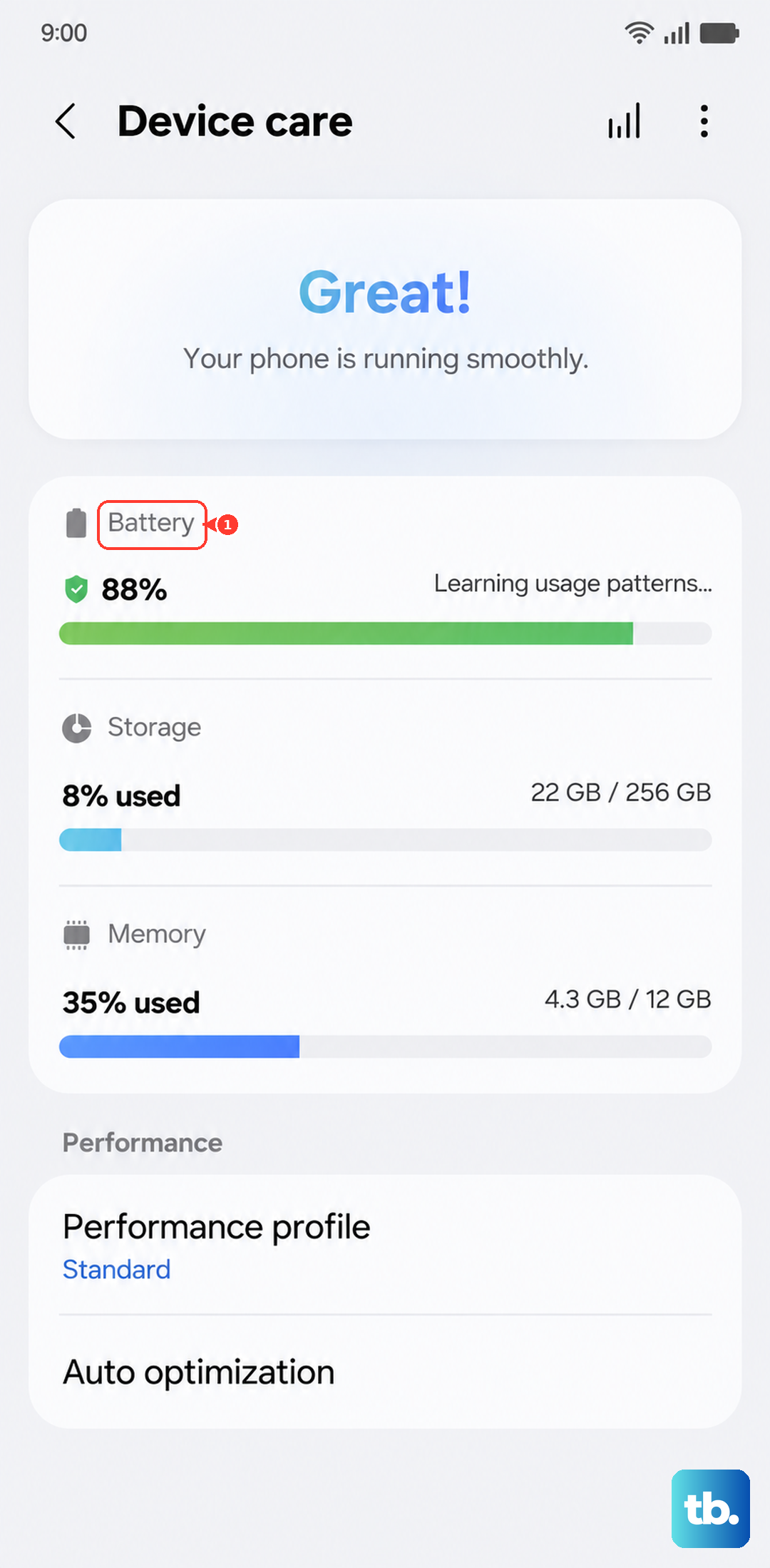
This is the quickest official way to get a basic health check. I'd start here for a general status update before diving into more detailed diagnostics.
Run a Detailed Diagnostic with Samsung Members
For a more thorough check, open the pre-installed Samsung Members app. Tap on Get help and then select Interactive checks or Diagnostics. Choose the Battery test from the list.
The app will run a quick diagnostic and provide a report on your battery's status. This method often gives you more actionable feedback than the basic settings menu and can help identify early issues, which is useful on a brand-new device like the S26 Ultra where early software bugs can sometimes affect reporting.
See Exactly Which Apps Are Draining Power
To see what's using your battery right now, go back to Settings > Battery and device care > Battery. Tap on Battery usage. You'll see a detailed breakdown of power consumption since your last full charge, listed by app.
Tap on any app to see how much battery was used while the screen was on versus in the background. If you spot a rarely used app with high background activity, you can put it to sleep directly from this menu to save power.
Use the Hidden Battery Status Menu
You can access deeper technical data with a diagnostic code. Open your Phone app and dial *#0228#. This brings up a hidden menu showing real-time data like battery voltage, temperature, and signal strength.
While it won't spell out "health percentage," a consistently low voltage reading under load can be a sign of a worn-out battery. It's a more advanced tool, but it offers a raw look at the battery's current state.
Configure Battery Protection for Longevity
Your Galaxy S26 Ultra has a feature designed to extend battery lifespan. Go to Settings > Battery and device care > Battery > More battery settings. Here you'll find Battery protection.
By default, it's often set to limit charging to 85% to reduce wear on the cells. You can toggle this off for a full charge when needed, or explore other modes like Adaptive which learns your routine. Using this protection is one of the best habits for long-term battery health.
Optimize with Adaptive Battery and Power Saving
In the same Battery settings menu, look for Adaptive battery and make sure it's enabled. This uses the S26 Ultra's AI to learn your app usage patterns and restrict battery for apps you don't use often.
You can also enable Power saving modes here, which limit background activity and performance. For maximum savings, there's even an Extreme power saving mode that strips the interface down to just essential apps.
Recognizing When a Battery Needs Service
If your phone starts shutting down unexpectedly at 20% charge, struggles to last a half-day with normal use, or you notice the back cover is bulging or the frame is separating, the battery likely needs replacement. These are clear physical signs of a failing battery.
For the S26 Ultra, an official battery replacement through Samsung or an authorized service center is the best course of action to maintain water resistance and overall device integrity.
Daily Habits to Keep Your Battery Healthy
To preserve your S26 Ultra's battery, try to avoid extreme heat. Don't leave it on a dashboard in direct sun or charge it under a pillow. For the fastest and safest charging, use a Samsung 60W Super Fast Charging 3.0 compatible charger, as the phone no longer comes with one in the box.
Also, make a habit of keeping the S Pen slot clean. Debris trapped there can sometimes migrate to the nearby USB-C port, potentially interfering with charging. A quick blast of compressed air around the slot every so often can prevent this.