
Your Samsung Galaxy S25+ battery is a consumable part, and its capacity naturally decreases with every charge cycle. Knowing its current health helps you understand your phone's performance and plan for a replacement if needed. While Samsung doesn't provide a single public percentage like some brands, there are several built-in methods to get a clear picture of your battery's status.
Find Battery Status in Device Care
Start by opening your Settings and navigating to Battery and device care > Battery. This is your main hub for all battery-related information. On the S25+ running One UI 7, you'll find key details about your battery's condition here.
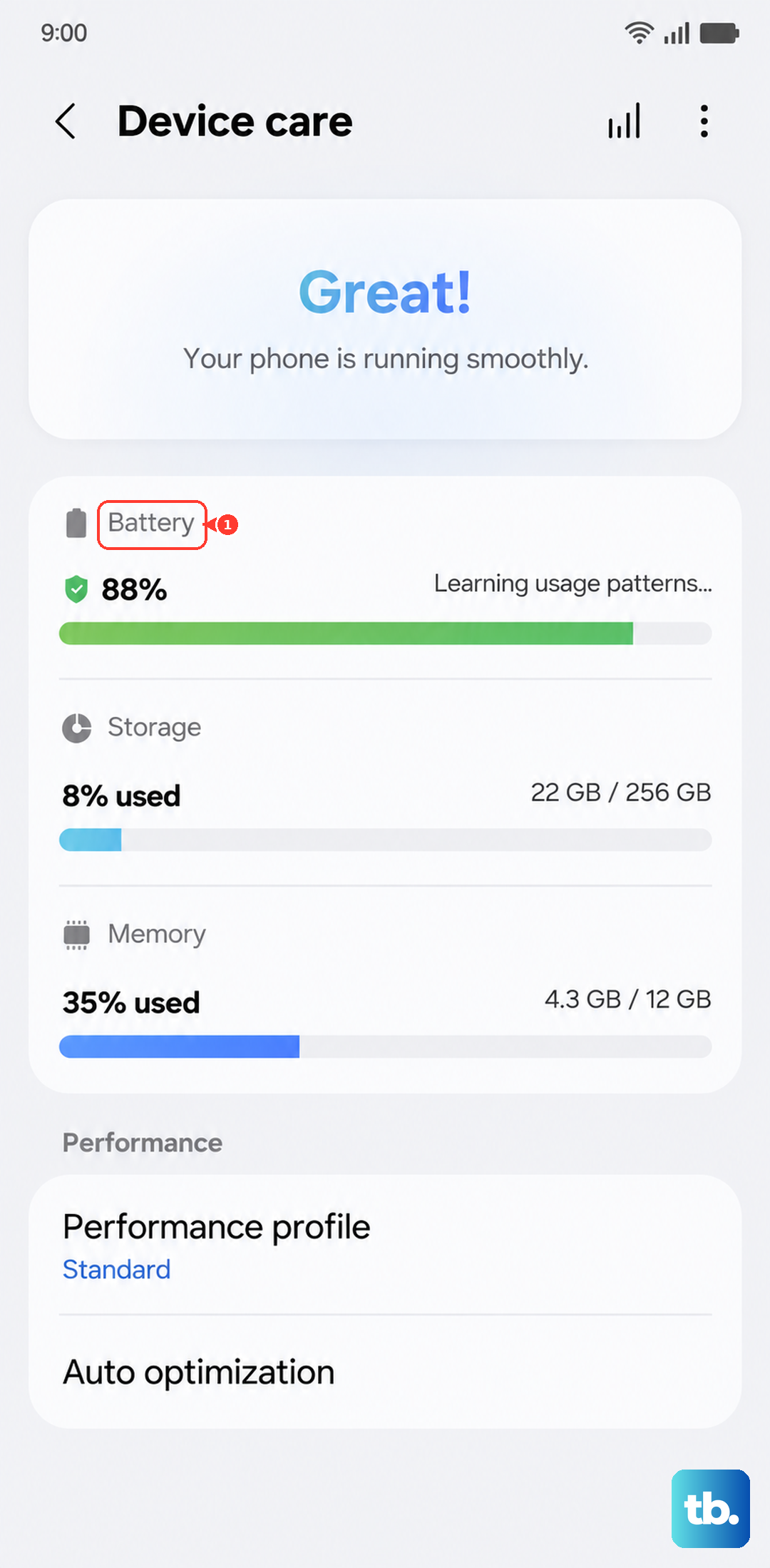
Samsung typically indicates if your battery is operating normally or if its performance has degraded. Look for any status messages that might say "Weak" or suggest service. This built-in check is the quickest way to get an official read on your battery's health from the system itself.
Run a Diagnostic with Samsung Members
For a more interactive test, open the pre-installed Samsung Members app. Tap on the Get help or Support tab, then look for Interactive checks or Diagnostics. Select the Battery test from the list.
This diagnostic tool will run a brief check on your battery's performance and provide a pass/fail or detailed status report. It's a more thorough examination than the basic settings page and can sometimes identify issues the standard menu doesn't flag.
Check Detailed Usage by App
Understanding which apps drain your battery is a form of health check. Go back to Settings > Battery and device care > Battery and tap on Battery usage. You'll see a breakdown of power consumption since your last full charge.
Tap on any app to see how much battery was used while the screen was on versus in the background. If you see a rarely used app with high background activity, it could be a sign of a software bug that's indirectly harming your battery life by causing excessive drain.
For the S25+, it's wise to allow 24 to 48 hours after a major software update or initial setup for this data to stabilize, as system indexing can cause temporary high drain.
Use the Hidden Battery Status Menu
You can access deeper technical data with a diagnostic code. Open your Phone app and dial *#0228#. This will launch a service menu showing real-time battery voltage, temperature, and other stats.
While it won't display a simple "health percentage," you can check the voltage. A fully charged battery should read around 4.35V to 4.4V. Significantly lower voltage under load can indicate wear. I'd use this for informational curiosity rather than a definitive health judgment.
Enable Battery Protection to Extend Lifespan
One of the best features for long-term health is Battery Protection. Find it under Settings > Battery and device care > Battery > More battery settings. On the S25+, you can set it to limit maximum charge to 85%.
Keeping your battery from constantly sitting at 100% charge significantly reduces chemical stress on the cells. If you charge overnight, this setting is incredibly useful. For daily top-ups, using the full 45W wired or 15W Qi2 wireless charging is fine when this protection is active.
Optimize with Adaptive Battery and Sleep
Let your phone help manage power. In the same battery settings menu, ensure Adaptive battery is turned on. This feature learns your usage patterns over time and restricts battery for apps you don't use often.
You can also set Background usage limits to put apps into deep sleep. Combined with disabling features like Always-On Display, which can be a notable drain, these optimizations make your current battery charge last longer, which reduces the total number of charge cycles needed.
Recognizing When a Replacement is Needed
The software can hint, but your daily experience will tell you for sure. If your S25+ struggles to make it through a day on a charge that used to be easy, that's a key sign. Unexpected shutdowns when the battery shows 15-20% left are a classic symptom of a degraded battery.
Physically, if the back of the phone is bulging or the screen is lifting, stop using it immediately and seek service. For normal wear, Samsung offers official battery replacements through their authorized service network, which is the safest route to maintain water resistance and overall device integrity.
Daily Habits for Battery Preservation
Heat is the biggest enemy. Avoid leaving your phone in a hot car or charging it under a pillow, which traps heat. Since the S25+ box doesn't include a charger, using a Samsung 45W charger or another high-quality, certified USB-C PD charger is recommended for safety and optimal performance.
Try not to routinely drain the battery to 0%. Letting it dip to around 20% before charging is a good practice. Enabling the 85% battery protection limit is arguably the single most effective thing you can do to slow down capacity loss over the years you own the phone.