
Your iPhone 17's battery is its lifeline, and keeping an eye on its health is key to avoiding a dead phone at the worst possible moment. With iOS 26, Apple has packed all the diagnostic tools you need right into the Settings app. Let's walk through exactly where to look and what those numbers mean for your daily use.
Find Your Battery Health Percentage
Open Settings > Battery > Battery Health & Charging. Right at the top, you'll see Maximum Capacity. This percentage shows your battery's current charge capacity compared to when it was brand new. A fresh iPhone 17 will show 100%.
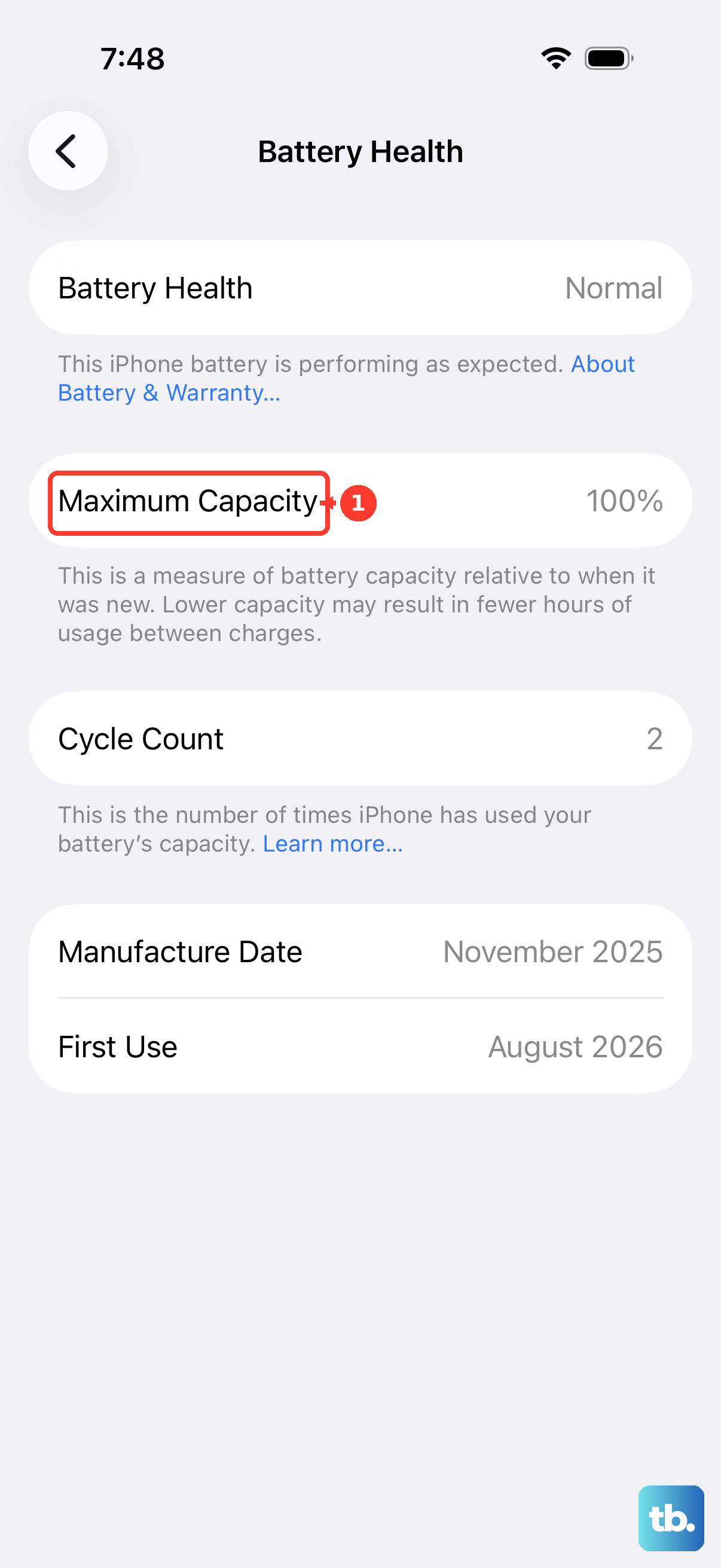
After a year of regular charging, it's normal to see this number between 90% and 95%. Apple considers the battery significantly degraded once it falls below 80%, which is when you'll likely start noticing your phone dying much faster than it used to.
Just below that, check the Peak Performance Capability section. If your battery is in good shape, it will state that normal performance is supported. If there's significant degradation, a performance management feature may be active to prevent unexpected shutdowns.
Check Your Battery Cycle Count
A charge cycle is counted each time you use 100% of your battery's capacity, which can happen over multiple charges. Apple rates the iPhone 17 battery to retain up to 80% of its original capacity at 1,000 complete charge cycles.
Finding your exact count is straightforward. Go to Settings > Battery > Battery Health. Scroll down, and you'll see your cycle count listed clearly alongside the battery's manufacture date and the date it was first used. This is the most direct way to gauge how much wear your battery has experienced.
Review Battery Usage by App
Head back to Settings > Battery and scroll down. Here, you can see a detailed breakdown of which apps have been using the most power over the last 24 hours or the past 10 days. Tap Show Activity next to an app to see how much time it spent on screen versus running in the background.
If you spot a social media or weather app with surprisingly high background activity, it might be misbehaving. You can force close the app or head to its settings to restrict background refresh, which often solves the drain.
Manage Charging Optimization Settings
In the same Battery Health & Charging menu, you'll find Optimized Battery Charging. Make sure this is enabled. It learns your routine, like when you wake up, and will hold your iPhone 17 at about 80% charge overnight, only topping it up to 100% just before you unplug it.
You may also see a separate 80% Limit option. Turning this on will stop charging at 80% entirely, which is the best setting for maximizing your battery's lifespan if you don't need a full charge every day.
I've seen some users report that Optimized Charging gets stuck, leaving their phone at 80% even when they need a full battery. If this happens, temporarily turning the feature off and on again in Settings usually retrains it.
When a Battery Replacement Makes Sense
Once that Maximum Capacity dips below 80%, it's a clear sign. You'll get noticeably less screen time, and your phone may feel slower as it manages power. This is the point where a replacement becomes a practical choice.
Apple offers battery service for the iPhone 17. A new, official battery will reset your Maximum Capacity to 100% and restore full, snappy performance, often making an older phone feel brand new again.
Daily Habits to Preserve Battery Health
Heat is a battery's biggest enemy. Try not to leave your iPhone 17 on your car dashboard or use intensive apps while it's charging, as both can cause it to overheat. For charging, I'd stick with an Apple-certified 30W USB-C charger or a genuine MagSafe puck to ensure clean, stable power delivery.
Those third-party cables from the gas station can sometimes cause issues or simply not be recognized by your phone. It's also a good habit to occasionally check your USB-C port for lint buildup, which can prevent the cable from seating properly and interrupt charging.
If you use MagSafe, remember that thick cases can prevent proper alignment and cause slower, inefficient charging. For the fastest 25W wireless speeds, a MagSafe case or no case at all works best. Keeping your battery between 20% and 80% most of the time, rather than constantly draining to zero, also helps slow chemical aging in the long run.