
If your iPhone 15 isn't showing up on your Mac or Windows PC, the first thing to check is your cable. Since this was Apple's first iPhone with USB-C, a lot of people are accidentally trying to use their old Lightning cables. Make sure you're using a USB-C to USB-C or USB-C to USB-A cable that supports data transfer, not just charging.
Plug it into a different port on your computer, preferably one directly on the motherboard, not a hub. I'd start with that, as it fixes the issue more often than not.
Check the Connection on Your iPhone
When you plug in your iPhone 15, you need to tap "Trust" on the phone's screen and enter your passcode. If you accidentally tapped "Don't Trust," the computer will be blocked. To reset this, go to Settings > General > Transfer or Reset iPhone and tap Reset. Choose Reset Location & Privacy. This will clear the trust settings for all computers, so you'll get the prompt again next time you connect.
Also, unlock your iPhone with your passcode when you connect it. A locked iPhone, especially if it's only unlocked with Face ID, sometimes won't initiate the data connection properly.
Restart Your iPhone and Computer
A simple restart can clear out temporary software glitches that are preventing the handshake between devices. Restart your computer first, then restart your iPhone 15.
For a more thorough reset on the iPhone, try a force restart. Quickly press and release the Volume Up button, then quickly press and release the Volume Down button. Finally, press and hold the Side button until you see the Apple logo appear, then let go. This doesn't erase any data.
Update Your Software
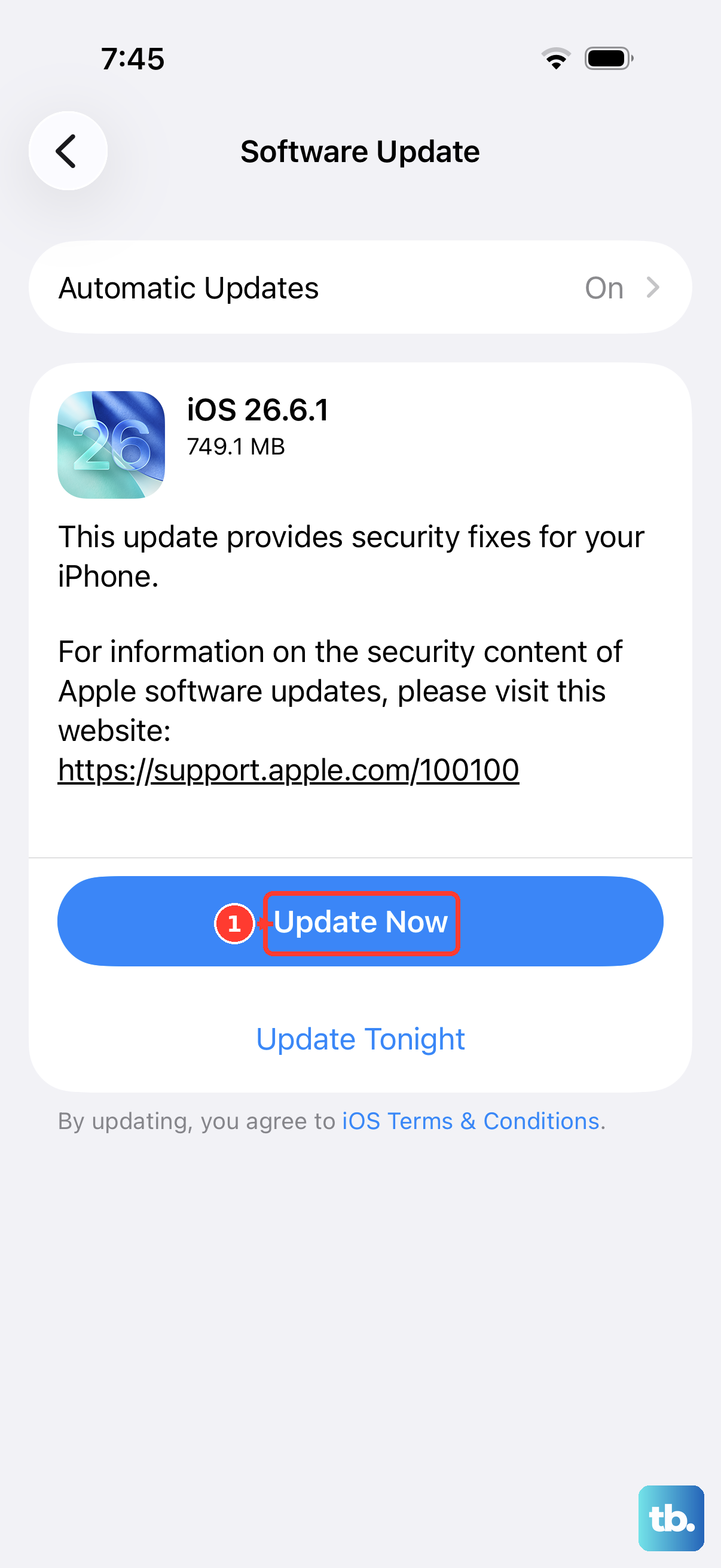
Outdated software is a common culprit. First, make sure your iPhone 15 is running the latest version of iOS. Go to Settings > General > Software Update and install any available updates.
On a Mac, check for macOS updates in System Settings > General > Software Update. For Windows users, you need to make sure Apple's device drivers are current. The easiest way is to update or reinstall iTunes from the Microsoft Store, or install the newer Apple Devices app if you're using Windows 11 or later.
Try a Different Cable and Port
This step is crucial for the iPhone 15. Not all USB-C cables are created equal. Some cheaper cables are designed only for power and lack the data wires needed for a computer connection.
If possible, use the cable that came with your iPhone 15. Try a different USB-C port on your computer, as one port might be faulty or not providing enough power for data. Avoid using USB hubs, docking stations, or the front panel ports on a desktop PC during this test.
Check Finder on Mac or iTunes on Windows
On a Mac running macOS Catalina or later, your iPhone won't appear in iTunes. Instead, open a new Finder window. Your iPhone should be listed in the sidebar under "Locations." If you don't see it, go to Finder > Settings (or Preferences) > Sidebar and make sure "CDs, DVDs, and iOS Devices" is checked.
On Windows, open the iTunes app or the Apple Devices app. If you see your iPhone listed but can't access it, try signing out and back into your Apple ID within the app.
Reset the iPhone's Location & Privacy
If the "Trust This Computer" prompt isn't appearing at all, the trust database might be corrupted. You can reset it without losing your personal data. On your iPhone 15, go to Settings > General > Transfer or Reset iPhone.
Tap Reset, then select Reset Location & Privacy. You'll need to enter your passcode. After the reset, reconnect your iPhone to the computer and you should see the "Trust" prompt again.
Check for Computer-Specific Issues
On Windows, open the Device Manager. Look under "Portable Devices" or "Universal Serial Bus controllers" for any entries with a yellow exclamation mark. Right-click your iPhone (it might be listed as "Apple Mobile Device USB Driver" or similar) and choose "Update driver." Select "Search automatically for drivers."
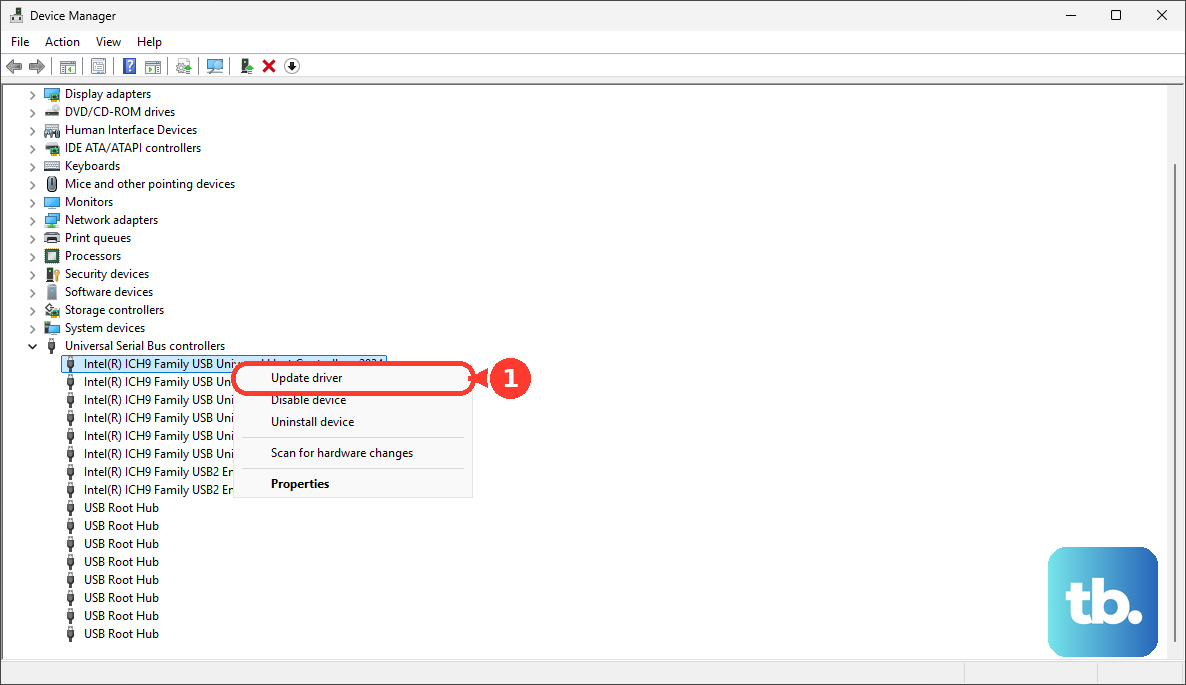
You can also try uninstalling the driver, then unplugging and replugging your iPhone to force Windows to reinstall it fresh. Temporarily disabling your antivirus or firewall software can also help rule out security software interference.
On a Mac, if the iPhone is detected but not mounting, you can try resetting the Mac's System Management Controller (SMC) on Intel-based Macs, or the USB/Thunderbolt ports on Apple Silicon Macs by shutting down, unplugging all USB-C devices, waiting 30 seconds, and then restarting.