
Is your Google Pixel 9a stuck in one orientation and refusing to flip when you turn it sideways? It's a common hiccup where the auto-rotate feature just stops responding. The cause can be anything from a quick settings toggle to a deeper sensor glitch.
Here are the most effective ways to get your screen rotating properly again on your Pixel 9a.
Toggle the Quick Settings Rotation Lock
The absolute first thing to check is the rotation lock in your quick settings panel. It's incredibly easy to tap this icon by accident, which will lock your screen in its current orientation.
You'll know it's locked if you see a little padlock icon on the auto-rotate tile. To fix it, swipe down from the top of your screen twice to open the full quick settings menu.
Look for the "Auto-rotate" tile and tap it. The padlock should disappear, and the tile will highlight, indicating rotation is now active. Give your phone a turn to see if it works.
Restart Your Pixel 9a
If the quick settings toggle doesn't do the trick, a simple restart is your next best move. This clears out any temporary software bugs that might be confusing the accelerometer.
Just press and hold the power button until the power menu pops up on screen. Tap "Restart" and wait for your phone to completely reboot. Once it's back up, test the rotation in an app like YouTube or your photo gallery.
Check for App-Specific Rotation Settings
Some apps have their own internal settings that override the system's auto-rotate. If rotation works perfectly in your camera app but not in Chrome, the app itself is likely the culprit.
Head into the problem app's settings menu and look for a display or screen option. Some apps, especially video players or games, have a "lock orientation" or "force portrait" setting buried inside. I'd disable anything like that and see if it makes a difference.
Update Android and Your Apps
Since your Pixel 9a runs Android 15, Google is constantly pushing updates that fix bugs. A software glitch could definitely be behind a stubborn rotation sensor.
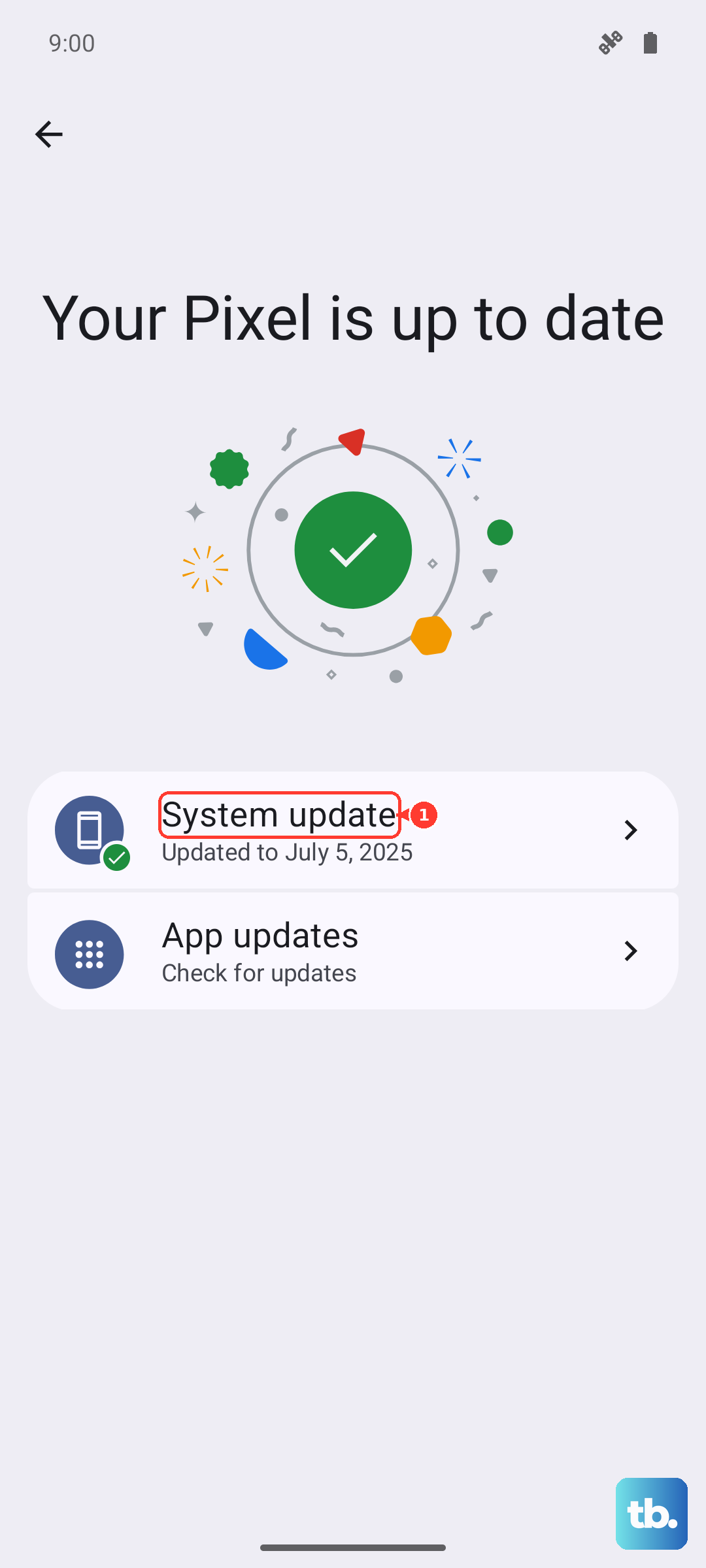
Go to Settings > System > System update to check for the latest Android version. Also, open the Google Play Store, tap your profile icon, and go to "Manage apps & device" to update all your apps. An outdated app can sometimes cause system-wide sensor issues.
Test Your Phone's Sensors
Your Pixel has a hidden diagnostics menu that lets you test the accelerometer and gyroscope directly. To access it, open your Phone app and dial *#*#7287#*#*.
This opens the "Field Trial" menu. Look for an option related to sensors or hardware tests. If you find a sensor test, it will usually display live data from the accelerometer. Tilt your phone and see if the numbers change. If they don't, it points to a potential hardware fault.
Perform a Force Restart
For a more thorough refresh than a standard restart, try a force restart. This is different and can clear deeper system caches without touching your data.
On the Pixel 9a, press and hold the Power button for 30 seconds or more. Keep holding it even after you see the Google logo. The phone will eventually shut off and then restart on its own. This method has fixed weird sensor behavior for me on other Pixel models.
Boot Into Safe Mode
If you suspect a recently downloaded app is causing the trouble, booting into Safe Mode can confirm it. Safe Mode temporarily disables all third-party apps.
To enter Safe Mode, press and hold the Power button and Volume Up button together until the power menu appears. Then, tap and hold the "Power off" option on your screen. A prompt will ask if you want to reboot to Safe Mode. Tap "OK".
Once in Safe Mode, test the auto-rotate. If it works perfectly, you know a downloaded app is the problem. You'll need to restart normally and then uninstall apps one by one, starting with the most recent, to find the culprit.
Consider a Hardware Fault
If none of the software fixes work, and the sensor test showed no movement, there might be a physical issue. The Pixel 9a's Corning Gorilla Glass 3 can scratch easily, but a hard drop could potentially damage the internal sensors.
Think back to whether the problem started after a significant bump or fall. Since the Tensor G4 modem in this model can sometimes have its own quirks in weak signal areas, it's not impossible for other internal components to be sensitive. At this point, the issue would likely require professional diagnosis.











