
Seeing a "SIM Card Not Provisioned" error on your Google Pixel 8 can stop you in your tracks. It means your phone can't connect your SIM to your carrier's network, so calls, texts, and mobile data won't work. The good news is, it's usually something you can fix yourself.
I'd start with the simplest fix first. Restart your Pixel 8 by pressing and holding the power button for a few seconds and tapping "Restart." This clears out any temporary software glitches that might be blocking the network connection. It takes less than a minute and solves the problem more often than you'd think.
Check Your SIM Card Activation and Status
If you just got a new SIM card or switched plans, it might not be active yet. Your carrier needs to provision it on their end. Give them a quick call or use their online chat to confirm the SIM is activated and your account is in good standing.
For prepaid users, check your account balance. Service can be suspended if your plan has run out of credit or your billing cycle has reset without payment. You can usually check this through your carrier's app or website.
Refresh Your Network Connection
Your next step should be toggling Airplane Mode. Swipe down twice from the top of your screen to open the full Quick Settings panel. Tap the airplane icon to turn it on, wait about 15 seconds, and then tap it again to turn it off.
This forces your Pixel 8 to drop its current network connection and search for a fresh one. It's a faster and more thorough refresh than just restarting the phone sometimes.
Reinsert and Inspect the SIM Card
Power off your Pixel 8 completely. Locate the SIM tray on the bottom edge of the phone. Use the SIM eject tool that came in the box (or a small paperclip) to gently push into the tiny hole and pop the tray out.
Take out the SIM card and look at the gold contacts. If you see any dust, lint, or corrosion, gently wipe them with a soft, dry cloth. Blow any debris out of the SIM tray slot, carefully re-seat the card, and push the tray back in until it clicks. Turn your phone back on.
Update Your Phone and Carrier Services
Outdated software can cause conflicts with network provisioning. Go to Settings > System > System update to check for any available Android updates. Google frequently releases patches that fix connectivity bugs.
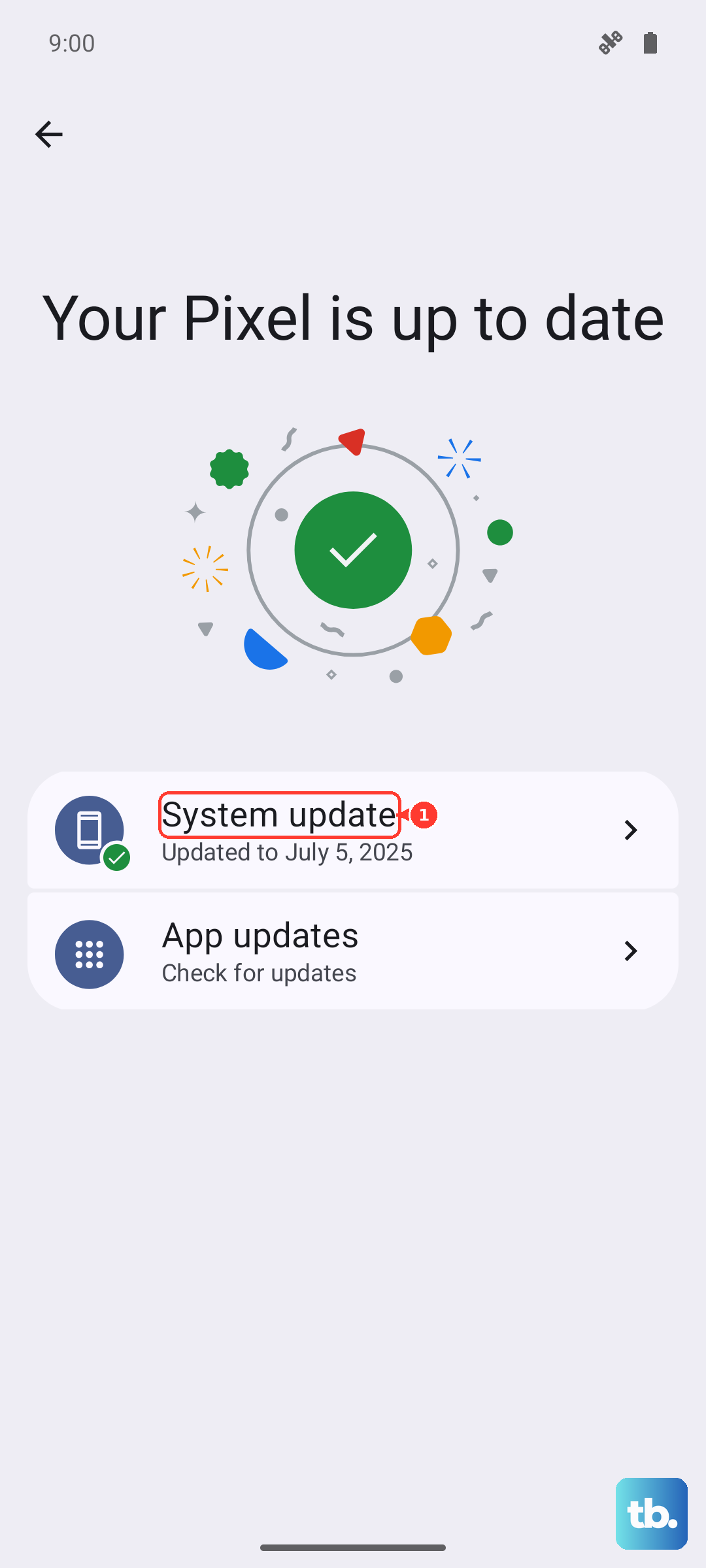
Next, open the Google Play Store, tap your profile icon, and go to Manage apps & device. Under "Updates available," look for an app called "Carrier Services" and update it. This app handles communication between your Pixel and your carrier's network.
Manually Select Your Network Operator
Sometimes automatic network selection gets confused, especially if you're near a border or in an area with spotty coverage. You can manually pick your carrier.
Go to Settings > Network & internet > SIMs. Tap your SIM, then Carrier. Turn off the "Automatically select network" toggle. Your phone will search and present a list. Select your carrier's name from the list that appears.
Reset Your Network Settings
If you're still stuck, resetting network settings can clear deeper configuration errors. This will erase all saved Wi-Fi networks, Bluetooth pairings, and mobile network settings, but it won't touch your personal data.
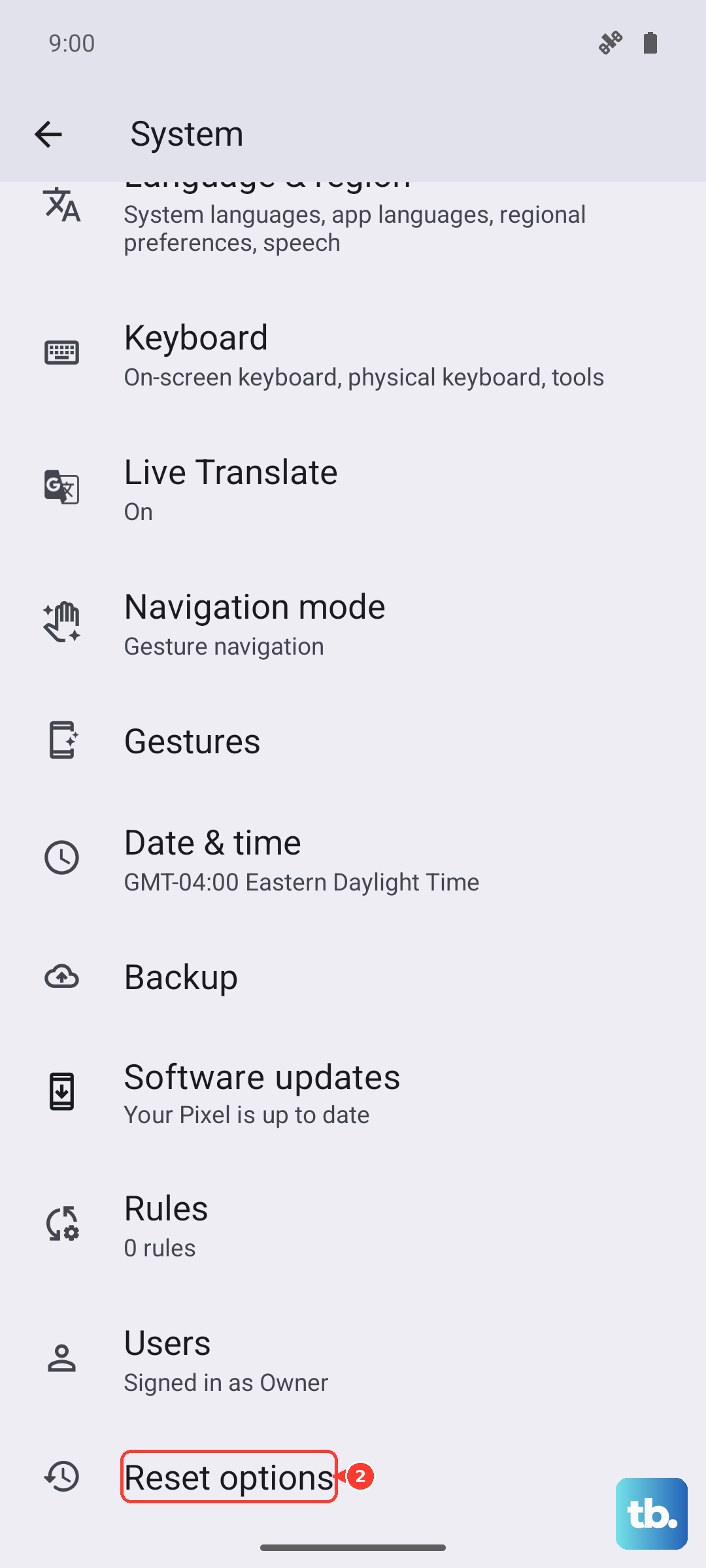
On your Pixel 8, go to Settings > System > Reset options. Tap Reset Wi-Fi, mobile & Bluetooth and confirm. After the phone reboots, you'll need to reconnect to Wi-Fi and re-pair Bluetooth devices, but it often resolves persistent SIM errors.
Contact Your Mobile Carrier
If you've tried everything here, the issue is likely on your carrier's side. There could be a network outage in your area, a problem with your specific account, or your SIM card could be faulty.
Call their support line. They can run diagnostics on their end, reprovision your SIM, or send you a replacement SIM card if yours is damaged. Be ready to provide your phone number and account details.
Test the SIM in Another Device
To definitively figure out where the problem lies, test your SIM card in another unlocked phone. If the SIM works in the other phone, the issue is with your Pixel 8's hardware or software.
If the SIM also fails in another phone, you've confirmed the SIM or your carrier account is the culprit. This simple test can save you a lot of time and point you directly to the right solution.











