
Is your Google Pixel 8 stuck in one orientation and refusing to flip when you turn it sideways? It's a common hiccup where the auto-rotate feature just stops responding. The cause can be anything from a quick settings toggle to a deeper software glitch.
Here are the most effective ways to get your screen rotating again on your Pixel 8.
Toggle the Quick Settings Rotation Lock
The absolute first thing to check is the rotation lock in your quick settings panel. It's incredibly easy to tap this icon by accident, which will lock your screen in its current orientation.
You can spot it by swiping down from the top of your screen twice to see all your quick settings tiles. Look for an icon that looks like a phone with a circular arrow around it. If it's highlighted or says "Portrait," rotation is locked.
Just tap that icon once. It should change to show "Auto-rotate" when it's unlocked and ready to work. I'd start with this one, as it fixes the issue about half the time.
Check Individual App Rotation Settings
Android, especially on Pixel phones, gives you granular control over rotation. You might have rotation enabled globally but have it forced off for the specific app you're using.
While you're in the app that won't rotate, swipe down to open the quick settings panel and tap the text that says "Portrait" or "Auto-rotate" (not just the icon). A menu will pop up showing your rotation options.
Make sure the setting isn't locked to "Portrait" for that particular app. You can choose "Auto-rotate" for all apps or just for the one you're currently using.
Restart Your Pixel 8
A simple restart clears out temporary system glitches that can confuse the accelerometer and gyroscope sensors. It's a quick fix that takes about a minute.
Just press and hold the Power button and Volume Up button together until the power menu appears on screen. Then, tap "Restart." Wait for your phone to completely boot back up before testing the rotation again in a few different apps.
Perform a Force Restart
If a normal restart doesn't do the trick, a force restart can help. This is a slightly more thorough reboot that doesn't delete any of your data or settings.
On the Pixel 8, you force restart by pressing and holding the Power button for about 30 seconds. Keep holding it even after you see the Google logo. The phone will shut down and then restart on its own. Release the button once you see the boot animation start.
Update Your Android Software
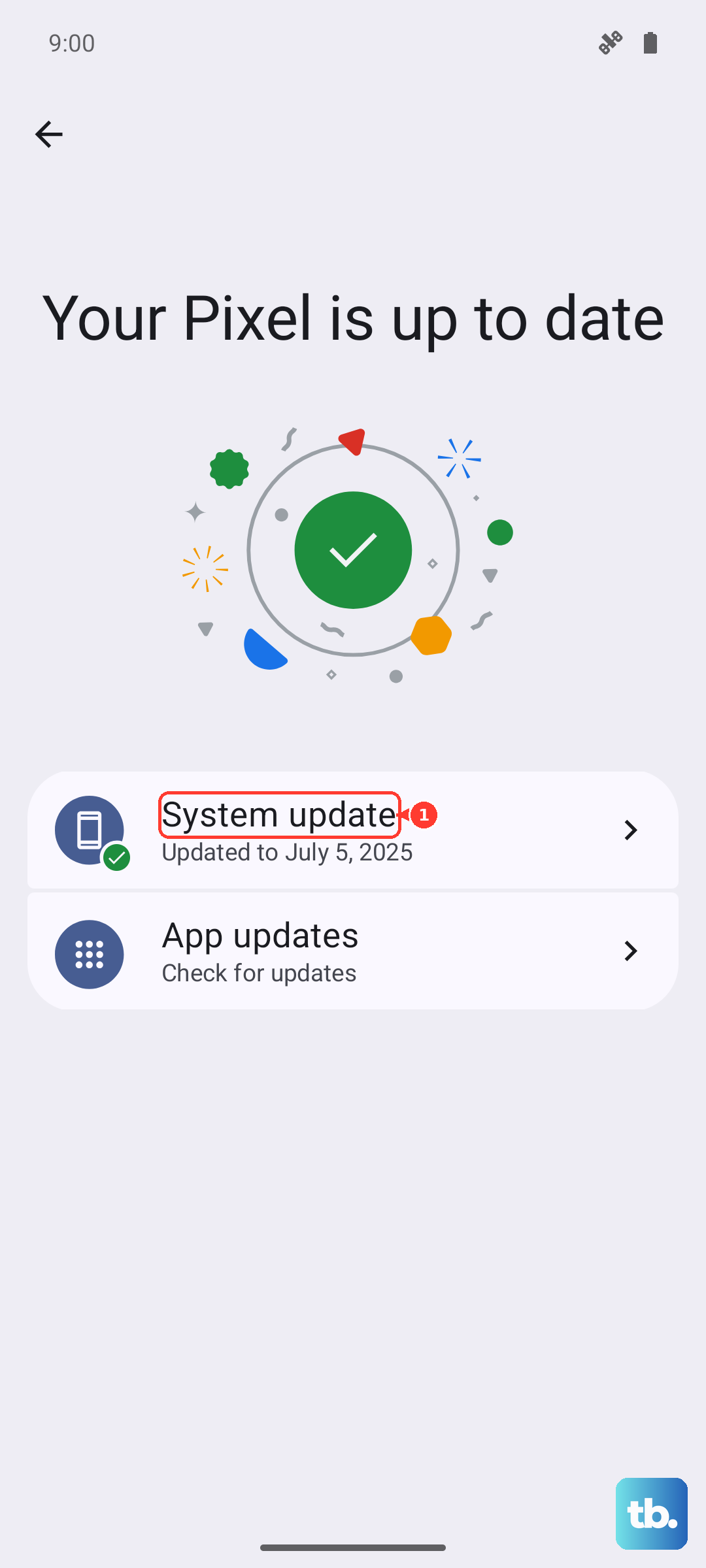
Google frequently releases updates that fix bugs, including ones related to sensors and rotation. Since your Pixel 8 runs Android 15, make sure you have the latest security patch and feature drop installed.
Go to Settings > System > System update. Tap "Check for update." If an update is available, download and install it. I've seen several Pixel updates over the years that specifically addressed sensor calibration issues.
Test Your Phone's Sensors
Your Pixel 8 has a hidden diagnostics menu that lets you test the hardware sensors responsible for rotation. This will tell you if there's a physical problem with the accelerometer or gyroscope.
Open your Phone app and dial *#*#7287#*#*. This will open the "Field Trial Mode" menu. Look for an option related to "Sensor" or "Sensor Test." The exact layout can vary.
Once in the sensor test, you should see live data from the accelerometer. Tilt and rotate your phone. If the numbers for the X, Y, and Z axes change responsively, your hardware is likely working fine.
Check for Problematic Apps
Sometimes, a recently installed app can interfere with system-wide functions like auto-rotation. This is less common on stock Android like the Pixel uses, but it's still possible.
Think about whether the problem started after you installed a new game, utility tool, or launcher. Try booting your phone into Safe Mode, which temporarily disables all third-party apps.
To enter Safe Mode, press and hold the power button, then tap and hold the "Power off" option on your screen. Tap "OK" when prompted to reboot to Safe Mode. If rotation works perfectly here, a downloaded app is the culprit.
Reset App Preferences
This is a useful middle-ground step before considering a factory reset. It resets all your app permissions, default apps, and background data restrictions without touching your personal data.
Go to Settings > Apps > See all apps. Tap the three-dot menu in the top right and select "Reset app preferences." Confirm your choice. This can clear up any incorrect permission that might be blocking the rotation function.
After the reset, you'll need to re-grant permissions like location or microphone to your apps when you use them next, but it often resolves quirky system behavior.











