
When your Google Pixel 8 starts restarting on its own, it can be incredibly disruptive. This issue can pop up from a minor software hiccup, a misbehaving app, or sometimes a deeper system glitch. The good news is there are several straightforward steps you can try to get your phone back to normal.
Before you dive into any fixes, it's a smart move to make sure your data is backed up. You can use Google One backup or just manually sync your photos and files to Google Photos and Drive. This protects your stuff just in case you need to take more serious steps later.
Force Restart Your Pixel 8
A force restart is the quickest way to clear out a temporary software freeze that's causing the restarts. For the Pixel 8, the method is refreshingly simple. Just press and hold the Power button for about 30 seconds.
Keep holding it until you see the Google logo appear on the screen. This doesn't erase any data, it just gives the system a fresh boot.
Check for Problematic Apps
A third-party app is often the culprit behind random restarts. Start by checking which apps you've installed or updated recently. You can boot your phone into Safe Mode to see if the problem goes away without any of your downloaded apps running.
To enter Safe Mode, press and hold the Power button and Volume Up button together until the power menu appears. Then, touch and hold the "Power off" option on your screen. You'll get a prompt to reboot into Safe Mode. Tap "OK". If the restarts stop in Safe Mode, you know an app is to blame.
Update Your Apps and Android
Outdated software is a common source of instability. First, head to the Play Store and tap your profile icon in the top right. Go to Manage apps & device and then tap "Update all" under the Updates available section.
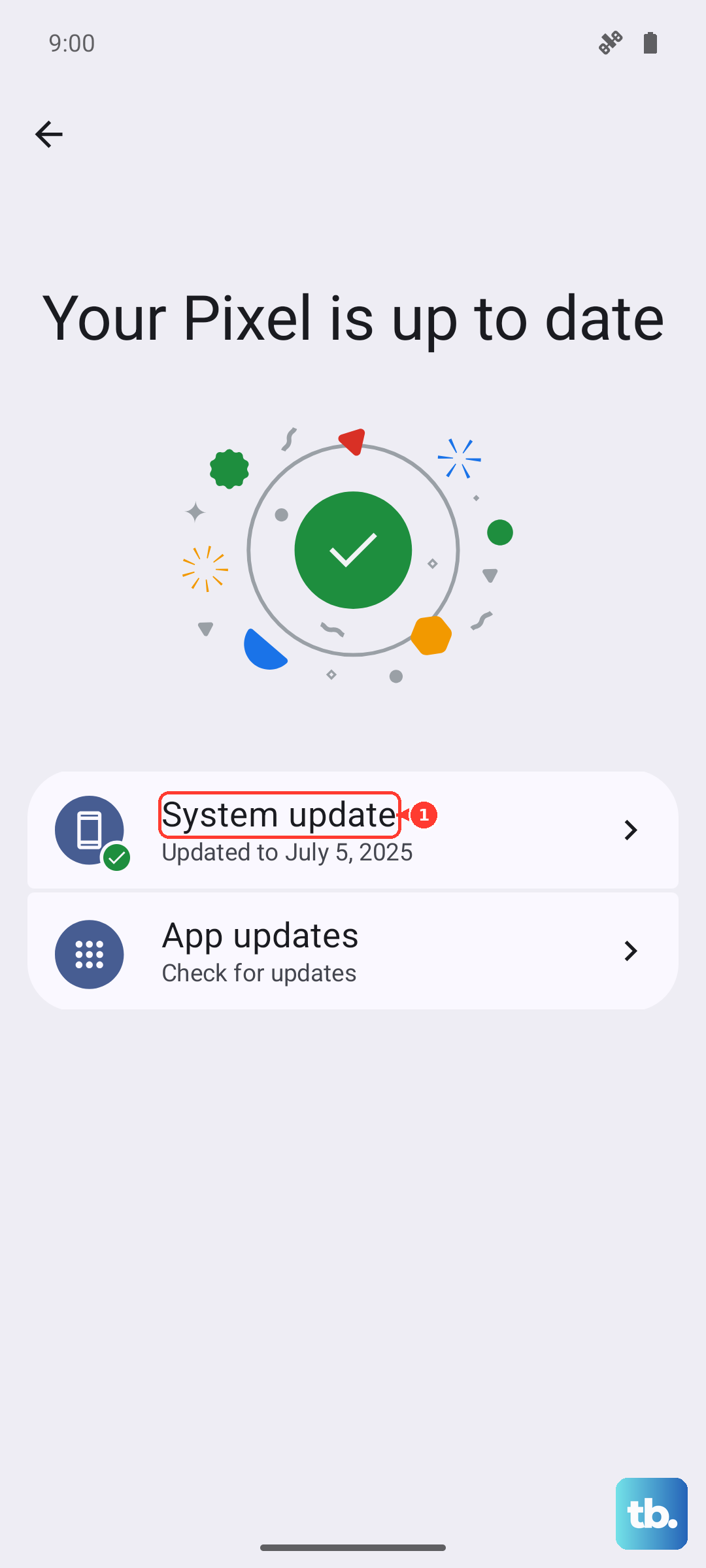
Next, check for a system update. Google is pretty good at pushing out fixes for known bugs. Go to Settings > System > System update. Download and install any available update. I've seen many restart issues resolved by a simple system patch.
Review Device Care and Battery Settings
Android has built-in tools that can highlight problems. Go to Settings > Battery > Battery usage. Look for any apps showing unusually high background usage, as these can sometimes cause crashes.
Also, check if a feature called Adaptive Charging is active. Go to Settings > Battery > Adaptive charging. While this feature is great for battery health, in some early software versions it had bugs related to system stability. You can try turning it off temporarily to see if it makes a difference.
Free Up Storage Space
If your phone's storage is completely full, it can cause all sorts of erratic behavior, including restarts. Check your available space by going to Settings > Storage.
The phone will give you recommendations, like clearing cached data or deleting old files. Try to keep at least a few gigabytes free for the system to operate smoothly.
Reset App Preferences or Network Settings
You can reset specific settings without losing your personal data. This can fix issues caused by a corrupted app configuration or network glitch. Go to Settings > System > Reset options.
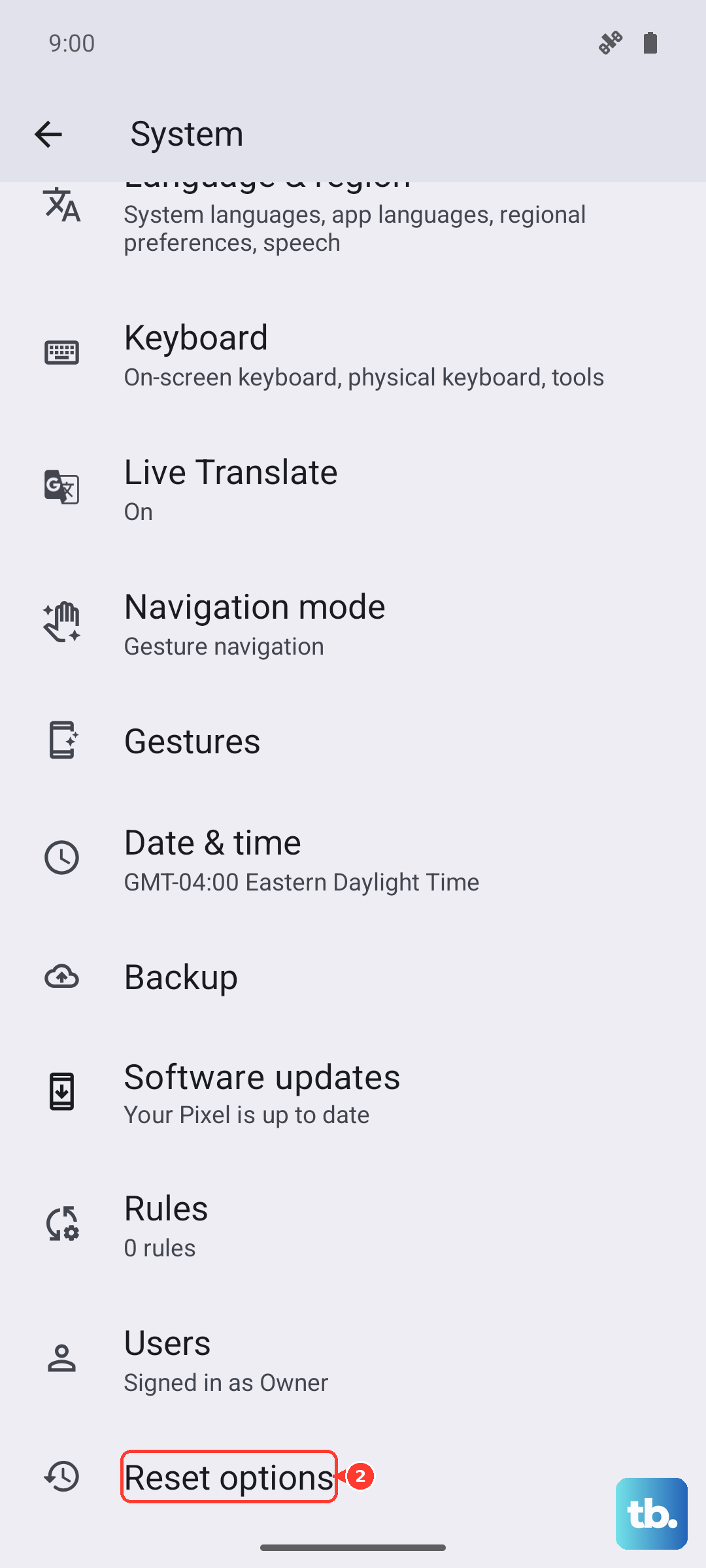
From here, you can try "Reset app preferences" first. This resets permissions, background data restrictions, and default apps without deleting the apps themselves. If you suspect a network issue, "Reset Wi-Fi, mobile & Bluetooth" is another good, non-destructive option.
Check for Overheating
The Pixel 8 can get warm during fast charging or intensive use. If it overheats, it may shut down or restart to protect itself. Feel the back of the phone. If it's very hot, remove the case and let it cool down in a shaded spot.
Avoid using it while it's fast charging, especially in a warm environment. Using the standard 18W wireless charging or a slower wired charger can sometimes generate less heat if this is a recurring pattern.
Inspect the USB-C Port
A little bit of lint packed into the USB-C port can cause intermittent connection issues. This might not just affect charging, but could potentially cause power fluctuations that lead to restarts.
Shine a light into the port and look for any debris. Carefully use a plastic toothpick or a can of compressed air to clean it out. Be very gentle to avoid damaging the delicate pins inside.
Perform a Factory Reset
If all else fails, a factory reset will wipe the phone back to its original state. This is the most reliable way to rule out a complex software problem. Remember, this will erase all your data, so ensure your backup is complete first.
Go to Settings > System > Reset options > Erase all data (factory reset). Follow the prompts. After the reset, set the phone up as new without restoring a backup immediately to see if the restarting stops. If it does, you can then try restoring your data.











