
When your Google Pixel 8's microphone stops picking up your voice, it can turn simple tasks into frustrating ones. Calls drop out, Google Assistant ignores you, and your voice notes come back silent. Before you start troubleshooting, it's a good idea to confirm which microphone is affected, as the Pixel 8 has several.
A fast way to narrow this down is a browser based microphone test. If the meter responds when you talk, the mic itself is fine and the problem sits in software or settings.
Test Your Pixel 8 Microphone
Open the Voice Recorder app that comes pre-installed on your phone. Tap the red record button and speak for a few seconds, then play it back. If the audio is muffled or missing, you've got a problem.
You can also try asking Google Assistant a question by saying "Hey Google" or holding down the power button. If it doesn't respond correctly, that's another sign. For video calls, the Camera app is a great test. Record a short video with sound and check the playback.
Remove Your Phone Case
This is the easiest thing to check. Some cases, especially rugged or poorly designed ones, can partially cover the microphone ports. Take the case off and run the voice recorder test again. I've seen this fix more microphone issues than you'd think.
Restart Your Pixel 8
A simple reboot clears out temporary software glitches that can affect the audio system. Just press and hold the power and Volume Up buttons, then tap "Restart" on your screen. If your phone is frozen and won't respond to the screen, you'll need to force restart it.
Press and hold the power button for about 30 seconds until you feel a vibration and see the Google logo appear. This forces a hard reboot and can kick-start the microphone if a deeper software process has stalled.
Disconnect Bluetooth Accessories
If your Pixel 8 is connected to wireless earbuds like Pixel Buds, a headset, or your car's audio system, it will route all microphone audio through that connected device. Open your quick settings panel and tap the Bluetooth icon to turn it off temporarily, then test your phone's built-in mic.
Check for Physical Blockages
The Pixel 8 has microphone ports in a few key spots. The primary one is a tiny pinhole at the bottom edge of the phone, next to the USB-C port. There's also one at the top of the frame and others near the rear camera module.
Inspect these small openings closely for lint, pocket debris, or dirt. You can use a soft-bristled brush, like a clean toothbrush, or a can of compressed air to gently clear any blockages. Be very careful not to push anything further into the hole.
Force Close and Reopen the Problem App
If the microphone only fails in one app, like WhatsApp, Discord, or Zoom, the app itself might be the culprit. Swipe up from the bottom and hold to enter the app overview screen. Find the problematic app and swipe it all the way up to close it completely.
Then, relaunch the app and try the microphone again. This clears the app's temporary memory and often resolves permission hiccups that occurred during its last session.
Check App Microphone Permissions
Android requires apps to ask for permission to use your microphone. If you accidentally denied this, the app won't have any audio access. On Pixel, go to Settings > Security & privacy > Privacy > Permission manager; on Galaxy, go to Settings > Security and privacy > More privacy settings > Permission manager.
Tap on "Microphone" here. You'll see a list of all your apps. Find the app that's having trouble and make sure it's set to "Allow" instead of "Deny." Some apps have a "Ask every time" option, which can sometimes get stuck.
Update Android and Your Apps
Google regularly releases system updates that fix bugs, including audio and microphone issues. Go to Settings > System > System update to check for the latest Android version. Make sure you're connected to Wi-Fi and have sufficient battery before installing.
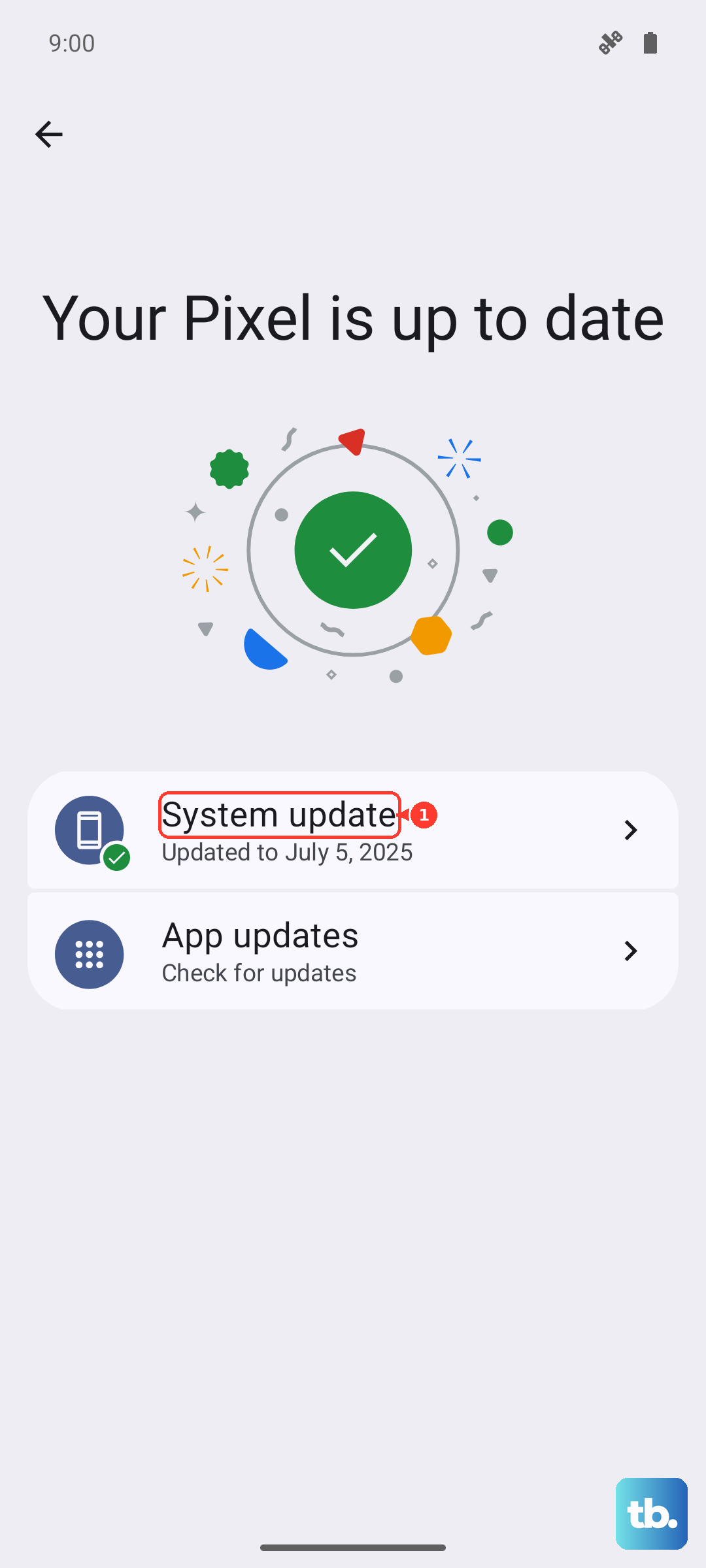
Also, head to the Google Play Store, tap your profile icon, and select "Manage apps & device." Under "Updates available," install updates for all apps, especially the one you're having trouble with and the Phone and Camera apps.
Disable Voice Match for Google Assistant
Sometimes, the "Hey Google" listening feature can conflict with other apps trying to use the microphone. To test if this is the issue, go to Settings > Apps > Assistant.
Tap on "Hey Google & Voice Match" and turn off the "Hey Google" toggle. Test your microphone in other apps. If it works, you can try turning the feature back on later, as a recent app update may have resolved the conflict.
Reset App Preferences
This is a useful middle step that resets all your app permissions, notifications, and default apps without deleting any personal data. It can clear up a corrupted permission setting.
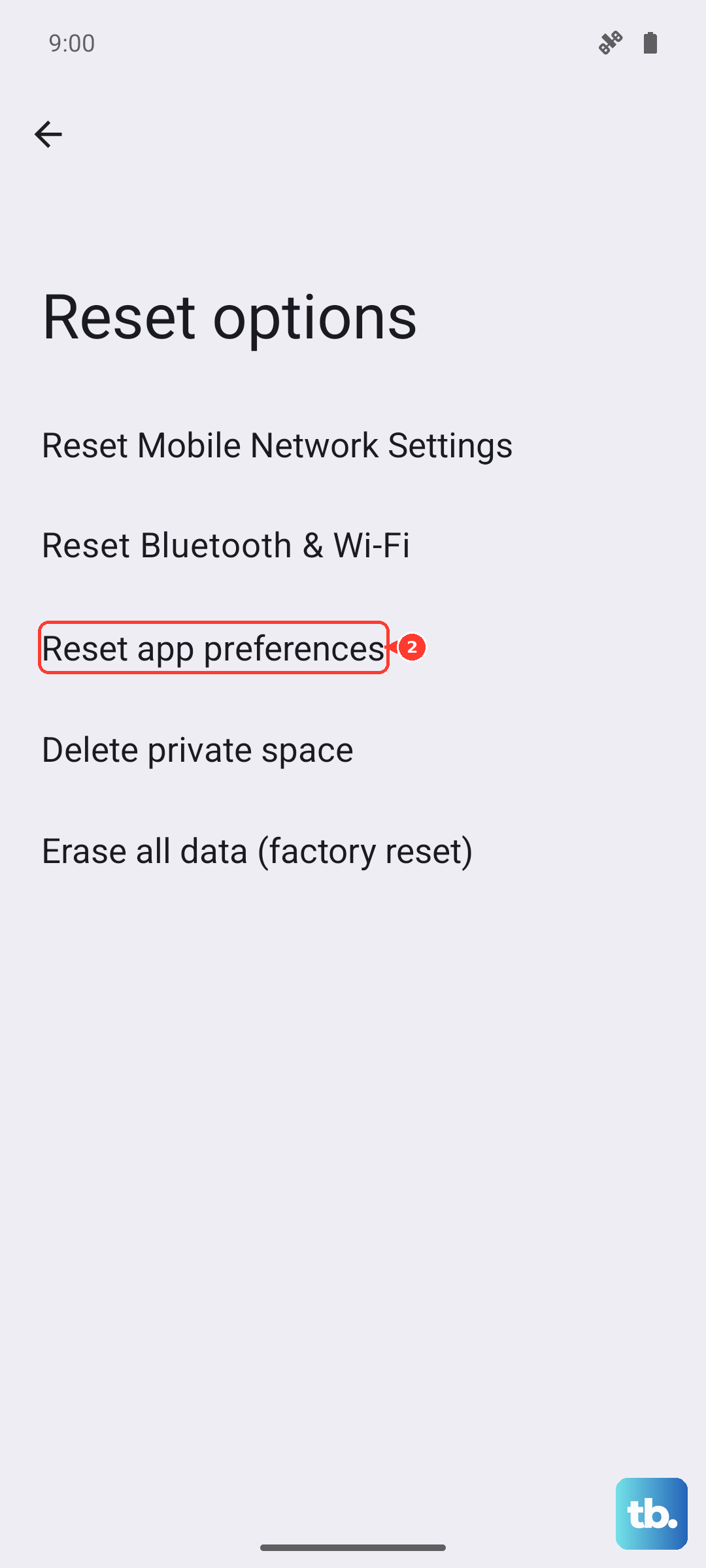
Navigate to Settings > System > Reset options. Tap on "Reset app preferences" and confirm. You'll need to re-grant permissions like microphone access the next time you open each app, but it often solves obscure software issues.
Check for Moisture or Damage
The Pixel 8 is water-resistant, but if it was recently exposed to liquid, moisture could still be interfering with the microphone ports. Look for the water droplet icon in your status bar, which indicates liquid detection in the USB-C port.
Also, inspect the microphone pinholes for any signs of physical damage. A hard drop can sometimes dent the metal mesh covering the mic, blocking sound from getting through.
Perform a Factory Reset
If you've tried everything else and the microphone is still dead, a factory reset is the last software step. This will erase all data on your phone, so it's absolutely critical to back up everything important first using Google One or your preferred method.
Once backed up, go to Settings > System > Reset options > Erase all data (factory reset). Follow the prompts to reset the phone. After it restarts, test the microphone immediately during the setup process before restoring your apps, as a third-party app could have been the root cause.











