
If your Google Pixel 8 camera is showing a black screen, start by force closing the app. Swipe up from the bottom of your screen and hold to enter the app switcher, then swipe the Camera app up and off the screen. I've found this clears up most temporary glitches that cause the viewfinder to go black.
Key Points
- Restart Your Phone: A simple reboot can clear the camera's memory and fix software conflicts.
- Check for App and System Updates: Outdated software is a common cause of camera failures.
- Clear the Camera App's Cache and Data: This resets the app without deleting your photos.
- Check for Physical Obstructions: A case or screen protector might be blocking the lens.
- Boot Into Safe Mode: This helps determine if a third-party app is interfering with the camera.
- Reset App Preferences: This can fix permissions issues without a full factory reset.
Wait a moment, then reopen the Camera app from your home screen. If the black screen persists, there are several other reliable fixes to try.
Restart Your Pixel 8
A full restart is the most effective first step for any persistent software issue. Press and hold the Power button for about 30 seconds until you feel a vibration and see the Google logo appear on the screen. This force restart can clear out corrupted temporary data that's preventing the camera from initializing properly.
Give the phone a full minute to boot back up completely. Once it's on, try opening the camera again. This simple step resolves the problem for a lot of users.
Update Your Apps and Software
Outdated software is a frequent culprit for camera problems. First, check for updates to the Camera app itself. Open the Google Play Store, tap your profile icon, and go to Manage apps & device > Updates available. Look for the Camera app in the list and update it if it's there.
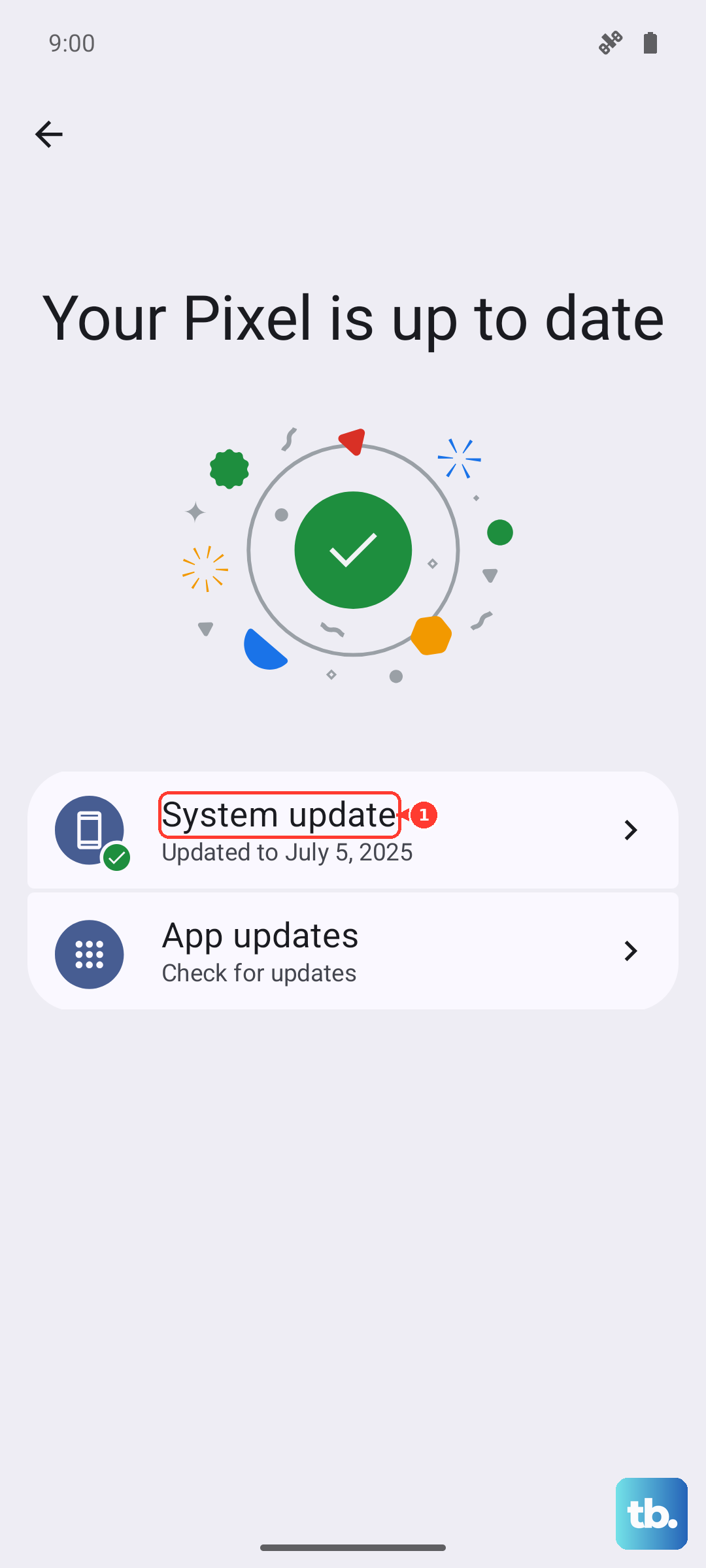
Next, check for a system update. Google regularly releases patches that fix bugs, including camera issues. Go to Settings > System > Software update and tap Check for update. Install any available update and restart your phone when it's done.
Clear the Camera App's Cache and Data
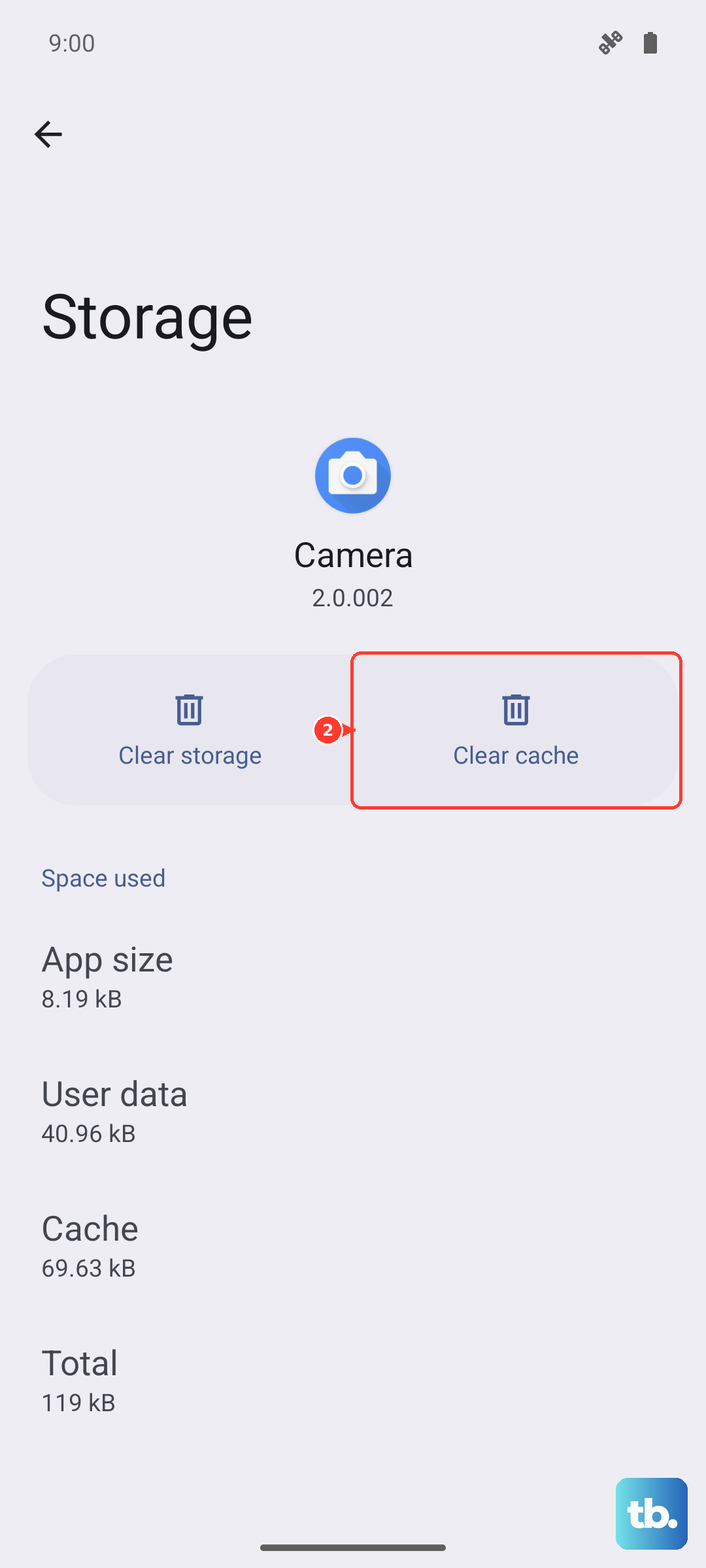
If updating didn't help, the next step is to clear the app's stored data. This resets the camera app to its default state without affecting your photos, which are saved separately. Go to Settings > Apps > See all apps.
Find and tap on Camera in the list. Then, tap Storage & cache. Tap Clear cache first and test the camera. If the black screen remains, go back and tap Clear storage or Clear data. You'll need to grant permissions again the next time you open the camera.
Check for Physical Blockages and Clean the Lens
It sounds obvious, but sometimes a phone case or a poorly aligned screen protector can physically block the camera lens. Remove your case and see if the camera works without it. Look closely at the camera bar on the back of your Pixel 8. Make sure there's no plastic film, dirt, or significant smudges covering the lenses.
Use a soft, dry microfiber cloth to gently clean the camera lenses. Avoid using any liquids or abrasive materials. A clean lens ensures the camera can see properly and rules out a simple physical cause.
Test in Safe Mode
Booting into Safe Mode temporarily disables all third-party apps. This is the best way to figure out if an app you installed is causing a conflict with the camera. Press and hold the Power button and Volume Up button together until the power menu appears. Then, press and hold the Power off option on your screen.
You'll see a prompt to reboot to Safe Mode. Tap it. Once your phone restarts, you'll see "Safe mode" in the bottom corner. Try opening the camera now. If it works perfectly in Safe Mode, a recently installed app is likely the problem.
You'll need to restart your phone normally to exit Safe Mode. Then, start uninstalling apps one by one, beginning with the most recent downloads, until the camera starts working again.
Reset App Preferences
This is a useful middle step before considering more drastic measures. Resetting app preferences will revert all your app permissions, notifications, and default app assignments back to their factory settings. It won't delete any of your personal data or apps.
Go to Settings > Apps > See all apps. Tap the three-dot menu in the top right and select Reset app preferences. Confirm your choice. Afterward, you'll need to re-grant permissions when you use apps for the first time, but this can resolve deep-seated permission conflicts affecting the camera.
Check for Overheating
The Pixel 8 can throttle performance or disable certain features, like the camera, if it gets too hot. If you've been using your phone intensively, gaming, or charging it in a warm environment, let it cool down for 10-15 minutes. Place it in a cooler spot out of direct sunlight.
Once the device has cooled, try the camera again. If overheating was the trigger, it should function normally now. Using a lighter case or avoiding heavy use while fast charging can help prevent this.
Try a Third-Party Camera App
Download a free camera app like Open Camera or Adobe Lightroom from the Play Store. Open the third-party app and see if it can access the camera and display a viewfinder. If it works, the problem is almost certainly with the software of your stock Google Camera app.
If the third-party app also shows a black screen, the issue might be deeper within the Android system or related to the hardware. This test helps narrow down where the fault lies.
Perform a Factory Reset (Last Resort)
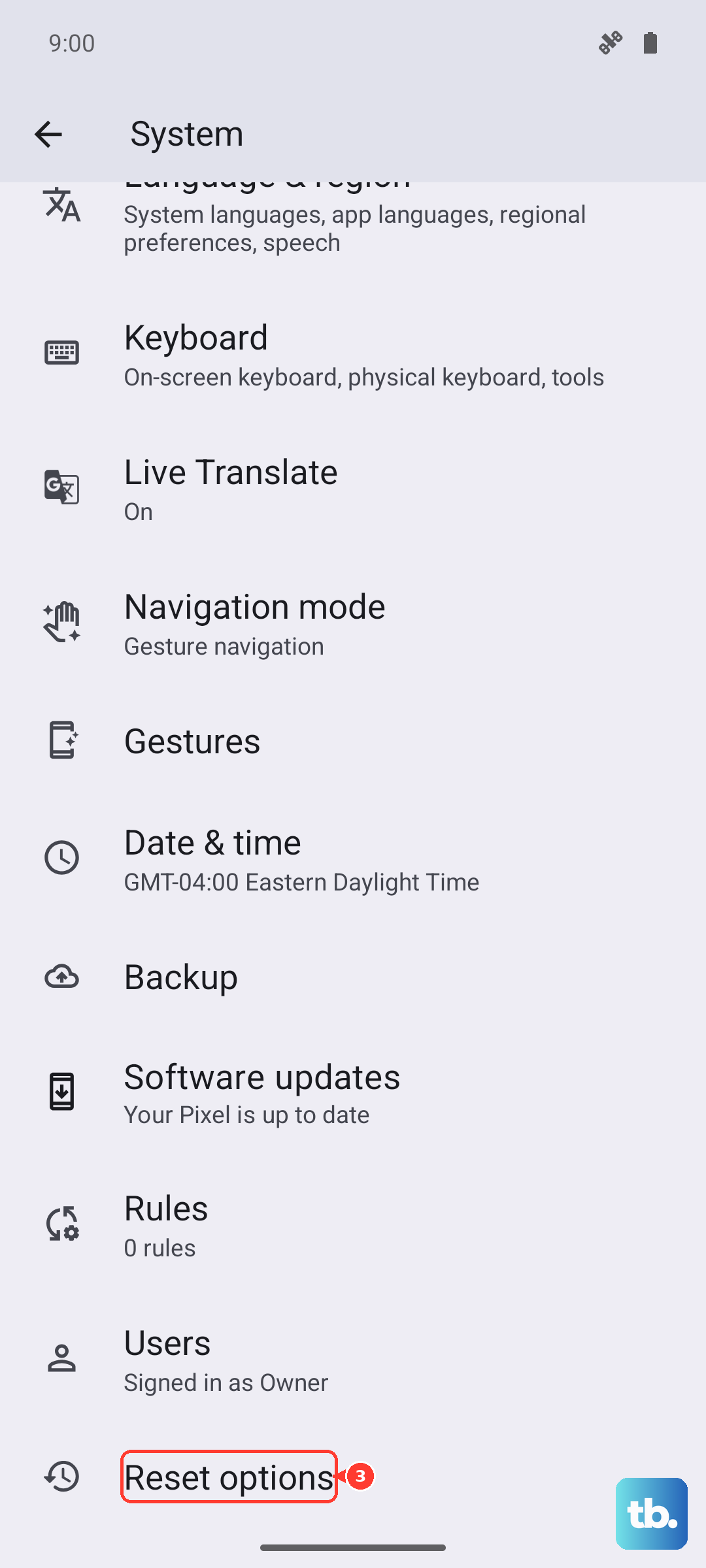
Before you do this, ensure you have a complete backup of your Pixel 8. A factory reset will erase all your data and return the phone to its original out-of-the-box state. Go to Settings > System > Reset options > Erase all data (factory reset).
Follow the on-screen prompts to confirm. After the reset is complete, set up your phone as new initially. Don't restore from a backup right away. Check if the camera works on the fresh system. If it does, you can then try restoring your backup, but be aware the problem could return if it was caused by corrupted data in your backup.