If your Google Pixel 10 videos are stuttering, freezing, or dropping frames, it can really ruin the experience. This is a common issue that pops up for a few different reasons, but the good news is you can usually fix it yourself without too much trouble.
Check Your Internet Connection First
For any video you're streaming online, a weak connection is the most likely culprit. The Pixel 10 needs a stable signal to load video data smoothly. If you're on Wi-Fi, try moving closer to your router or restarting it.
You can also quickly test by switching to mobile data to see if the lag disappears. If videos play fine on data, you know your home network is the issue. For local videos stored on your phone, you can skip this step and look at other causes.
Free Up Storage Space on Your Pixel
When your phone's storage is nearly full, it struggles to read and write data efficiently, which includes playing back video files. Android needs some breathing room to work properly.
Head to Settings > Storage to see how much space you have left. If you're below 5-10GB of free space, it's time for a cleanup. I'd start by offloading old downloads and clearing app caches, which can reclaim a surprising amount of room.
Update Android and Your Apps
Running an old version of Android 15 or outdated apps can lead to compatibility bugs that affect video playback. Google and app developers regularly release updates that fix these kinds of performance glitches.
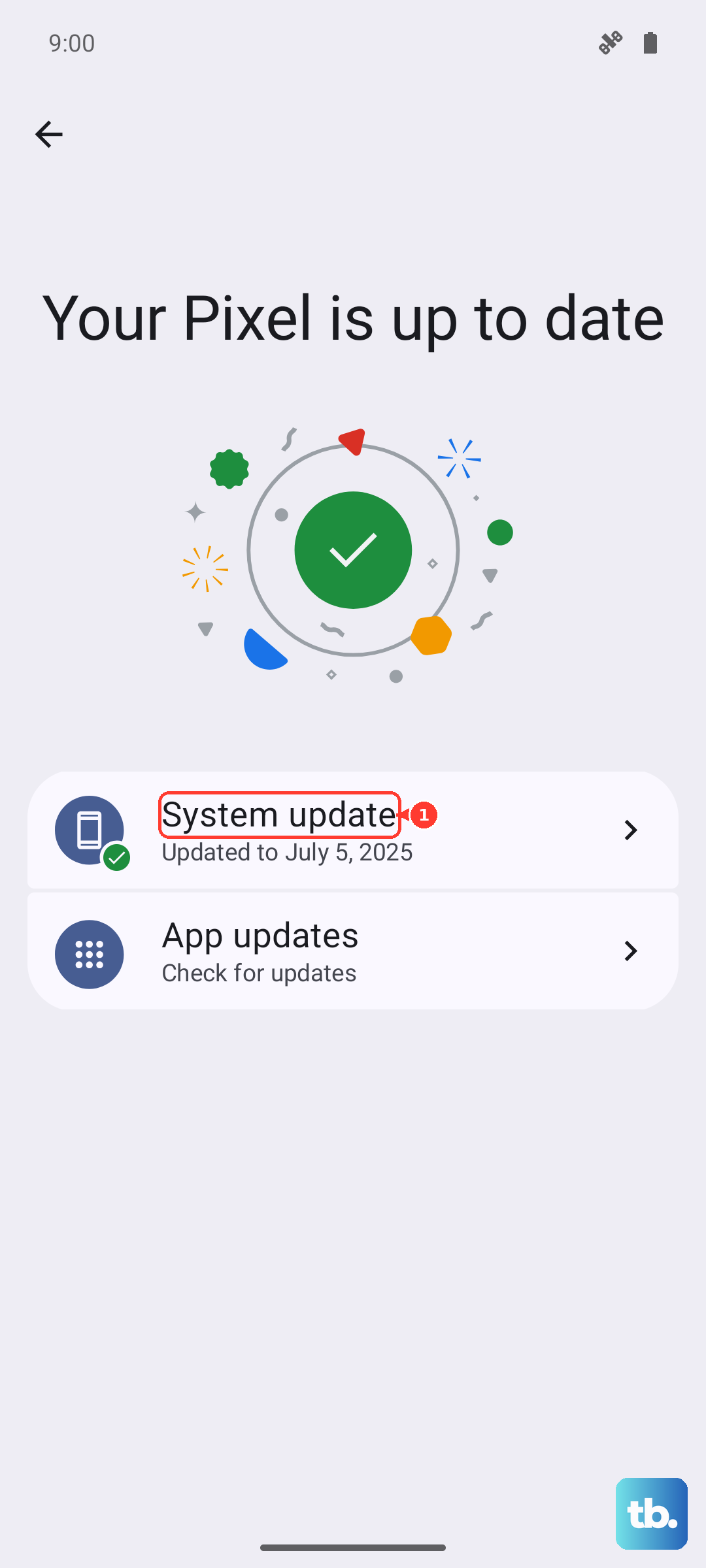
Go to Settings > System > System update to check for the latest Android software. Then, open the Google Play Store, tap your profile icon, and go to Manage apps & device > Updates available to update all your apps, especially the one you use for videos.
Restart Your Pixel 10
It sounds simple, but a restart clears out temporary system glitches and stops any background processes that might be interfering. Just press and hold the Power button, then tap 'Restart' from the menu that appears.
If your phone is completely frozen and won't respond to the screen, you'll need to force a restart. Press and hold the Power button and the Volume Up button together for about 10 seconds until you see the Google logo.
Check for a Problematic App
Sometimes the issue is isolated to one specific app, like YouTube, Netflix, or your gallery. Try playing the same video in a different app to see if the lag follows.
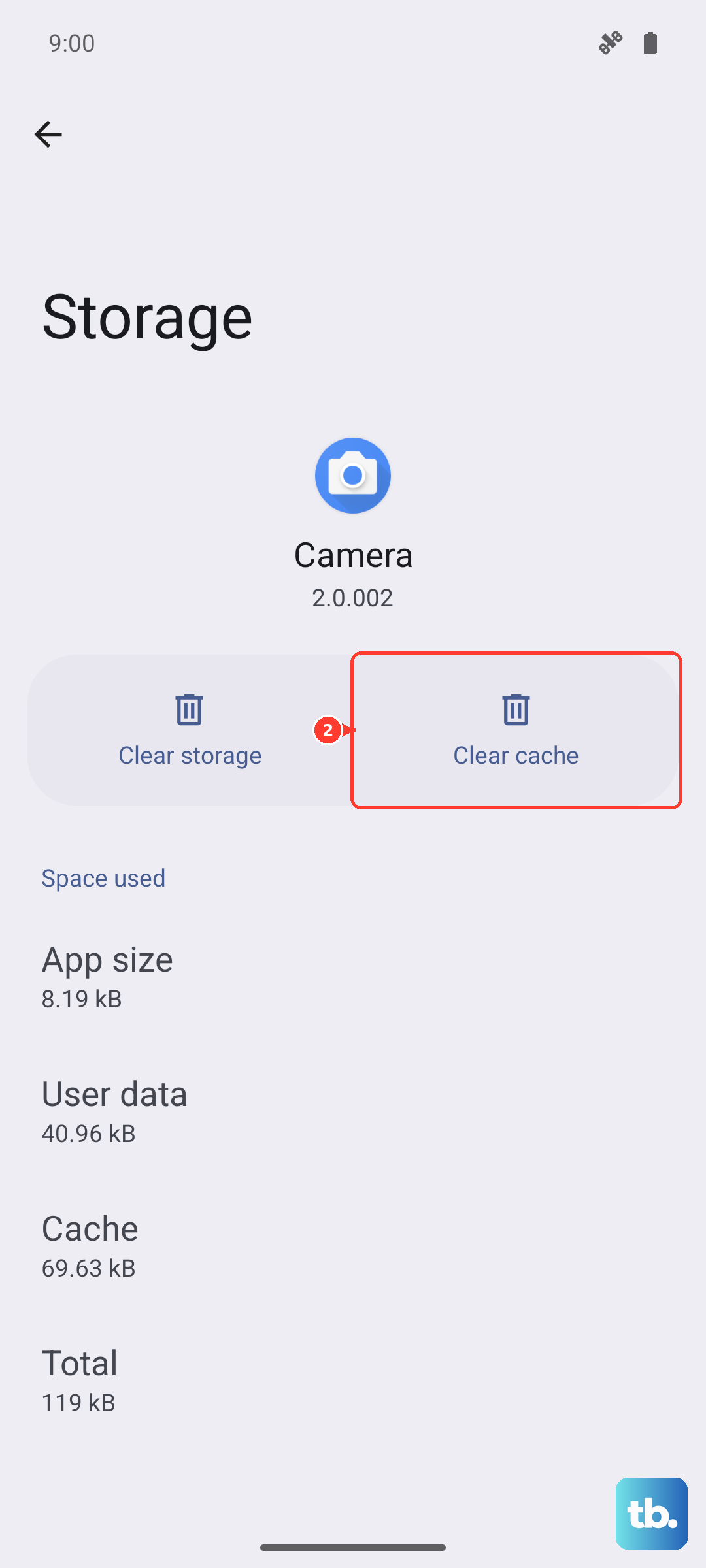
If only one app is problematic, try clearing its cache and data. Go to Settings > Apps, select the app, then tap Storage & cache. Tap 'Clear cache' first. If that doesn't help, you can tap 'Clear storage' or 'Manage space', but be aware this will delete the app's data, like offline downloads or login info.
Adjust Video Streaming Quality
If you're streaming, your app might be trying to play a video in a resolution higher than your connection can handle, causing constant buffering. Most streaming apps let you manually set a lower default quality.
For example, in YouTube, tap your profile picture, go to Settings > Video quality preferences, and you can change the default for both Wi-Fi and mobile networks. Dropping from 4K to 1080p can make a huge difference on a spotty connection.
Reset App Preferences or System Settings
If you've changed a system setting that affects performance, or if an app's permissions are messed up, it can cause issues. You can reset all app preferences without deleting any personal data.
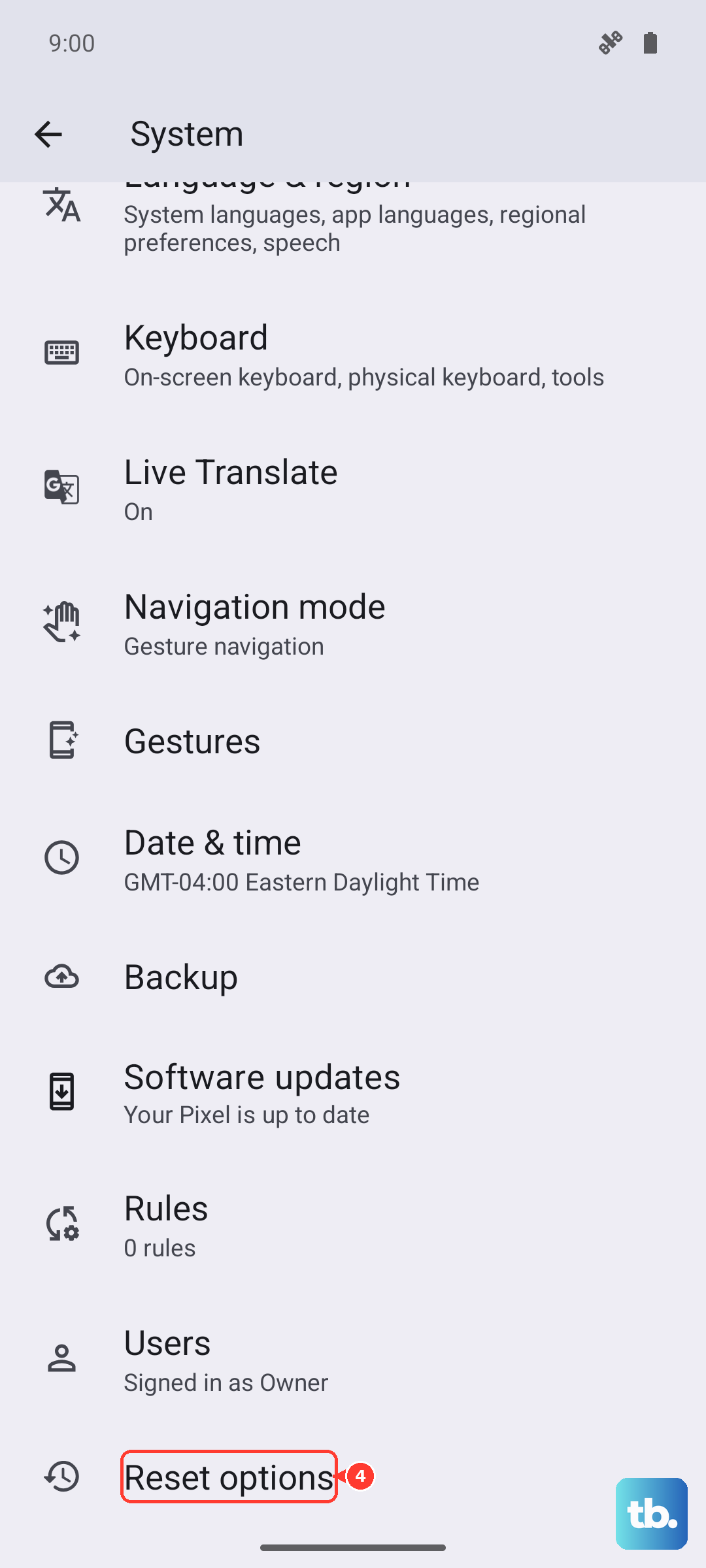
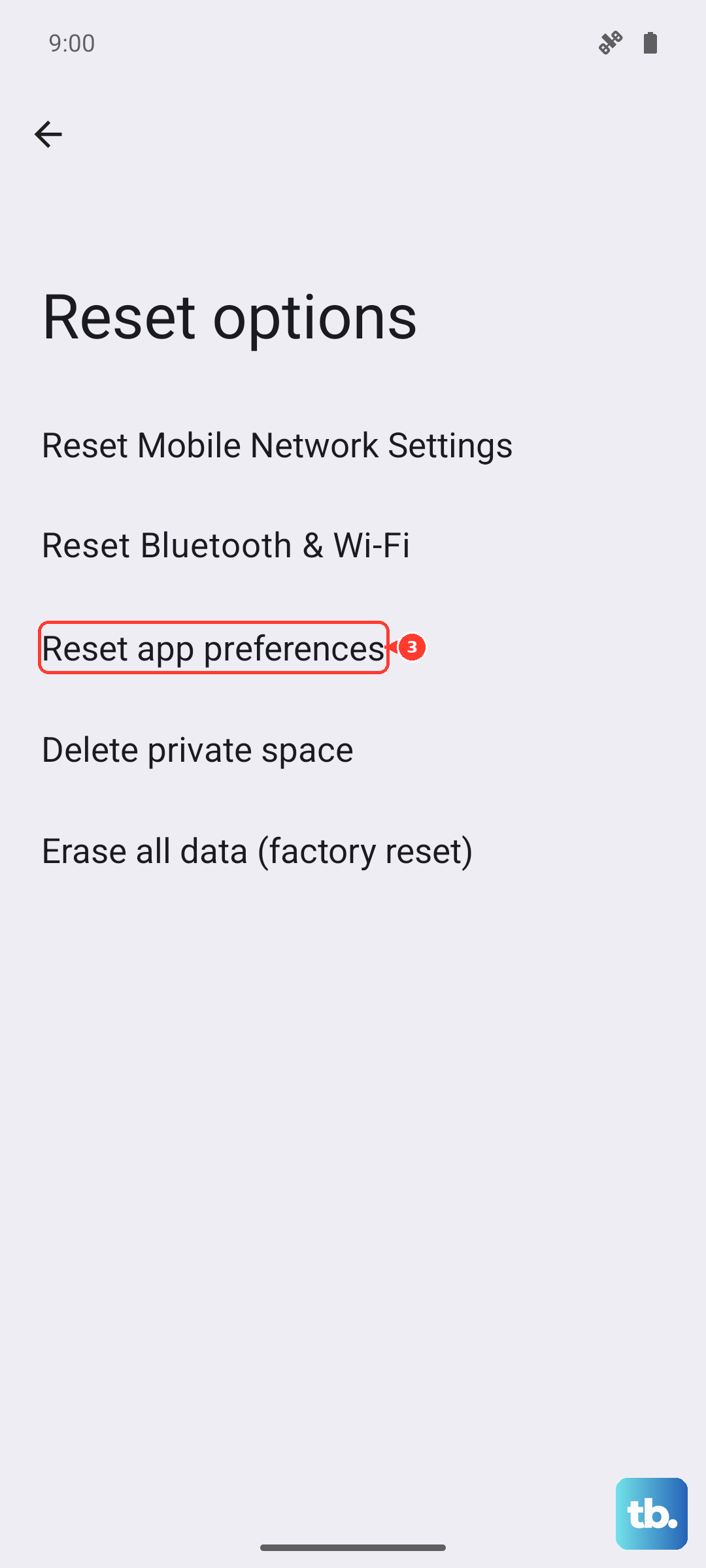
Go to Settings > System > Reset options. Tap Reset app preferences. This resets notification settings, default apps, and background data restrictions. If the problem is broader, you can try Reset Wi-Fi, mobile & Bluetooth from the same menu, which will make you rejoin your networks.
Consider a Factory Reset
If you've tried everything else and the video lag is still happening across every app, a factory reset is the last software step. This will erase everything on your phone and return it to its original out-of-the-box state.
This is a big step, so make absolutely sure you have a complete backup of your photos, files, and app data. You can back up to your Google Account. Once ready, go to Settings > System > Reset options > Erase all data (factory reset). Follow the prompts to complete the reset.