
If your Google Pixel 10 Pro camera app is crashing or showing a black screen, start with a simple restart. Press and hold the Power button until the power menu appears, then tap Restart. If holding the Power button launches the voice assistant instead (the default on recent Pixel and vivo phones), press and hold the Power and Volume Up buttons together to open the power menu, then tap Restart. I've seen this fix work for most temporary glitches that cause the camera to freeze or not open at all.
If you are unsure whether the camera or the app is at fault, run a quick webcam test first. Seeing a live preview means the hardware and driver are doing their job.
Key Points
- Restart Your Phone: This clears the camera app from memory and fixes many temporary software bugs.
- Check for App and System Updates: Outdated software is a common cause of camera failures on Android 15.
- Clear the Camera App's Cache: Corrupted temporary data can prevent the camera from loading properly.
- Check for Physical Damage or Obstructions: A cracked lens or case blocking the camera will stop it from working.
- Boot Into Safe Mode: This helps determine if a third-party app is interfering with the camera.
- Reset App Preferences or Perform a Factory Reset: These are last-resort software fixes for persistent issues.
Give your phone about 30 seconds to fully reboot, then try opening the camera again. If the app still won't launch, the problem might be a bit deeper.
Update Your Apps and System Software
Outdated software is one of the most common reasons for camera problems. First, check for updates to the Google Camera app itself. Open the Google Play Store, tap your profile icon, and go to Manage apps & device > Updates available.
Look for the Camera app in the list and tap Update if it's there. Developers frequently push fixes for bugs that cause crashes.
Next, check for a full Android system update. Go to Settings > System > Software update and tap Check for update. The Pixel 10 Pro runs Android 15, and Google has released patches for camera stability issues in past updates.
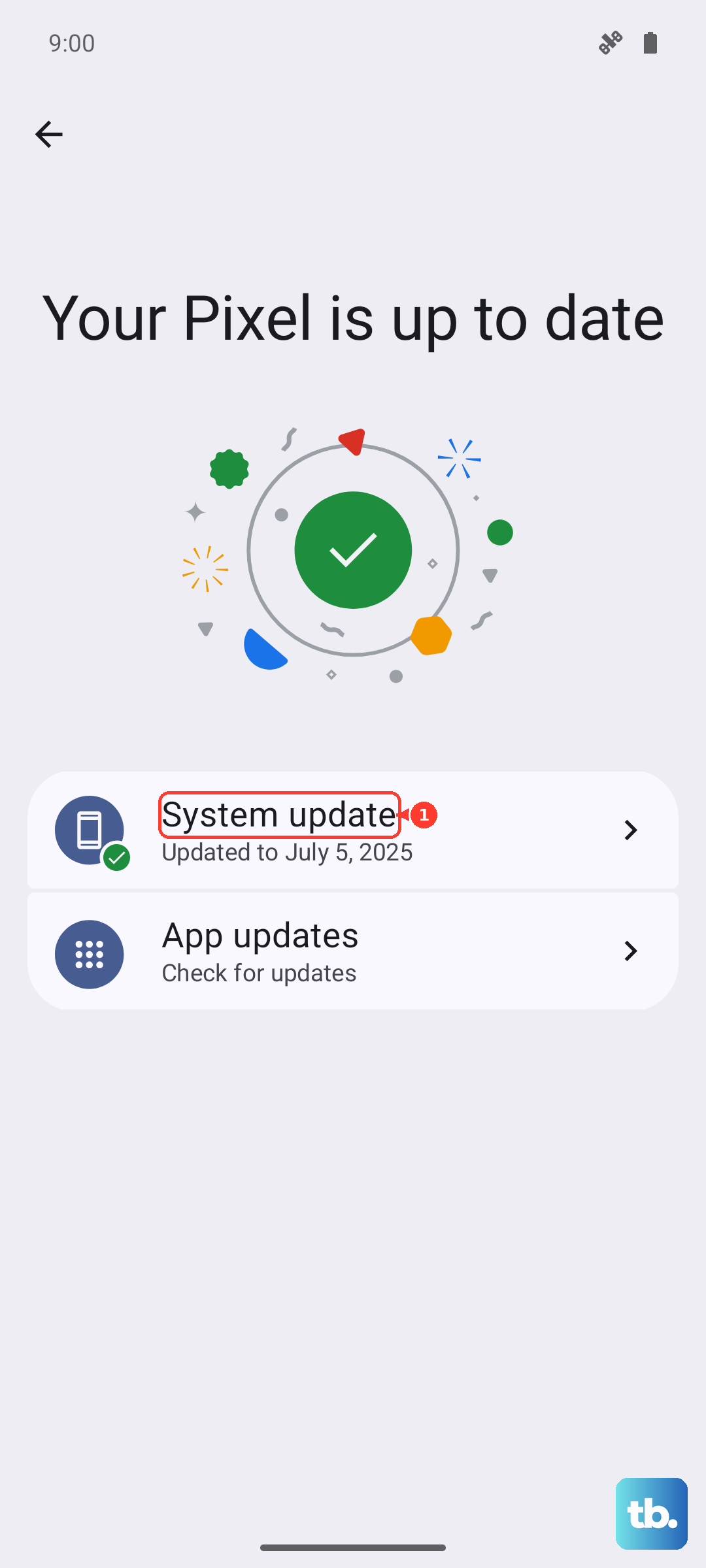
Install any available updates and restart your phone once they finish. This ensures all the new software components are loaded correctly.
Clear the Camera App's Cache and Data
Sometimes the temporary files the camera app stores get corrupted. Clearing the cache is a safe first step that won't delete your photos. Go to Settings > Apps > See all apps.
Find and tap on Camera in the list. Then, tap Storage & cache and select Clear cache. Try opening the camera app again.
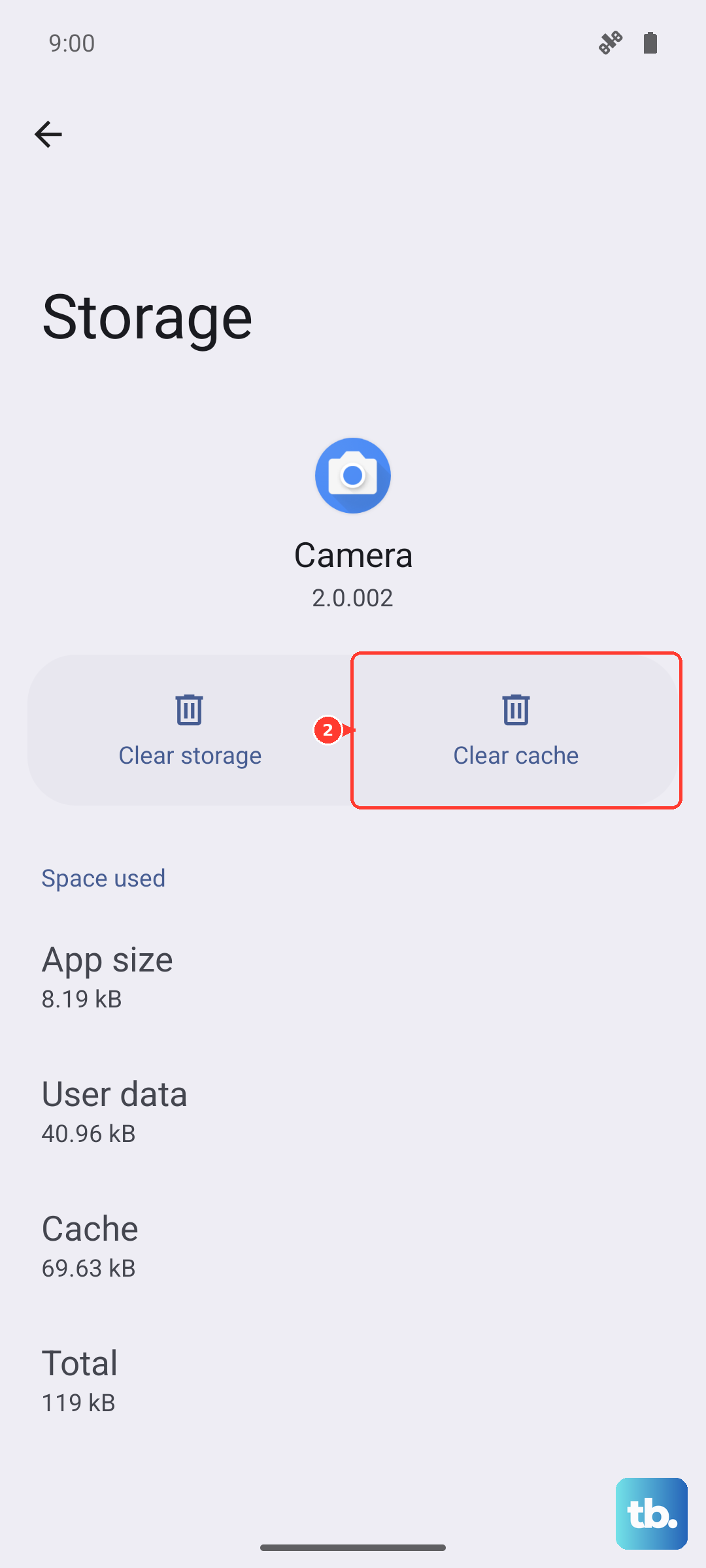
If clearing the cache doesn't help, you can try clearing the app's data. This is a more thorough reset. In the same Storage & cache menu, tap Clear storage or Clear data.
Be aware this will reset the camera app to its default settings. You'll lose any custom modes or settings you've configured, but your photos and videos in Google Photos are safe.
Inspect for Physical Issues
Take a close look at your Pixel 10 Pro's camera module. Is the lens glass cracked or scratched? Even a small crack can distort the image sensor's view and cause focusing failures or a black screen.
Also, check if your phone case is properly aligned. A poorly designed or thick case can partially block the ultra-wide or telephoto lenses, especially around the edges of the camera bar. Try removing the case completely and test the camera.
Give the camera lenses a gentle wipe with a clean, dry microfiber cloth. Fingerprints and smudges are a common culprit for blurry or hazy photos, even on a phone with cameras as advanced as the Pixel 10 Pro's.
Boot Into Safe Mode to Isolate the Problem
If the camera works fine after a restart but later fails, a third-party app might be causing a conflict. Booting into Safe Mode temporarily disables all apps you've installed. To start Safe Mode, press and hold the Power button and Volume Up button together until the power menu appears.
Then, press and hold the Power off option on your screen. A prompt will appear asking if you want to reboot to Safe Mode. Tap OK to confirm.
Once your phone restarts, you'll see "Safe mode" in the bottom corner. Try opening the camera app. If it works perfectly in Safe Mode, you know a downloaded app is the problem.
Start uninstalling apps one by one, beginning with any recently installed camera utilities, social media apps, or battery savers. Test the camera after each removal.
Check for Microphone Permissions
This might seem unrelated, but if your camera app crashes only when you try to record video, it could be a microphone permission issue. The camera app needs access to your microphone for video recording.
Go to Settings > Apps > Camera > Permissions. Make sure the Microphone permission is set to "Allow only while using the app" or "Allow all the time."
If it's denied, the app may crash when it tries and fails to access the mic for video. Toggle the permission off and back on to reset it, then try recording a video again.
Reset All App Preferences
This is a broader fix than just resetting the camera app. It resets permissions, background restrictions, and notification settings for all your apps back to their defaults, but it won't delete any personal data.
Go to Settings > System > Reset options. Tap on Reset app preferences and confirm. You'll need to re-grant permissions to apps as you use them again.
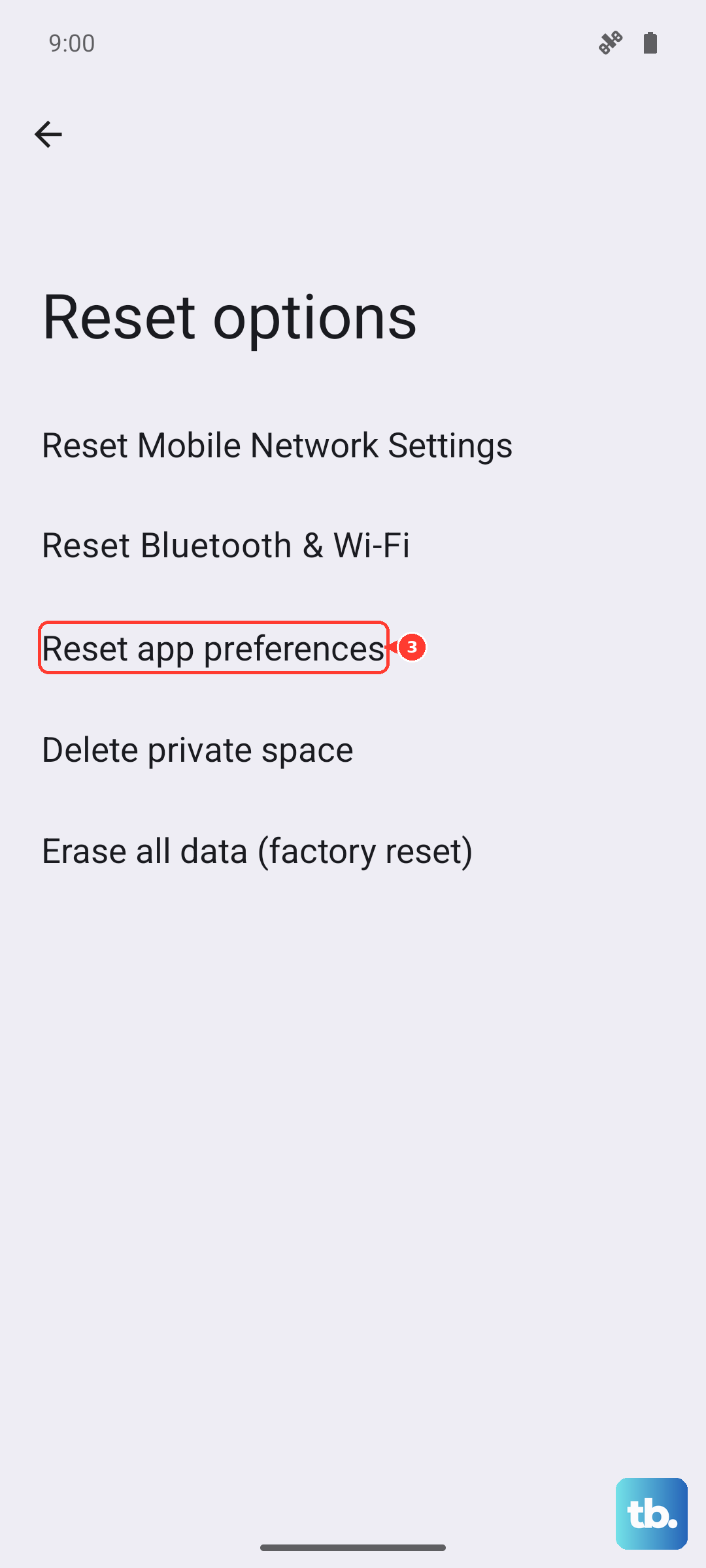
After the reset, open the camera app. It will ask for necessary permissions like camera and microphone. Grant them and see if the app now functions normally.
Perform a Factory Reset
This is the most comprehensive software fix and should be your last resort. A factory reset will erase all data from your Pixel 10 Pro and return it to its original out-of-the-box state.
Before you begin, ensure all your important photos, contacts, and files are backed up to Google Photos and your Google Account. Go to Settings > System > Reset options > Erase all data (factory reset).
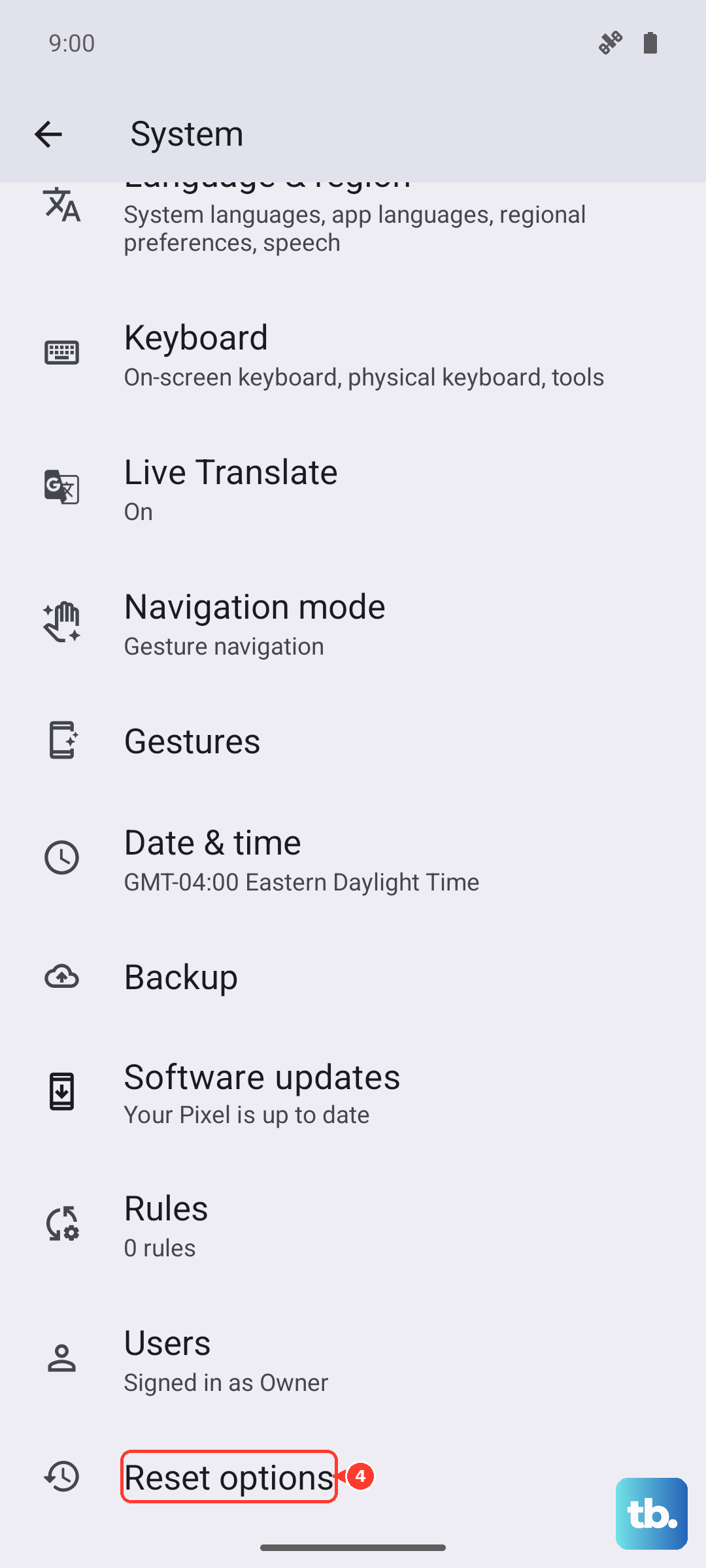
Follow the on-screen instructions to complete the process. After the reset, set up your phone as new initially to test the camera. If the camera works now, the issue was with your previous software configuration.