If your Google Pixel 10 camera suddenly won't open or keeps crashing, start by force closing the app. Swipe up from the bottom of your screen and hold to enter the app overview, then swipe the Camera app card all the way up to close it. I've found this clears up most temporary glitches that cause a black screen or the app to freeze.
Key Points
- Restart Your Phone: A simple reboot can clear software conflicts affecting the camera.
- Check for Software Updates: Camera bugs are often fixed in monthly Pixel updates.
- Clear the Camera App's Cache: This removes temporary data without deleting your photos.
- Inspect the Camera Hardware: A dirty or obstructed lens is a common culprit for blurry photos.
- Boot in Safe Mode: This helps determine if another app is interfering with the camera.
- Reset App Preferences or Perform a Factory Reset: These are last-resort software fixes for persistent issues.
Wait a moment, then tap the Camera icon again to relaunch it. If the app is still unresponsive, the next step is to restart your entire phone.
Restart Your Pixel 10
Hold the power button until the power menu appears on screen, then tap Restart. Give the phone a full minute to boot back up. This simple step resets all running processes and can resolve conflicts that prevent the camera from initializing properly.
If your phone is completely frozen and the screen won't respond, you'll need to force a restart. Press and hold the Power button and the Volume Up button together for about 10 seconds. Release them when you see the Google logo appear on the screen.
Install the Latest Android Updates
Google releases monthly updates that frequently include camera improvements and bug fixes. To check, go to Settings > System > Software update. Tap "Check for update" and install anything available.
After the update installs, restart your phone one more time. It's also a good idea to open the Google Play Store, tap your profile icon, and go to Manage apps & device > Updates available, to ensure the Camera app itself is updated.
Clear the Camera App's Cache and Data
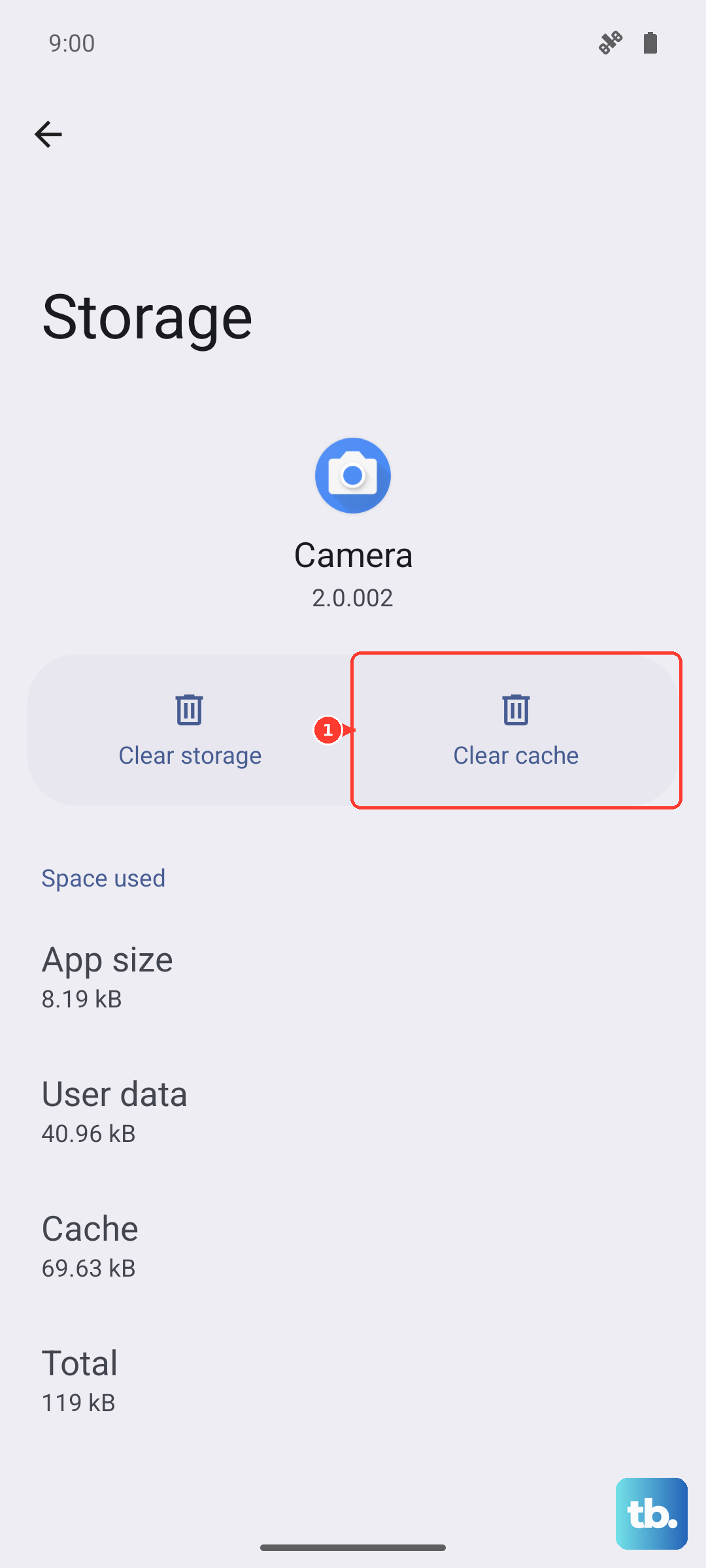
Sometimes corrupted temporary files can break the camera. Clearing the cache is safe and won't delete your photos. Go to Settings > Apps > See all apps. Find and tap "Camera," then select Storage & cache.
Tap "Clear cache." If the problem persists, you can try "Clear storage" or "Clear data." Just be aware this will reset the Camera app to its default settings, so you'll lose any saved preferences or modes you've set up.
Check for Physical Obstructions
Take a close look at the camera lenses on the back of your phone. Smudges, fingerprints, or a poorly aligned phone case can block the lens and cause blurry pictures or focus failures. Use a soft, dry microfiber cloth to gently clean all the lenses.
Also, remove your phone case and try taking a photo. Some cases, especially after-market ones, can have a lip that slightly covers the camera bump and interferes with the wide-angle or telephoto sensors.
Test the Camera in Safe Mode
Booting in Safe Mode temporarily disables all third-party apps. This tells you if another app you installed is causing the conflict. To enter Safe Mode, press and hold the Power button and Volume Up button together until the power menu appears.
Then, tap and hold the "Power off" option on your screen. A prompt will ask if you want to reboot to Safe Mode, tap OK. If the camera works perfectly in Safe Mode, a recently downloaded app is likely the problem. You'll need to uninstall apps one by one to find the culprit.
Reset App Preferences or Your Phone
If a specific app can't access the camera, resetting app permissions can help. Go to Settings > Apps > See all apps. Tap the three-dot menu in the top right and select Reset app preferences. This resets permission denials and disabled apps without deleting any personal data.
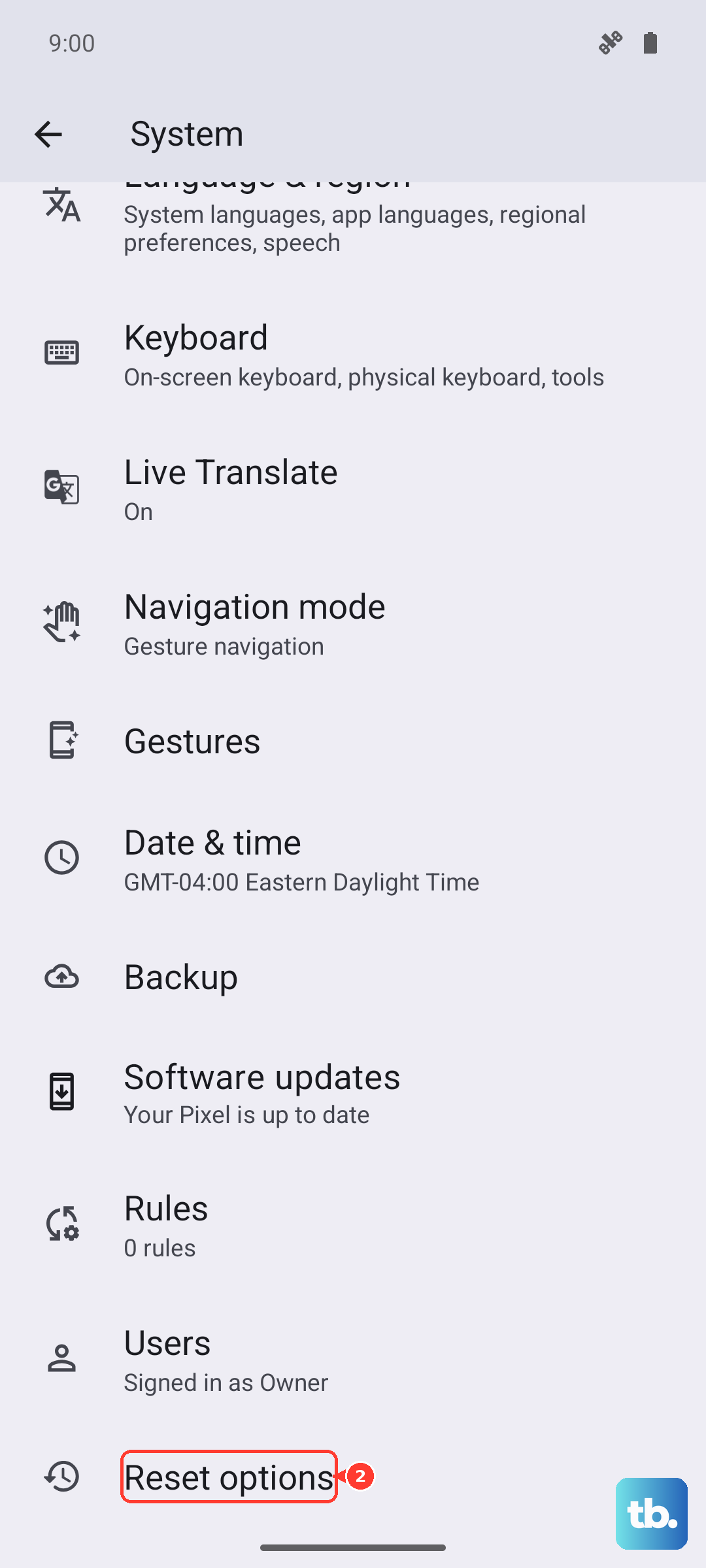
As an absolute last resort, you can perform a factory reset. First, ensure all your photos and data are backed up to Google Photos and your Google Account. Then, go to Settings > System > Reset options > Erase all data (factory reset). This will return your Pixel 10 to its original out-of-the-box state.