
If your Google Pixel 10 is refusing to pair with your headphones, car, or speaker, it can feel like you're stuck in a silent world. Bluetooth issues are incredibly common, but the good news is they're often resolved with a few straightforward steps. Since you're running Android 16, some of the menu paths might look a bit different, but the core fixes remain the same.
Before you dive deep, run through a quick mental checklist. Make sure both your Pixel 10 and the device you're trying to connect to have enough battery. I'd recommend at least 20% to be safe. Check that the other device is actually in pairing mode, which is often indicated by a flashing light. Keep them close together, ideally within 10 feet, to rule out any signal interference.
Toggle Bluetooth and Restart
The absolute first thing to try is the classic off-and-on. Swipe down from the top of your screen to open the Quick Settings panel and tap the Bluetooth icon to turn it off. Wait about 15 seconds, then tap it again to turn it back on. This simple refresh can clear up temporary glitches in the connection.
If that doesn't do it, give both devices a full restart. For your Pixel 10, hold the Power button and tap 'Restart' on the screen. Go ahead and power cycle the Bluetooth accessory as well. Once both are back on, attempt the pairing process from scratch. This resolves a huge number of transient software hiccups.
Forget and Re-Pair the Device
Sometimes the pairing data itself gets corrupted. The fix is to remove the device from your phone's memory and start fresh. Open the Settings app on your Pixel 10 and go to Connected devices > Previously connected devices.
Find the troublesome device in the list and tap the settings gear icon next to it. You'll see an option to Forget. Tap that to completely remove the pairing. Now, put the other device back into its discovery or pairing mode and select it from the "Available devices" list on your Pixel to create a new, clean connection.
Clear the Bluetooth System Data
If Bluetooth was working before and suddenly stopped, cached system data might be the culprit. Clearing it is safe and won't delete your personal files, but it will remove all your paired devices, so be prepared to re-pair them.
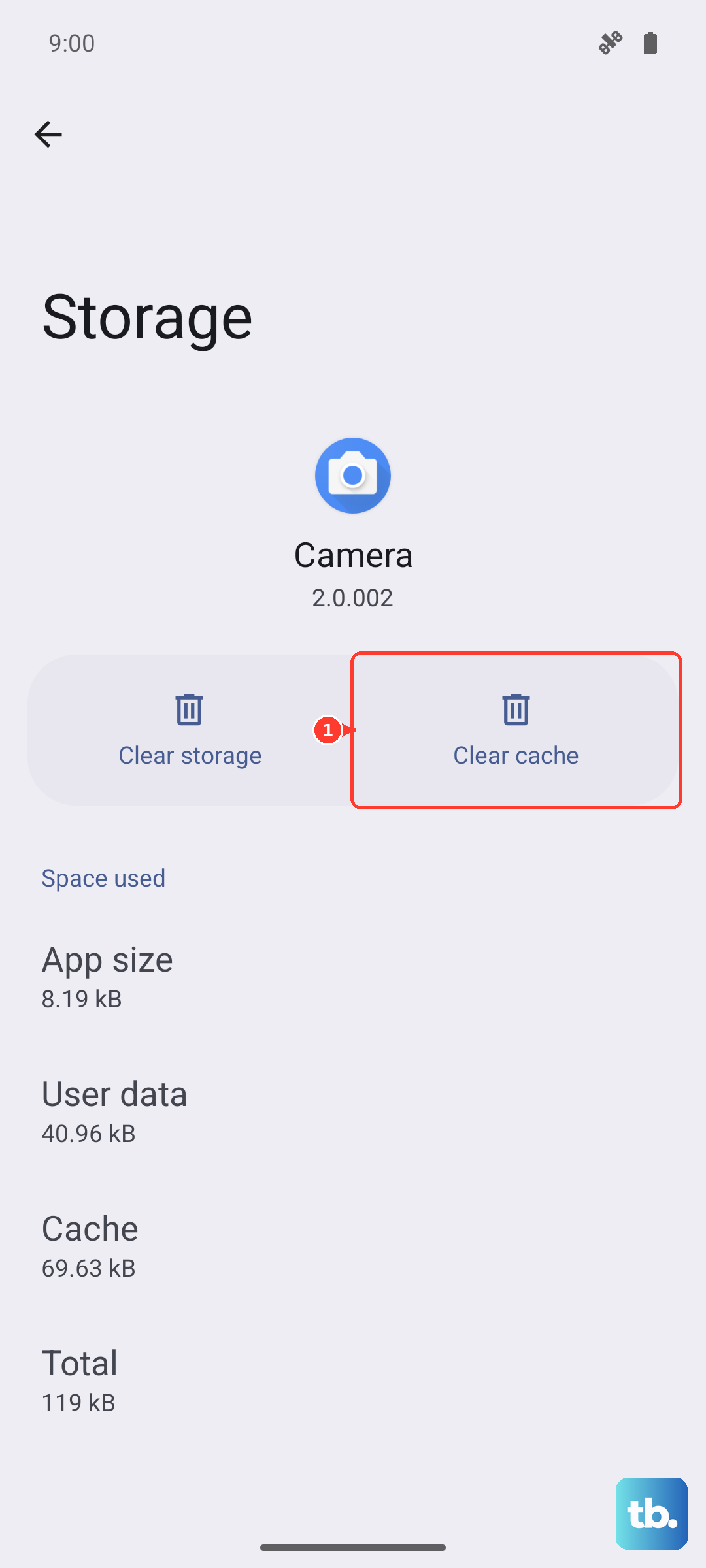
Go to Settings > Apps > See all apps. Tap the three-dot menu in the top right and select Show system. Scroll down and find Bluetooth in the list. Tap on it, then select Storage & cache. Tap Clear cache first and test. If the problem persists, come back and tap Clear storage (this is the 'Clear data' option). Your phone will restart Bluetooth, and you can begin pairing everything again.
Check for System Updates
Software bugs in Android 16 could be interfering with Bluetooth. Google frequently releases updates that patch these kinds of issues. To check, open Settings and go to System > System update.
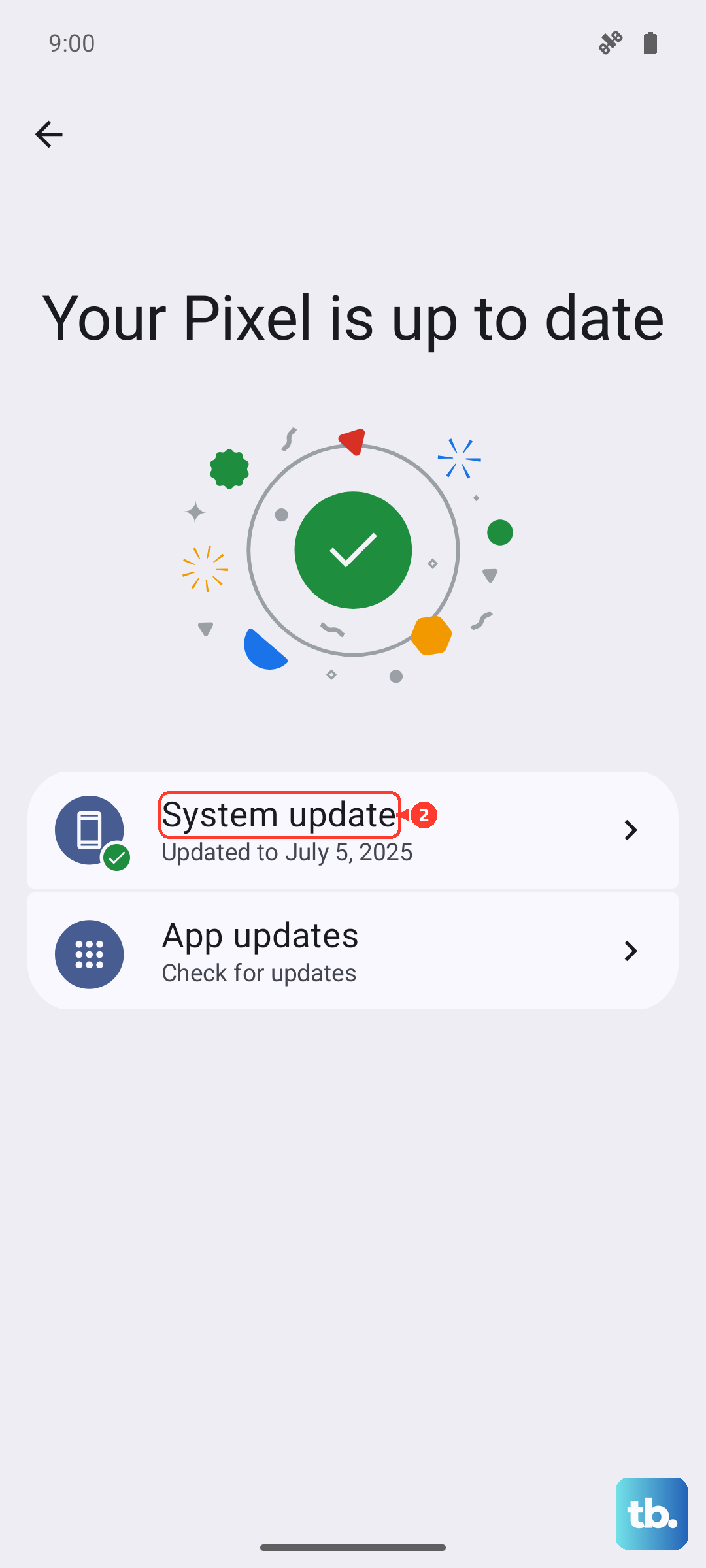
Tap 'Check for update'. If an update is available, install it. It's also worth checking if your Bluetooth accessory has a companion app in the Play Store that might offer a firmware update for the device itself. Keeping everything current is key for compatibility.
Boot Into Safe Mode
A third-party app you installed could be causing a conflict. Booting into Safe Mode temporarily disables all downloaded apps, letting you see if one of them is the problem. To enter Safe Mode on the Pixel 10, press and hold the Power button until the power menu appears.
Then, tap and hold the 'Power off' option on the screen. You'll get a prompt to reboot to Safe Mode. Tap 'OK'. Once your phone restarts, you'll see 'Safe mode' in the bottom corner. Try using Bluetooth now. If it works perfectly, a recently installed app is likely the cause. Restart normally to exit Safe Mode and try uninstalling apps one by one, starting with the most recent, to find the offender.
Reset Network Settings
This is a more thorough step that resets all network-related components, Wi-Fi, mobile data, and Bluetooth, back to their default state. It will erase saved Wi-Fi networks and paired Bluetooth devices. Go to Settings > System > Reset options.
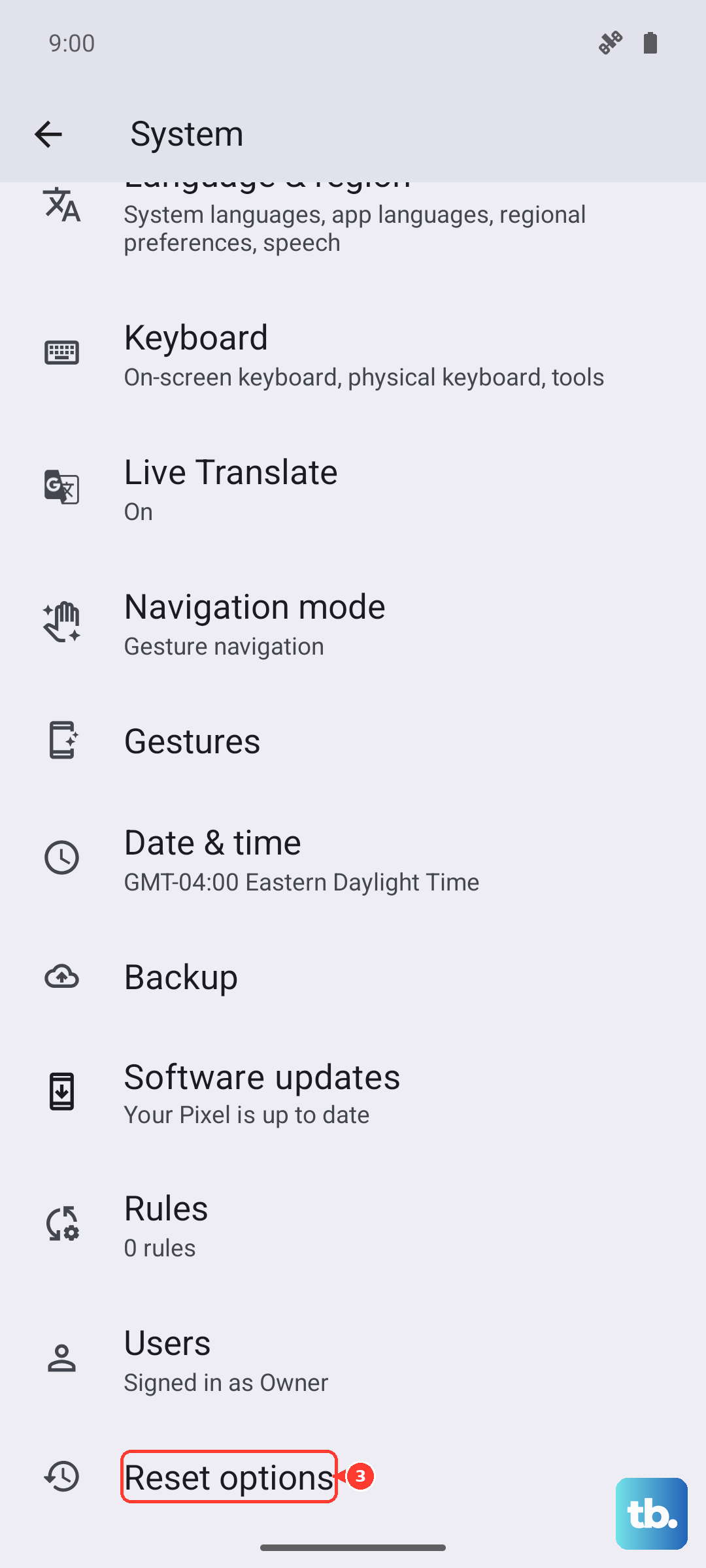
Tap on Reset Wi-Fi, mobile & Bluetooth. You'll need to confirm your PIN or pattern. After the reset is complete, your phone will reboot. You can then try setting up your Bluetooth connections anew, which often clears up deep-seated configuration errors.
Address Car Bluetooth Problems
Car systems are notoriously finicky. The most reliable method is a clean slate on both sides. First, forget the car from your Pixel's Bluetooth settings as described earlier. Then, in your car's infotainment system, find the menu to delete or manage phones and remove your Pixel 10 from its memory.
With both devices having forgotten each other, turn your car's ignition to the 'on' position (or start the engine) and initiate pairing from your car's system first. Then, look for it on your Pixel's 'Available devices' list. This order of operations can make a big difference with older car systems that struggle with newer phone protocols.
If you've tried all these steps and your Pixel 10's Bluetooth is still non-functional, it could point to a less common hardware issue. Before considering that, ensure you've completed a full system restart using the hardware keys: press and hold the Power button and Volume Up button together for about 10 seconds until the Google logo appears. This forces a deeper reboot than the standard menu option.