When your Android phone shows Mobile Network Not Available, it cannot connect to your carrier for calls, texts, or mobile data. Nine times out of ten this is a temporary registration glitch rather than a broken phone, and the fastest cure is a simple restart.
The error looks alarming, but most cases clear in under a minute once your phone re-attaches to the nearest cell tower. The fixes below run fastest to most drastic, so start at the top and stop as soon as your signal returns.
What Causes Mobile Network Not Available
The message means your handset failed to register with your carrier's network. A weak signal, network congestion, or a carrier outage can all trigger it without anything being wrong with your device.
On the device side, the usual culprits are a loose or dirty SIM, an outdated network profile, the wrong network mode, or a temporary software bug. Less often, an eSIM that was never set as the active data line, a VPN, or an IMEI that a carrier has blocked is to blame.
- Weak or no signal from being indoors, rural, or far from a tower
- Carrier outage or congestion during maintenance or peak hours
- SIM problems such as a loose, dirty, deactivated, or damaged card
- Wrong network mode for example forcing 5G where there is no coverage
- Software glitch after an update or a long stretch without a reboot
- eSIM not set as the active SIM for data or calls
This same root cause produces the closely related Not Registered On Network message. If you see that wording on a Samsung phone, follow the dedicated guide below.
Read more - 9 Ways To Fix Not Registered On Network on Samsung Galaxy
Symptom and Fix at a Glance
Use this table to jump straight to the fix that matches what you are seeing. Each row points to a section further down the page.
| Symptom or cause | Best fix to try first |
|---|---|
| Worked a minute ago, now nothing | Restart the phone (Fix 1) |
| Signal bars dropped to nothing | Toggle airplane mode (Fix 2) |
| After bumping or dropping the phone | Reinsert the SIM card (Fix 3) |
| Calls and texts work, no data | Toggle mobile data (Fix 4) |
| Persistent after several reboots | Reset network settings (Fix 5) |
| No 5G or signal in a known dead spot | Change network mode (Fix 6) |
| New SIM or new carrier, no data | Update APN settings (Fix 7) |
| eSIM phone shows no service | Check the eSIM setup (Fix 10) |
| SIM is fine in another phone | Software update or factory reset (Fix 9, 12) |
1. Restart Your Phone
A restart clears the temporary glitches behind most network errors and forces a fresh handshake with your carrier. It resolves the issue more often than any other step, so always try it first.
Press and hold the side button, or the side and volume up buttons together on newer Samsung and Pixel phones, then tap Restart. Give it a full minute to find a signal after it boots.
2. Turn Airplane Mode On and Off
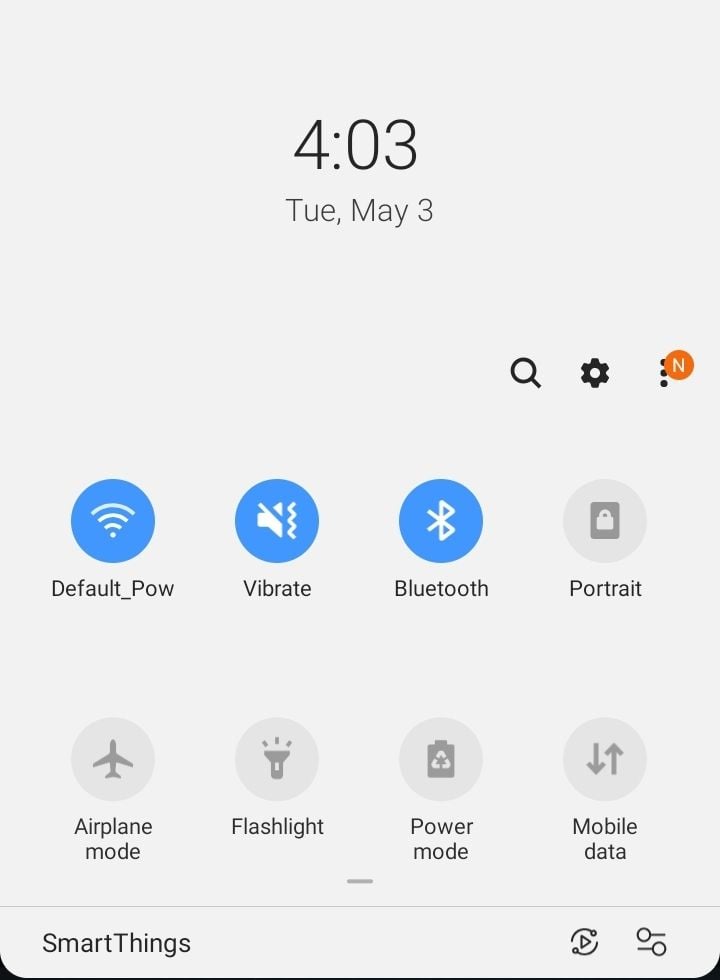
Toggling airplane mode is faster than a full reboot and forces your phone to drop and rebuild its connection to the network. It is the quickest fix when your bars suddenly vanish.
Swipe down from the top of the screen to open Quick Settings, tap the airplane icon, wait about 10 seconds, then tap it again to turn it off. You can also reach it under Settings > Network & internet > Airplane mode on stock Android or Settings > Connections > Flight mode on Samsung.
3. Remove and Reinsert the SIM Card
A SIM that has worked loose or picked up dust on its contacts is a common cause of this error. Reseating it often restores service straight away.
Power off the phone, then use the ejector tool or a paperclip to pop out the SIM tray. Wipe the gold contacts gently with a dry cloth, set the SIM back in the tray squarely, slide it home, and power the phone on.
If you have a removable battery, take it out for a minute before reinserting the SIM. Skip this step entirely if your phone uses an eSIM only and go to Fix 10 instead.
4. Toggle Mobile Data Off and On
If calls and texts work but you have no internet, your data session may have stalled. Cycling mobile data refreshes that connection without touching anything else.
Open Quick Settings and tap the Mobile data tile off, wait a few seconds, then tap it on. On stock Android the full path is Settings > Network & internet > SIMs > Mobile data, and on Samsung it is Settings > Connections > Data usage > Mobile data.
5. Reset Network Settings
When the error survives several reboots, a corrupted network configuration is likely. Resetting it wipes saved Wi-Fi passwords, paired Bluetooth devices, and mobile network preferences, but leaves your photos, apps, and messages untouched.
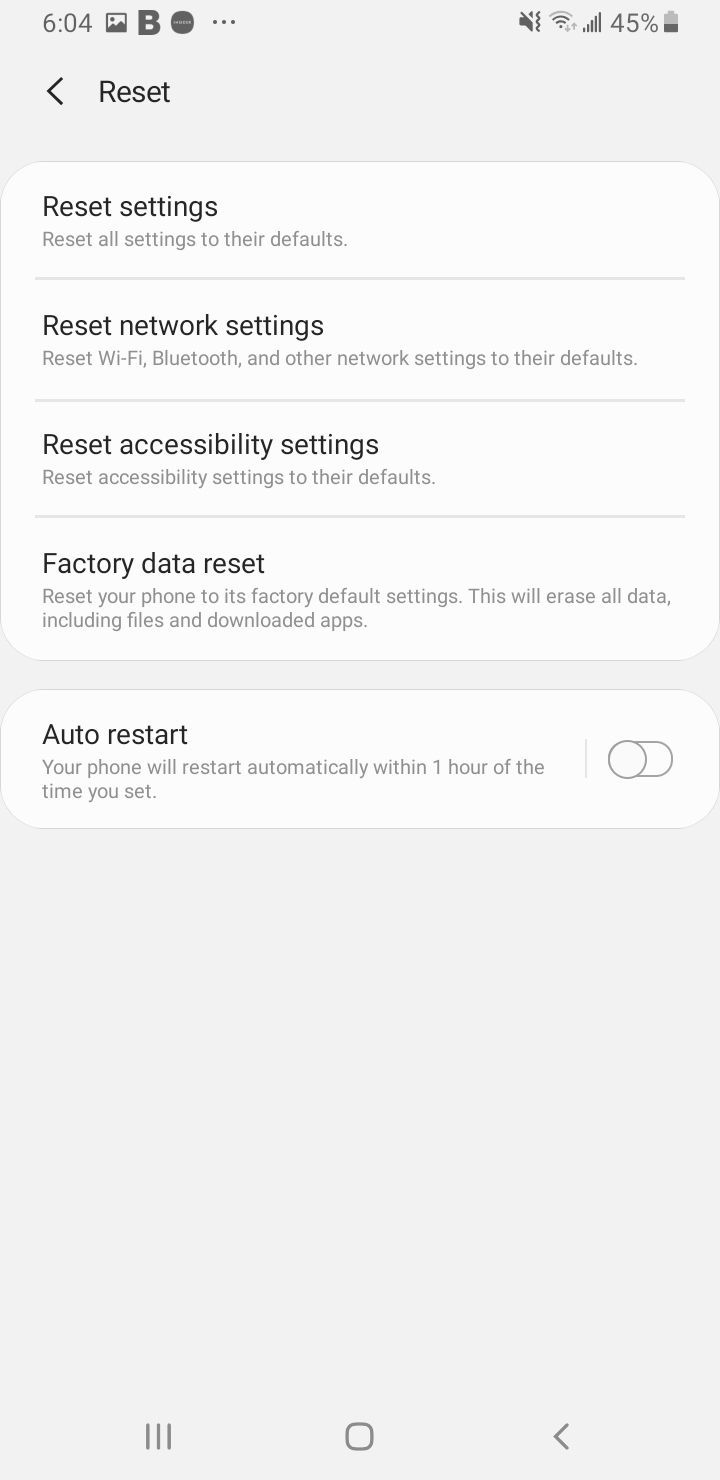
On stock Android, go to Settings > System > Reset options > Reset Mobile Network Settings and confirm. On Samsung, go to Settings > General management > Reset > Reset network settings, tap Reset settings, and enter your PIN if asked.
Your phone will reconnect to mobile data on its own after the reset. You will need to rejoin Wi-Fi networks and re-pair Bluetooth devices afterward.
6. Choose the Right Network Mode
Forcing 5G in an area with patchy 5G coverage can leave you with no service at all. Setting the mode to an automatic option lets your phone fall back to LTE when 5G is unavailable.
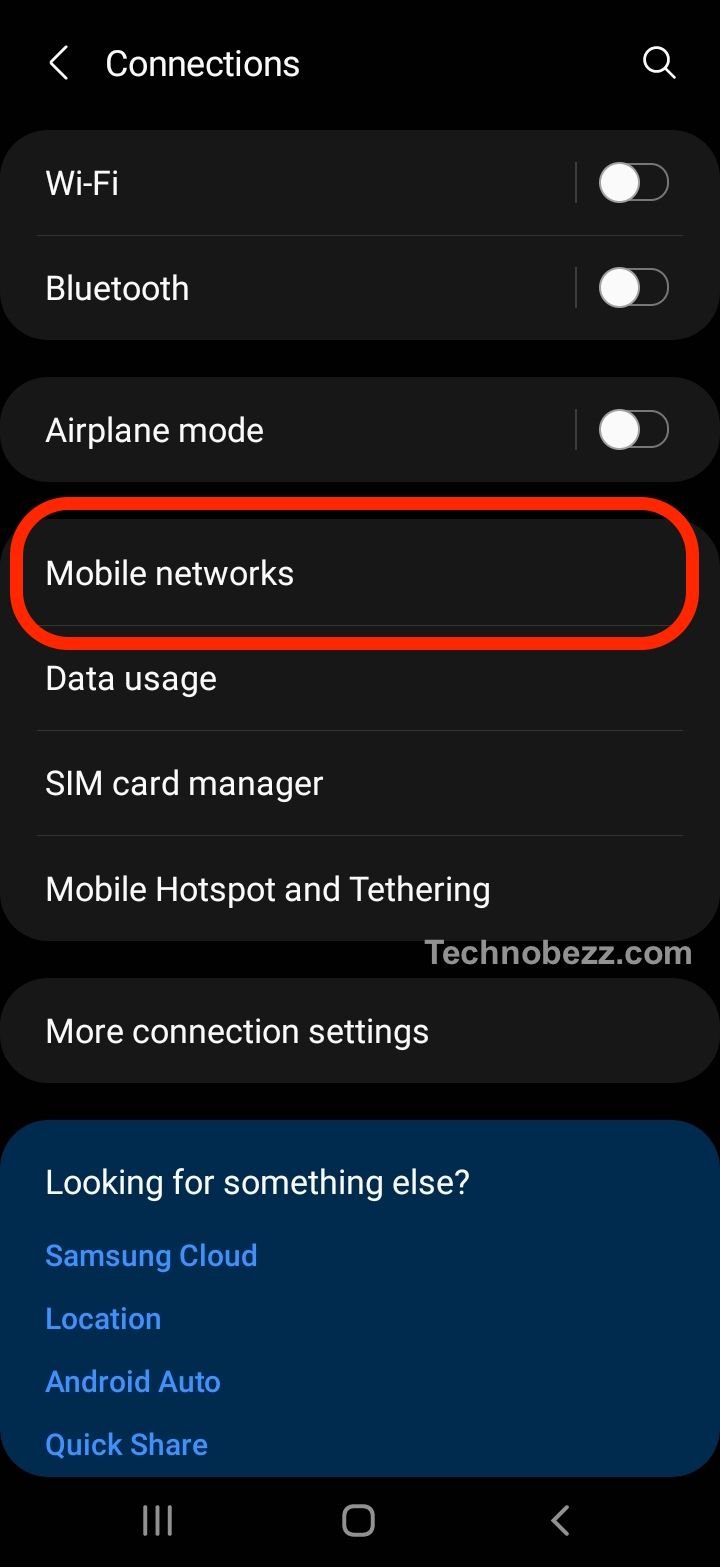
On stock Android and Pixel, go to Settings > Network & internet > SIMs, pick your SIM, tap Preferred network type, and choose 5G (recommended) or LTE. On Samsung, go to Settings > Connections > Mobile networks > Network mode and select an LTE/5G auto option.
Note that since Android 13, some carriers manage this setting and may hide the Preferred network type option entirely. If you cannot find it, your carrier controls the mode and you can skip this step.
7. Update Your APN Settings
Access Point Name settings tell your phone how to reach your carrier's data network. A wrong or missing APN often shows up right after you swap SIMs or change carriers, leaving you with a signal but no data.
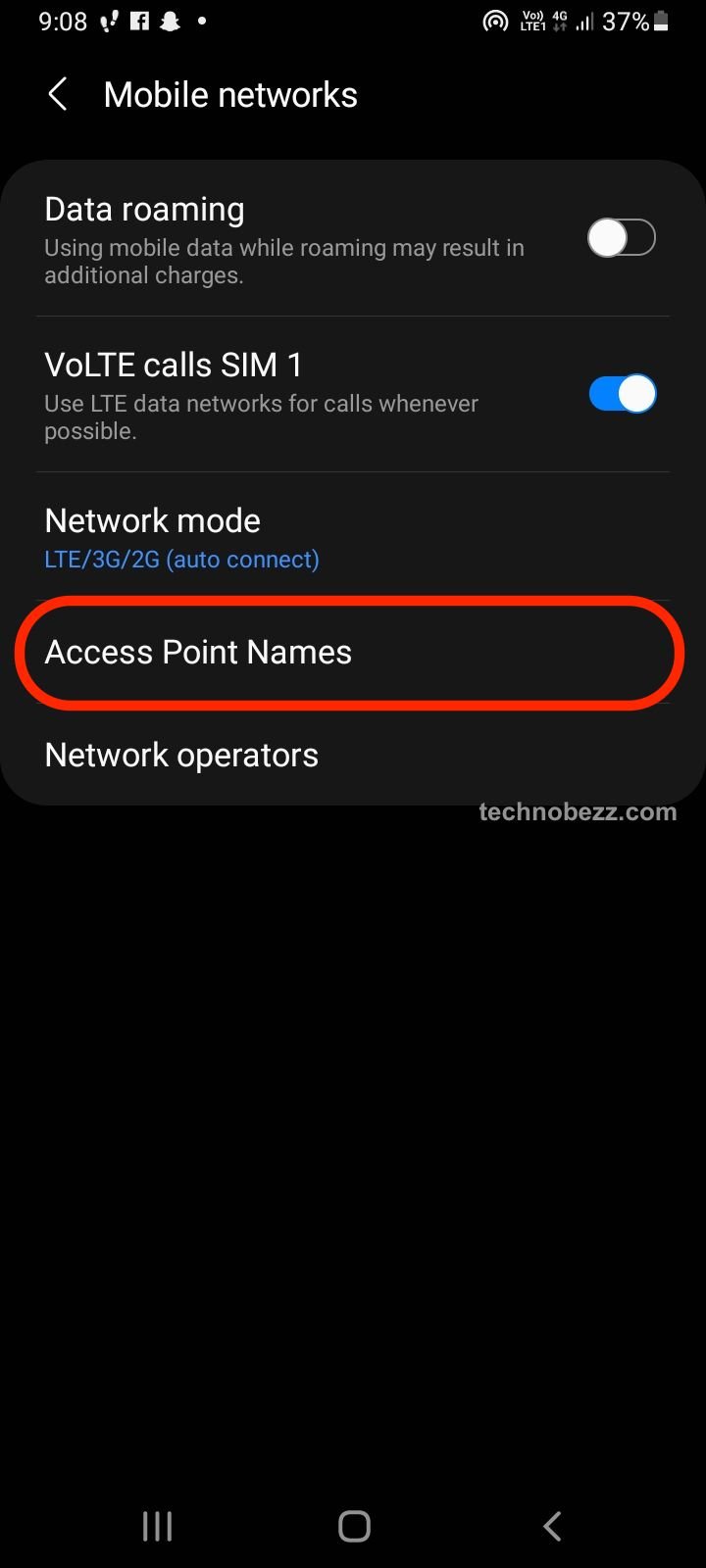
On Samsung, go to Settings > Connections > Mobile networks > Access Point Names, then tap the menu and choose Reset to default. On stock Android the path is Settings > Network & internet > SIMs > Access Point Names.
If a reset does not work, enter your carrier's exact APN values by hand. You can look up the correct values for your provider in the guide below.
See the full list of APN settings by carrier
8. Use the Hidden Testing Menu
Android has a built-in service menu that can restart the phone radio without a full reboot. It is a useful way to force re-registration when softer fixes fail.
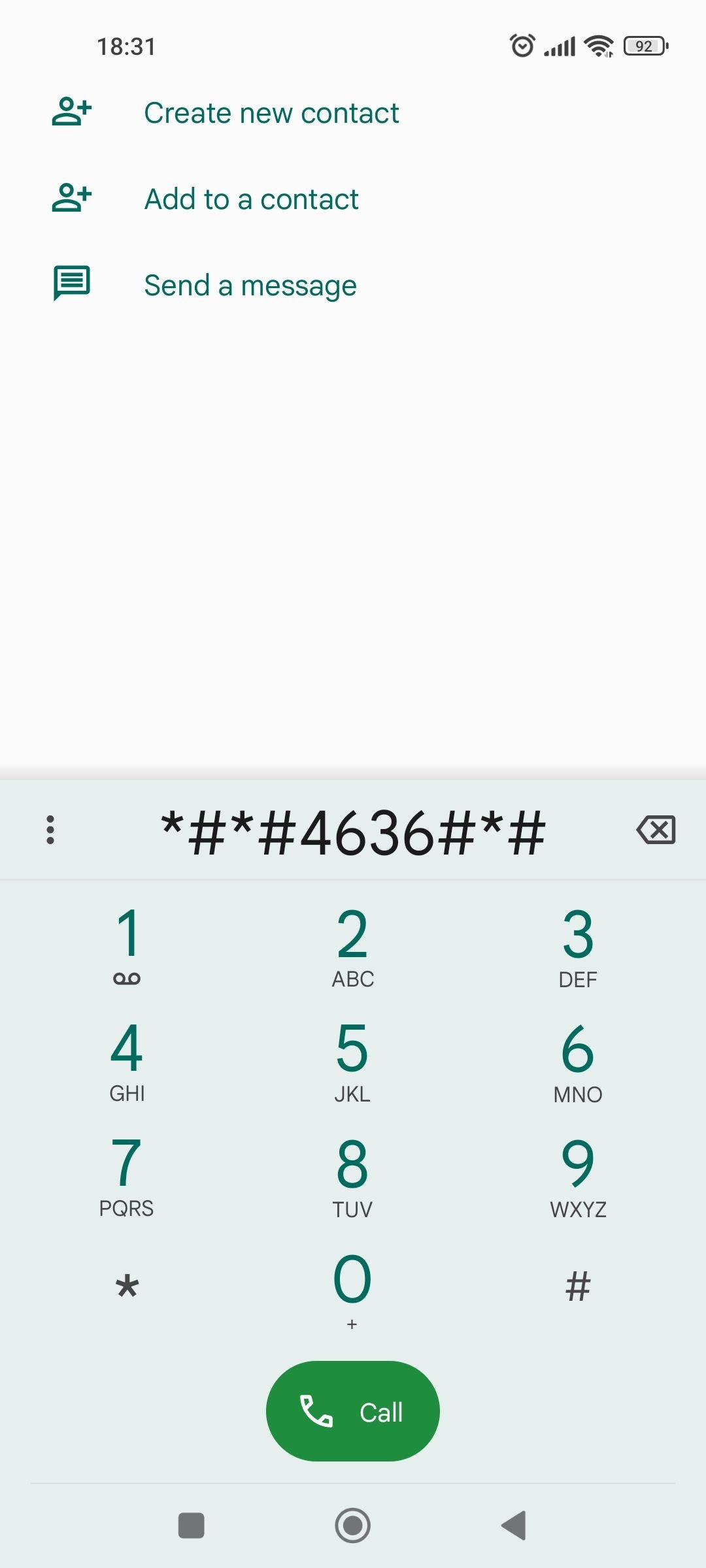
Open the dialer and enter the code *#*#4636#*#* to open the testing menu, then tap Phone Information. Scroll down to Turn Radio Off and tap it, wait a few seconds, then tap the same button to turn the radio back on.
This menu is hidden or removed by some manufacturers, and Google restricts the code on newer builds, so do not worry if nothing happens on your model. If the code does nothing, move on to the next fix.
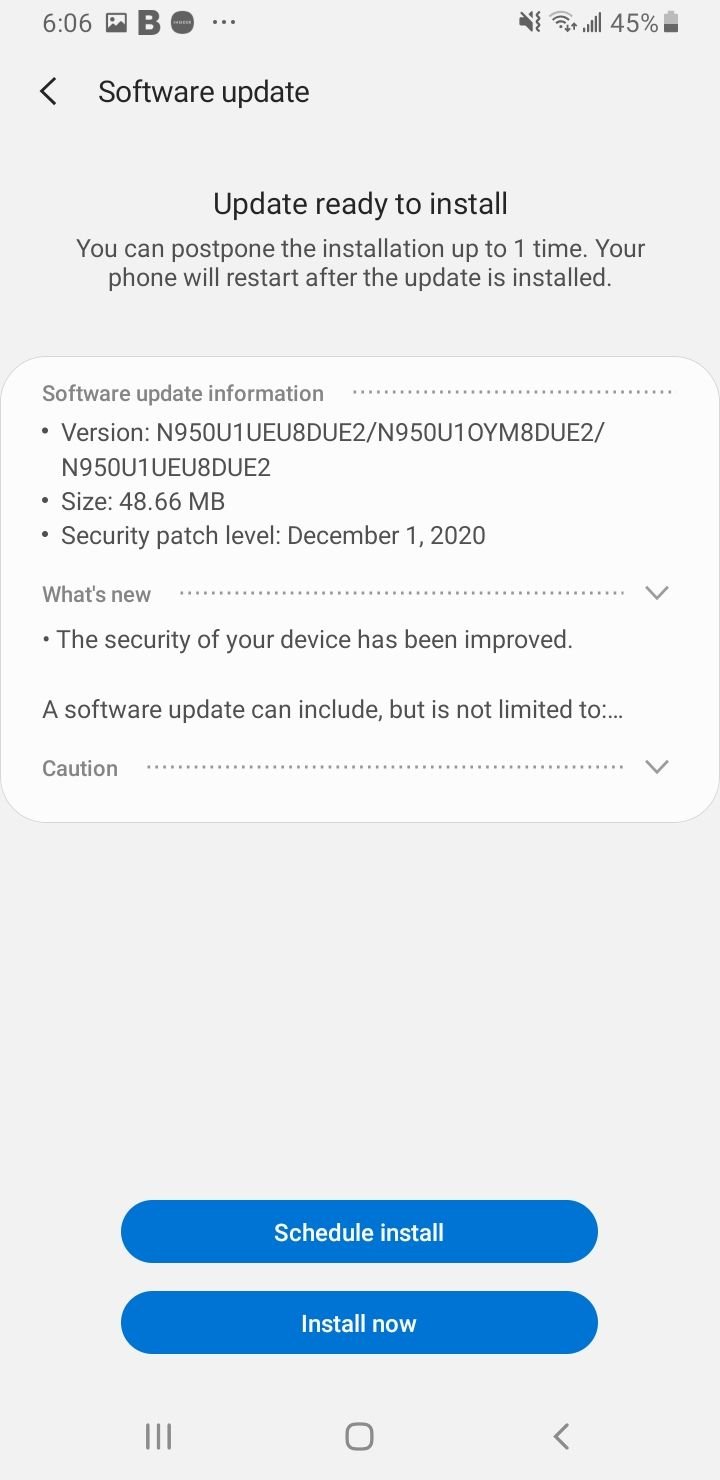
9. Update Your Software
Carriers and Google push updates that include radio and connectivity fixes, and an outdated build can break network registration. Installing the latest version often clears the error for good.
On stock Android, go to Settings > System > Software updates > System update and tap Check for update. On Samsung, go to Settings > Software update > Download and install.
Keep the phone on Wi-Fi and charged while it downloads, then let it restart and search for a signal.
10. Check Your eSIM Setup
An eSIM that was added but never set as the active line will leave you with no service. On Android the most common miss is failing to pick the eSIM as the SIM for calls and data.
Go to Settings > Network & internet > SIMs, select your eSIM, and confirm it is turned on. In the SIM manager, set it as the preferred SIM for mobile data and for calls, and enable roaming if you are using a travel eSIM.
Do not delete an eSIM profile to start over before you contact your provider. Many activation QR codes are one time only and cannot be scanned again, so you may need a fresh code to reinstall it.
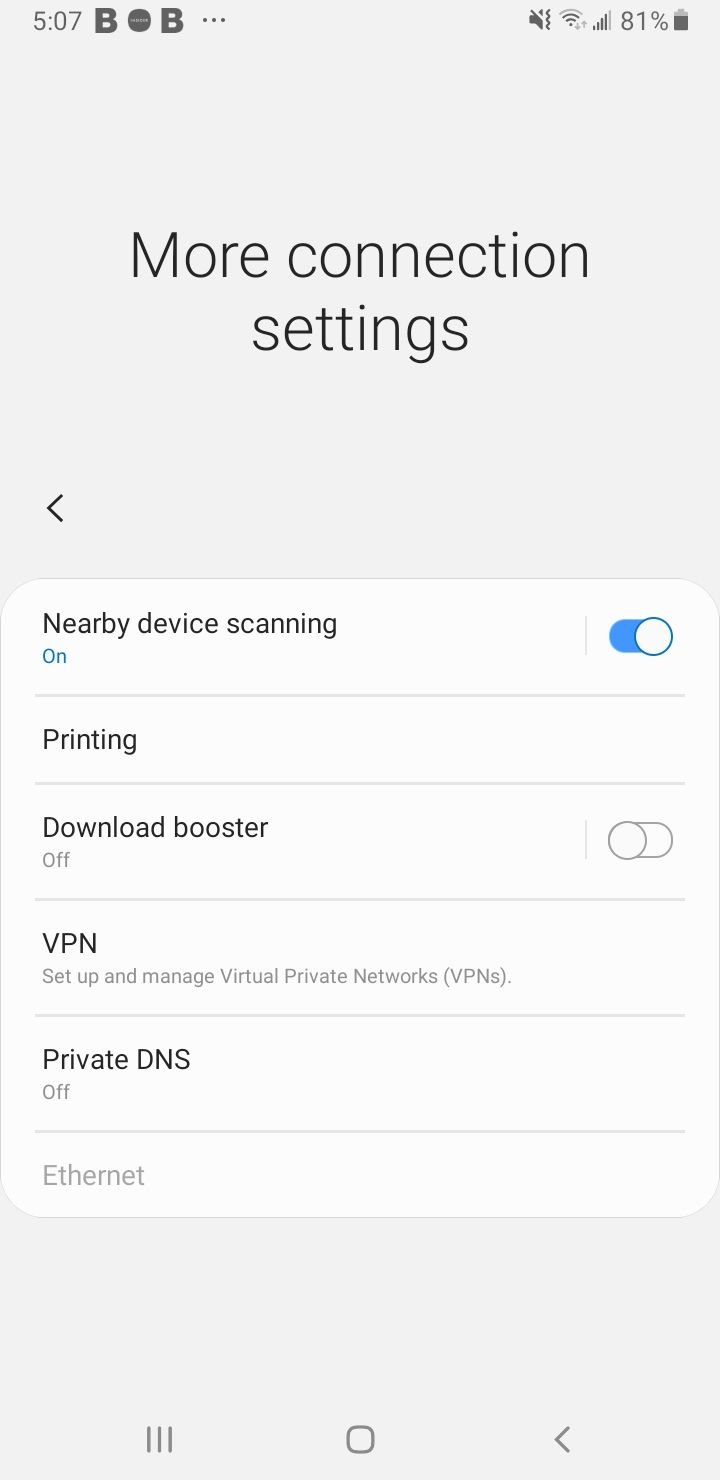
11. Disable VPN Apps
A VPN routes your traffic through a private tunnel, and a misbehaving one can block data or interfere with how your phone reports its connection. Turning it off rules this out quickly.
Open your VPN app and disconnect, then check the system VPN list. On stock Android go to Settings > Network & internet > VPN, and on Samsung go to Settings > Connections > More connection settings > VPN, then turn off or remove any active profile.
12. Select Your Network Operator Manually
If your phone refuses to lock onto your carrier, picking it by hand can force a clean registration. This is useful right after travel or when a tower swap leaves you stranded.
On Samsung, go to Settings > Connections > Mobile networks > Network operators and turn off Select automatically, let the phone scan, then tap your carrier from the list. After it connects, switch Select automatically back on so the phone can roam between towers normally.
Confirm the Problem Is Your Phone
Before any drastic step, rule out a dead SIM and a carrier outage. Move your SIM into another working phone, and if it gets no service there either, the SIM or your account is the issue, not your device.
Call or message your carrier, or check its outage page, to confirm there is no maintenance or coverage problem in your area. Ask whether your line is active and whether your IMEI has been flagged, since a phone reported lost or stolen can be blocked from every network.
If the SIM works elsewhere but your phone still fails, request a replacement SIM at a carrier store. A bent or worn card can pass in one phone yet fail in another.
When to Factory Reset or Get Repairs
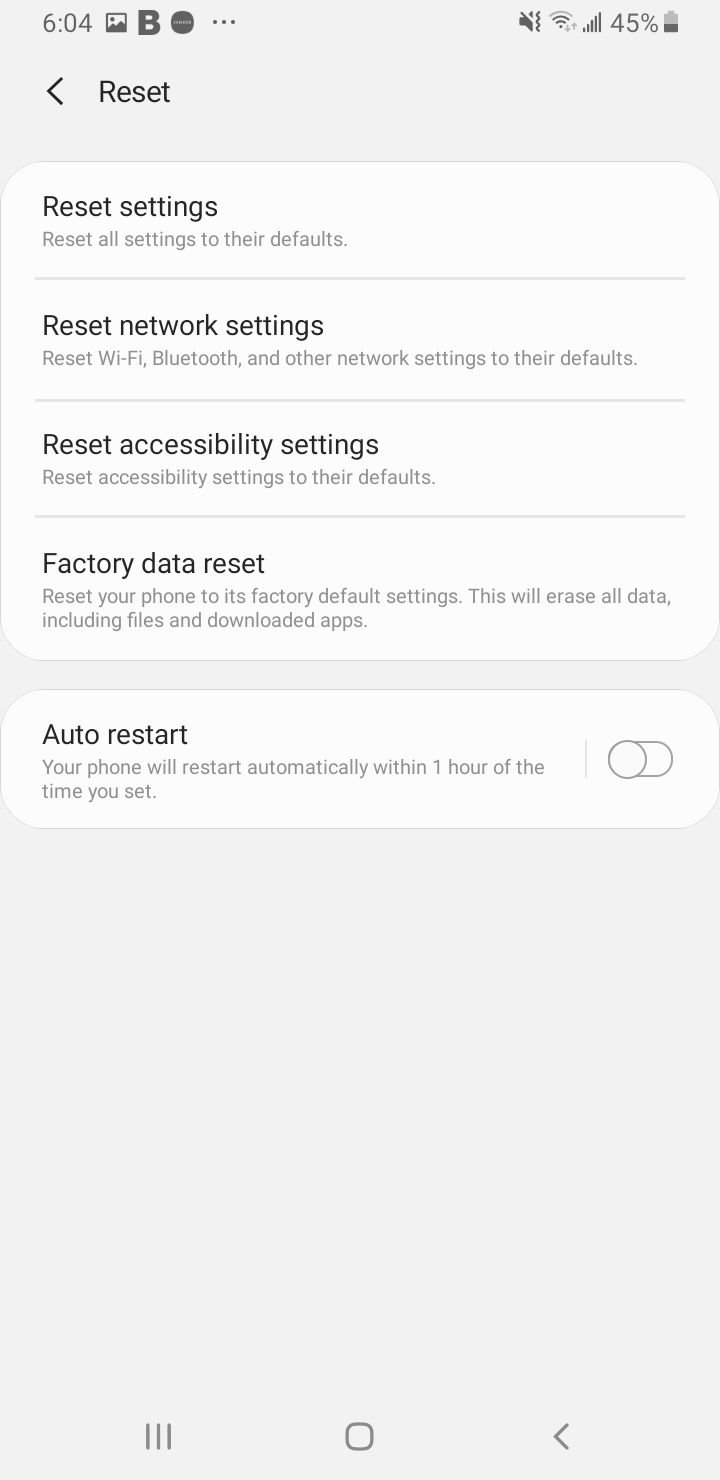
A factory reset is the last software step and clears any deep configuration fault behind the error. Back up your data first, then go to Settings > General management > Reset > Factory data reset on Samsung, or Settings > System > Reset options > Erase all data on stock Android.
If the error survives a factory reset and a known-good SIM, the cause is likely hardware such as a damaged antenna or SIM reader. At that point, book a repair with the manufacturer or a trusted shop rather than trying more software fixes.
Frequently Asked Questions
Why does my phone say mobile network not available?
It means your phone failed to register with your carrier's network, usually because of a weak signal, a loose or dirty SIM, the wrong network mode, or a temporary software glitch. A restart or an airplane mode toggle clears most cases in under a minute.
How do I fix not registered on network?
It is the same underlying registration failure, so the same fixes apply. Restart the phone, toggle airplane mode, reseat the SIM, and if it persists, reset network settings or select your carrier manually under network operators.
Does this error mean my SIM is dead?
Not usually. Test your SIM in another working phone, and if it gets service there, your card is fine and the problem is on your device. Only if it fails in both phones is the SIM or your account likely to blame.
My mobile network is not available but my SIM is fine, what now?
If a known-good SIM still shows no service, reset your network settings, confirm the correct network mode and APN, and check for a software update. If none of that works, a factory reset or a hardware repair is the next step.
Will resetting network settings delete my photos or apps?
No. It only clears saved Wi-Fi passwords, paired Bluetooth devices, and mobile network preferences. Your photos, messages, and apps stay in place, though you will need to rejoin Wi-Fi networks afterward.
How do I fix the error on an eSIM phone?
Open Settings > Network & internet > SIMs, select the eSIM, and set it as the preferred SIM for data and calls. Do not delete the profile to reinstall it before contacting your provider, since many QR codes are single use.
First published October 14, 2025. Last updated June 4, 2026.