You tap a picture message and it just sits there showing Download or Tap to retrieve, then fails. MMS still carries the photos, videos, and group texts that plain SMS cannot, so when it stops downloading you miss real conversations. The good news is that almost every cause is a setting you can flip in a couple of minutes.
Most stuck MMS comes down to one of five things: mobile data is off, auto download is disabled, your storage is full, your APN is wrong, or a security setting is silently blocking attachments. The fixes below are split for Google Messages and Samsung Messages, start with the quickest wins, and stay accurate for current Android and One UI in 2026.
Read more - Android Not Receiving Texts From iPhones? Here's How to Fix It
Why Your MMS Will Not Download
MMS does not travel like a normal text. It downloads multimedia over your carrier's data network, so the moment that data path is blocked or misconfigured, the message stalls. Knowing the likely cause first saves you from working through every step.
Use this quick table to match what you are seeing to the most likely cause and the fix that targets it.
| Symptom | Likely cause | Fix to try |
|---|---|---|
| Download button does nothing on any message | Mobile data is off | Turn on mobile data (Fix 2) |
| MMS only fails while on Wi-Fi | Wi-Fi Calling or Wi-Fi is handling data instead of the carrier | Toggle Wi-Fi Calling or mobile data (Fix 3) |
| Messages never download on their own | Auto download is disabled | Enable auto download (Fix 4) |
| Galaxy phone blocks every attachment | Auto Blocker Maximum restrictions is on | Adjust Auto Blocker (Fix 5) |
| Large photos and group texts fail, small ones work | Carrier size limit or full storage | Free up space and ask for smaller files (Fix 8) |
| Nothing downloads after a SIM swap or carrier change | Wrong or missing APN | Reset APN to default (Fix 11) |
Restart Your Phone
A restart clears the temporary network and app glitches that cause a single message to hang. It is the fastest fix and it works more often than people expect.
Press and hold the power button, or the power and volume down buttons together on most Galaxy phones, until the menu appears, then tap Restart. Once the phone is back on, open the message and tap download again.
Turn On Mobile Data
This is the single most common cause of MMS that will not download. MMS rides on your carrier's data network, and most US carriers do not deliver MMS over Wi-Fi at all, so mobile data has to be on even when you are connected to Wi-Fi at home.
On most Android phones, go to Settings > Network and internet > SIMs and turn Mobile data on. On Samsung Galaxy phones, open Settings > Connections > Data usage and turn on Mobile data, or pull down the quick settings panel and tap the Mobile data tile.
Leave mobile data on, then reopen the message and tap to download. If you were relying on Wi-Fi only to save data, this is almost certainly why your picture messages were stuck.
Fix MMS That Only Fails on Wi-Fi
If MMS downloads fine on cellular but stalls the moment you connect to Wi-Fi, Wi-Fi Calling is often the culprit. With Wi-Fi Calling active, the phone can route data over Wi-Fi while the carrier still expects MMS to come through mobile data, and the two paths conflict.
First confirm mobile data is on as in the step above. If MMS still fails, open Settings > Connections, tap Wi-Fi Calling, and turn it off temporarily, then download the message. Some users find the opposite helps, where turning mobile data off lets Wi-Fi Calling handle MMS cleanly, so test both if your carrier supports MMS over Wi-Fi.
This behavior depends on your carrier, so treat it as a process of elimination. The reliable baseline is mobile data on and Wi-Fi Calling off.
Enable Auto Download for MMS
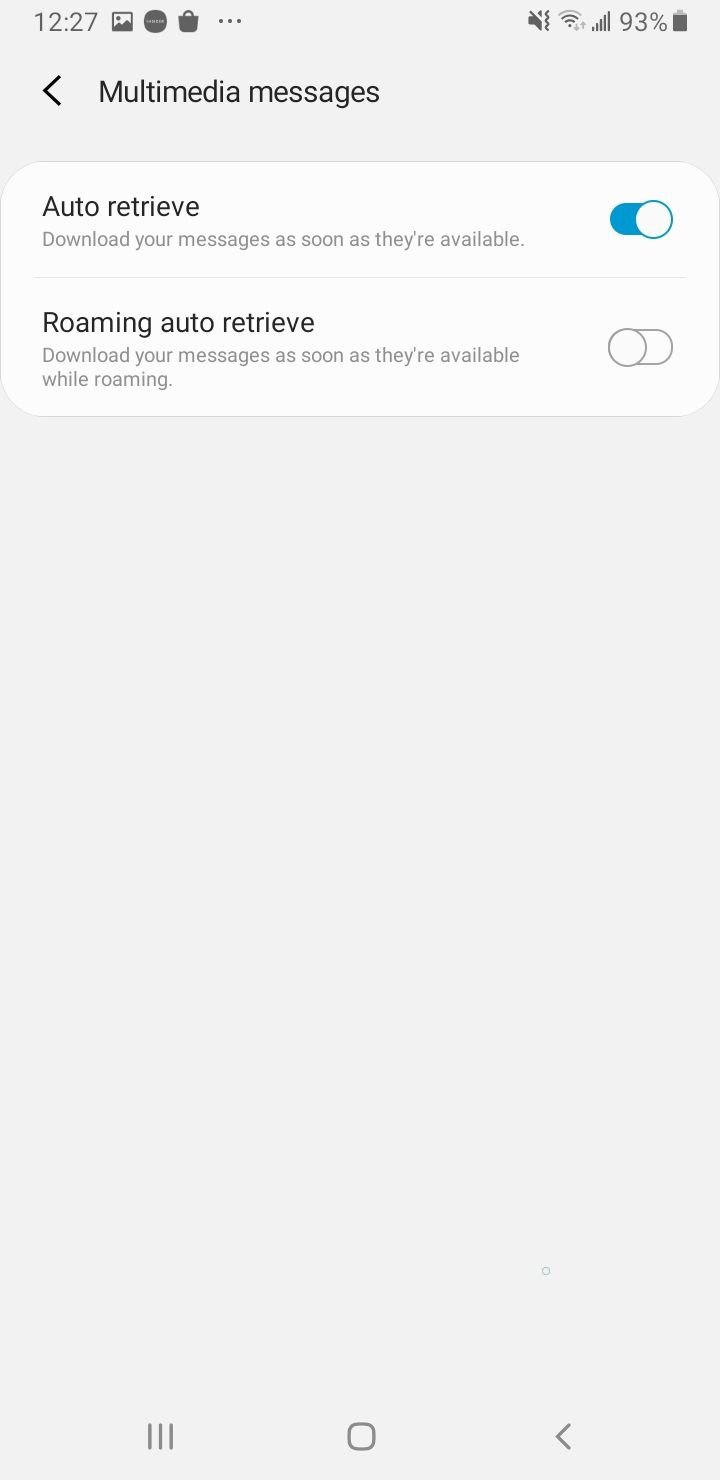
If messages never download until you tap them manually, auto download is switched off. Turning it on lets MMS arrive on their own the moment they reach your phone. The setting lives in different places depending on which app you use.
In Google Messages, tap your profile icon at the top, then Messages settings, then Advanced, and turn on Auto-download MMS. In Samsung Messages, tap the three dot menu, then Settings, then More settings, then Multimedia messages, and turn on Download automatically.
Adjust Samsung Auto Blocker
This fix is specific to Galaxy phones and trips up a lot of Samsung owners. Starting with One UI 6.1.1, the Auto Blocker security feature added a Maximum restrictions option that blocks automatic downloads of message attachments to guard against malicious files. When it is on, every MMS refuses to download.
Go to Settings > Security and privacy > Auto Blocker, tap Maximum restrictions, and turn it off. If you would rather keep that protection on, leave it enabled and instead turn on auto download inside your messaging app using the paths in Fix 4, which Samsung allows even with Maximum restrictions active.
After changing this, open a stuck message and download it. If your Galaxy phone was blocking attachments and links across the board, this is usually the reason.
Enable Roaming Auto Download
If MMS works at home but stops while you travel, roaming auto download may be off. Phones disable it by default to avoid surprise roaming charges, which also stops picture messages from arriving abroad.
In Samsung Messages, go to the three dot menu, then Settings, then More settings, then Multimedia messages, and turn on the roaming download option if your model shows one. In Google Messages, open the profile icon, then Messages settings, then Advanced, and enable Auto-download MMS when roaming.
Turn this off again once you are back home if you watch your roaming costs closely.
Allow Background Data for Messages
If you have ever restricted background data to save your plan, your messaging app may be unable to fetch MMS while you are not actively using it. Re-enabling background data fixes silent download failures.
On Samsung phones, go to Settings > Apps, tap your messaging app, tap Mobile data, and make sure Allow background data usage is on. Also check that Data Saver under Settings > Connections > Data usage is not blocking the app, and add Messages to the allowed apps list if it is.
Free Up Storage and Clear Old Threads
A phone with no free storage cannot save an incoming attachment, so the download fails even when everything else is correct. Old conversations stuffed with large photos and videos are usually the first thing to clear.
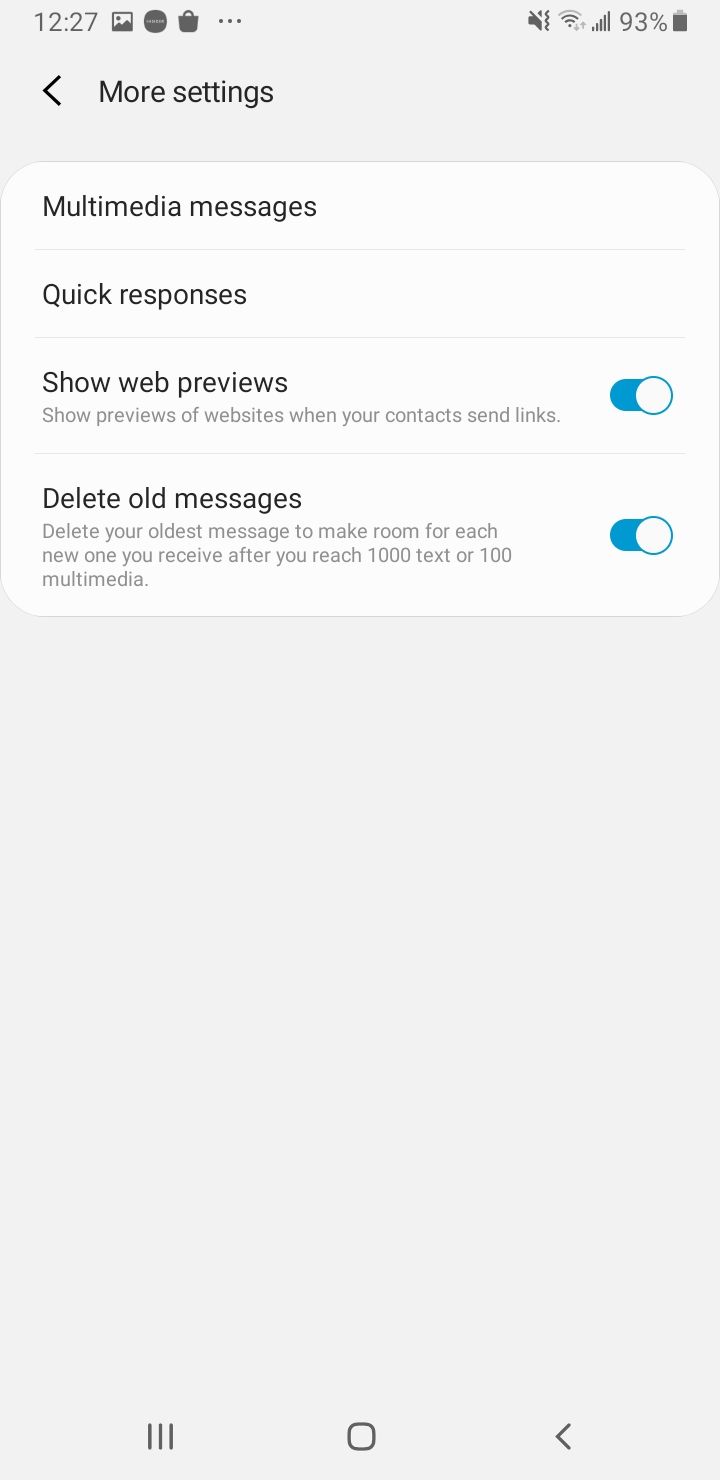
Open your messaging app, delete threads you no longer need, and turn on automatic deletion of old messages if your app offers it. Then check overall space in Settings > Battery and device care > Storage on Galaxy phones, or Settings > Storage on other Android devices, and clear out anything you can spare.
If only large files or group messages fail while small ones go through, your carrier's per message size limit may be the real issue, so ask the sender to resend a smaller file.
Clear the Messages App Cache
A corrupted cache makes the messaging app misbehave, including failing to download MMS. Clearing the cache removes only temporary files and keeps your conversations intact.
Go to Settings > Apps, tap your messaging app, tap Storage, and tap Clear cache. Reopen the app and try the download again.
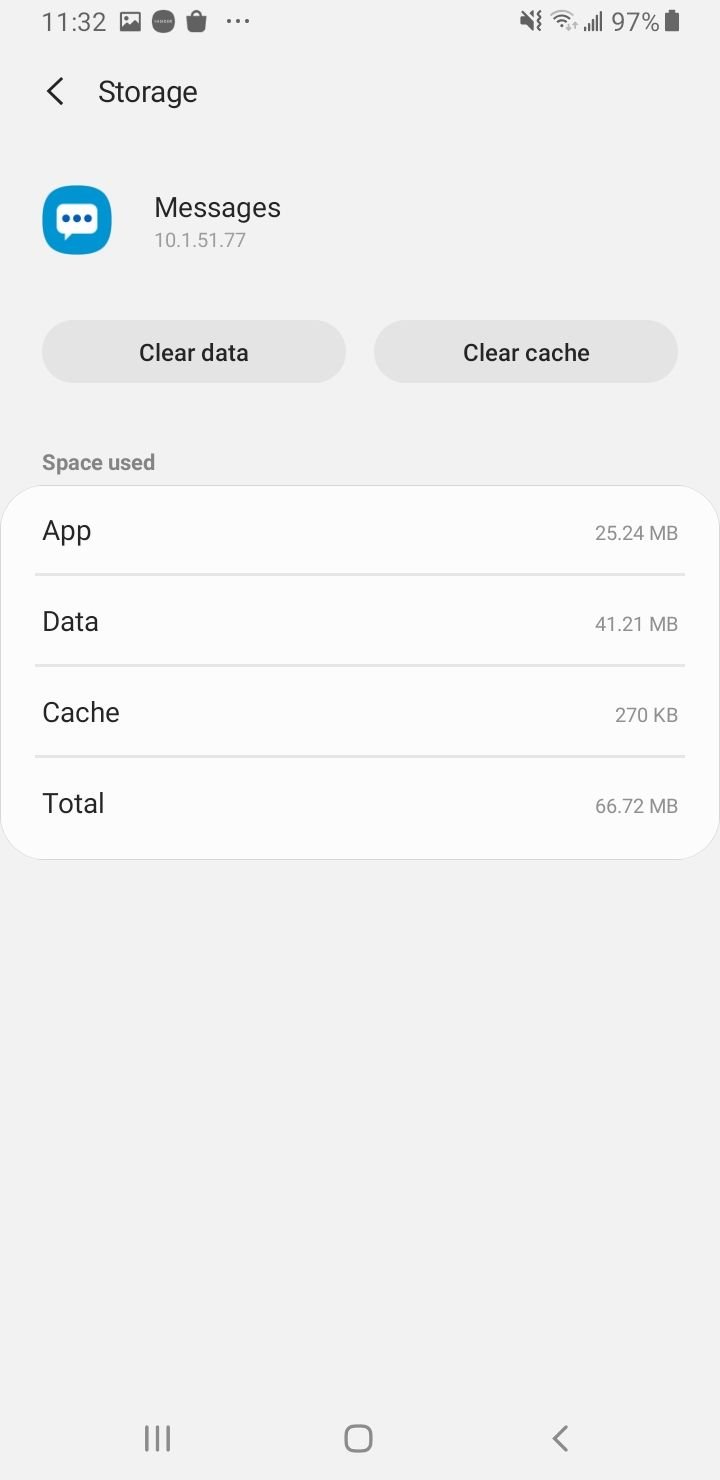
If problems continue, you can tap Clear data on the same screen, but be aware this resets the app and can remove messages that are not backed up. Back up first if your conversations matter.
Clear the Carrier or MMS Service Cache
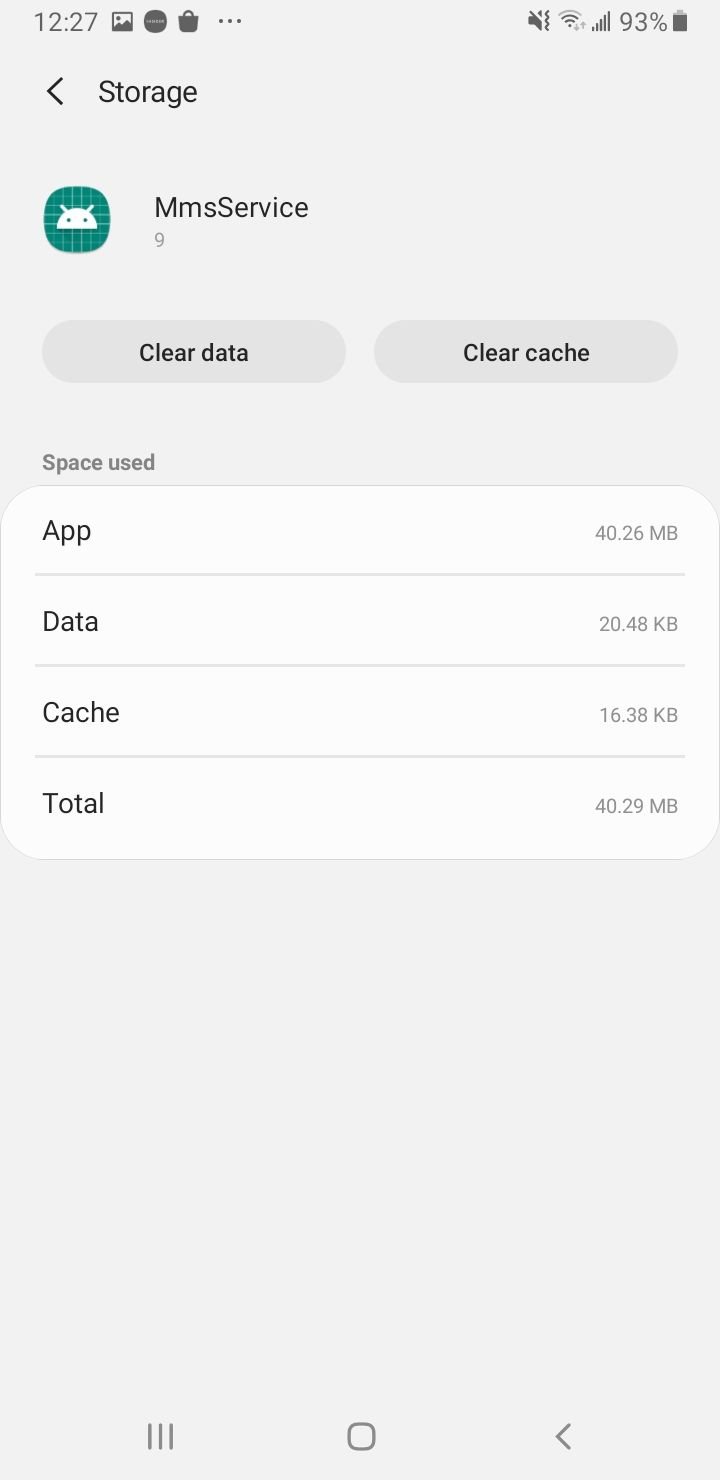
Many phones run a separate carrier or messaging service in the background that handles MMS delivery. Clearing its cache can restore downloads when the main app looks fine.
Go to Settings > Apps, tap the three dot menu and choose Show system apps, then look for Carrier Services, Messaging Service, or a similarly named entry. Tap it, open Storage, and tap Clear cache.
Reset Your APN Settings
Access Point Name settings tell your phone how to reach your carrier's data and MMS servers. If they are wrong after a SIM swap, carrier change, or update, MMS will not download at all. Resetting them to default usually pulls the correct values straight from your carrier.
On most Android phones, go to Settings > Network and internet > SIMs, tap your carrier, tap Access Point Names, open the three dot menu, and tap Reset to default. On Galaxy phones the path is Settings > Connections > Mobile networks > Access Point Names, then the menu and Reset to default.
If the reset does not help, your carrier's website lists the exact MMS APN values you can enter manually.
Read more - Updated APN Settings for AT&T Verizon T-Mobile and Other US Carriers
Turn Off RCS Chats Temporarily
RCS is the modern upgrade to texting, but it can sometimes interfere with traditional MMS delivery while it is connecting or stuck registering. Switching it off briefly forces messages to fall back to standard MMS.
In Google Messages, tap your profile icon, then Messages settings, then RCS chats, and turn off Turn on RCS chats. Try the download, and once your MMS is working you can turn RCS back on.
Update Your Phone and Messaging App
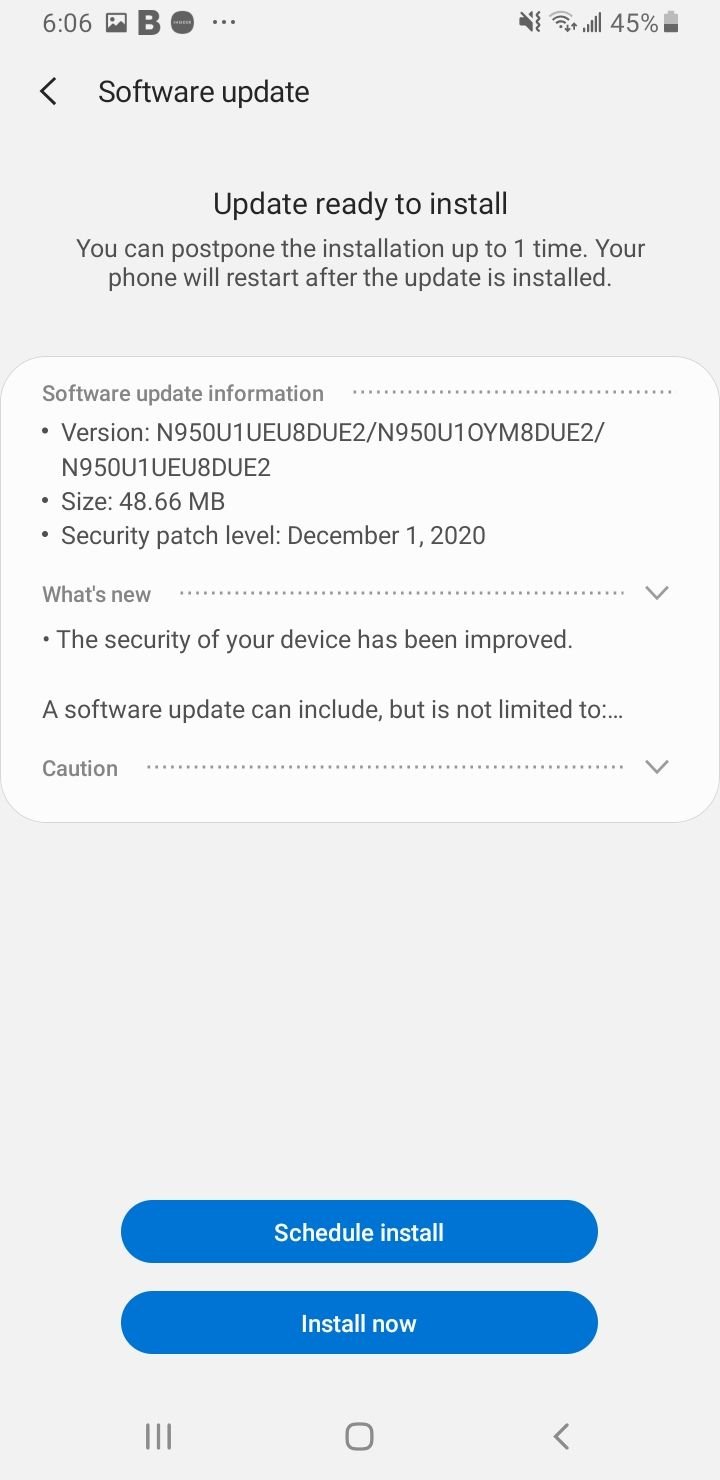
Outdated system software or an old version of your messaging app can carry bugs that break MMS downloads. Keeping both current often resolves issues that no setting change can.
Check for system updates in Settings > Software update on Galaxy phones, or Settings > System > Software update on other Android devices, then download and install anything available. Also open the Play Store, search for Google Messages or Samsung Messages, and update the app if a newer version is listed.
Reset Network Settings
If several network related features are acting up alongside MMS, a network settings reset clears Wi-Fi, mobile data, and Bluetooth configurations without touching your photos, apps, or messages. It is a clean way to wipe a stubborn misconfiguration.
On Galaxy phones, go to Settings > General management > Reset > Reset network settings, then tap Reset settings and confirm. On other Android phones, the path is usually Settings > System > Reset options > Reset Wi-Fi, mobile and Bluetooth.
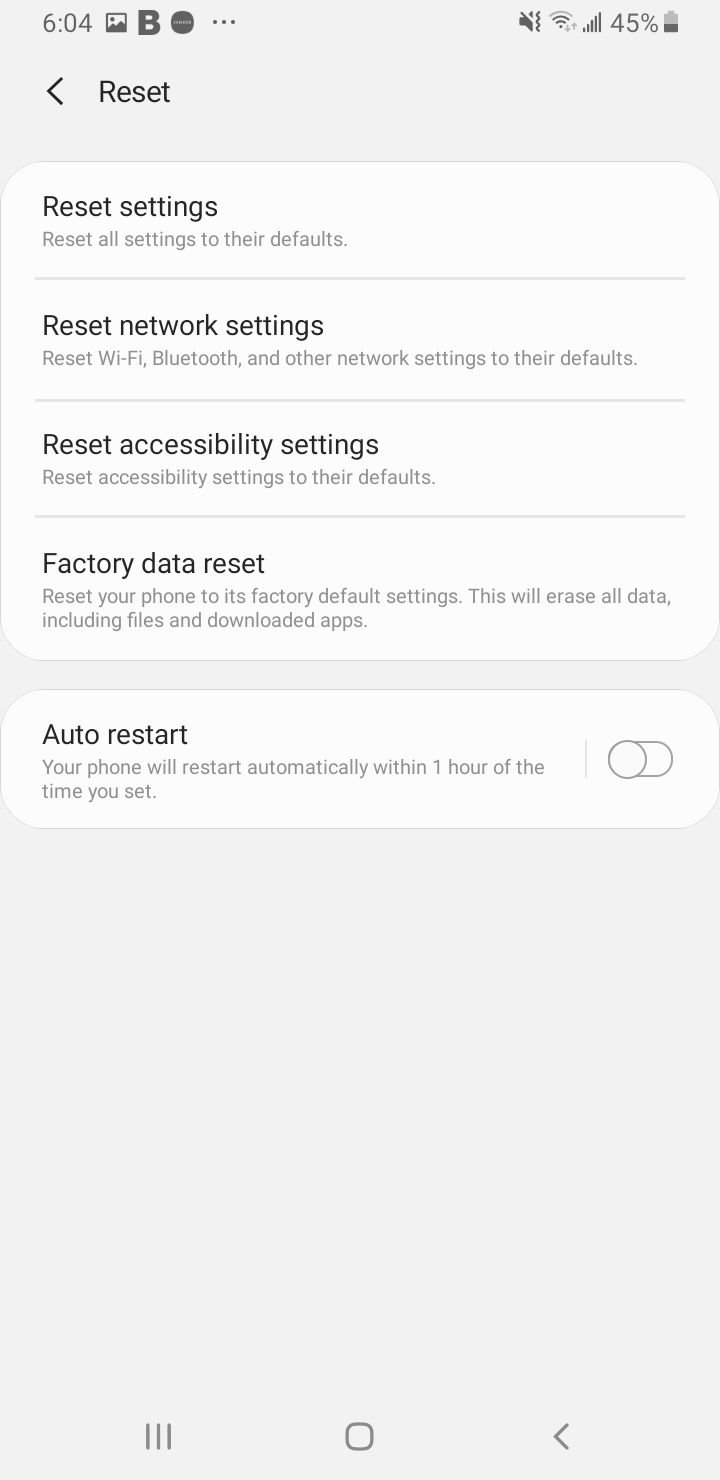
You will need to reconnect to Wi-Fi networks and re-pair Bluetooth devices afterward, so have your Wi-Fi password ready.
Contact Your Carrier or Factory Reset
If you have worked through every fix and MMS still will not download, the problem may be on your carrier's side, such as a provisioning error or an account that is not set up for messaging data. Call your carrier, confirm MMS is enabled on your plan, and ask them to re-provision your line.
A factory reset is the last resort and only worth trying if the carrier rules out their network. It erases everything and returns the phone to its original state, so back up your photos, messages, and accounts before you start.
Frequently Asked Questions
Why do my MMS messages keep failing to download?
The most common reasons are mobile data being turned off, auto download being disabled, full storage, an incorrect APN, or on Galaxy phones the Auto Blocker Maximum restrictions setting blocking attachments. Work through those five first and most MMS start downloading again.
Does MMS need mobile data to download?
Yes. MMS is delivered over your carrier's data network, and most US carriers do not support MMS over Wi-Fi, so mobile data must be on for picture and video messages to download even when you are connected to Wi-Fi.
Why does MMS fail only when I am on Wi-Fi?
This usually happens when Wi-Fi Calling is on and the phone routes data over Wi-Fi while your carrier still expects MMS through mobile data. Make sure mobile data is on, and if it still fails, try turning Wi-Fi Calling off in Settings > Connections.
How do I turn on auto download for MMS?
In Google Messages, tap your profile icon, then Messages settings, then Advanced, and turn on Auto-download MMS. In Samsung Messages, tap the three dot menu, then Settings, then More settings, then Multimedia messages, and turn on Download automatically.
Why can my Samsung phone not download any attachments?
If it started after a One UI update, the Auto Blocker Maximum restrictions feature is likely blocking automatic downloads. Go to Settings > Security and privacy > Auto Blocker, tap Maximum restrictions, and turn it off, or enable auto download inside your messaging app instead.
Will clearing the Messages cache delete my texts?
No. Clearing the cache only removes temporary files and keeps your conversations. Clearing data is different and can reset the app and remove unsaved messages, so use that only as a deeper fix and back up first.
First published October 14, 2025. Last updated June 4, 2026.