When your iPhone's email stops working, it can be incredibly frustrating. Whether you're missing important messages or can't send emails, these issues disrupt your daily communication. The good news is most email problems have straightforward solutions.
Read more - iPhone Not Receiving Texts From Android Try These Solutions
Before diving into troubleshooting, check these basics first: Make sure you're connected to the internet. Verify your email service provider isn't experiencing an outage. Confirm you're using the correct email address and password.
Check Your Mail Fetch Settings
Your iPhone's mail fetch settings control how often your device checks for new emails. If these settings aren't configured properly, you might not receive messages automatically.
Go to Settings > Apps > Mail, then tap Mail Accounts. Select Fetch New Data and turn on Push if available. Choose a fetch setting like Automatically or set a specific time interval.
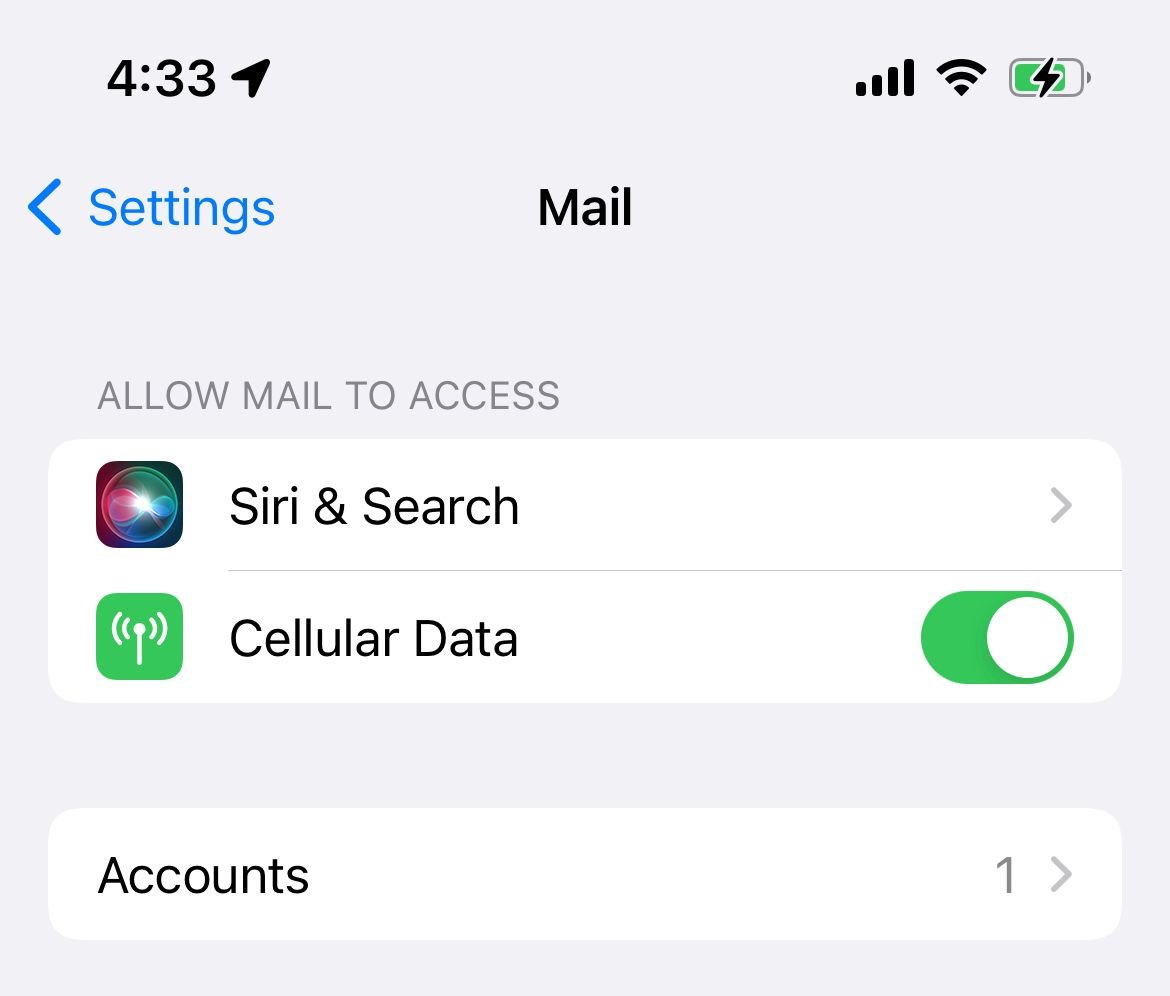
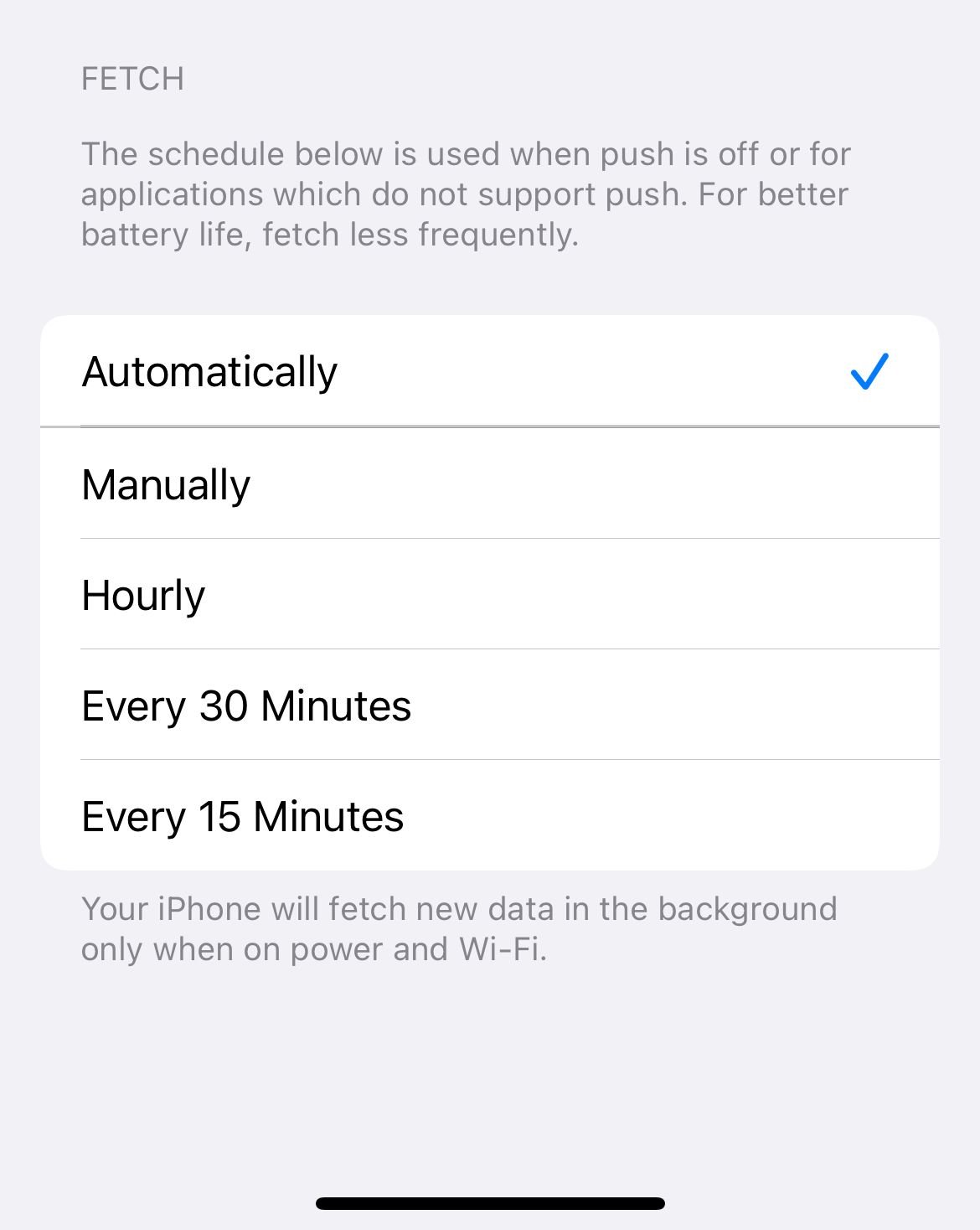
If Push isn't available for your account, it will default to Fetch. Your device will fetch new data in the background only when charging and connected to Wi-Fi.
Switch Between WiFi and Cellular Data
Sometimes email issues are related to your network connection. Try switching between WiFi and cellular data to see if one works better.
Turn off Cellular Data: Settings > Cellular > toggle Cellular Data off. Connect to WiFi instead. If WiFi isn't working, try cellular data again.
Toggle Airplane Mode
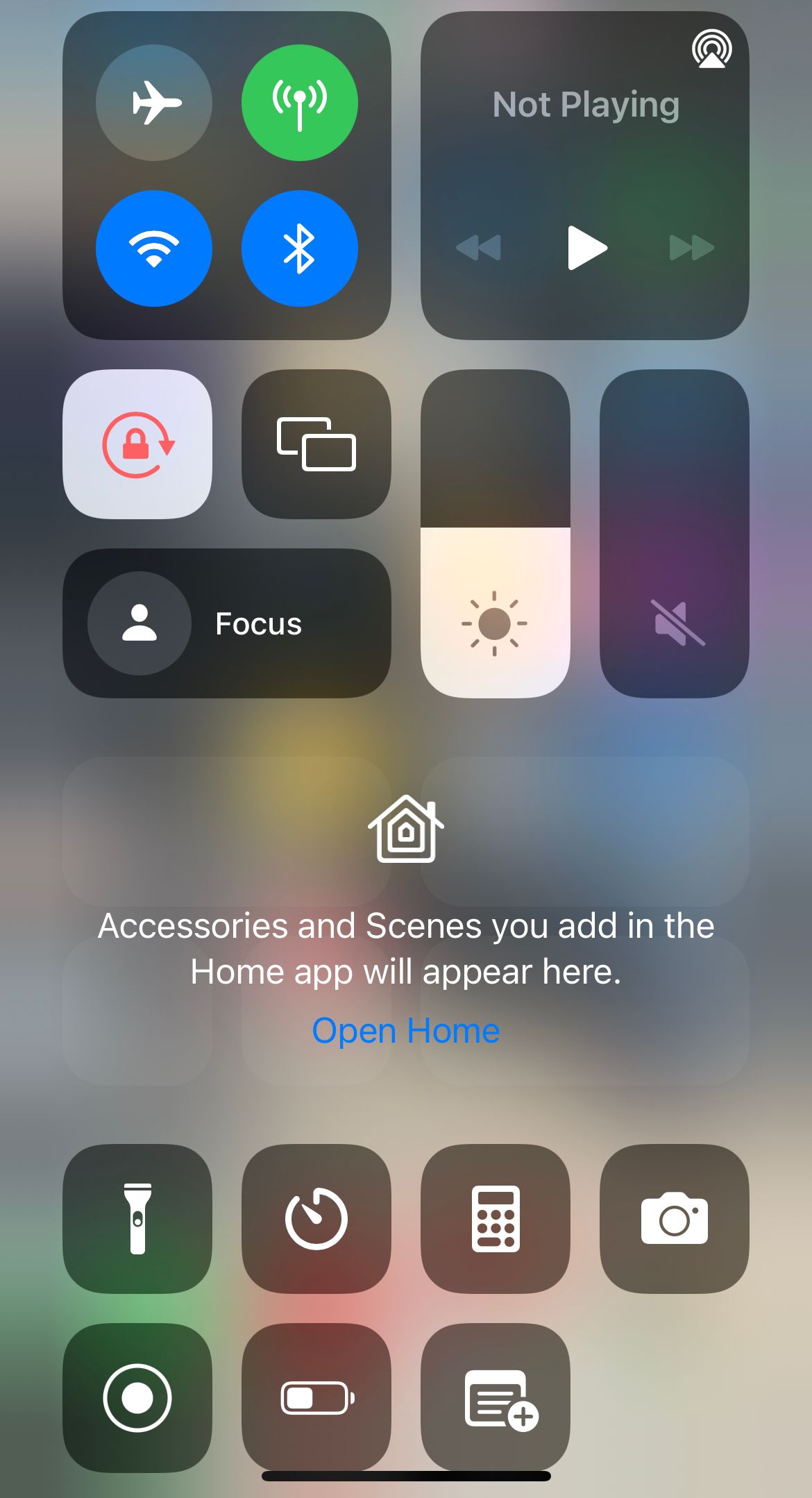
Airplane mode can reset your network connections and resolve temporary connectivity issues. Swipe down from the top right of your screen to open Control Center.
Tap the airplane icon to enable Airplane mode, then wait 30 seconds. After that, tap the airplane icon again to disable it.
Restart the Mail App
A simple app restart can fix temporary glitches. Swipe up from the bottom of the screen and pause in the middle.
Find the Mail app and swipe it up to close. Wait a few seconds, then reopen the Mail app.
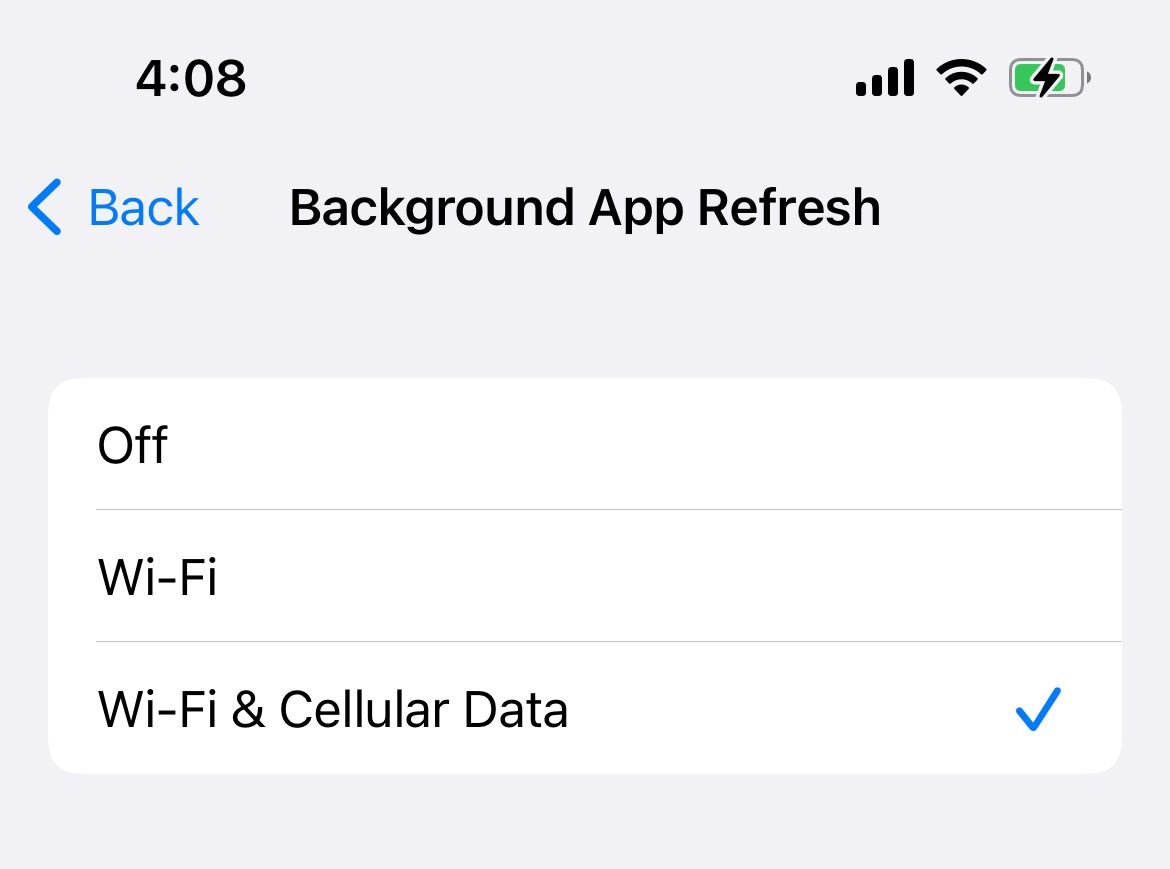
Enable Background App Refresh
Background App Refresh allows apps to update content when your iPhone is connected to WiFi or cellular data. Go to Settings > General.
Select Background App Refresh, then choose WiFi & Cellular Data or WiFi only. Make sure Mail is toggled on.
Verify Email Credentials
Double-check that you're using the correct login information. Try logging into your email account through a web browser.
If you can't log in, reset your password. Once that finishes, update your email account settings on your iPhone with the new credentials.
Enable Cellular Data for Mail
If you're using cellular data, make sure it's enabled for the Mail app. Go to Settings > Cellular.
Scroll down to find Mail. Make sure the toggle is turned on.
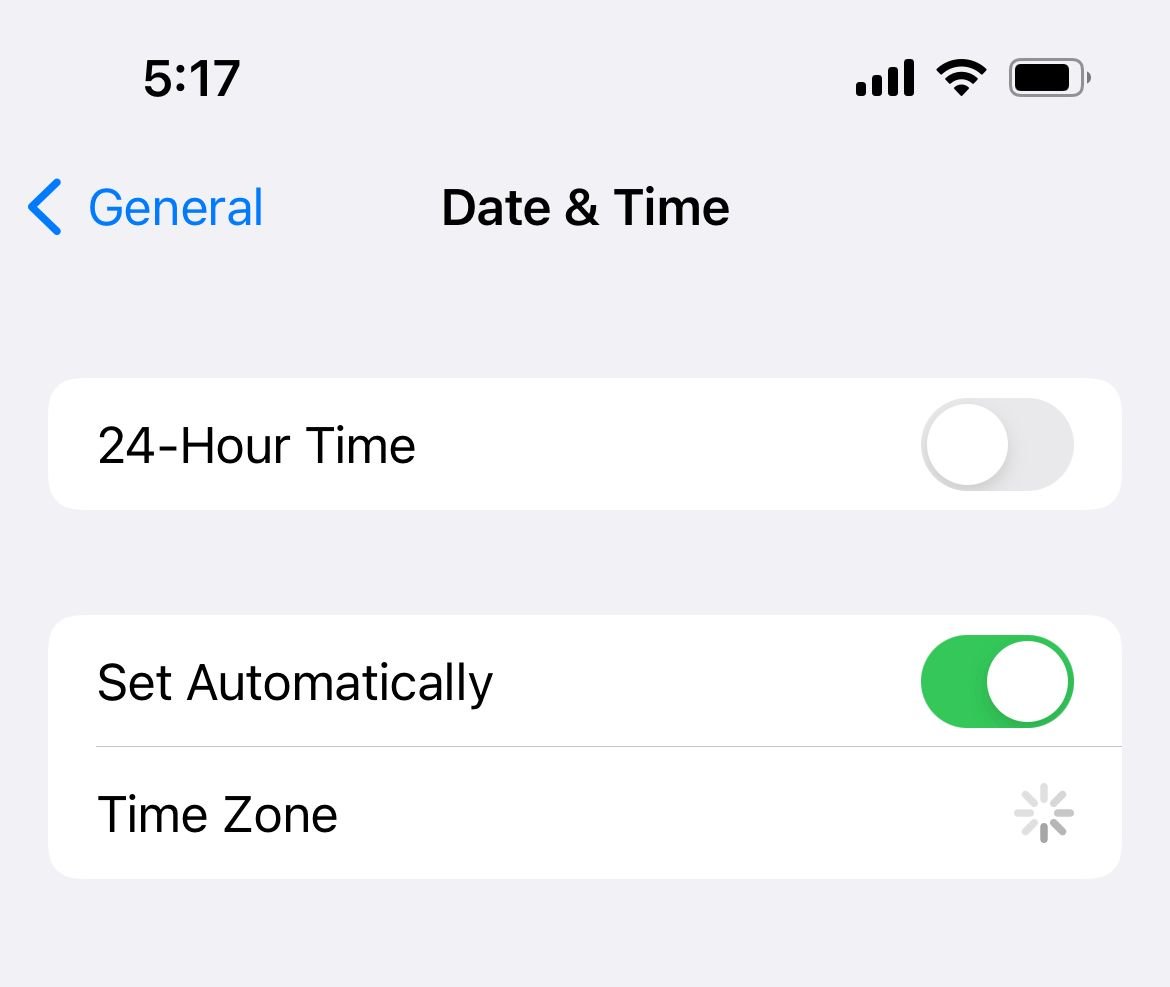
Set Date and Time Automatically
Incorrect date and time settings can cause email synchronization issues. Connect to WiFi.
Go to Settings > General > Date & Time. Turn on Set Automatically.
Check for Service Outages
Contact your email provider or check their status page to see if there's a service outage. Ask your administrator if any security features like two-step verification are enabled that might be blocking access.
Disable VPN Connections
VPNs can sometimes interfere with email connectivity. Go to Settings > General > VPN & Device Management.
Toggle off any active VPN connections. Try accessing your email without VPN.
Update the Mail App
If you're using a third-party email app like Gmail, make sure it's updated. Open the App Store and tap your profile picture in the top right.
Scroll down to see available updates. Update the Mail app if available.
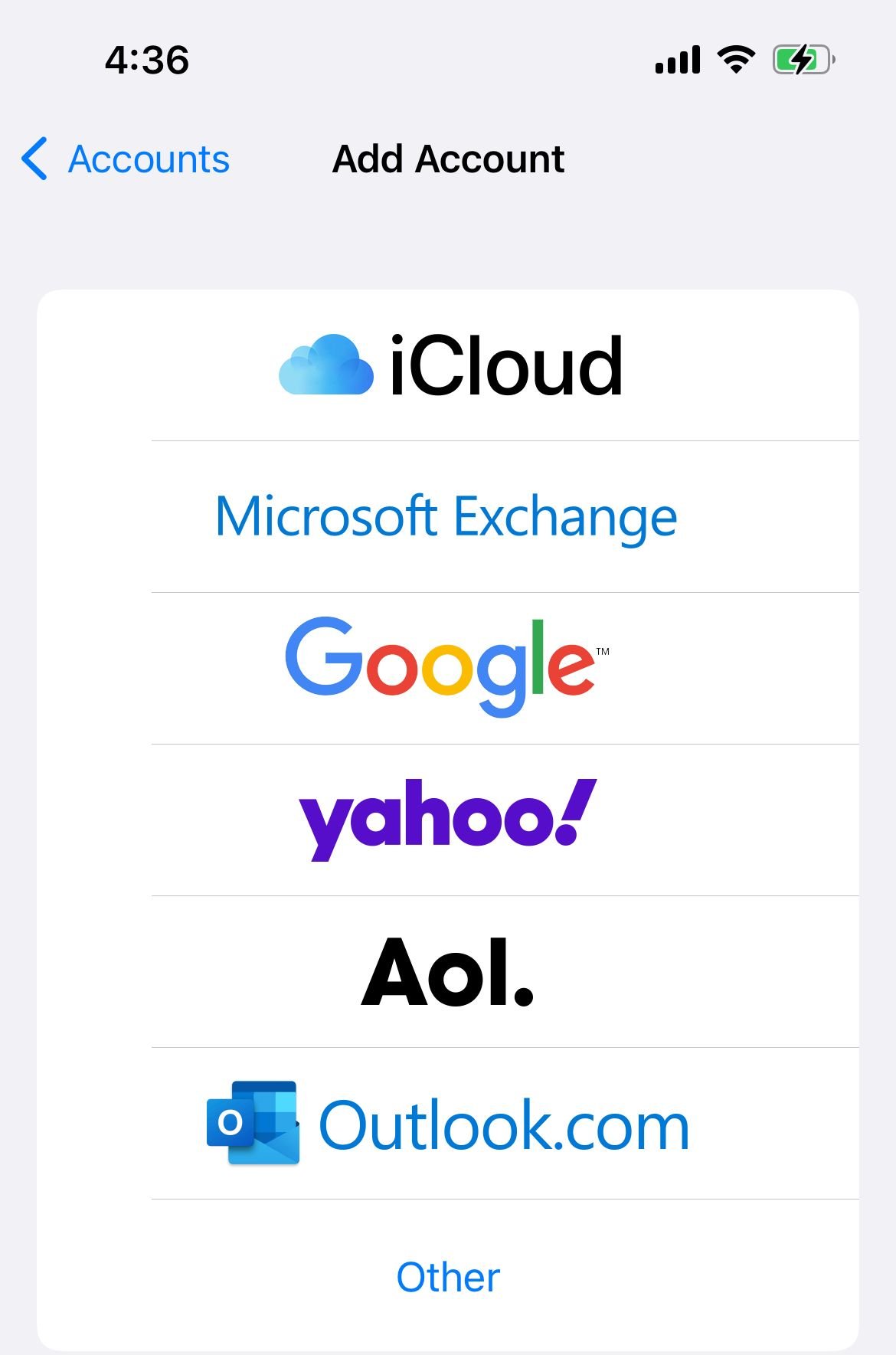
Delete and Re-add Your Email Account
Sometimes removing and re-adding your email account can resolve persistent issues. Go to Settings > Apps > Mail, then tap Mail Accounts.
Select the account you want to remove and tap Delete Account. Add your email account again.
Check Notification Settings
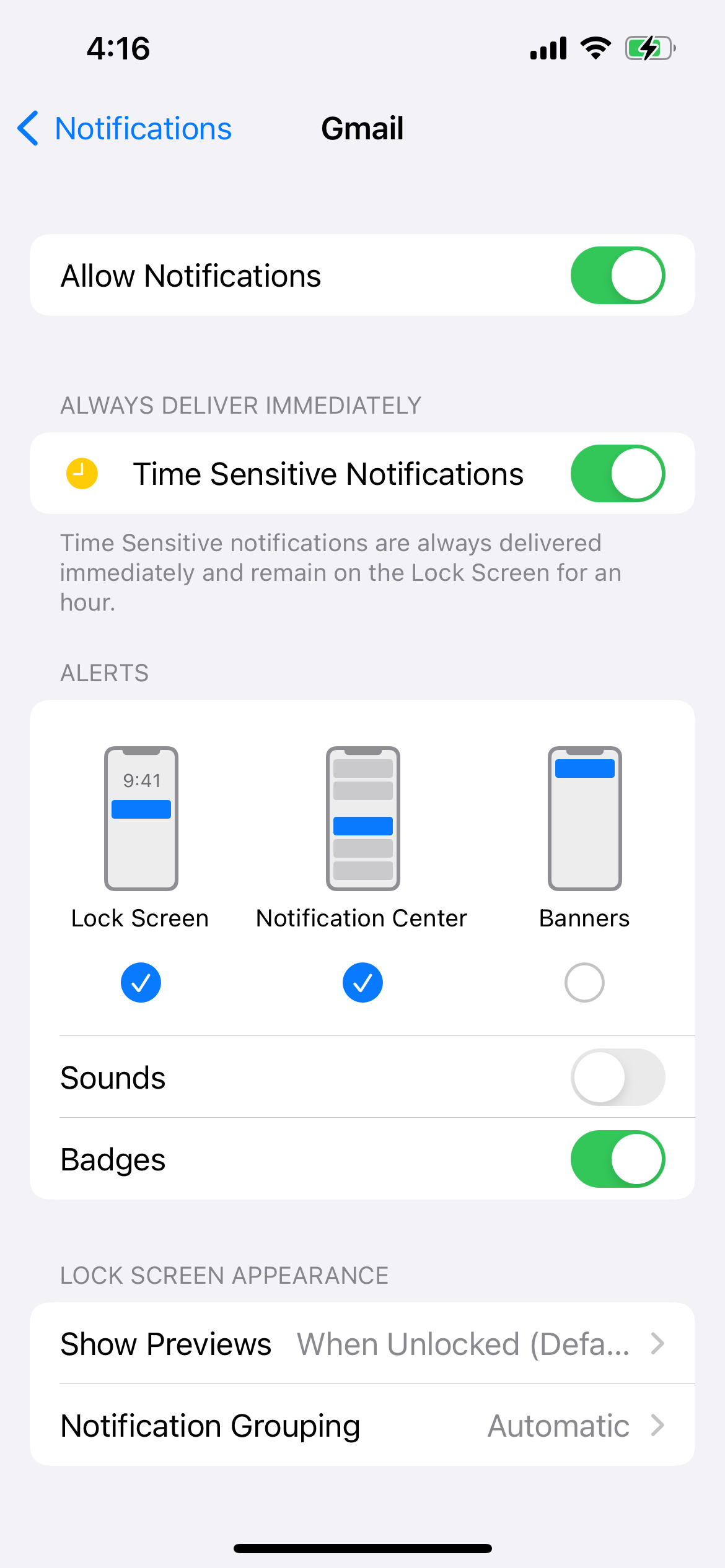
If emails are arriving but you're not getting notifications, go to Settings > Notifications. Scroll down and tap Mail.
Turn on Allow Notifications. Adjust alert sounds and badges as needed.
Restart Your iPhone
A simple restart can resolve many software glitches. Press and hold the Side button and either Volume button.
Slide to power off, then wait 30 seconds. Press and hold the Side button to restart.
Update iOS
Software updates often include bug fixes for email issues. Go to Settings > General > Software Update.
Tap Download and Install if an update is available. Follow the on-screen instructions.
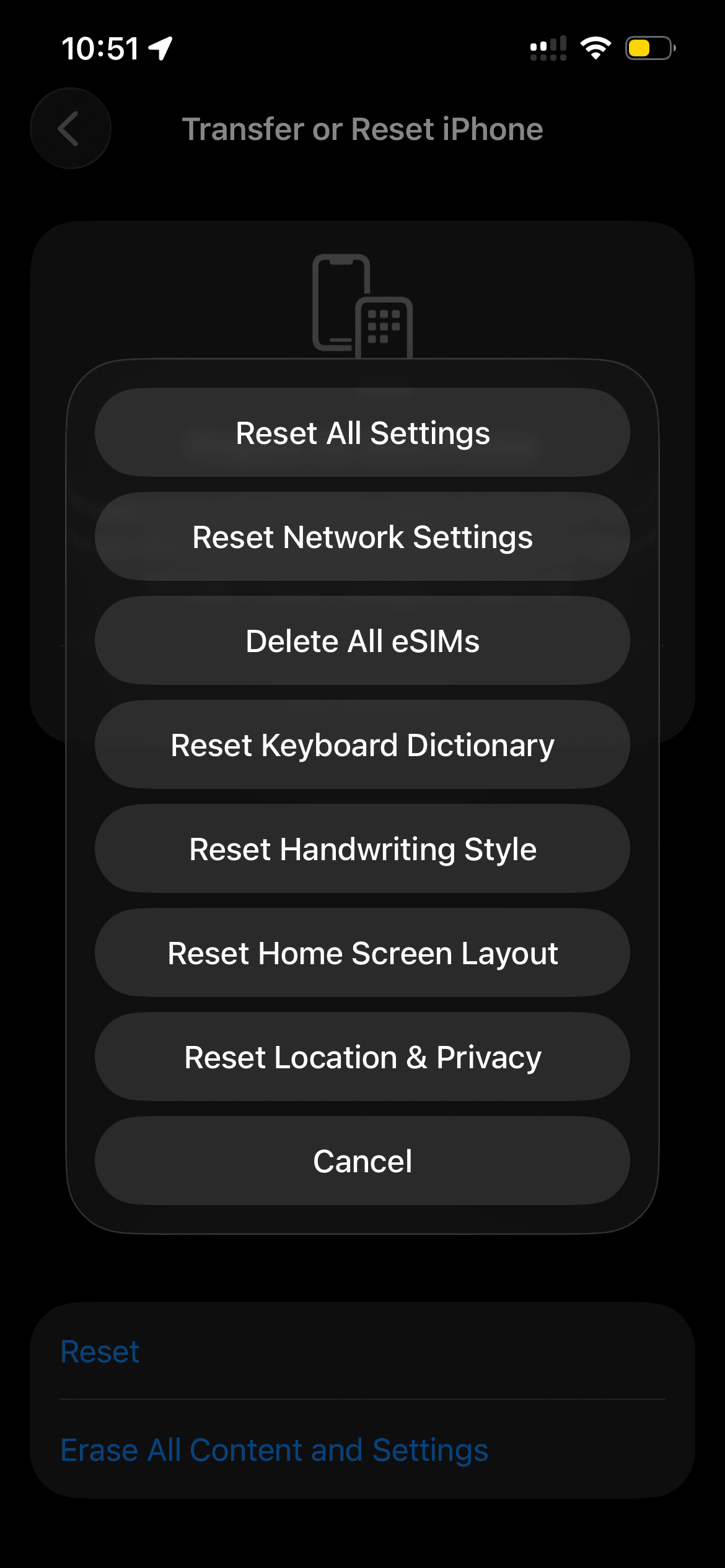
Reset All Settings
If nothing else works, resetting all settings can resolve deeper configuration issues without erasing your data. Go to Settings > General.
Tap Transfer or Reset iPhone, then tap Reset. Select Reset All Settings and confirm your action.
Most email issues on iPhone can be resolved with these troubleshooting steps. Start with the simplest solutions like checking your network connection and restarting the app, then work through the more advanced options if needed.