A good Windows media player should disappear once the video starts. It should open the file you choose, respect your subtitles, keep controls close at hand, and avoid turning a simple movie night into a settings hunt.
Most people should pick VLC media player. It has the cleanest mix of broad platform support, active maintenance, open-source roots, and a free experience without ads, spyware, or user tracking. The other picks here are for people with more specific tastes: a built-in Microsoft app, a tiny Windows classic, a command-line player, a TV-style media center, or a player with stronger subtitle and playback tools.
At a Glance
| Best for | Software | Standout | Free tier |
|---|---|---|---|
| Most people | VLC media player | Free open-source player with no ads, spyware, or user tracking | Free |
| Built-in Windows playback | Windows Media Player | Microsoft Store app with Windows default-app setup | Free |
| Lightweight Windows playback | MPC-HC | Maintained community fork with keyboard, output, and interface options | Free open source |
| Minimalist control | mpv | Command-line playback with an on-screen controller | Free open source |
| Home theater libraries | Kodi | Full media center for local and remote media | Free open source |
| High-end Windows PCs | KMPlayer 64X | DVD and Blu-ray playback, bookmarks, speed controls, and screen adjustment | Free |
| Subtitles and 360 video | GOM Player | Subtitle tools, codec search, 360-degree VR video, and repeat intervals | Free version |
| Built-in codecs | SMPlayer | Built-in codecs, YouTube support, subtitle search, and filters | Free |
How we chose
We prioritized current Windows support, official availability, active maintenance signals, clear playback strengths, and a free tier we could verify from the supplied vendor information.
We cut deprecated software, Mac-only picks, and any option whose main value depended on hardware, shopping, or a guessed product page. We also favored players that make a distinct case for themselves, whether that is simple default playback, a lean interface, home-theater organization, subtitle tools, or advanced launch options.
VLC media player
Key highlights
- Standout: Free open-source player with no ads, spyware, or user tracking
- Free tier: Free
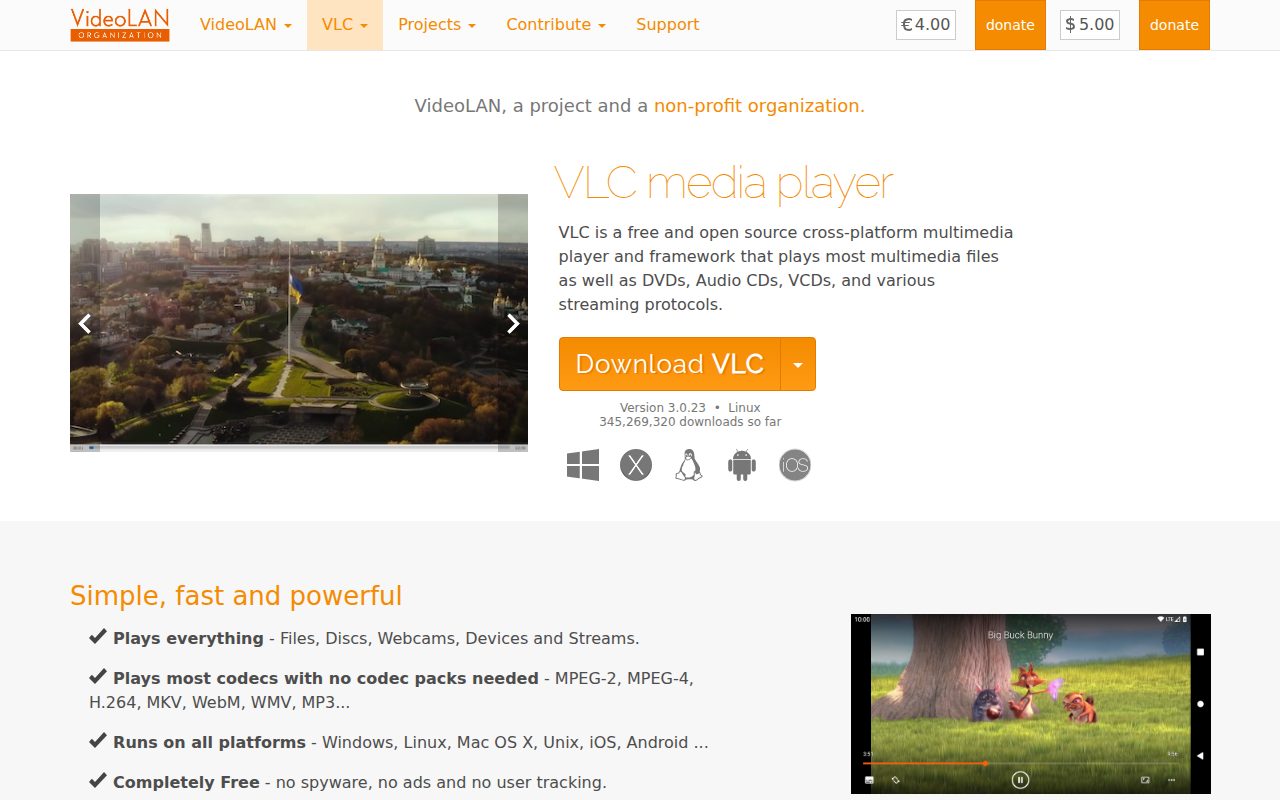
VLC media player is the one most Windows users should install first. VideoLAN publishes it as a free, open-source player for Windows, macOS, Linux, Unix, iOS, and Android, and the Windows support range stretches from Windows XP SP3 through Windows 11.
It earns the top spot because it is current, familiar, and clean in the ways that matter. The standout detail is not a flashy extra, but the promise that it is completely free with no spyware, no ads, and no user tracking. On Windows, it also fits neatly into the default-app workflow, so it can become the player Windows uses for the file types you assign to it.
Pros
- It is free and open source.
- It supports Windows XP SP3 through Windows 11.
- It is available across desktop and mobile platforms.
- It has no ads, spyware, or user tracking.
- It can be assigned to media file types in Windows default apps.
Cons
- The interface is more practical than polished.
- Its broad platform focus means it is not tailored only to Windows 11.
Most Windows users who want one dependable media player for local audio and video files should choose VLC media player.
You want a player that feels like a native Microsoft app above everything else.
Windows Media Player
Key highlights
- Standout: Microsoft Store app with Windows default-app setup
- Free tier: Free
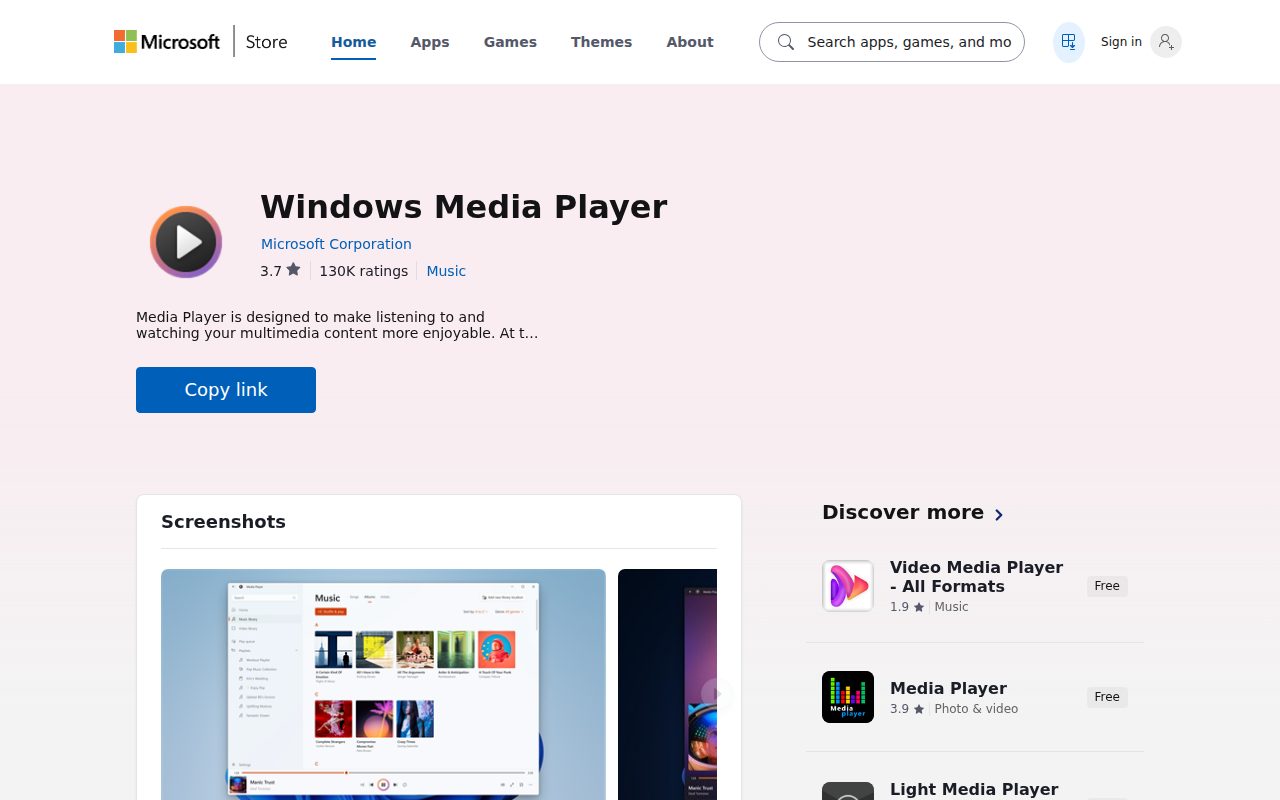
Windows Media Player is the simplest recommendation for someone who wants to stay inside Microsoft's own Windows experience. It is available through the Microsoft Store, Windows 11 includes the newer Media Player experience, and Windows Media Player Legacy remains a separate optional-feature app.
Its place on this list comes from convenience. You can install or open it from Windows, then use Settings to assign default file types to Windows Media Player or Media Player. That default-app connection is the standout feature here, because it keeps media playback close to the rest of the operating system instead of asking you to build a separate setup.
Pros
- It is published by Microsoft.
- It fits naturally into Windows 10 and Windows 11 PCs.
- It works with the Windows default-app settings flow.
- It is a free Microsoft Store app.
Cons
- It is Windows-only.
- Windows Media Player Legacy is separate from the newer Media Player experience.
- It is less appealing for people who want advanced playback customization.
Windows users who want the Microsoft option and do not need a specialist player should use Windows Media Player.
You want open-source software or a player built around advanced keyboard, output, and interface controls.
MPC-HC
Key highlights
- Standout: Maintained community fork with keyboard, output, and interface options
- Free tier: Free open source
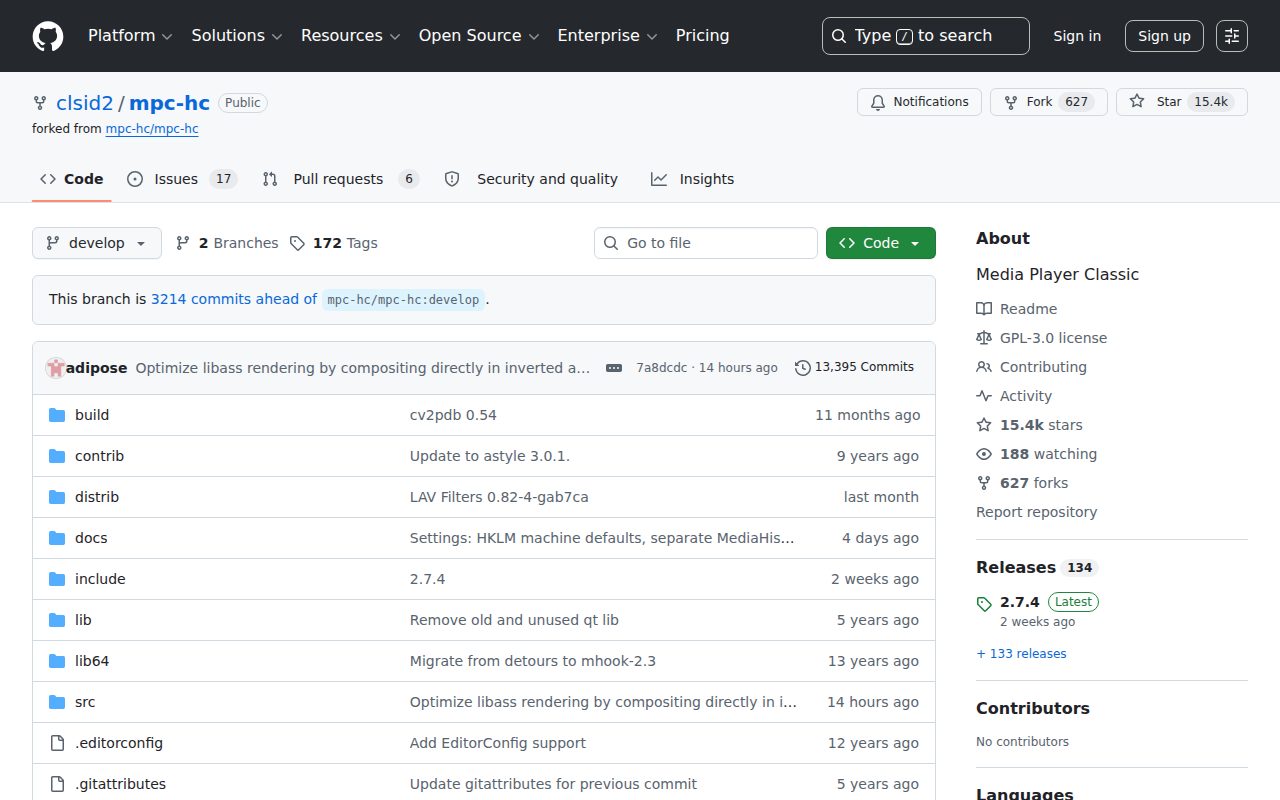
MPC-HC belongs to people who like a compact Windows player that gets straight to the file. The current recommendation is the maintained clsid2 fork, not the old original project, because the original MPC-HC site says that older line has not been under development since 2017.
The maintained fork supports Windows 7, 8, 8.1, 10, and 11, and it remains free and open source under GPL v3. Its standout strength is the depth behind the plain surface: the app exposes options for player keys, playback output, and user interface behavior without turning the main window into a busy dashboard.
Pros
- It is lightweight and focused on Windows desktop playback.
- It supports Windows 7 through Windows 11.
- It is free and open source under GPL v3.
- It includes configurable player keys, output, and interface options.
Cons
- It is Windows-only.
- The GitHub release flow is less casual than a normal app-store install.
- It is not the right pick for a living-room media center layout.
Windows users who want a lean player with practical settings and no media-center layer should choose MPC-HC.
You prefer an app-store install or need the same player across phones, tablets, and desktop systems.
mpv
Key highlights
- Standout: Command-line playback with an on-screen controller
- Free tier: Free open source
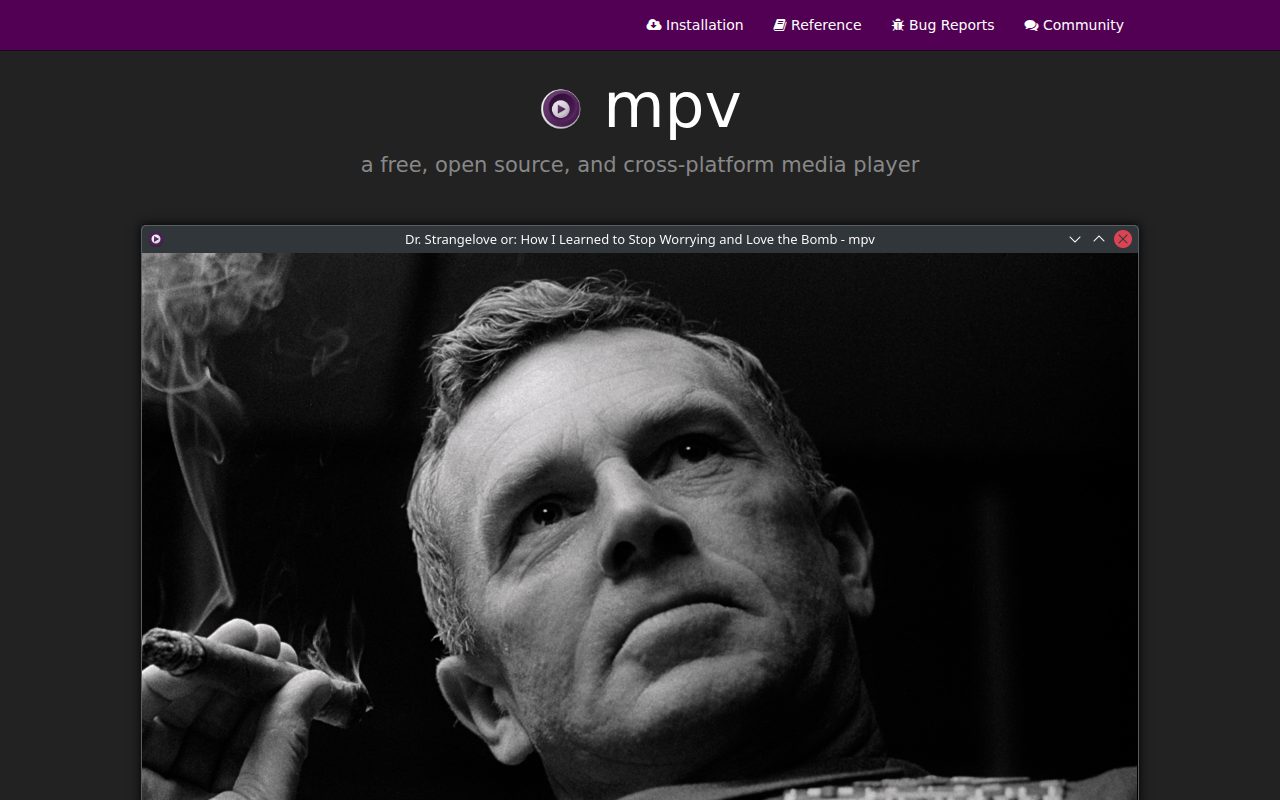
mpv is the clean pick for people who are comfortable launching media with commands and options. It is a free, open-source desktop player for Windows, macOS, Linux, BSD, and related Unix-like systems, and the project describes itself as being in active development.
Its standout feature is the way it combines command-line control with a simple on-screen controller over the video. You can run mpv with options, a file, a URL, a playlist, or standard input, then keep the visible interface spare once playback begins.
Pros
- It is free and open source.
- It works across major desktop platforms.
- It supports command-line playback with options.
- Its on-screen controller keeps the video area uncluttered.
Cons
- It is less welcoming for people who want a conventional library interface.
- Its best strengths assume comfort with commands and options.
Power users who want a minimalist player they can launch with precise options should choose mpv.
You want a familiar Windows app with menus doing most of the work.
Kodi
Key highlights
- Standout: Full media center for local and remote media
- Free tier: Free open source
Kodi is the right choice when a single playback window is too small for the job. It is a free, open-source media center for Windows, Android, Linux, Mac OS X, iOS, Raspberry Pi, tvOS, and webOS, built around playing media you provide.
It earns its spot as the home-theater option because it is designed as a center for local and remote media rather than just a file opener. The important boundary is clear: Kodi does not include content, and third-party plugins are the user's responsibility. That makes it best for people who already have media to organize and play.
Pros
- It is free and open source.
- It supports Windows and several TV, mobile, and desktop platforms.
- It is built as a full media center.
- It can work with local or remote media you provide.
Cons
- It is more application than a simple lightweight player.
- It does not include content.
- Third-party plugins remain the user's responsibility.
People building a home-theater style media library on a Windows PC should choose Kodi.
You only want to double-click a file and watch it in a small desktop window.
KMPlayer 64X
Key highlights
- Standout: DVD and Blu-ray playback, bookmarks, speed controls, and screen adjustment
- Free tier: Free
KMPlayer 64X is a Windows media player aimed at 64-bit PCs, with Windows 10 64-bit recommended and Windows 11 support listed. Its minimum requirements go back to Windows Vista 64-bit with DirectX 9 or higher, while separate versions serve lower-end PCs and mobile devices.
It earns a spot for Windows users who want more built-in playback tools without moving into a full media center. The standout set is practical: DVD and Blu-ray content, URL playback and download, subtitles, bookmarks, play-speed settings, and screen adjustment all sit inside the same player. The vendor also states that it is free, with no advertisements, spyware, or user tracking.
Pros
- It is made for 64-bit Windows PCs.
- It supports Windows 11 and recommends Windows 10 64-bit.
- It includes subtitle, bookmark, speed, and screen adjustment tools.
- It supports DVD and Blu-ray content.
- The vendor states that it has no advertisements, spyware, or user tracking.
Cons
- It is not the best fit for lower-end PCs.
- It is Windows-focused in this 64X version.
- Its larger toolset is more than casual users need.
Windows users with a 64-bit PC who want a feature-rich player for discs, files, subtitles, and playback control should choose KMPlayer 64X.
You want the lightest possible player or a cross-platform desktop app with the same experience everywhere.
GOM Player
Key highlights
- Standout: Subtitle tools, codec search, 360-degree VR video, and repeat intervals
- Free tier: Free version
GOM Player is a free video player for Windows, macOS, Android, and iOS, with current Windows support starting at Windows 10 64-bit or later. It is the pick here for people who care less about a bare interface and more about media extras gathered in one place.
Its standout features are subtitle support, codec search, 360-degree VR video playback, and repeat interval playback. GOM Player+ exists separately for an ad-free premium environment, AI upscaling, subtitle credit packages, and a one-PC permanent license, so the free version is best judged by the tools the vendor assigns to GOM Player itself.
Pros
- It has a free version.
- It supports Windows, macOS, Android, and iOS.
- It includes subtitle support and codec search.
- It supports 360-degree VR video playback.
- It includes repeat interval playback.
Cons
- Windows support starts at Windows 10 64-bit or later.
- Ad-free premium features belong to GOM Player+.
- AI upscaling and subtitle credit packages are not part of the free GOM Player tier.
Windows users who want subtitle tools, codec search, 360-degree video, and repeat interval playback should choose GOM Player.
You want a free player whose vendor states there are no ads or user tracking.
SMPlayer
Key highlights
- Standout: Built-in codecs, YouTube support, subtitle search, and filters
- Free tier: Free
SMPlayer is a free media player for Windows, Linux, and Mac OS. It is the sensible pick for people who want practical desktop playback with built-in codecs and a few useful media tools beyond the basic open-and-play routine.
The standout feature set is direct and useful: built-in codecs, YouTube support, subtitle search and download, a thumbnail generator, and audio and video filters. It does not try to replace a full media-center app like Kodi, and it does not ask you to work from the command line like mpv.
Pros
- It is free.
- It supports Windows, Linux, and Mac OS.
- It includes built-in codecs.
- It supports YouTube playback features.
- It includes subtitle search, subtitle download, thumbnails, and filters.
Cons
- It is less minimal than mpv.
- It is not a full home-theater media center.
- Its toolset is more conventional than specialized players such as GOM Player.
Windows users who want built-in codecs, subtitle search, YouTube support, thumbnails, and filters in a free desktop player should choose SMPlayer.
You want the cleanest default recommendation for almost everyone, which is VLC.
How to Choose
- Pick VLC for the default answer. It is the best fit for most Windows users because it is current, open source, widely available, and free without ads, spyware, or user tracking.
- Stay with Microsoft for the simplest Windows path. Windows Media Player is the clean choice when you want a Microsoft app that fits the Windows default-app settings flow.
- Choose MPC-HC for a small Windows-first player. The maintained clsid2 fork is right when you want lightweight playback and useful keyboard, output, and interface options.
- Use mpv when commands are a feature. It is the player to choose when launch options, URLs, playlists, and a minimal on-screen controller matter more than a traditional library.
- Choose Kodi for the couch setup. It is the Windows pick when your priority is a home-theater media center for your own local or remote media.
- Pick KMPlayer 64X for a richer 64-bit Windows toolset. It makes sense when disc playback, bookmarks, speed settings, subtitles, and screen adjustment are part of your routine.
- Choose GOM Player for subtitle and 360-degree tools. It is the right fit when codec search, repeat intervals, and VR video playback are higher priorities than a no-ads free-tier promise.
- Pick SMPlayer for built-in codecs and everyday extras. It is the practical choice when you want codecs, subtitle search, YouTube support, thumbnails, and filters in one free desktop player.











