Choosing a privacy browser is really about choosing how much friction you want between you and the modern web. Some browsers quietly tighten the screws on trackers while leaving familiar sites mostly intact. Others are built for people who would rather give up convenience than leak more than necessary.
For most people, Brave is the one to install first. It is free, current across desktop and mobile, and its Shields controls make tracker blocking, cookie handling, fingerprinting protection, and site forgetting easy to reach without turning browsing into a project.
The other picks here earn their place for more specific jobs: Firefox for people who want a mainstream browser with serious privacy controls, Tor Browser for anonymity, DuckDuckGo for simple default protection, Mullvad Browser for hardened desktop sessions, Safari for Apple users, LibreWolf for desktop users who want a stricter Firefox fork, Vivaldi for control-heavy browsing, and Edge for people who need Microsoft compatibility with stricter tracking prevention turned on.
At a Glance
| Best for | Software | Standout | Free tier |
|---|---|---|---|
| Most people | Brave Browser | Shields can block trackers and ads, control cookies, block fingerprinting, and forget site data when closed. | Free browser, with some paid optional services. |
| Mainstream privacy control | Mozilla Firefox | Enhanced Tracking Protection can be set to Strict or Custom from Privacy and Security settings. | Free browser, with separate paid Mozilla services. |
| Anonymity-focused browsing | Tor Browser | Security Level settings let Android users choose Standard, Safer, or Safest protection. | Free software from the donor-funded Tor Project. |
| Simple private browsing defaults | DuckDuckGo Private Browser | Privacy protections and Global Privacy Control are enabled by default. | Free browser, with subscription features outside the free tier. |
| Hardened desktop privacy | Mullvad Browser | Private mode is on by default and session cookies, cache, and history are not saved between sessions. | Open source and free of charge. |
| Apple users | Safari | Private Browsing can be locked with passcode, Face ID, or Touch ID on iPhone. | Included on Apple platforms. |
| Strict Firefox-based desktop browsing | LibreWolf | Telemetry is removed, DRM is disabled, and uBlock Origin is included. | No paid tier stated. |
| Customizable browsing | Vivaldi Browser | Tracker and Ad Blocking can be changed globally or per site. | No free-tier claim stated. |
| Microsoft ecosystem users | Microsoft Edge | Tracking prevention can be switched to Strict in Privacy, search, and services. | No free-tier claim stated. |
How we chose
We prioritized browsers with current official support, clear privacy controls, and settings an ordinary person can actually find without digging through experimental flags. We also gave more weight to browsers that protect across more than one platform, explain their privacy posture plainly, and expose concrete controls such as tracker blocking, fingerprinting protection, private windows, security levels, or per-site exceptions.
We disqualified deprecated approaches, unofficial substitutes for named products, physical privacy accessories, and anything without an official URL. We did not claim lab testing, benchmark speed, or quote outside rankings; this list is our editorial read of the verified product pages and support documentation supplied.
Brave Browser
Key highlights
- Standout: Shields can block trackers and ads, control cookies, block fingerprinting, and forget site data when closed.
- Free tier: Free browser, with some paid optional services.
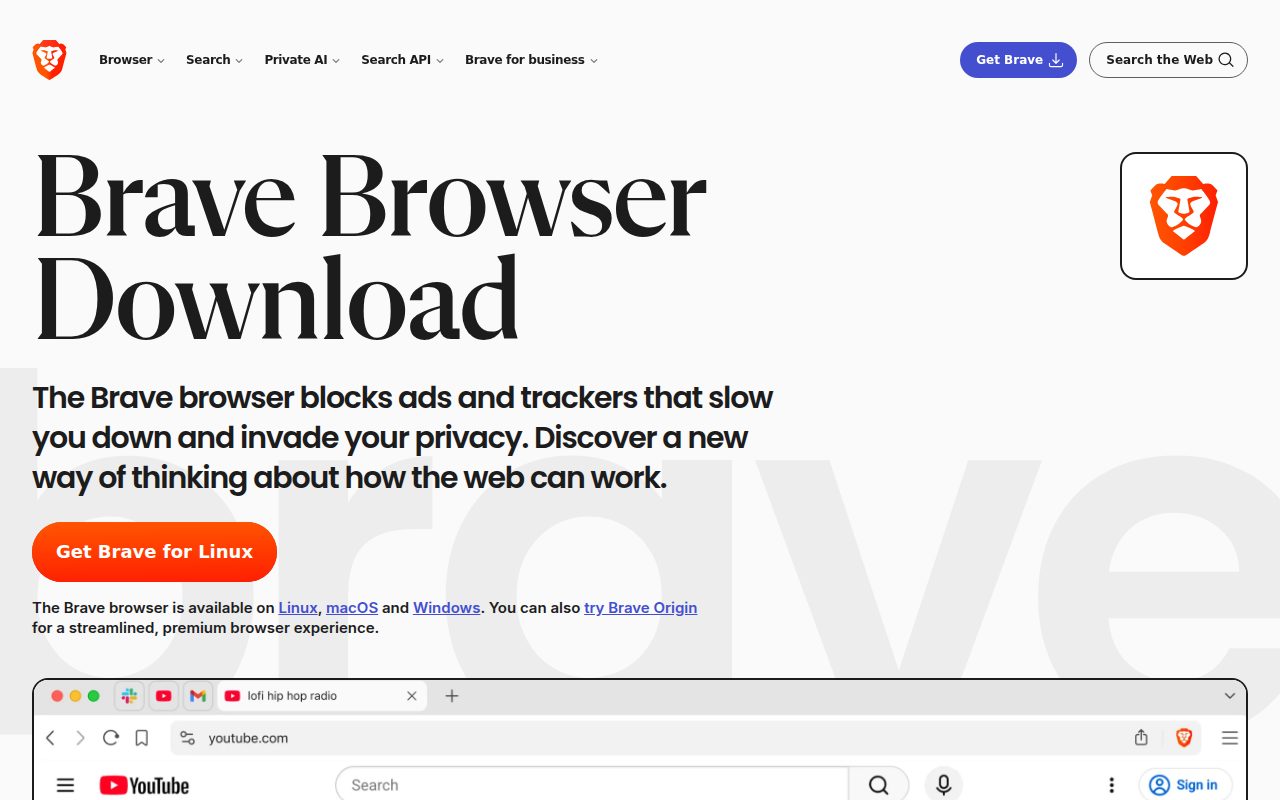
Brave is the privacy browser most people should pick because it gives strong protection without feeling unfamiliar. It is a Chromium browser from Brave Software, runs on Windows, macOS, Linux, Android, and iOS, and its browser is completely free to use while some optional services remain paid.
Its best feature is Brave Shields. Open a site, click the Shields icon in the address bar, and you can keep Shields Up while changing tracker and ad blocking, cookie control, fingerprinting protection, and the option to forget that site when you close it. For stricter blocking, Block trackers and ads can be set to Aggressive.
That combination gives Brave the cleanest balance here: privacy controls are visible, the default posture is serious, and the browser still fits normal daily browsing. Pick it first unless you already know you need Tor-level anonymity or a browser tied closely to another ecosystem.
Pros
- It offers strong privacy controls without asking most users to relearn the web.
- Brave Shields makes site-level tracker, ad, cookie, and fingerprinting choices easy to reach.
- It runs on desktop and mobile platforms.
- The browser itself is completely free to use.
Cons
- Some Brave services, including VPN and other optional features, are paid.
- Aggressive blocking can be more than some sites expect.
- It is still a Chromium-based choice, which may not appeal to users who want a different browser base.
Most people who want a privacy-first daily browser with clear controls and broad platform support.
You need anonymity routing built around the Tor network or you specifically want a Firefox-based browser.
Mozilla Firefox
Key highlights
- Standout: Enhanced Tracking Protection can be set to Strict or Custom from Privacy and Security settings.
- Free tier: Free browser, with separate paid Mozilla services.
Firefox is the best pick for people who want a familiar, mainstream browser with privacy settings that still have real bite. Mozilla describes Firefox as a free web browser, and the current stable version runs on desktop and mobile, with older Windows and macOS releases directed to Firefox ESR rather than the current branch.
The reason Firefox belongs near the top is Enhanced Tracking Protection. On desktop, the path runs through the shield icon, Protection Settings or Privacy Settings, and then Advanced settings, where Strict and Custom modes are available. On Android, Enhanced Tracking Protection can be turned on from Privacy and Security, then set to Standard, Strict, or Custom.
Firefox is the one to choose when you want privacy controls inside a browser that still feels broadly conventional. It is not the anonymity pick, and it is not as hardened out of the box as LibreWolf, but it gives everyday users a strong middle lane.
Pros
- It is a free browser with active current support.
- Enhanced Tracking Protection offers Standard, Strict, and Custom choices on supported platforms.
- It works across desktop and mobile.
- It is a strong fit for users who prefer a mainstream non-Chromium browser.
Cons
- Strict or Custom protection may require a settings change.
- Very old Windows and macOS versions are outside current Firefox support.
- It is not designed as a full anonymity browser.
People who want a mainstream browser, open-source roots, and privacy controls they can tune without moving to a specialist tool.
You want the browser to be hardened more aggressively by default, or you need Tor Browser's anonymity model.
Tor Browser
Key highlights
- Standout: Security Level settings let Android users choose Standard, Safer, or Safest protection.
- Free tier: Free software from the donor-funded Tor Project.
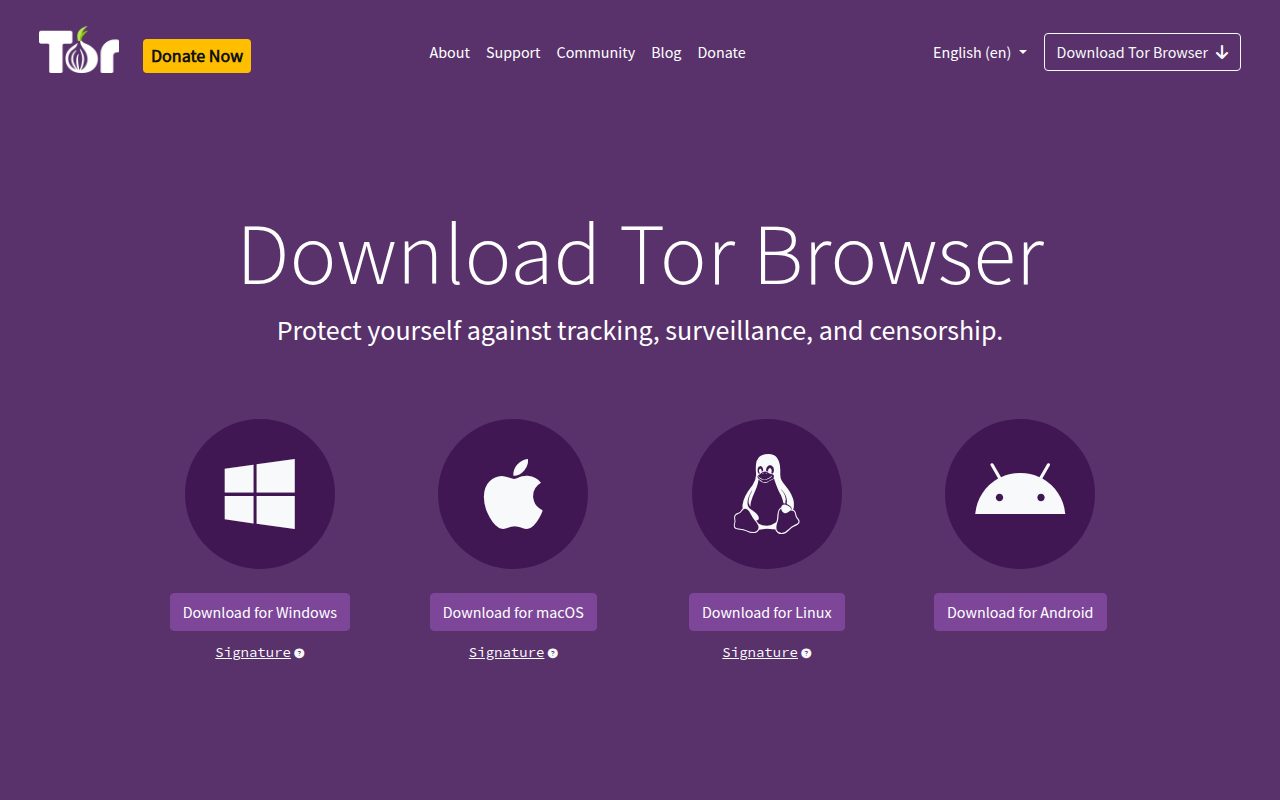
Tor Browser is the specialist choice in this list. It is a Firefox ESR-based anonymity browser from The Tor Project, available for Windows, macOS, Linux, and Android, and the official download page does not offer Tor Browser for iOS.
It earns its spot because it is built around a different priority than ordinary private browsing. The official guidance also gives a concrete caution: do not torrent over Tor, and do not install additional add-ons or plugins because they can compromise privacy. On Android, the Security Level menu offers Standard, Safer, and Safest modes, followed by Save and restart.
Use Tor Browser when anonymity is the point, not when you simply want a cleaner version of normal browsing. It is the most focused recommendation here, and that focus is exactly why it is not the default pick for everyone.
Pros
- It is built specifically for anonymity-focused browsing.
- It is available for Windows, macOS, Linux, and Android.
- Android users can choose Standard, Safer, or Safest security levels.
- The Tor Project provides it as free software.
Cons
- Tor Project does not offer an official Tor Browser for iOS.
- The vendor warns against torrenting over Tor.
- Adding extra browser plugins can compromise privacy.
People who specifically need Tor Browser's anonymity model and are willing to follow its stricter usage guidance.
You mainly want a fast everyday browser with simple tracker blocking and broad mobile coverage.
DuckDuckGo Private Browser
Visit DuckDuckGo Private Browser
Key highlights
- Standout: Privacy protections and Global Privacy Control are enabled by default.
- Free tier: Free browser, with subscription features outside the free tier.
DuckDuckGo Private Browser is the best pick for people who want privacy protections switched on without much setup. It runs on Mac, Windows, iOS, and Android, with DuckDuckGo listing Windows 10 May 2020 or later for Windows and macOS 11.4 or later for the direct Mac download.
Its standout advantage is simplicity. Privacy protections are on by default, and Global Privacy Control requires no setup after installation because it is enabled by default. If you do not want the optional Duck.ai surface in the browser, go to Settings, AI Features, then turn off Duck.ai.
This is the browser for people who want fewer privacy decisions, not endless tuning. Brave is stronger as the overall recommendation because its controls are broader and easier to adjust per site, but DuckDuckGo is the cleaner choice for people who want the defaults to carry most of the load.
Pros
- Privacy protections are on by default.
- Global Privacy Control is enabled by default after installation.
- It runs on Windows, Mac, iOS, and Android.
- The browser is free, with subscription features kept outside the free tier.
Cons
- The Windows version requires Windows 10 May 2020 or later.
- The direct Mac download requires macOS 11.4 or later.
- Some DuckDuckGo privacy services and advanced AI features sit outside the free browser tier.
People who want a simple privacy browser with protections already on and Global Privacy Control enabled from the start.
You want deep per-site controls like Brave Shields or a more configurable desktop browser.
Mullvad Browser
Key highlights
- Standout: Private mode is on by default and session cookies, cache, and history are not saved between sessions.
- Free tier: Open source and free of charge.
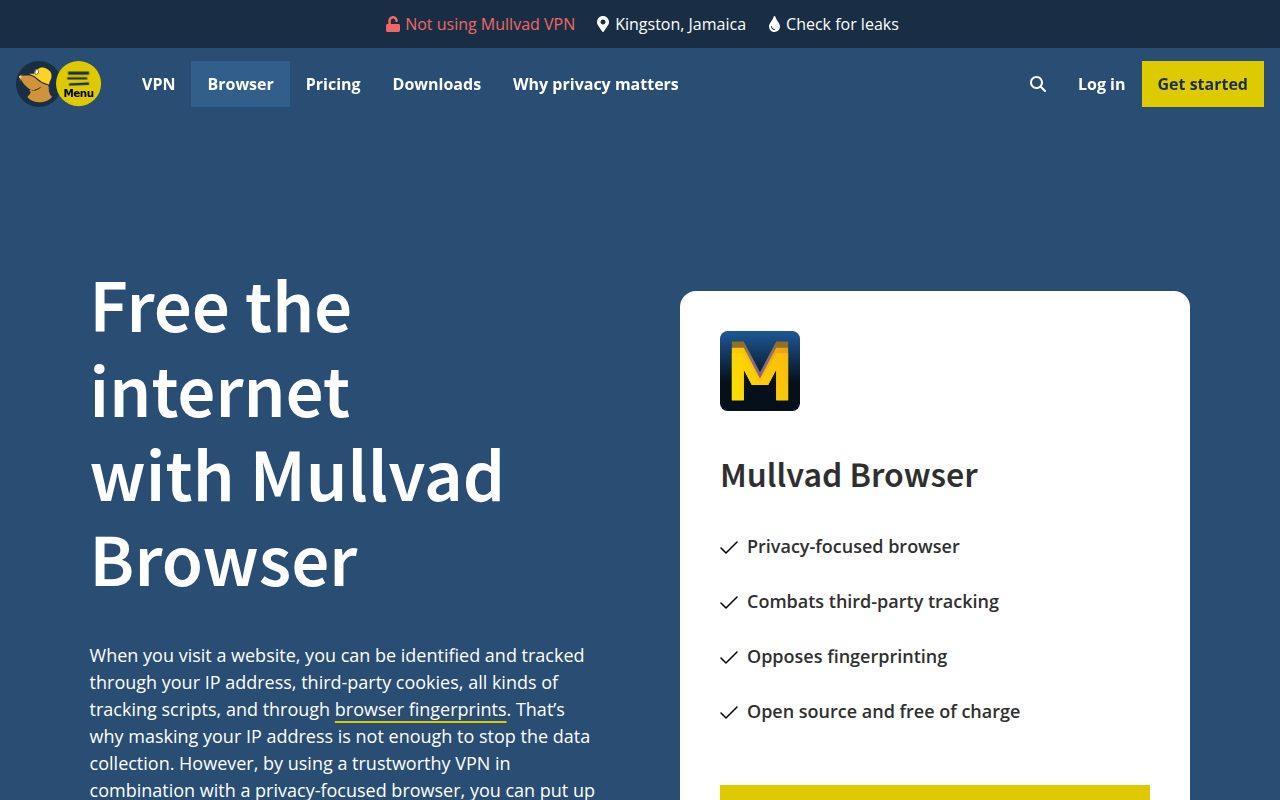
Mullvad Browser is the best desktop pick for people who want a more hardened setup without configuring a long list of switches. It is a collaboration with the Tor Project from Mullvad VPN AB, runs on Linux, macOS, and Windows, and the vendor says it is open source and free of charge whether or not you use Mullvad VPN.
The standout is how much privacy posture is built into the default state. Private mode is enabled by default, cookies, cache, and history are not saved between sessions, telemetry is removed, and uBlock Origin blocks third-party trackers. Mullvad says the browser can be used with or without a VPN, while advising a trustworthy VPN for masking your IP address.
Choose Mullvad Browser when desktop privacy matters more than mobile continuity. It is less universal than Brave or Firefox, but it is more deliberate about reducing what survives from one session to the next.
Pros
- It is open source and free of charge.
- Private mode is enabled by default.
- Cookies, cache, and history are not saved between sessions.
- Telemetry is removed and uBlock Origin is included for third-party tracker blocking.
Cons
- It is a desktop browser, not a full desktop and mobile ecosystem.
- Mullvad advises using a trustworthy VPN when you need to mask your IP address.
- Its stricter session behavior may feel less convenient for routine signed-in browsing.
Desktop users who want a hardened browser with private mode and reduced session persistence built into the default experience.
You need one browser synced across phone, tablet, and desktop.
Safari
Key highlights
- Standout: Private Browsing can be locked with passcode, Face ID, or Touch ID on iPhone.
- Free tier: Included on Apple platforms.
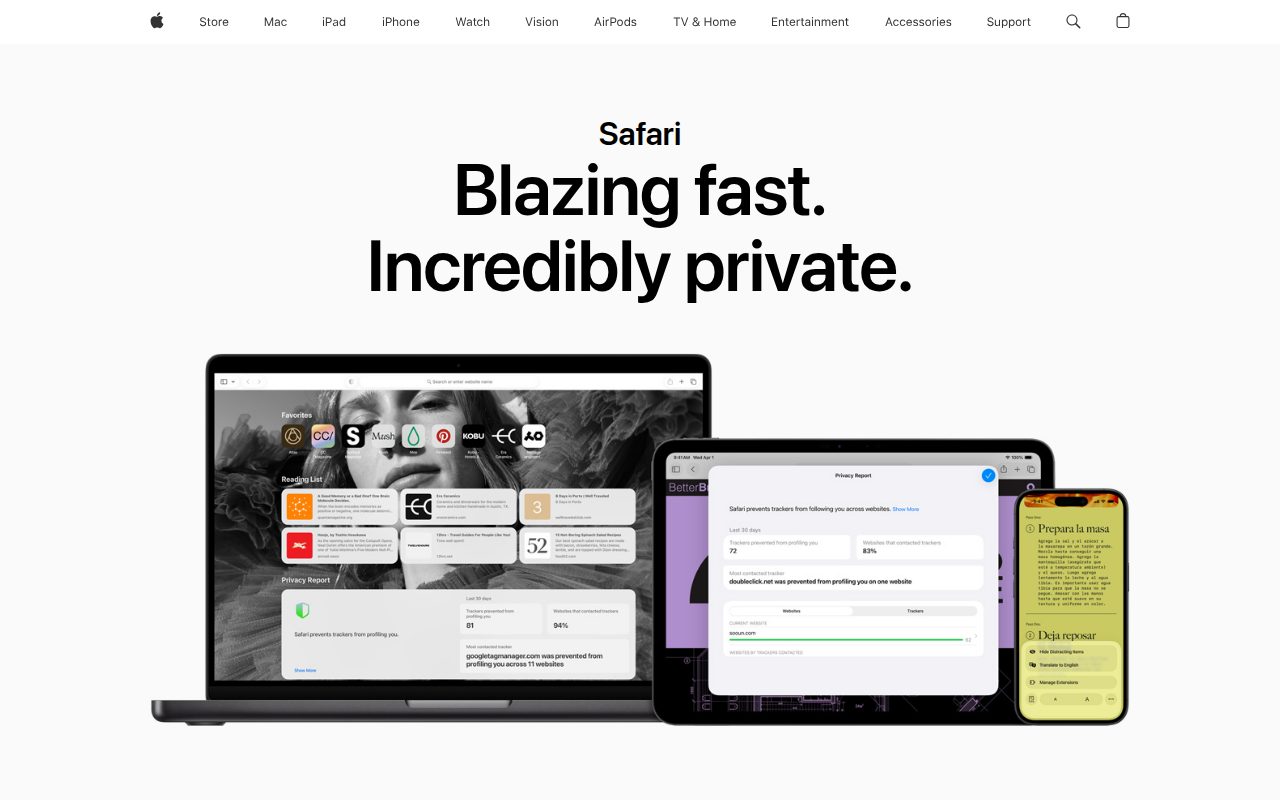
Safari is the privacy browser to use if you live inside Apple's platforms and want the tightest fit with macOS, iOS, and iPadOS. It is Apple's built-in browser, so there is no separate browser shopping decision, though iCloud Private Relay is tied to iCloud+ rather than presented as a free Safari feature.
Safari earns its place through practical privacy controls that match Apple devices well. On Mac, private browsing starts from File and New Private Window, and Safari can be set to open with a new private window. On iPhone, Private Browsing can be opened from the tab view and locked with passcode, Face ID, or Touch ID from Safari settings.
It is not the best cross-platform recommendation because it is for Apple platforms. For Apple users, though, Safari is the cleanest built-in option, especially if locked Private Browsing and private-search settings matter more than switching to another browser family.
Pros
- It is built into Apple's current browser experience on Apple platforms.
- Private Browsing is easy to open on Mac and iPhone.
- iPhone users can lock Private Browsing with passcode, Face ID, or Touch ID.
- Safari lets users set a private-search engine for Private Browsing.
Cons
- It is not the right pick for people who need one browser across non-Apple desktop and mobile platforms.
- iCloud Private Relay requires iCloud+.
- Some Mac private-window behavior depends on a system setting for closing windows when quitting an app.
Apple users who want a built-in browser with private windows, locked Private Browsing on iPhone, and Apple-platform integration.
You use Windows, Linux, or Android as core browsing devices.
LibreWolf
Key highlights
- Standout: Telemetry is removed, DRM is disabled, and uBlock Origin is included.
- Free tier: No paid tier stated.
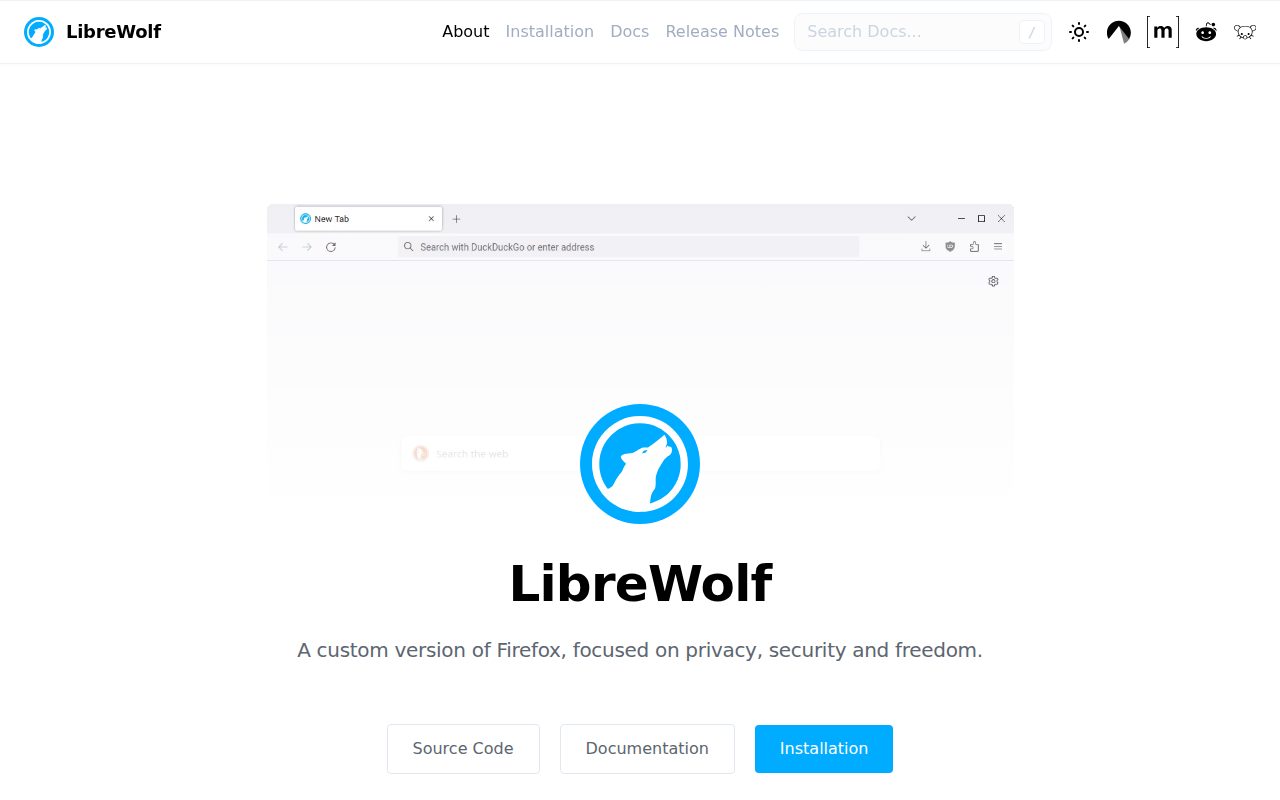
LibreWolf is the best pick for desktop users who like Firefox's foundation but want a stricter privacy posture from an independent fork. It is desktop only, with official materials saying no Android version is being worked on.
Its standout is the default bundle of privacy-oriented choices. LibreWolf removes telemetry and data collection, includes privacy and security settings and patches, disables DRM, and includes uBlock Origin. For DNS-over-HTTPS, the path is Settings, Privacy and Security, then Enable DoH using Off, Increased protection, or Max Protection.
This is the choice for people who want a more opinionated desktop browser and accept the tradeoffs that come with that. Firefox is better for mainstream use and mobile coverage; LibreWolf is for users who specifically want the stricter fork.
Pros
- It removes telemetry and data collection according to the vendor materials.
- It includes privacy and security settings and patches.
- It disables DRM.
- It includes uBlock Origin.
Cons
- It is desktop only.
- The official FAQ says no Android version is being worked on.
- Its stricter posture can be less convenient for users who want mainstream defaults.
Desktop users who want a stricter Firefox-based browser with telemetry removed and uBlock Origin included.
You need Android support or want a browser that keeps closer to mainstream Firefox behavior.
Vivaldi Browser
Key highlights
- Standout: Tracker and Ad Blocking can be changed globally or per site.
- Free tier: No free-tier claim stated.
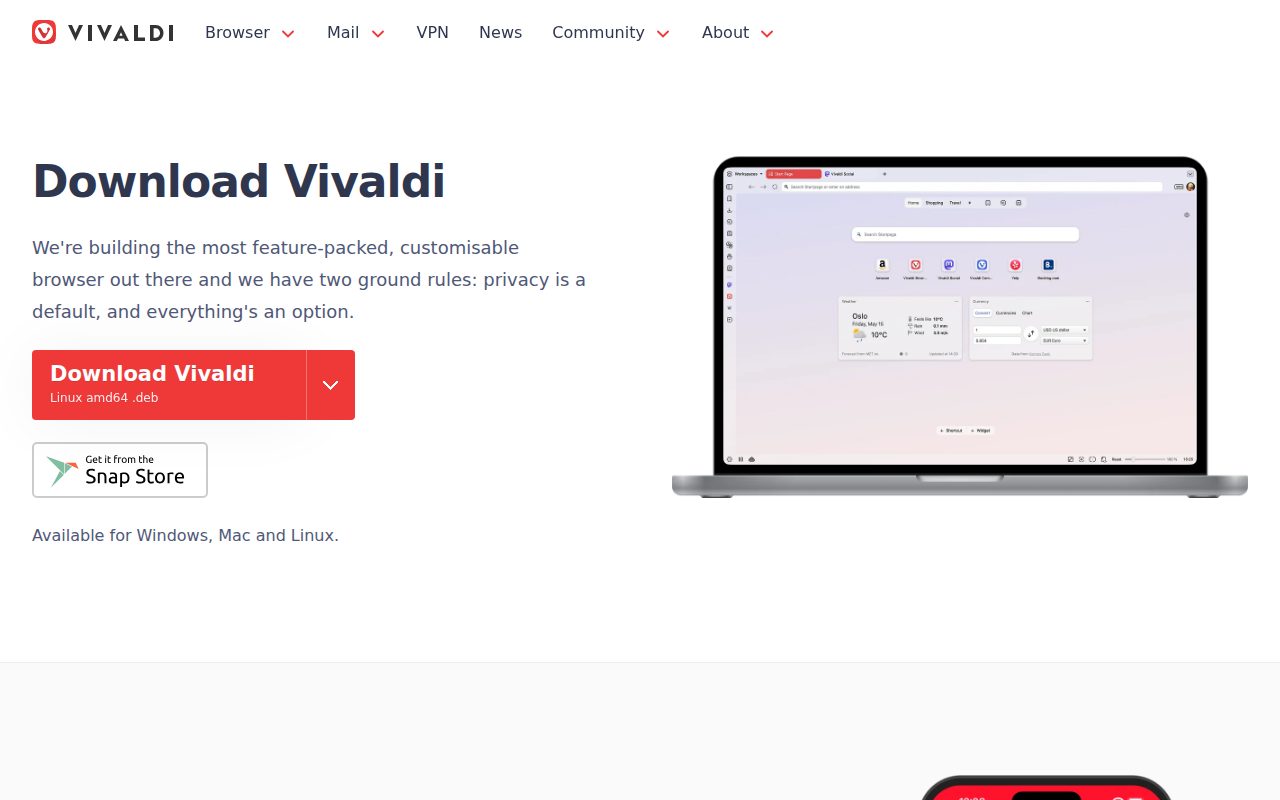
Vivaldi is the privacy-conscious pick for people who want control and customization in the same browser. It runs on Windows, macOS, and Linux on desktop, and the official product page also links mobile availability.
Its standout feature is Tracker and Ad Blocking. On desktop, Settings, Privacy and Security, and Tracker and Ad Blocking lets you choose No Blocking, Block Trackers, or Block Trackers and Ads. The same choice can be made per site from the Content Blocker button in the address field, and cookie-banner lists can be enabled from Manage Sources when Block Trackers and Ads is active.
Vivaldi is not the simplest privacy browser here, and that is the point. Pick it when you want to tune the browser around your workflow while still getting built-in tracker and ad blocking controls.
Pros
- It offers global tracker and ad blocking controls.
- Per-site blocking choices are available from the address field.
- Cookie-warning blocking lists can be enabled from the blocking source settings.
- It supports current desktop platforms and links mobile availability from the product page.
Cons
- The vendor does not publish a current plain pricing statement, so it is not labeled as free here.
- Its depth of settings may be more than simple privacy-browser shoppers need.
- Users who want the strongest default privacy posture should choose a more hardened option.
Users who want a customizable browser with built-in tracker blocking, ad blocking, per-site controls, and optional cookie-warning lists.
You want privacy protections mostly handled by defaults with minimal settings work.
Microsoft Edge
Key highlights
- Standout: Tracking prevention can be switched to Strict in Privacy, search, and services.
- Free tier: No free-tier claim stated.
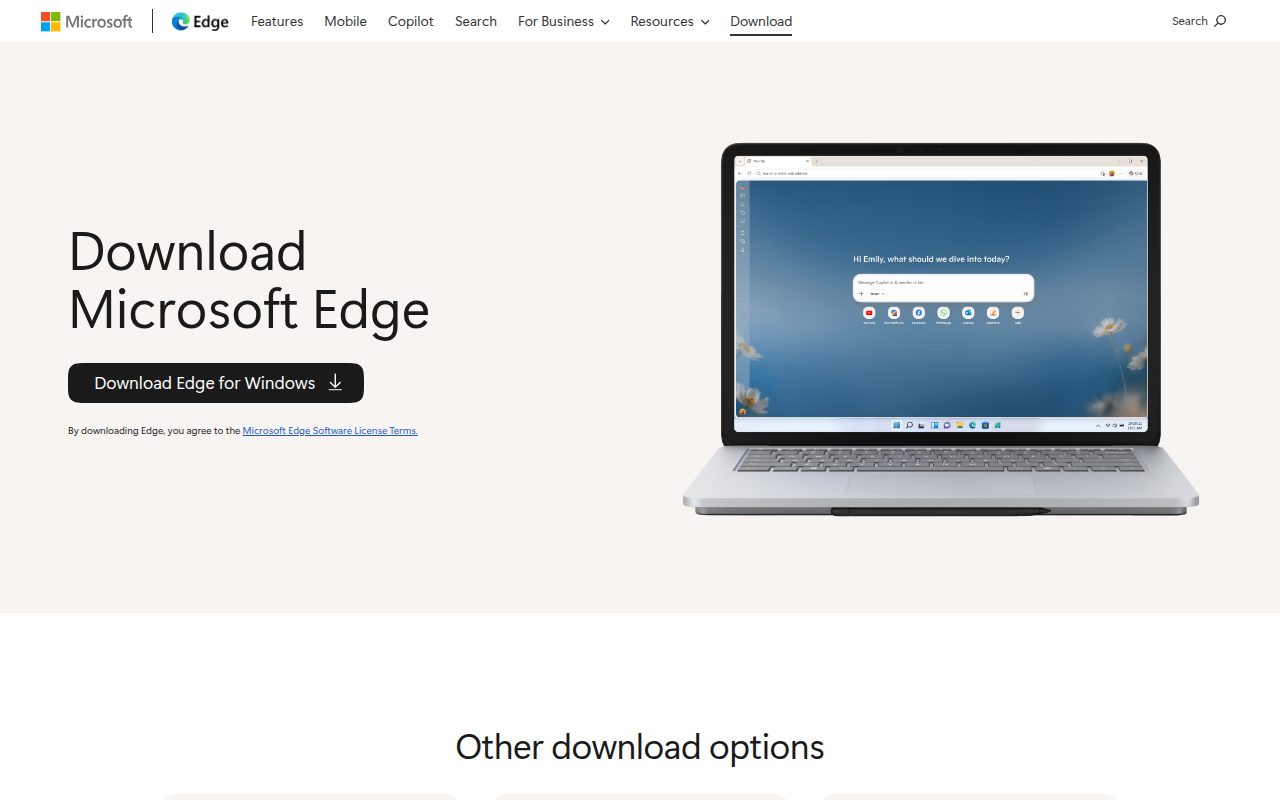
Microsoft Edge is the right privacy pick for people who need Microsoft compatibility first and stronger tracking controls second. It is a mainstream browser rather than a privacy-first specialist, and it runs on Windows, macOS, Linux, iOS, and Android according to the Microsoft download page.
The feature that matters is Tracking prevention. In Edge, go to Settings and more, Settings, Privacy, search, and services, then Tracking prevention. Turn it on and choose Strict for the most tracker blocking, or add exceptions from the same area when a specific site needs different treatment.
Edge is not the browser most people should switch to purely for privacy. It belongs here because Microsoft ecosystem users can keep the browser they need and still make a specific, supported privacy choice instead of relying on old experimental tracking-prevention paths.
Pros
- It runs on Windows, macOS, Linux, iOS, and Android.
- Tracking prevention can be set to Strict.
- Site exceptions are available from Tracking prevention settings.
- Per-site tracking prevention can be turned off from site information controls when needed.
Cons
- It is not a privacy-first specialist browser.
- The vendor does not publish a current plain pricing statement, so it is not labeled as free here.
- Edge 151 and later requires macOS 13 Ventura or later.
Microsoft ecosystem users who want to keep Edge while turning on its strongest supported tracking prevention mode.
Your top priority is a browser designed around privacy first, rather than compatibility with Microsoft services and workflows.
How to Choose
- Start with Brave. It is the best default choice because it combines a free browser, broad platform support, and clear Shields controls for trackers, ads, cookies, fingerprinting, and site data.
- Choose Firefox for familiar control. It is the right mainstream option when you want Enhanced Tracking Protection in Strict or Custom mode without moving to a specialist browser.
- Use Tor Browser for anonymity. It is the focused choice when anonymity matters more than ordinary convenience, and it comes with stricter usage guidance you should follow.
- Pick DuckDuckGo for simple defaults. It suits people who want privacy protections and Global Privacy Control switched on from the start.
- Use Mullvad Browser or LibreWolf for stricter desktop sessions. Mullvad is better for session privacy by default, while LibreWolf is better for users who want a Firefox fork with telemetry removed and uBlock Origin included.
- Stay with Safari or Edge when platform fit is the priority. Safari makes the most sense on Apple devices, while Edge is for Microsoft users who need compatibility and want Tracking prevention set to Strict.











