A slow iPhone is one of the most common complaints, and the good news is that most lag comes from a handful of fixable causes. Low storage, a tired battery, heavy background activity, an overheating phone, or software that needs an update can all make even a recent iPhone feel sluggish.
The fixes below are ordered easiest first, so start at the top and work down. Most people get their speed back within the first few steps, long before reaching the more drastic options at the end.
Read more - Why Is My iPhone Battery Draining So Fast? (And How to Fix It)
Why Your iPhone Is Lagging
iPhones rarely slow down for one single reason. Usually it is a stack of small drains adding up, and a few of them are worth understanding before you start changing settings.
The most common culprits are nearly full storage, a battery whose health has dropped below 80%, too many apps refreshing in the background, and heat. Animations from the newer Liquid Glass design in iOS 26 can also tax older hardware.
If you updated iOS in the last day or two, some lag is normal. The system reindexes data and re-optimizes apps in the background, and performance usually settles on its own within 24 to 72 hours.
Quick Diagnosis Table
Use this to jump straight to the fix that matches what you are seeing. If you are not sure, just start from the top of the list and work down.
| Symptom | Most likely cause | Try this fix |
|---|---|---|
| Everything is slow after an update | Background reindexing | Wait 24 to 72 hours, then restart |
| Apps crash or storage warnings appear | Storage nearly full | Free up storage space |
| Phone is warm and throttling | Overheating | Let it cool down |
| Random shutdowns, slow under load | Battery below 80% | Check battery health |
| Animations stutter on an older model | Heavy visual effects | Reduce motion and transparency |
| One app is laggy, the rest are fine | Outdated or buggy app | Update or reinstall that app |
Close Background Apps
Apps left open can keep using memory and processing power. Closing the ones you are not using is the fastest thing you can try.
On an iPhone with Face ID, swipe up from the bottom of the screen and pause, then swipe up on each app card to close it. On an iPhone with a Home button, double-press the Home button, then swipe up on each app.
You do not need to close every app every day, but clearing them out when the phone feels slow can give it instant breathing room.
Restart Your iPhone
A restart clears temporary files and stops stuck background processes, and it resolves a surprising number of slowdowns on its own.
Hold the side button and a volume button until the power-off slider appears, then slide to power off. Wait about 30 seconds, then hold the side button again to turn it back on.
If the screen is frozen and a normal restart will not work, force restart instead. Quickly press and release Volume Up, quickly press and release Volume Down, then press and hold the side button until the Apple logo appears.
Free Up Storage Space
When storage gets close to full, iOS has less room to work and performance can drop noticeably. Keeping a comfortable amount of free space gives the system room to operate.
Go to
Settings > General > iPhone Storage
to see what is using space. The list shows your largest apps and offers tailored recommendations at the top.
Delete apps you no longer use, clear out old downloads, and move photos and videos to iCloud or a computer. Even freeing a few gigabytes can make the phone feel faster.
Offload Heavy Apps
Offloading removes the app itself to reclaim space but keeps its documents and data, so you can reinstall later without losing anything.
In
Settings > General > iPhone Storage
, tap a large app and choose Offload App. The icon stays on your Home Screen with a small cloud symbol, and tapping it downloads the app again.
You can also let iOS do this automatically. Turn on Offload Unused Apps and the phone will remove rarely used apps when space runs low.
Check for Overheating
iPhones deliberately slow down when they get too hot or too cold to protect the internal components. If your phone is warm, give it a chance to cool.
Move it out of direct sunlight, take it out of a thick case, and stop heavy tasks like gaming or video recording for a few minutes. Avoid leaving it in a hot car.
Once the phone returns to a normal temperature it should speed back up. If it overheats constantly, a background app or a charging fault may be the cause.
Check Your Battery Health
As a battery ages, iOS may limit peak performance to prevent unexpected shutdowns. This is most likely once Maximum Capacity falls below 80%.
Go to
Settings > Battery > Battery Health
to see your Maximum Capacity and a peak performance note. A capacity of 80% or above is generally considered healthy.
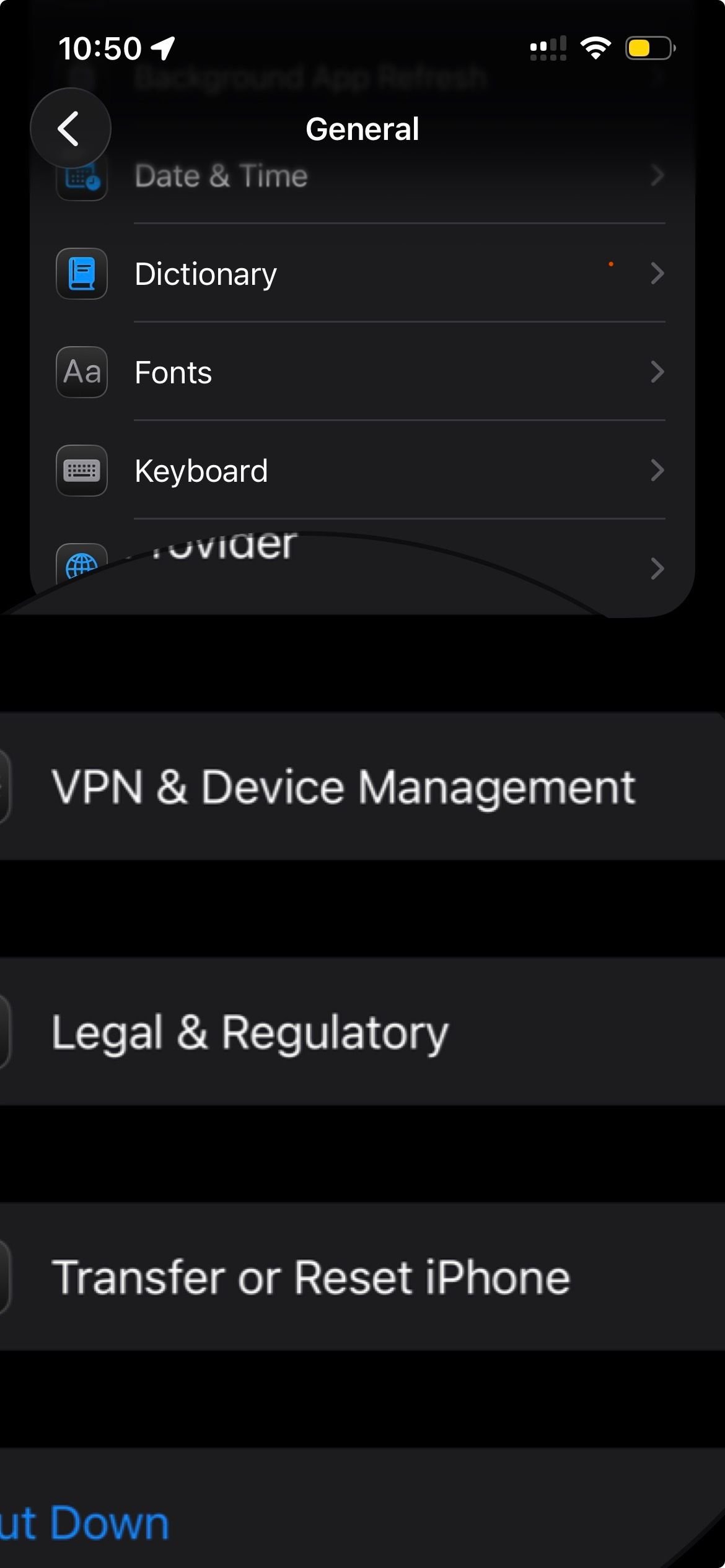
If your capacity is well under 80% and the phone feels slow under load, a battery replacement is the real fix. A fresh battery often restores full speed on an older iPhone.
Turn On Low Power Mode
Low Power Mode reduces background activity to stretch battery life, which can also smooth out performance when the battery is low.
Go to
Settings > Battery > Low Power Mode
and turn it on, or just ask Siri to turn it on. The battery icon turns yellow while it is active.
Keep in mind that some features run slower or pause while it is enabled, so turn it off again once you are charged if you need full functionality.
Update iOS
Apple regularly ships updates that fix bugs and performance regressions, so running the latest version often clears up lag for good.
Go to
Settings > General > Software Update
and install anything available. Connect to Wi-Fi and charge the phone first, since updates can be large.

If the phone feels slow immediately after the update finishes, give it a day. Background optimization can keep things busy for the first 24 to 72 hours.
Update Your Apps
A single outdated app that has not been optimized for the latest iOS can drag down the whole phone. Updating them is quick.
Open the App Store, tap your profile icon at the top, then scroll to update apps individually or update all at once.
If one specific app is laggy while everything else is fine, deleting and reinstalling that app often clears the problem faster than waiting for a patch.
Reduce Motion and Transparency
The animations and translucent layers in iOS look great but ask more of the graphics hardware, which shows on older models.
Turn on Reduce Motion under
Settings > Accessibility > Motion
to calm the zoom and parallax effects. Then turn on Reduce Transparency under
Settings > Accessibility > Display & Text Size
to lighten the blurred backgrounds.
Together these two toggles make the interface feel snappier without changing how anything works.
Limit Background App Refresh
Background App Refresh lets apps update their content while you are not using them, which is convenient but can quietly use power and data.
Go to
Settings > General > Background App Refresh
. You can switch it off entirely, limit it to Wi-Fi only, or turn it off for individual apps that do not need constant updates.
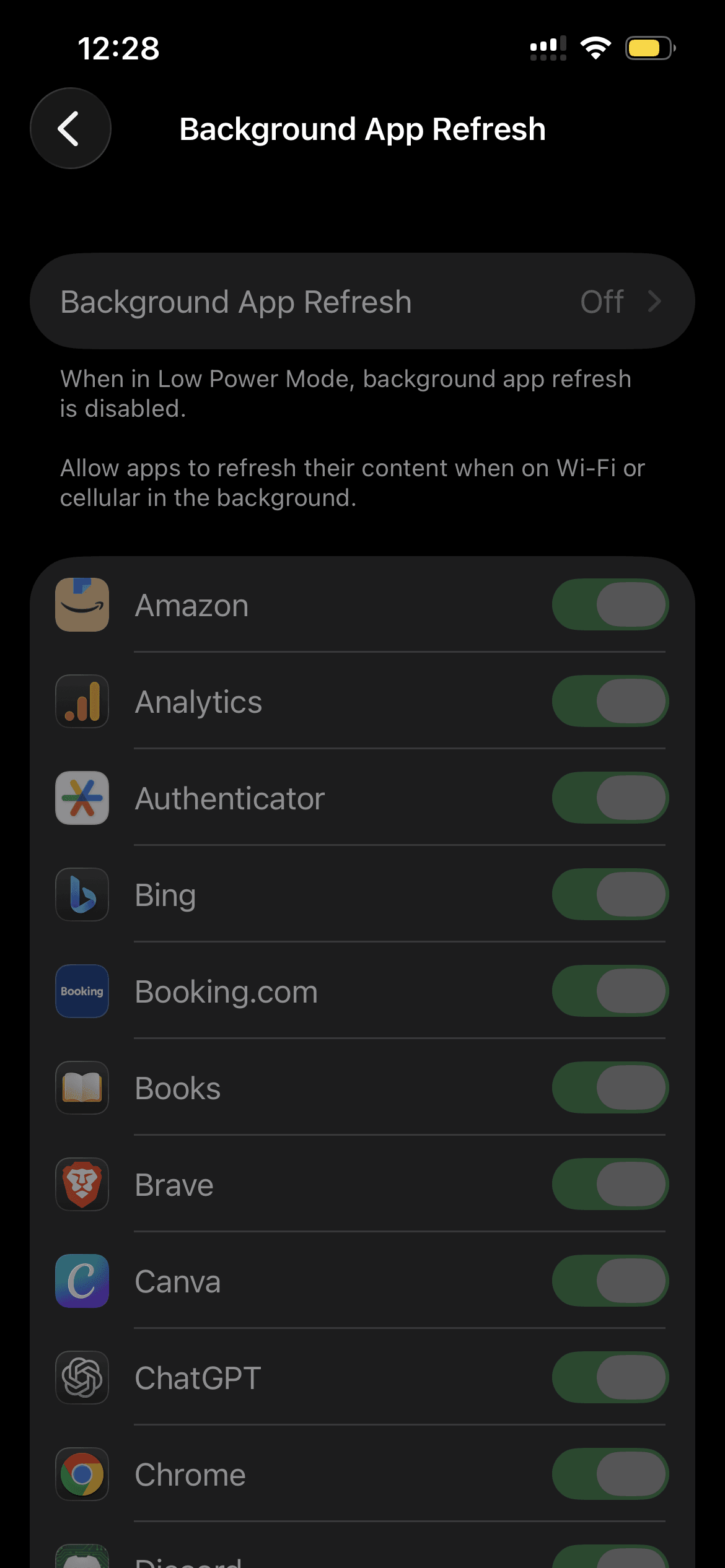
Leave it on for apps you rely on for timely information, and switch it off for the rest to ease the background load.
Clear Safari Cache and History
Safari builds up cached website data over time, and clearing it can free space and tidy up sluggish browsing.
Go to
Settings > Apps > Safari
, scroll down, and tap Clear History and Website Data. Choose the timeframe you want to clear, then confirm.
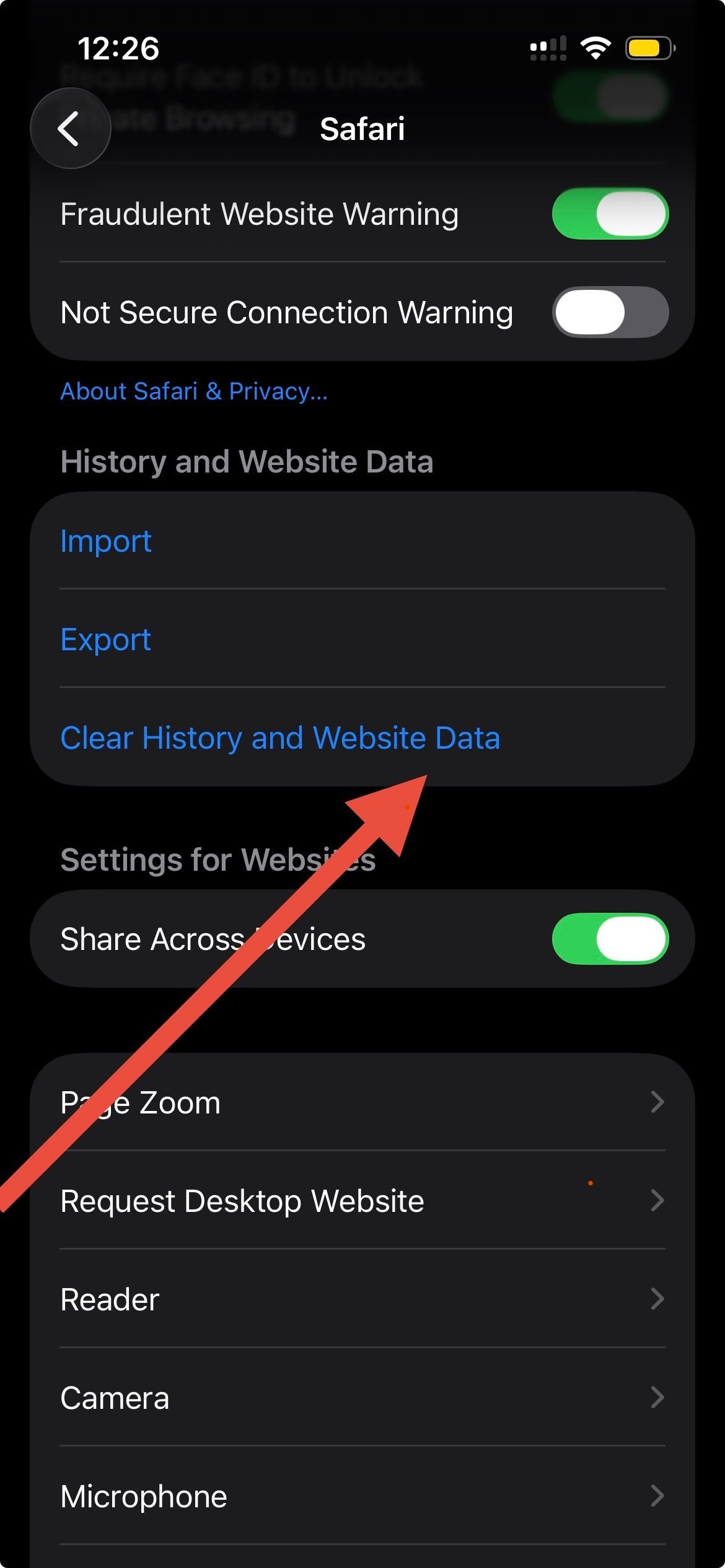
This signs you out of websites, so have your passwords handy, but it will not touch your AutoFill information.
Trim Widgets and Siri Suggestions
Home Screen widgets refresh in the background, and Siri suggestions run constant on-device processing. Cutting back on both can lighten the load.
To remove a widget, touch and hold it, then tap Remove Widget and keep only the ones you actually use. To dial back Siri suggestions, open
Settings > Apps
, pick an app, and turn off its suggestion options under the Siri section.
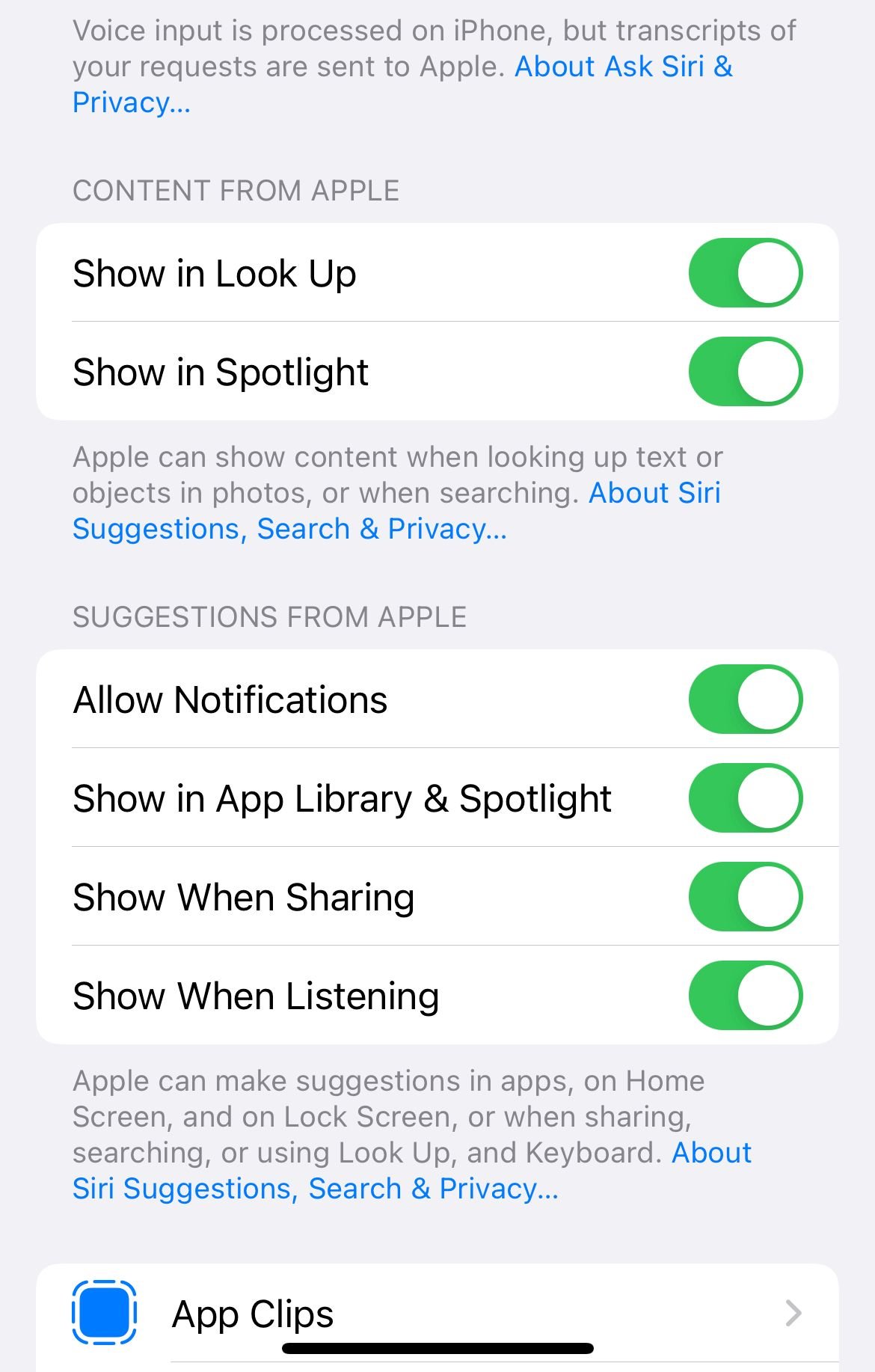
The exact wording for Siri controls has shifted across iOS versions, so adjust the toggles you find rather than expecting one global switch.
Reset All Settings
If the phone is still slow, resetting all settings clears out misconfigured preferences without deleting your photos, apps, or messages.
Go to
Settings > General > Transfer or Reset iPhone > Reset
and choose Reset All Settings, then enter your passcode to confirm.
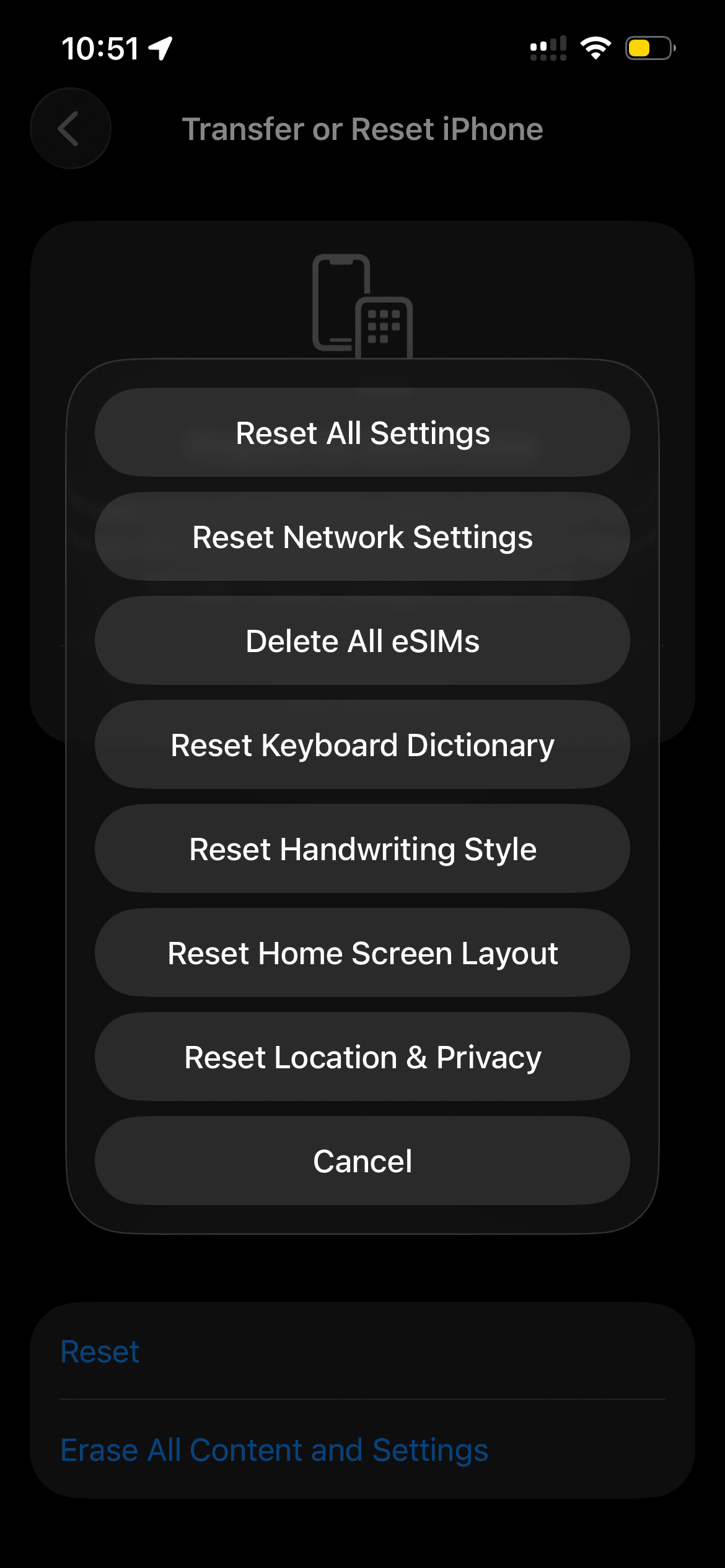
This resets Wi-Fi passwords, wallpapers, privacy preferences, and similar settings to their defaults, so you will need to reconnect to networks afterward.
Restore Your iPhone as a Last Resort
If nothing above works, a clean restore reinstalls iOS and clears out deep software problems. This is the final option and it erases the device, so back up first.
Make a backup to iCloud or your computer, then connect the iPhone to a Mac using Finder or to a PC using the Apple Devices app. Choose to restore, then set the phone up and restore your backup.
If even a fresh restore leaves the phone slow, the issue is likely hardware, and an Apple Store or authorized service center is the next stop.
Frequently Asked Questions
Why is my iPhone suddenly so slow after an update?
Right after an iOS update, the phone reindexes data and re-optimizes apps in the background, which can cause temporary lag. Leave it on Wi-Fi and charging, and performance usually returns to normal within 24 to 72 hours.
Does a slow battery really make my iPhone lag?
Yes. Once Maximum Capacity drops below 80%, iOS may limit peak performance to prevent unexpected shutdowns. Check it under Settings > Battery > Battery Health, and a replacement battery often restores full speed.
Do these fixes work on older iPhones and older iOS versions?
Most do. The general steps apply across recent iPhones and iOS 18 through iOS 26, though a few menu names and exact paths vary slightly by version, so look for the closest matching option in your Settings.
Will resetting my iPhone delete my photos and data?
Reset All Settings does not delete photos, apps, or messages, only your preferences. A full restore does erase everything, so always back up before doing one.
How much free storage should I keep on my iPhone?
There is no single magic number, but leaving a few gigabytes of headroom gives iOS room to work and helps the phone keep running smoothly. The fuller storage gets, the more likely you are to see slowdowns and warnings.
First published October 15, 2025. Last updated June 4, 2026.