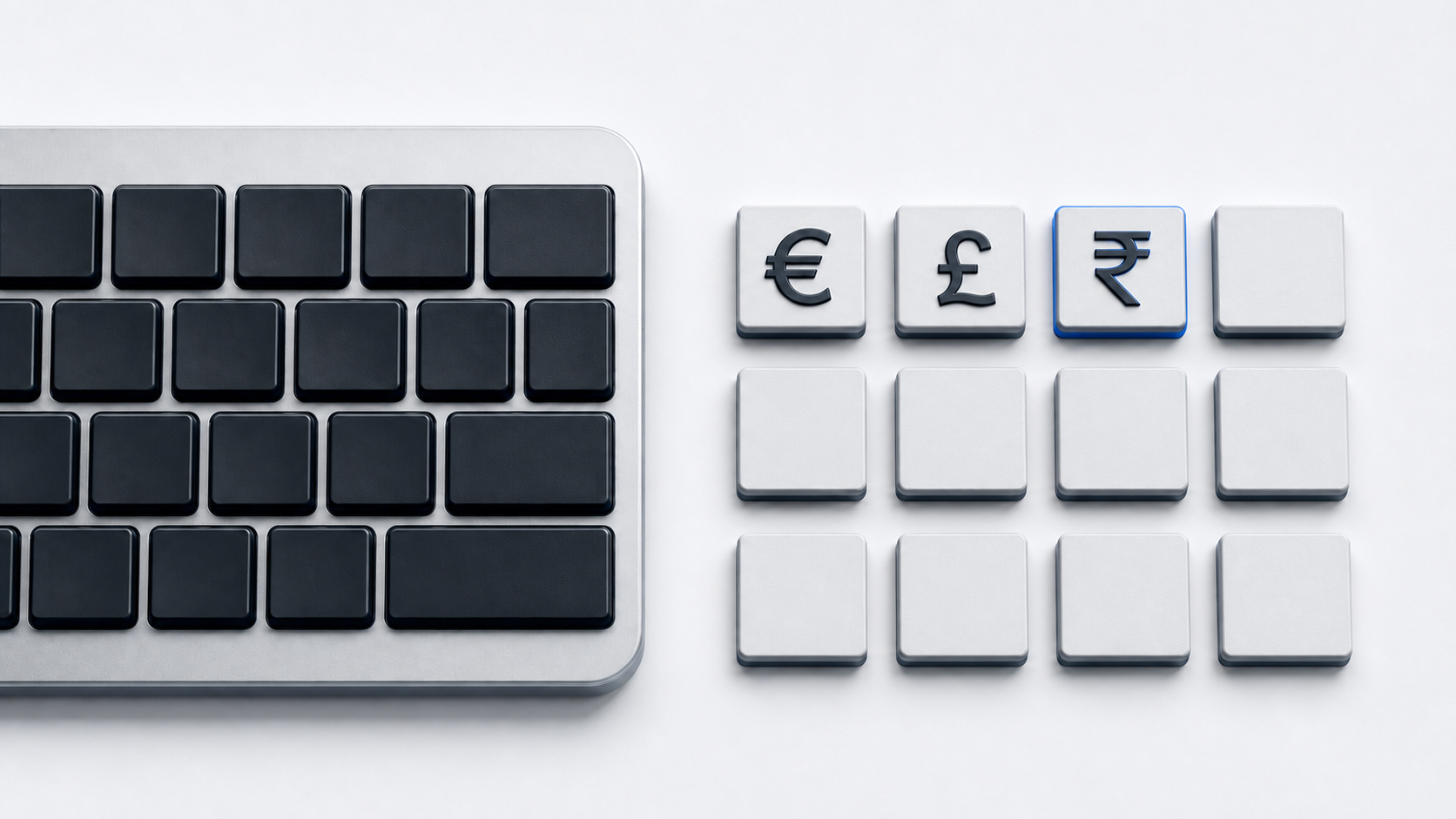
Copy € from the panel above. On Windows, Microsoft maps € to AltGr-4 on the United Kingdom layout and AltGr-5 on the United States-International layout; Word, macOS, ChromeOS, and Google Docs also provide methods that do not depend on those physical key positions.
Identify the euro sign
Unicode names € EURO SIGN and assigns it U+20AC in the Currency Symbols block. The similarly shaped ₠ is a different character named EURO-CURRENCY SIGN at U+20A0. Unicode describes U+20A0 as a historical character intended for the ECU and explicitly points users to U+20AC for the euro.
Use € for the euro. Do not substitute ₠ because the two characters have different code points and meanings even if a font makes them look related.
Type € with a Windows keyboard layout
With Microsoft's United Kingdom layout active, hold AltGr and press 4. With the United States-International layout active, hold AltGr and press 5. These are layout-specific mappings, not universal Windows shortcuts.
If the keys produce another character, check the input-language icon in the taskbar. Windows also lets you hold the Windows logo key and press Space to cycle through installed layouts. Select the layout whose mapping you intend to use before trying the shortcut again.
Type € in Microsoft Word
For Word's Unicode conversion, type 20AC where the sign should appear and press Alt-X. Microsoft uses this exact euro example in its Word accent and symbol guidance. If adjacent characters make Word convert the wrong value, select only 20AC before pressing Alt-X.
Microsoft also documents Alt-0128 for the euro sign. Hold Alt, type 0128 on the numeric keypad with Num Lock enabled when required, and release Alt. The top number row does not replace the numeric keypad for this method.
Copy € with Windows Character Map
Character Map is a Windows utility for viewing the characters available in a selected font. Open Character Map, choose a font that contains the euro sign, select €, copy it, and paste it into the destination app. This route avoids assuming that the current keyboard layout has a direct euro key.
Insert € on a Mac
Press Fn-E or Globe-E to open Character Viewer, or choose Edit and then Emoji & Symbols. Search for the euro sign by name, or open the Currency category, then select € to insert it. Apple documents Character Viewer for browsing and entering symbols and other characters.
Insert € on a Chromebook
Right-click in a text field and choose Emoji, or press Search-Shift-Space. Select Symbols, open the Currency category, and choose the euro sign. You can also search the picker for euro when browsing the currency list is slower.
Insert € in Google Docs or Slides
On a computer, choose Insert, Symbols, and Special characters. Find the euro sign by category, enter its Unicode value, or draw it, then select the result. Google's cited flow applies to Docs and Slides; it says special characters cannot be inserted directly in Sheets, where copy and paste is the documented alternative.
Use the euro sign in HTML
A UTF-8 HTML document can contain € directly. WHATWG also defines the named reference €. Decimal € and hexadecimal € both identify U+20AC under HTML character-reference syntax.
Do not use the historical U+20A0 value when the intended character is the euro sign. Its decimal reference would be ₠, which resolves to ₠ rather than €.
Fix the wrong euro character or output
- 1.Confirm that the character is U+20AC € rather than U+20A0 ₠.
- 2.Check the active Windows layout before using AltGr-4 or AltGr-5.
- 3.Use the numeric keypad, not the top number row, for Microsoft's Alt-0128 method.
- 4.Select only
20ACif Word's Alt-X conversion includes an adjacent hexadecimal character. - 5.Choose a font that contains the sign if an app displays a missing-glyph box.
- 6.Use Character Map, Character Viewer, the ChromeOS symbol picker, or direct copy when a layout shortcut is unavailable.
Common questions
Are € and ₠ the same character?
No. € is U+20AC EURO SIGN. ₠ is U+20A0 EURO-CURRENCY SIGN, which Unicode marks as a historical ECU character and not the euro.
Is AltGr-4 the euro shortcut on every Windows keyboard?
No. Microsoft places € on AltGr-4 in the United Kingdom layout and AltGr-5 in the United States-International layout. Other layouts can map it differently or omit a direct mapping.
Does HTML require €?
No. A correctly encoded UTF-8 document can contain € directly. The named and numeric references are alternative HTML source representations.
Official references
- Unicode Currency Symbols chart
- Microsoft United Kingdom keyboard layout
- Microsoft United States-International keyboard layout
- Microsoft Word accent and symbol shortcuts
- Microsoft Word character-code guide
- Microsoft Character Map and Unicode guide
- Microsoft Windows keyboard-layout settings
- Apple Character Viewer guide
- Google ChromeOS symbol-picker guide
- Google Docs special-character guide
- HTML named character references
- HTML character-reference syntax