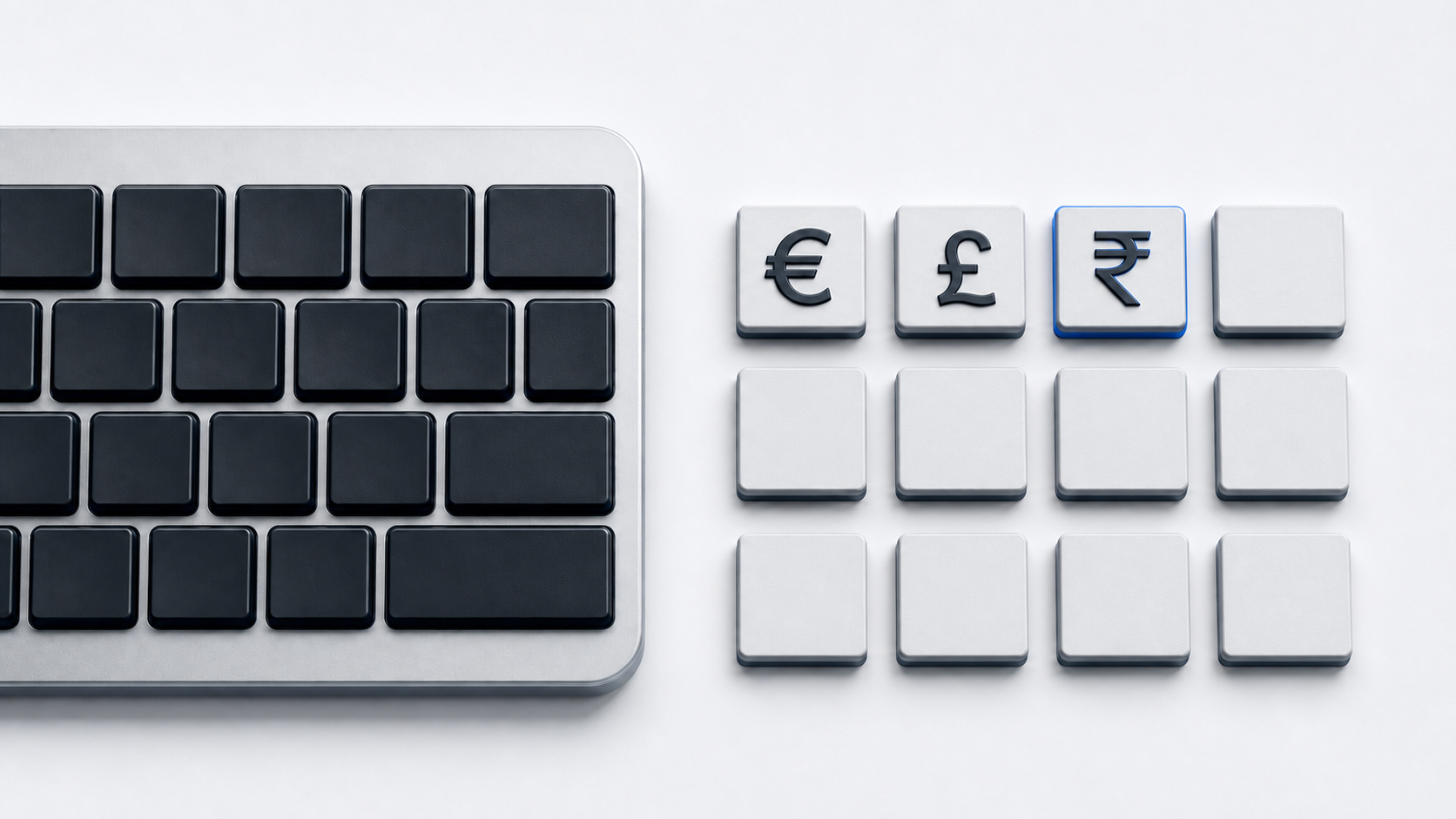
Copy ₹ from the panel above. On Windows with the English India layout active, press AltGr-4; in Word, type 20B9 and press Alt-X, or open a character picker on Windows, Mac, ChromeOS, or Google Docs.
Identify the Indian rupee sign
The Reserve Bank of India calls the currency the Indian Rupee (INR) and identifies ₹ as its symbol. Unicode names the character INDIAN RUPEE SIGN and assigns it U+20B9 in the Currency Symbols block.
The older ₨ character is not the same sign. Unicode names it RUPEE SIGN at U+20A8, describes it as an unofficial legacy practice for India, and points to U+20B9 ₹. Unicode also gives U+20A8 a compatibility relationship with the letters Rs, which explains why it can look like that abbreviation rather than the current Indian rupee symbol.
Type ₹ with the Windows English India layout
Activate Microsoft's English India keyboard layout, then hold AltGr and press 4. Microsoft's live layout data places U+20B9 in the AltGr state of the 4 key.
This shortcut is layout-specific. If it produces another character, check the input-language icon in the Windows taskbar or hold the Windows logo key and press Space to cycle through installed layouts. Select English India before trying AltGr-4 again.
Type ₹ in Microsoft Word
Type 20B9 at the insertion point and press Alt-X. Microsoft documents the Word method as entering a Unicode hexadecimal character code and pressing Alt-X; Unicode establishes that the Indian rupee sign's hexadecimal value is 20B9.
If a hexadecimal letter or number immediately before the code is converted too, select only 20B9 and press Alt-X again. If the result is a missing-glyph box, choose a font that contains U+20B9 or use a picker to inspect the available characters.
Copy ₹ with Windows Character Map
Open Character Map, choose a font that contains the Indian rupee sign, select ₹, and copy it to the Clipboard. Paste the copied sign into any destination that can display the selected character. Character Map is useful when English India is not installed or the current app does not support Word's Alt-X conversion.
Insert ₹ on a Mac
Open Character Viewer with Fn-E or Globe-E, or choose Edit and then Emoji & Symbols. Search for the Indian rupee sign by name, select ₹, and insert it. Character Viewer is useful when the English India keyboard layout is not active.
Insert ₹ on a Chromebook
Right-click in a text field and choose Emoji, or press Search-Shift-Space. Select Symbols, open the Currency category, and choose the Indian rupee sign. Google's ChromeOS instructions also allow searching within the picker.
Insert ₹ in Google Docs or Slides
On a computer, choose Insert, Symbols, and Special characters. Find ₹ by category, enter the Unicode value 20B9, or draw the sign, then select the result. Google limits this direct special-character flow to Docs and Slides; for Sheets, copy the character and paste it into a cell.
Use the Indian rupee sign in HTML
A UTF-8 HTML document can contain ₹ directly. HTML numeric character-reference syntax can also represent it as decimal ₹ or hexadecimal ₹. The WHATWG named-reference table does not define a dedicated Indian-rupee name, so do not invent an &rupee; reference.
The legacy U+20A8 character has different numeric values: decimal ₨ and hexadecimal ₨. Those references produce ₨, not ₹.
Fix the wrong rupee character or output
- 1.Verify that the character is U+20B9 ₹ rather than U+20A8 ₨ or the letters Rs.
- 2.Confirm that the Windows English India layout is active before using AltGr-4.
- 3.Select only
20B9if Word converts adjacent hexadecimal text with Alt-X. - 4.Choose a font containing U+20B9 if the sign appears as an empty box.
- 5.Use Character Map, Character Viewer, the ChromeOS symbol picker, Google Docs special characters, or direct copy when a layout shortcut is unavailable.
- 6.Use decimal 8377 or hexadecimal 20B9 in HTML, not the U+20A8 values.
Common questions
Are ₹ and ₨ the same rupee character?
No. ₹ is U+20B9 INDIAN RUPEE SIGN, the symbol identified by the Reserve Bank of India. ₨ is the distinct U+20A8 RUPEE SIGN that Unicode marks as an unofficial legacy practice for India.
What is the difference between ₹ and INR?
RBI presents the currency as the Indian Rupee (INR) and ₹ as its symbol. Use the form required by the document, field, or style guide rather than treating the three letters and the sign as the same text.
Is &rupee; a standard HTML named reference?
No. It is not in WHATWG's named-character table. Use the literal UTF-8 sign ₹, decimal ₹, or hexadecimal ₹.
Official references
- Reserve Bank of India currency FAQ
- Unicode Currency Symbols chart
- Microsoft English India keyboard layout
- Microsoft Word character-code guide
- Microsoft Character Map and Unicode guide
- Microsoft Windows keyboard-layout settings
- Apple Character Viewer guide
- Google ChromeOS symbol-picker guide
- Google Docs special-character guide
- HTML named character references
- HTML character-reference syntax