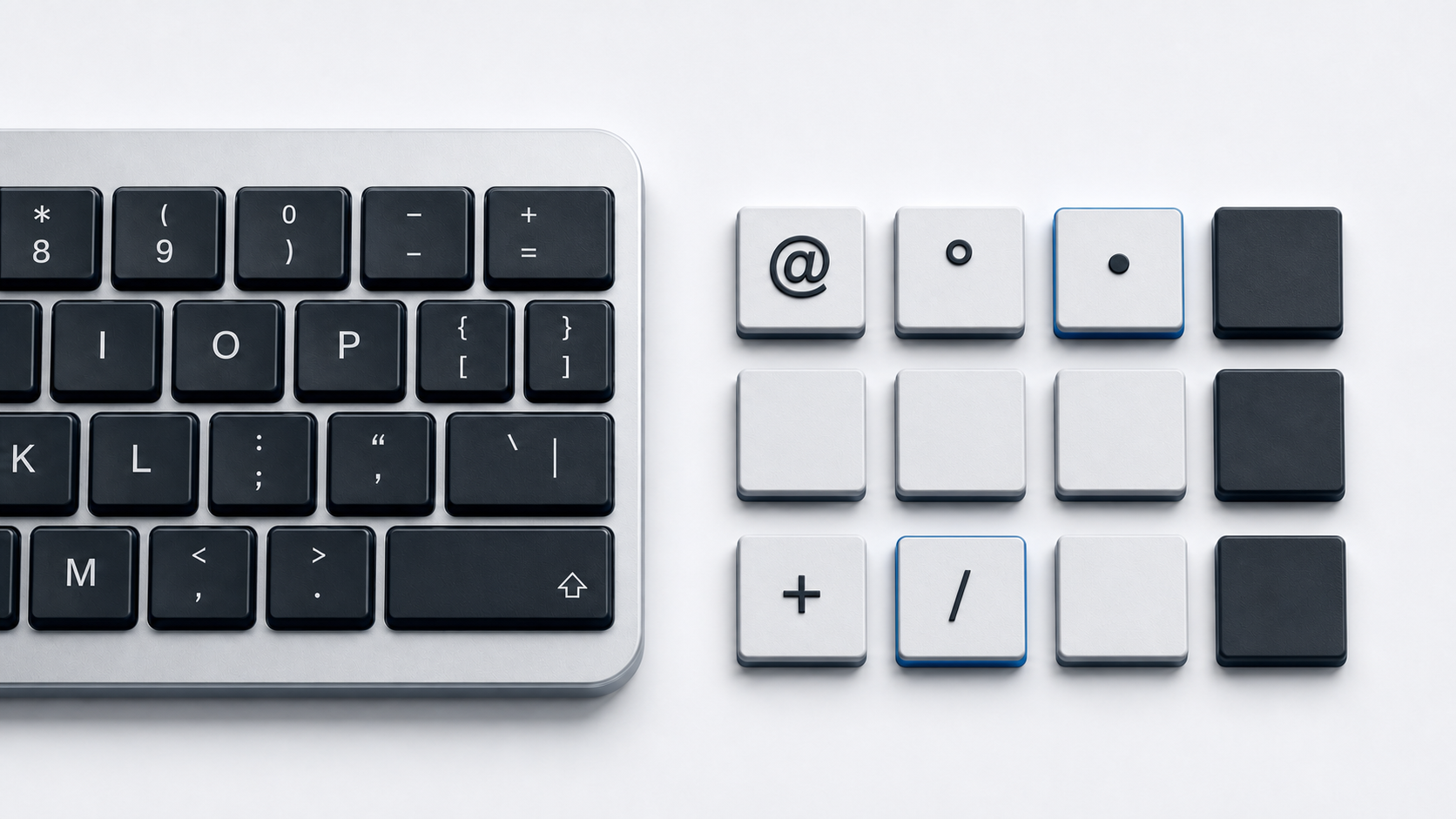
If the at key types the wrong character or nothing, first check the active keyboard layout, then test the same key in a plain-text app. On Windows, inspect the taskbar input indicator and use Windows+Space only to choose among installed layouts. On Mac, open Keyboard Viewer and hold the expected modifier. If you only need to insert @, use the separate at-sign typing guide.
Separate a key problem from an at-sign typing question
This page diagnoses a key or mapping that fails. It does not claim one universal shortcut for @, because the mapping changes with the active layout. The at-sign guide lists verified layout-specific ways to type and copy U+0040. Use that guide when the keyboard works normally; return here when the documented mapping produces another character or no input.
Check the active keyboard layout first
Windows input language and layout
- 1.Look at the input-language indicator on the right side of the taskbar.
- 2.Select it to see the installed keyboard layouts.
- 3.Choose the layout that matches the keyboard and the shortcut you intend to use.
- 4.Test the at-sign combination again in Notepad or another plain-text field.
Microsoft documents Windows+Space for cycling through installed layouts. If only one layout is installed, the shortcut does not create another one. On Microsoft's published layouts, the at sign is Shift+2 for U.S., Shift plus the apostrophe key for United Kingdom, and AltGr+Q for German. Treat each mapping as layout-specific.
Mac input source
- 1.Open the Input menu in the menu bar.
- 2.Choose Keyboard Viewer.
- 3.Hold Shift, Option, or the modifier expected by the active input source.
- 4.Find the key that displays
@and select or press it.
Apple's viewer follows the selected input source. If its onscreen mapping differs from the printed keycap, the software layout explains the wrong character. Select the intended input source in Keyboard settings instead of repeatedly trying shortcuts from another region.
Test modifier keys and accessibility settings
The at sign usually requires a modifier, but the modifier depends on the layout. Test the left and right Shift keys separately. On layouts that publish an AltGr mapping, use the layout's documented modifier rather than assuming a U.S. shortcut. Check whether Sticky Keys, Filter Keys, a remapping utility, or a remote-desktop session is changing how simultaneous presses arrive. Turn off or reconfigure only the feature you identify; do not remove useful accessibility settings blindly.
Windows On-Screen Keyboard can reveal whether the operating system sees modifier presses. On Mac, Keyboard Viewer changes the displayed characters as modifiers are held. If the viewer reacts correctly but the physical keyboard does not, the evidence points toward the keyboard, connection, or hardware key rather than the selected layout.
Compare apps and text fields
- 1.Open a plain-text editor and try the same key combination.
- 2.Try another text field, such as a browser address bar.
- 3.If it fails only in one app, review that app's shortcuts, extensions, input mode, or key bindings.
- 4.If it fails everywhere, continue with layout, modifier, connection, and hardware checks.
Applications receive keyboard messages and translate them according to their own context, so a game, terminal, virtual machine, or remote session can treat the same key differently. A successful plain-text test prevents an app-specific conflict from being misdiagnosed as a broken keyboard.
Check the keyboard and connection
- Reconnect a wired keyboard and try another known-good port.
- For wireless hardware, check power, pairing, and the receiver connection.
- Restart the affected app, then restart the device if the problem is system-wide.
- Test another keyboard on the same device, or test the keyboard on another device.
- Inspect the problem key and modifier keys for debris or mechanical sticking without forcing or dismantling hardware.
If the onscreen viewer produces @ but the physical combination never does, replacement or professional repair may be more appropriate than changing language settings.
Insert the character while troubleshooting
Copy @ here as a temporary workaround. It is Unicode U+0040 COMMERCIAL AT. In HTML, the literal character, @, @, and @ all represent the same character. This fallback does not fix the key. For verified typing methods and character metadata, follow the at-sign typing guide; for another shifted U.S. key, see the underscore guide.
Official references
- Unicode Consortium Basic Latin chart
- Microsoft Support keyboard layout guide
- Microsoft U.S. keyboard layout
- Microsoft United Kingdom keyboard layout
- Microsoft German keyboard layout
- Apple User Guide for Keyboard Viewer
- Apple User Guide for input sources
- Microsoft accessibility keyboard settings guide
- Microsoft keyboard troubleshooting guide
- Microsoft keyboard input overview