
When your Galaxy Z Fold 6's mobile data slows to a crawl, it can make using that beautiful inner screen for videos or browsing feel like a chore. The issue is often a quick setting that needs adjusting, not a problem with the phone itself.
Let's start with the most common and effective fix. Toggle your mobile data off and back on. Swipe down from the top of your screen to open the Quick Settings panel and tap the mobile data icon to turn it off. Wait about 10 seconds, then tap it again to turn it back on. This refreshes your connection to the cell tower and often provides an immediate speed boost.
Check Your Network Mode and Signal
Your Z Fold 6 can connect to different network types, like 5G, 4G/LTE, or 3G. If it's stuck on a slower one, your data will suffer. Go to Settings > Connections > Mobile networks > Network mode. Make sure "5G/LTE/3G/2G (auto connect)" is selected for the best automatic performance.
Also, take a glance at your signal bars. If you're in a basement, a large building, or a rural area, weak signal is the most likely culprit for slow data. Try moving to a window or a different location to see if your speeds improve.
Enable and Configure Data Saver
Samsung's Data Saver is a powerful tool that restricts background data for apps you aren't actively using. This frees up bandwidth for the app you have open, which can make a noticeable difference. Go to Settings > Connections > Data usage > Data Saver and toggle it on.
For more control, tap "Allow apps while Data saver on" below the toggle. Here, you can choose specific apps, like your music streaming service or navigation app, to have unrestricted data access even when Data Saver is active.
Reset Your Network Settings
If you're still facing issues, resetting network settings can clear out any corrupted configuration data. This will erase all saved Wi-Fi networks, Bluetooth pairings, and mobile data preferences, so you'll need to reconnect to them afterward.
To do this, go to Settings > General management > Reset > Reset network settings. Tap "Reset settings" and confirm. Your phone will reboot, and you can then reconnect to your mobile network to test the speed.
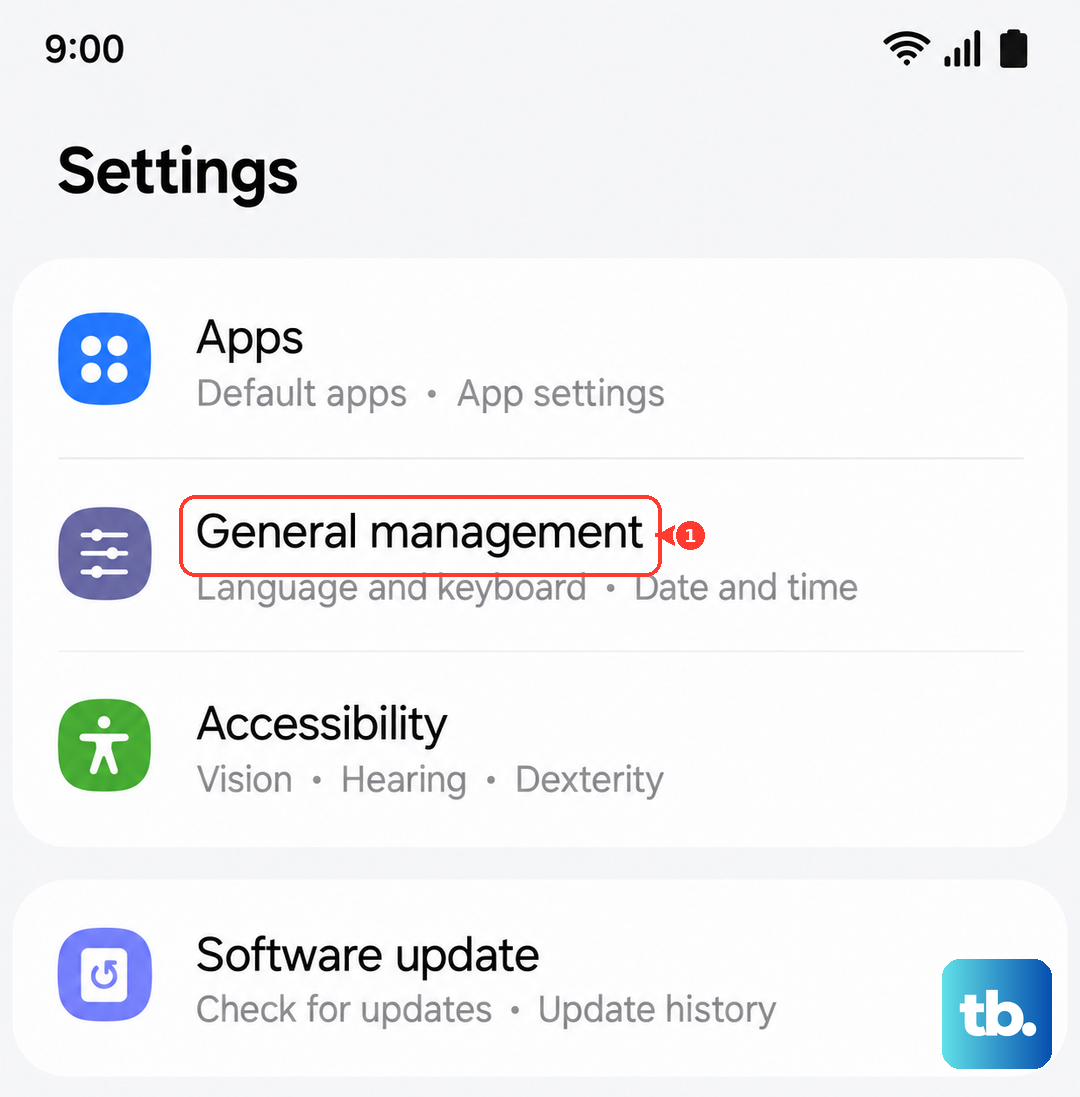
Check for Software Updates
Carriers and Samsung frequently release updates that can improve modem performance and fix connectivity bugs. It's a good habit to check manually. Go to Settings > Software update > Download and install.
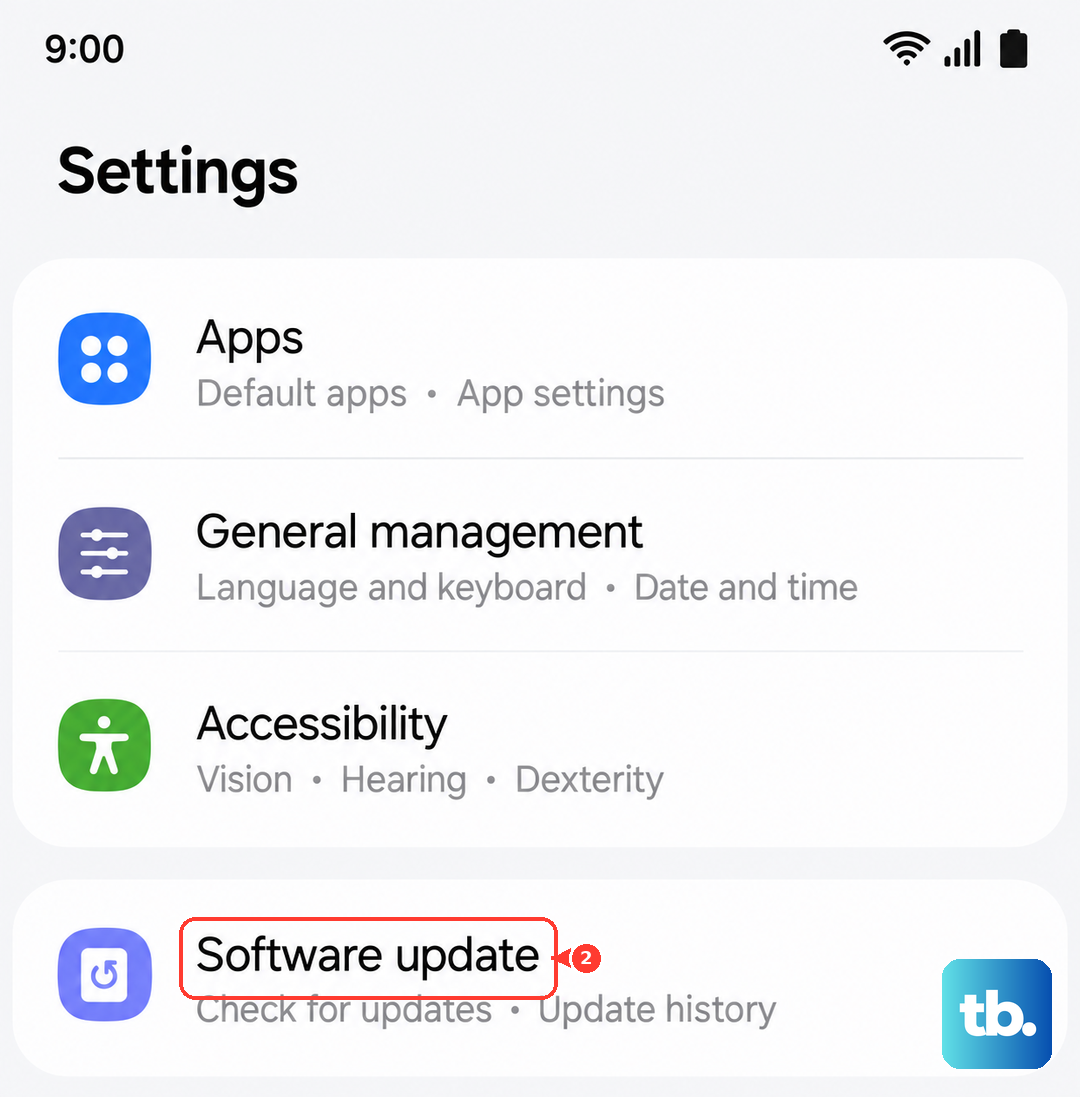
If an update is available, I'd recommend installing it while connected to Wi-Fi. These updates often include stability patches that can resolve intermittent data slowdowns you might be experiencing.
Manage Your App Data Usage
Some apps are data hogs, constantly syncing or updating in the background. You can restrict this on a per-app basis. Go to Settings > Apps, select the app in question, then tap "Mobile data". Here, you can toggle off "Allow background data usage" for that specific app.
For a broader view, go back to Settings > Connections > Data usage. You can see which apps have used the most mobile data this cycle. Tapping on an app gives you the option to restrict its background data directly from this screen.
Disable Any VPN Services
While VPNs are great for privacy, they route your traffic through a remote server, which almost always adds latency and can drastically reduce speed. If you have a VPN app active, try disabling it temporarily to see if your mobile data speed returns to normal.
You can usually do this by opening the VPN app and tapping the disconnect button, or by pulling down the Quick Settings panel and tapping the VPN tile if one is present.
Try a Different SIM Slot or Tray
The Z Fold 6 uses a SIM tray that can sometimes not seat perfectly, especially if dust has gotten into the hinge area near the bottom of the phone. Carefully eject the SIM tray using the included tool, give the SIM card a gentle wipe with a soft cloth, and reinsert it firmly.
If you have a dual-SIM model, try moving your data line to the other SIM slot to test if the issue is with the physical connection in the first slot.
Clear the Cache for Connectivity Services
Corrupted cache data for system services can cause all sorts of glitches. You can clear this from the recovery menu. First, power off your phone completely.
Then, press and hold the Volume Up button and the Side button simultaneously. When the Samsung logo appears, release both buttons. Use the volume keys to navigate to "Wipe cache partition" and press the side button to select it. Confirm, then select "Reboot system now".
Contact Your Mobile Carrier
If none of the above steps work, the problem might be on your carrier's end. There could be network maintenance, tower issues, or congestion in your area. Give them a call or check their service status page online.
It's also worth asking them to reprovision your line on their network, which is a refresh they can do from their side. Finally, ensure your account is in good standing and that you haven't exceeded any high-speed data limits on your plan, which would result in throttled speeds.