
When your Samsung Galaxy A16's fingerprint scanner stops responding, you may need your PIN, password, or pattern to unlock your phone and your apps. A few simple checks can help get it working again.
I'd start with the quickest fix first. Give the sensor area on the Side button a good wipe with a soft, dry cloth. Oils, dirt, or moisture from your hands can interfere with the scanner reading your print.
Restart Your Galaxy A16
A simple reboot can clear temporary software glitches that affect the sensor. Just press and hold the Volume down and Side buttons together for more than 7 seconds until your phone restarts and the Samsung logo appears.
Once your phone restarts, enter your PIN, password, or pattern to unlock it, then test the fingerprint scanner again.
Check Your Finger and Grip
Make sure your finger is clean and dry. The scanner is on the A16's Side button, so placement matters. Place the flat part of your fingertip directly onto the Side button, covering the entire sensor.
Hold the phone naturally, the way you normally use it, and place your registered finger over the sensor. If you have a cut, scrape, or very dry skin on that finger, try using a different finger you've registered.
Re-register Your Fingerprint
If the scanner is inconsistent, try registering your fingerprint again. Go into Settings > Security and privacy > Screen lock and biometrics > Fingerprints.
Enter your PIN, password, or pattern. Tap on the fingerprint giving you trouble and select Remove, then tap Remove again to confirm. Tap Add fingerprint and follow the prompts to register it again.
When you re-register, follow the on-screen prompts and cover the entire sensor. On Android 16 with One UI 8 or higher, gently swipe your finger across the sensor in different patterns and directions. Register more than one finger so you have another to try.
Update Your Phone's Software
Software updates can fix bugs and improve your phone's performance. Go to Settings > Software update > Download and install.
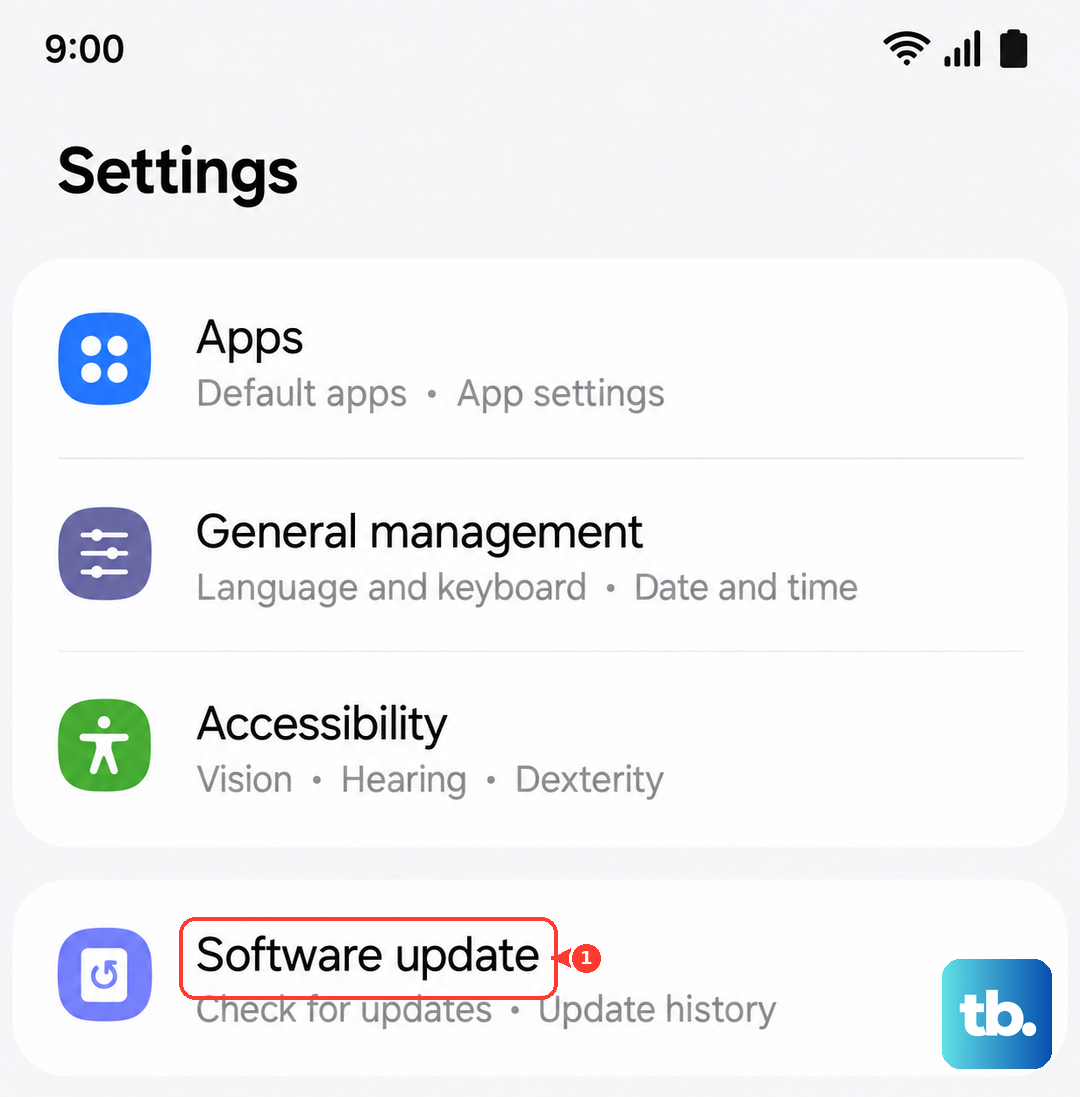
If an update is available, install it. It's a good habit to keep your A16 updated anyway, as it helps with overall performance and battery life.
Inspect Your Screen Protector
A screen protector covers the display, while the A16's fingerprint sensor is on the Side button. A case that covers or touches the sensor can interfere with recognition. Try taking the case off for a moment and see if the scanner works better.
Inspect the sensor for dirt or scratches, too. If your phone is extremely hot or cold, move to a cooler or warmer environment and try again.
Clear the System Cache
This clears temporary system data without touching your personal files. First, turn your Galaxy A16 off completely.
Press and hold the Volume Up and Side buttons together. When the recovery menu appears, release the buttons. If Wipe cache partition appears in the menu, use the volume buttons to highlight it and press the Side button to select it. The option may not appear on current software.
Select Yes to confirm, then select Reboot system now to restart your phone.
Check for App Conflicts in Safe Mode
Booting into Safe Mode temporarily disables all third-party apps. If the fingerprint scanner works perfectly here, a recently installed app is likely causing the conflict.
To enter Safe Mode, press and hold the Side and Volume down buttons together until the power menu appears. Then, touch and hold the Power off option on your screen and tap Safe mode.
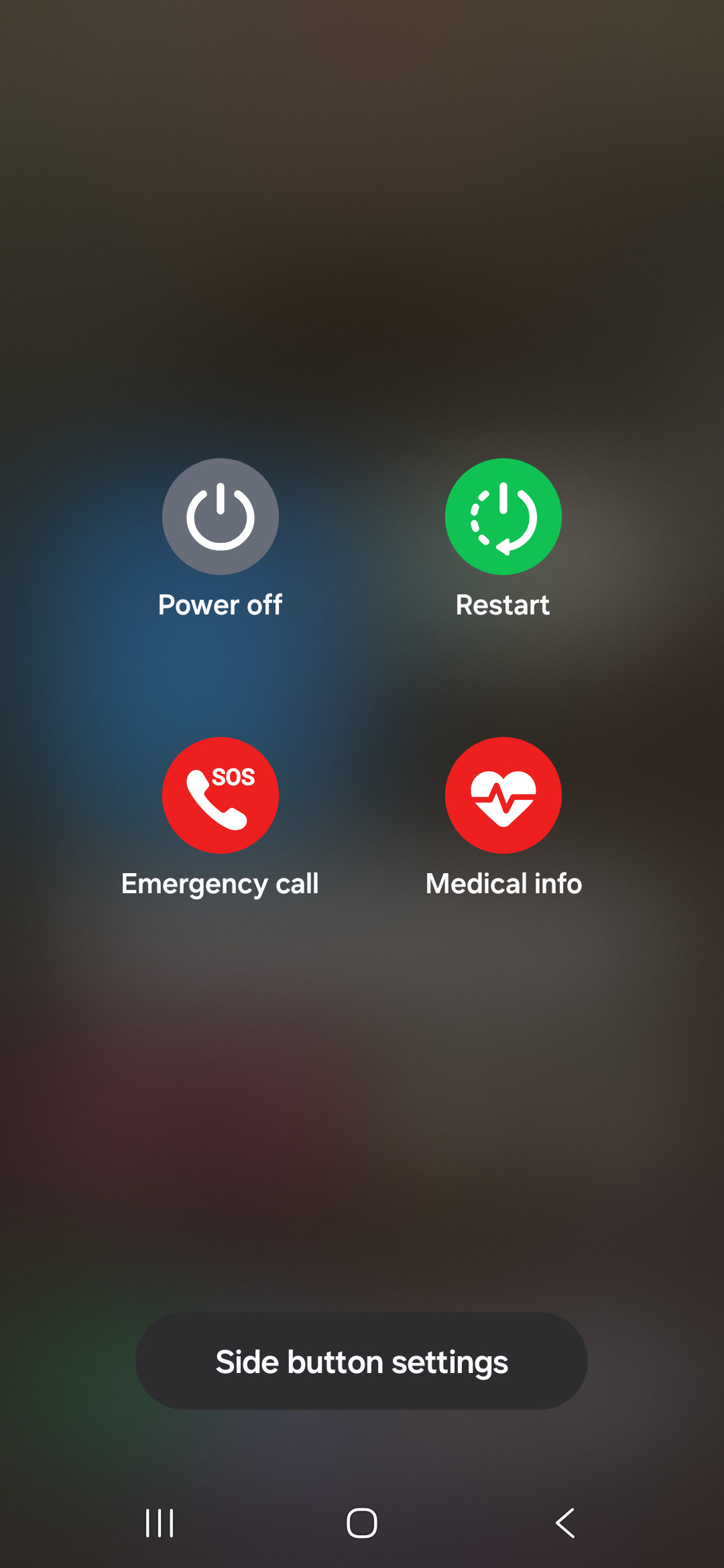
Test your fingerprint. To exit Safe Mode, just restart your phone normally.
Review Your Security Settings
Go back to Settings > Security and privacy > Screen lock and biometrics > Fingerprints. Make sure Fingerprint unlock is toggled on.
If you get accidental scans or recognition-failed pop-ups while the screen is off, check Fingerprint always on. Open Settings > Security and privacy > Screen lock and biometrics > Fingerprints, tap Fingerprint always on, and set it to Off.
Consider a Factory Reset
This is a last resort, as it will erase all data from your phone. Before you do this, back up your personal data using Smart Switch or a cloud account. Make sure you know your screen lock credentials and Samsung account password.
If you've tried everything else and the sensor still doesn't work, a factory reset may help with a software issue. You can find this option under Settings > General management > Reset > Factory data reset.
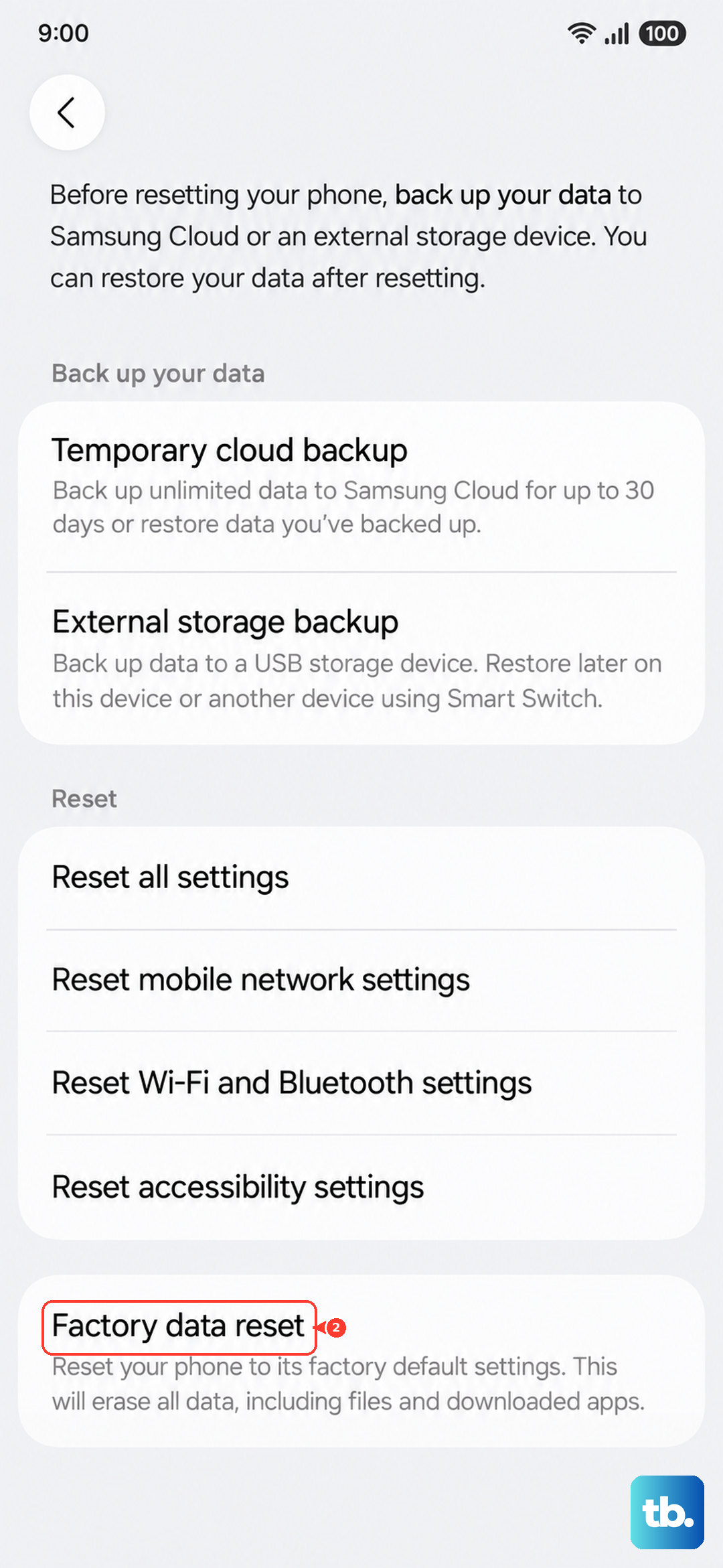
Review the reset information, tap Reset, enter any requested credentials, and tap Delete all. After setup, register your fingerprint and test it before restoring your apps. If it still doesn't work, arrange a repair assessment.