
When your Samsung Galaxy Z Fold 6 apps start closing unexpectedly or freezing, it can really interrupt your workflow, especially on that large inner display. The issue usually stems from a minor software hiccup, a storage problem, or a conflict within the app itself. I'd start with a simple restart, as that clears out temporary glitches that can cause apps to misbehave.
Force Stop and Restart the App
If a specific app is acting up, force stopping it is often the quickest fix. This completely shuts down the app's processes, allowing it to start fresh. Go to Settings > Apps, select the problematic app, and tap Force Stop.
Wait a moment, then open the app again from your home screen or app drawer. This is different from just closing the app and fixes most temporary freezes.
Update Your Apps and Galaxy Z Fold 6 Software
Outdated apps are a common culprit for crashes, as developers constantly patch bugs. Open the Google Play Store, tap your profile icon, and go to Manage apps & device. Look under "Updates available" and install everything.
Don't forget your phone's system software. Samsung releases One UI updates that improve stability. Check by going to Settings > Software update > Download and install.
Clear the App's Cache and Data
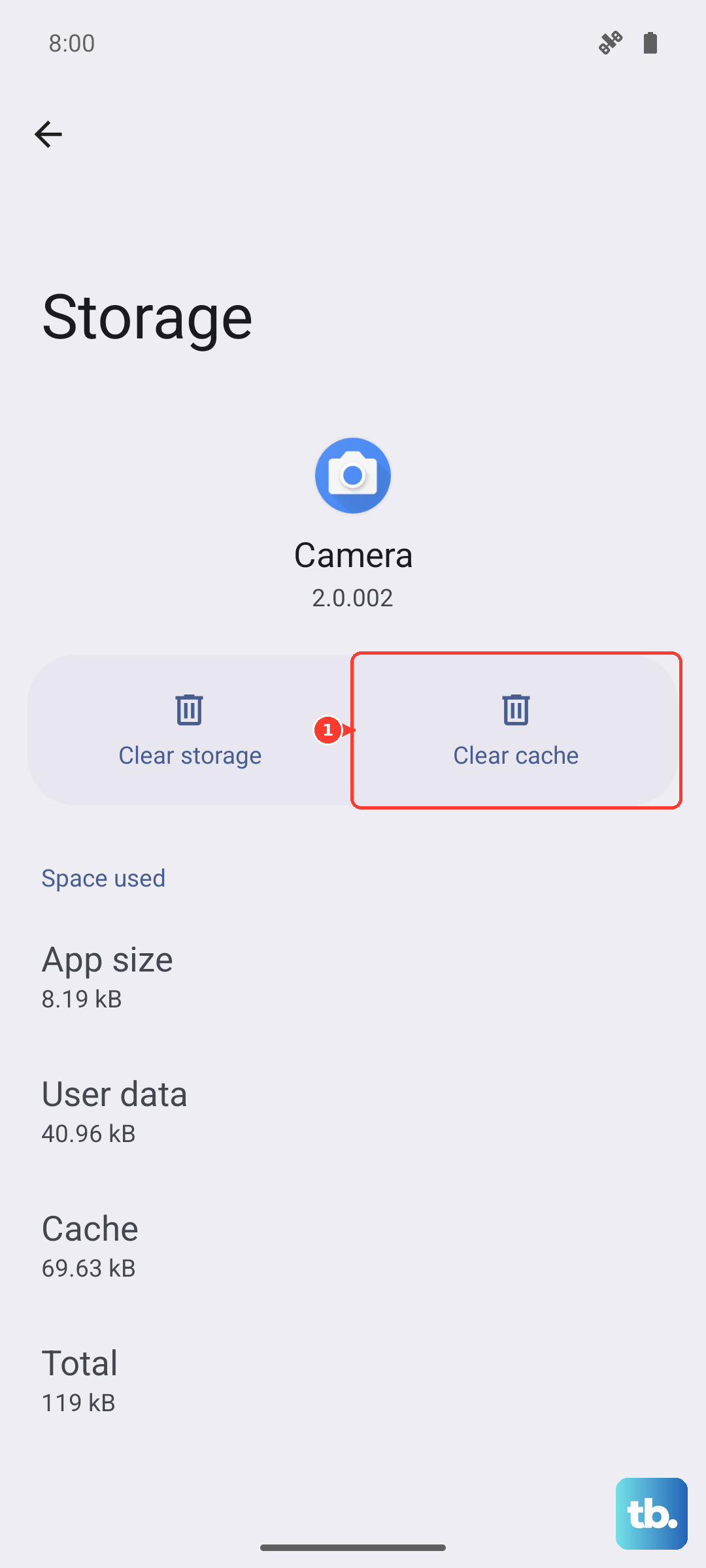
Over time, an app's cache, the temporary files it stores, can become corrupted. Clearing it gives the app a clean slate without deleting your login info or saved data. For a more thorough reset, you can clear the app data, but note this will sign you out and reset the app to its default settings.
Navigate to Settings > Apps, select the app, then tap Storage. You'll see options for Clear cache and Clear data. Try the cache first.
Check Your Available Storage Space
Your Z Fold 6 needs free space to operate smoothly. If your storage is nearly full, apps can crash because they can't create necessary temporary files. Go to Settings > Device care > Storage to see a breakdown.
Consider offloading large videos to cloud storage or a computer, and uninstall apps you no longer use. Aim to keep at least 10-15% of your total storage free.
Perform a Soft Reset on Your Phone
If multiple apps are crashing, a soft reset can clear system-wide issues. Press and hold the Volume Down button and the Side key (power button) together for about 10 seconds.
Release the buttons when you see the Samsung logo. This forces a reboot and is safe for your data. It's a good first step when you're facing general instability.
Reinstall the Problematic App
When a single app is consistently failing, a fresh install can work wonders. This replaces all the app's files, removing any deep-seated corruption. Uninstall the app by long-pressing its icon and selecting Uninstall, then download it again from the Google Play Store.
This is particularly effective for apps that have been on your phone through several system updates, as leftover files can sometimes cause conflicts.
Review App Permissions and Power Settings
Some apps need specific permissions to function correctly. If you've denied a critical permission, it might crash. Go to Settings > Apps, select the app, and tap Permissions to review.
Also, check if the app is being put to sleep to save battery. Go to Settings > Battery > Background usage limits. Make sure the app isn't in "Sleeping" or "Deep sleeping" lists if it needs to run in the background.
Boot into Safe Mode
Safe mode temporarily disables all third-party apps. If the crashing stops in safe mode, you know a downloaded app is causing the problem. To enter safe mode, press and hold the power button until the power menu appears.
Then, tap and hold the "Power off" option on your screen. You'll get a prompt to restart in Safe Mode. Tap it. If the problem is gone, restart normally and try uninstalling recently added apps one by one.
Reset All Settings or Perform a Factory Reset
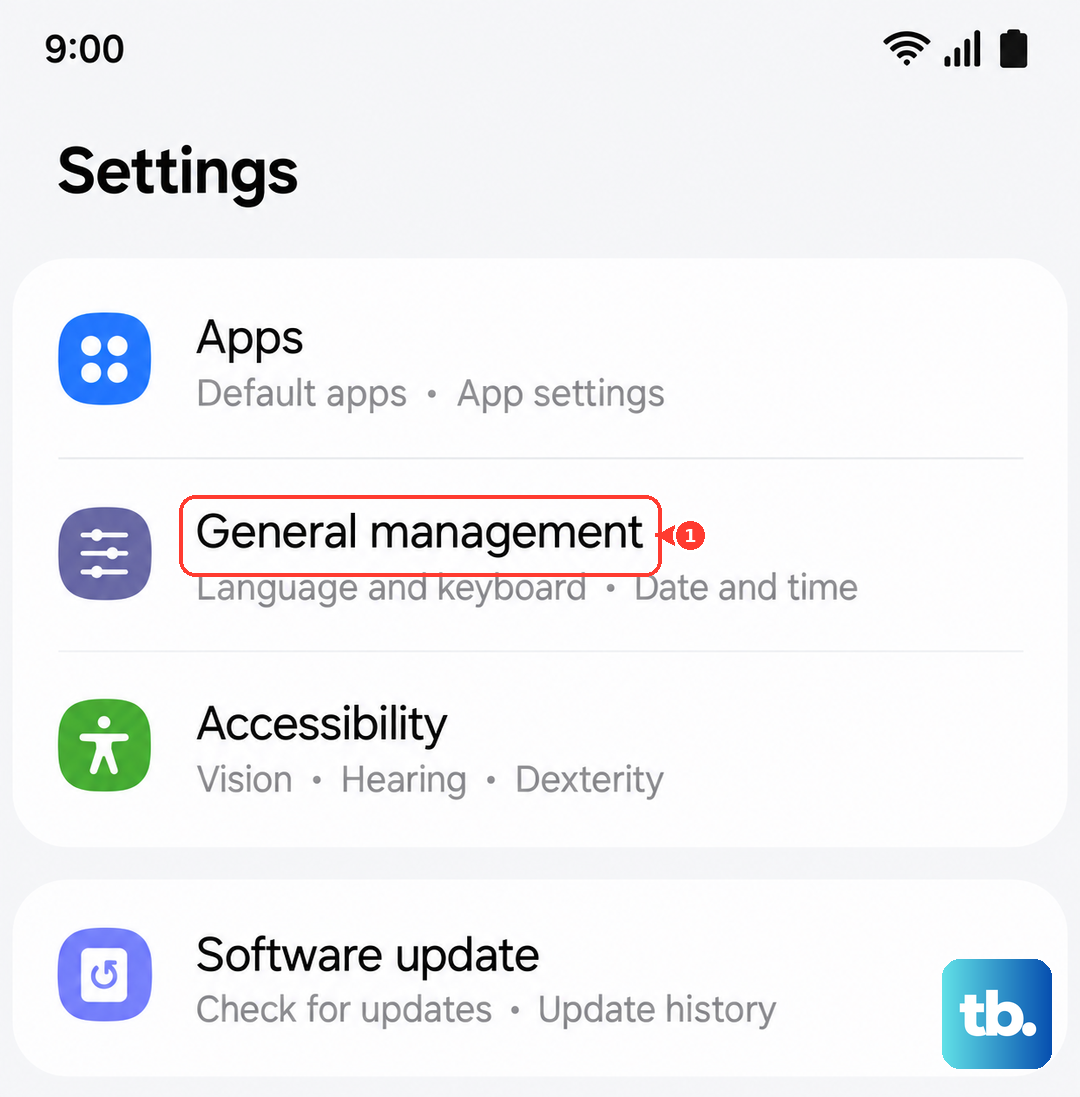
As a last resort before a full wipe, you can reset all your phone's settings to default. This won't delete your personal data like photos or messages, but it will reset Wi-Fi passwords, Bluetooth pairings, and display settings. Find this under Settings > General management > Reset > Reset all settings.
If nothing else works, a factory reset is the final step. This erases everything, so back up your data first. You can initiate it from the same Reset menu by choosing Erase all data (factory reset). After the reset, set up your phone as new to see if the issue is resolved before restoring a backup.