
When you say "Hey Google" and your Samsung Galaxy Z Flip 7 doesn't respond, it's annoying. The assistant that's supposed to handle timers, texts, and directions just sits there. Let's get it working again.
Start With a Force Restart
Before diving into settings, try a quick force restart. This clears out any temporary glitches that might be blocking the microphone or assistant service.
Press and hold the Volume Down button and the Side key together for about 10 to 15 seconds. The phone will reboot itself. Once it's back on, test if "Hey Google" works.
Verify Hey Google Is Turned On
The most common reason the assistant stops listening is that the voice activation setting got turned off accidentally.
Open the Google app, tap your profile picture in the top right, then go to Settings > Google Assistant > Hey Google & Voice Match. Make sure Hey Google is toggled on. While you're there, check that Lock screen personal results is enabled if you want it to work when your phone is locked.
Check Bixby Settings Too
The Z Flip 7 comes with Bixby as well as Google Assistant. Sometimes Bixby's wake word can conflict with Google's.
Go to Settings > Advanced features > Bixby and turn off Wake with "Hi, Bixby" if you don't use it. This prevents two assistants from fighting over the microphone.
Is Do Not Disturb Blocking It?
Do Not Disturb mode can silence assistant responses and sometimes even prevent the wake word from triggering.
Pull down the notification shade and check if Do Not Disturb is active. If it is, tap it to turn it off temporarily. You can also go to Settings > Modes and Routines > Do Not Disturb and make sure Allow exceptions includes Assistant.
Check for Battery Optimization Issues
Samsung's battery management can be aggressive. If the Google app is being put to sleep, it won't listen for "Hey Google."
Go to Settings > Apps > Google > Battery and select Unrestricted. This stops the system from killing the app in the background. Also check Settings > Device care > Battery > Background usage limits to ensure Google isn't listed under Sleeping apps.
Clean the Microphone Grilles
If the assistant hears nothing, the microphone might be blocked. The Z Flip 7 has microphones on the top and bottom edges.
Inspect these grilles for lint, dust, or debris. Use a soft brush or compressed air to clean them gently. A phone case or screen protector that covers the bottom microphone can also block sound remove the case and test again.
Set Up Voice Match Again
If the voice model got corrupted or hasn't been trained properly, retraining can make a big difference.
Go back to Google app > Settings > Google Assistant > Hey Google & Voice Match. Turn off Hey Google, then turn it back on. Follow the prompts to say "Okay Google" and "Hey Google" a few times in a quiet environment. Finish the setup and test it out.
Install Any Pending Updates
Software updates often fix bugs related to voice recognition and assistant performance.
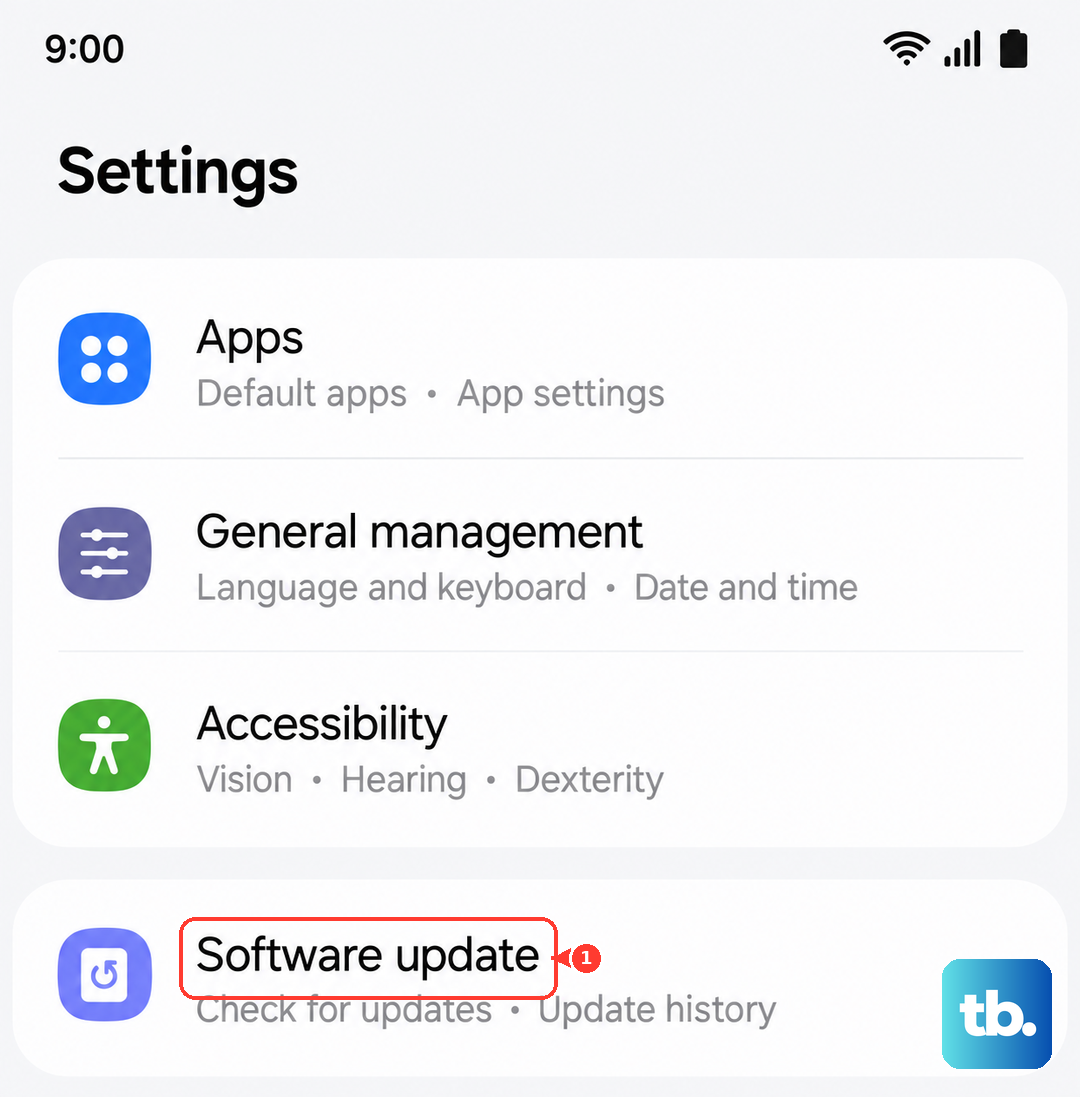
Go to Settings > Software update and tap Download and install. If an update is available, install it and restart your phone. Also check the Google Play Store for updates to the Google app itself.
Clear the Google App's Cache
A bloated cache can cause various weird issues with the assistant.
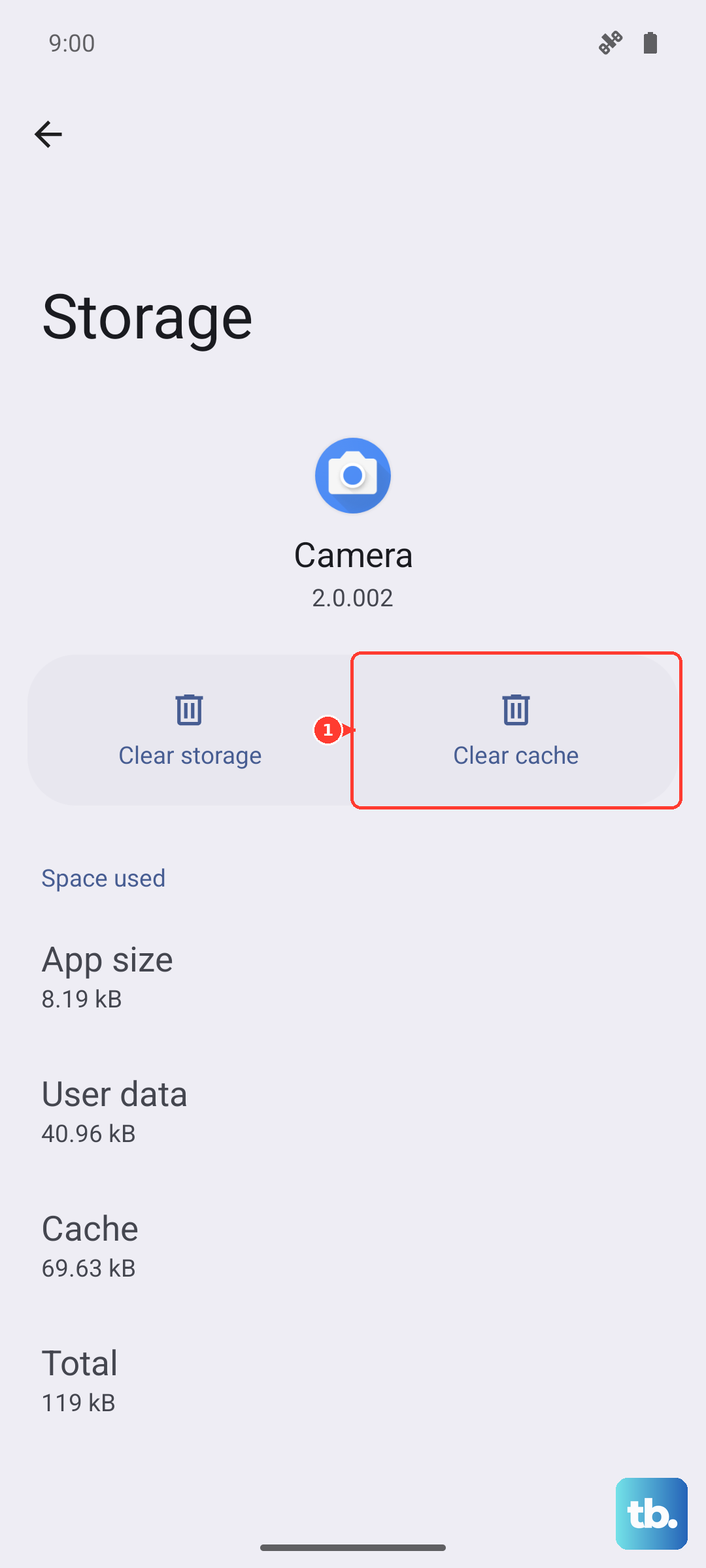
Head to Settings > Apps > Google > Storage. Tap Clear cache (not clear data that will reset your settings). Restart the phone and test again.
Reset App Preferences
If you've accidentally disabled a system app that Google Assistant relies on, resetting app preferences can restore default permissions.
Go to Settings > Apps, tap the three dots in the top right, and select Reset app preferences. This won't delete any personal data it just resets disabled apps, notification permissions, and default apps. You'll need to re-enable any custom default apps afterward.











