Your new Samsung Galaxy Z Flip 7 isn't receiving calls, and you've probably already checked that your signal bars aren't empty. This can happen for a bunch of reasons, from a simple Do Not Disturb setting you forgot about to something trickier with your network. Let's run through the most common fixes, starting with the quick ones.
Toggle Airplane Mode and Restart
The fastest thing to try is toggling Airplane Mode on and off. Swipe down from the top of your screen and tap the airplane icon, wait a few seconds, then tap it again. This forces your phone to reconnect to the mobile network.
If that doesn't do it, restart the phone properly. On the Galaxy Z Flip 7, press and hold Volume Down and the Side key together for about 10 to 15 seconds until you feel a vibration and the Samsung logo appears. That's a forced restart and it clears out most temporary software hiccups without erasing any data.
Check Do Not Disturb and Call Blocking
Do Not Disturb mode can silently block incoming calls, even if you don't think you turned it on. Open Settings > Notifications > Do Not Disturb and make sure it's off. You can also swipe down twice to expand Quick Settings and check if the crescent moon icon is highlighted if it is, tap it to turn it off.
Samsung's Phone app has its own call blocking features. Open the Phone app, tap the three dots in the top right, and go to Settings > Block numbers. Review your blocked numbers list to ensure no important contacts are stuck there. Also check Caller ID and spam protection sometimes automatic spam blocking can aggressively silence legitimate calls.
Disable Call Forwarding
Call forwarding redirects your incoming calls to another number without any notification on your end. To check this, open the Phone app, tap the three dots, go to Settings > Supplementary services > Call forwarding. Make sure all options are set to "Always forward" disabled. If you see any forwarding active, turn it off.
While you're there, also check Call barring to make sure incoming calls aren't being blocked entirely. This is set to off by default, but it's worth a quick look.
Check Network Mode and SIM Card
Sometimes the Galaxy Z Flip 7 gets stuck on a 5G network that isn't reliable for voice calls. Try switching to 4G/LTE only. Go to Settings > Connections > Mobile networks > Network mode and select LTE/3G/2G (auto connect) instead of 5G. This can help if your carrier's 5G network is spotty for calls.
A poorly seated SIM card can also cause call issues. Pop out the SIM tray, reseat the SIM, and make sure it's fully inserted. If you have a second phone handy, try putting the SIM in that device to see if it can make and receive calls. If it can't, the problem is likely with your carrier, not your phone.
Reset Network Settings
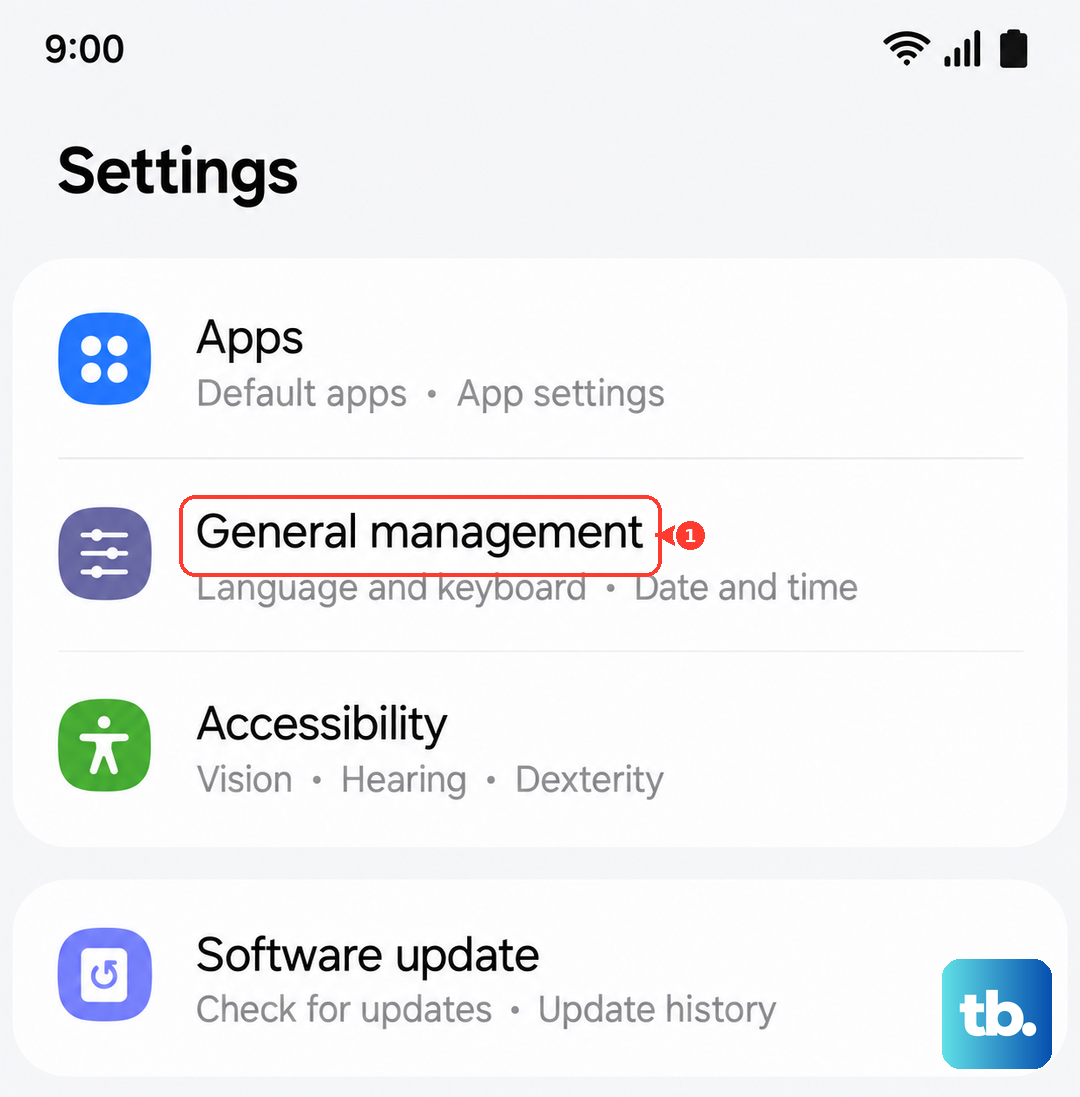
If none of the above works, a network settings reset clears out all saved Wi-Fi passwords, Bluetooth pairings, and mobile network configurations. Go to Settings > General management > Reset > Reset network settings. After the reset, your phone will restart automatically. You'll need to reconnect to Wi-Fi and re-pair Bluetooth devices, but it often fixes stubborn call reception problems.
Clear the Phone App's Data
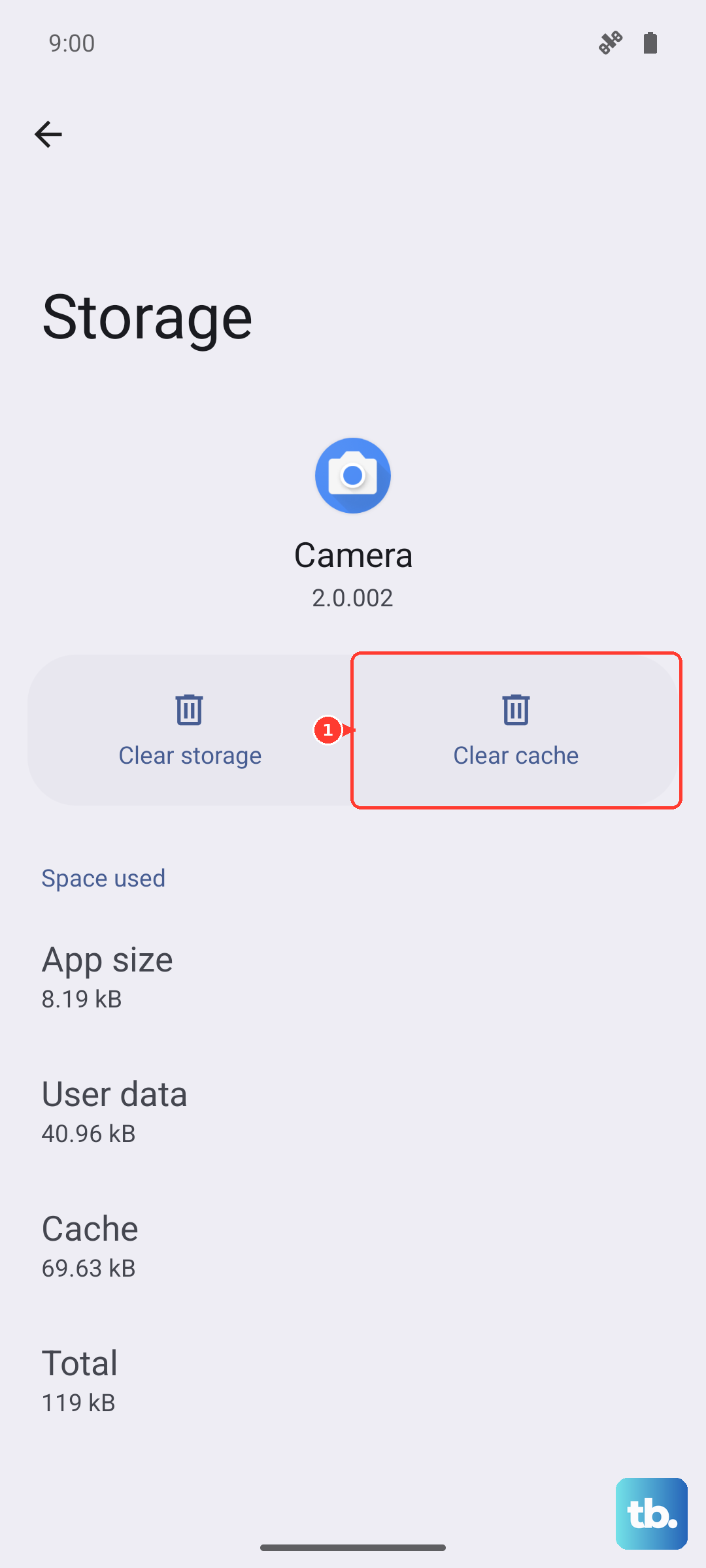
Over time, the Phone app's cache can get corrupted. To clear it, go to Settings > Apps > Phone > Storage. Tap Clear cache first, then Clear data. Don't worry this won't delete your contacts, but it will reset the app's preferences like call log history and blocked numbers. Restart your phone after doing this.
Update the Phone's Software
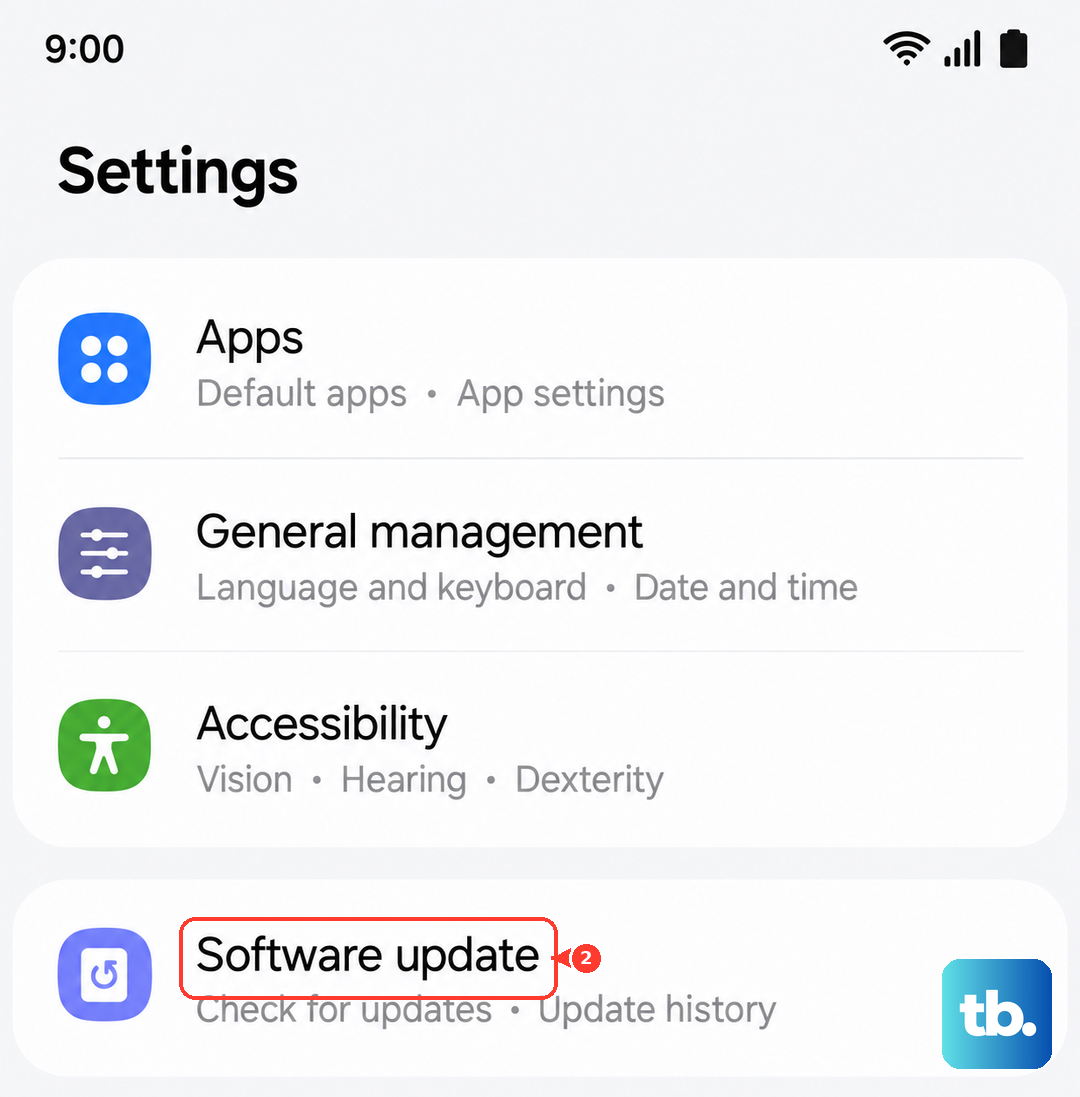
Software bugs are a known cause of call issues, especially with a device as new as the Galaxy Z Flip 7. Go to Settings > Software update > Download and install. If there's an update available, install it and let the phone reboot. Samsung regularly pushes fixes for network and call stability in these patches.
Disable Recently Installed Apps
Some third-party apps, particularly those that manage calls, messages, or VPNs, can interfere with the phone's ability to receive calls. If you installed any new apps right before the problem started, try uninstalling them temporarily. VPNs are a common culprit turn off any active VPN in Settings > Connections > More connection settings > VPN.
Last Resort: Factory Reset
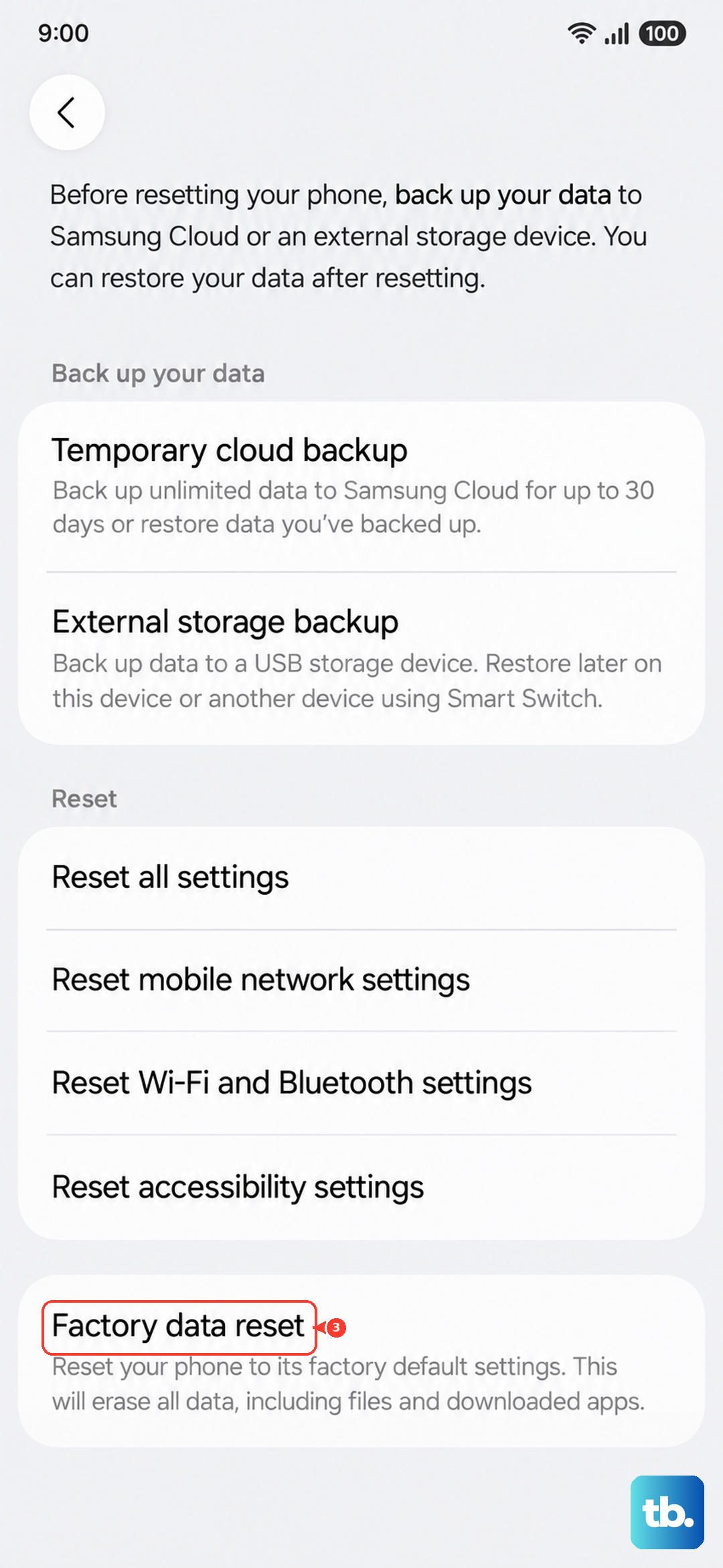
If you've tried everything above and your Galaxy Z Flip 7 still refuses to receive calls, a factory reset may be necessary. This wipes everything on your phone, so back up your photos, contacts, and files first. Go to Settings > General management > Reset > Factory data reset. After it reboots, set up your phone as new don't restore from a backup that might carry the same bug. If the issue persists even after a clean setup, it's likely a hardware problem, and you'll want to contact Samsung support or your carrier for a possible replacement.