
Your Samsung Galaxy Z Fold 7 suddenly showing "No SIM card"? It's a frustrating roadblock, especially when you need to make calls or use mobile data. The good news is that most of the time this is a quick fix you can handle without leaving your couch.
Start with the simplest thing a forced restart. Press and hold the Volume down and Side buttons together for about 10 seconds. Your Z Fold 7 should vibrate and restart. This clears temporary software glitches that can confuse the SIM detection.
Toggle Airplane mode while you're at it. Swipe down from the top of the screen, tap the Airplane mode icon, wait 10 seconds, then tap it again. That forces your phone to re-register with the network.
If that didn't do it, check that your SIM card is actually enabled. Open Settings > Connections > SIM card manager. Make sure the switch next to your SIM is turned on. If you have more than one SIM, verify the correct one is active.
Pull the SIM Tray and Give It a Clean
Power your Z Fold 7 off completely. Use the SIM ejector tool that came in the box to pop out the tray. Foldables use a delicate tray, so be gentle.
Look at the gold contacts on the SIM card. Any dust, lint, or discoloration can break the connection. Wipe the contacts with a dry microfiber cloth. If you see sticky residue, a tiny bit of isopropyl alcohol on the cloth works, but let it dry before reinserting.
While the tray is out, check the slot inside the phone with a flashlight. I've found small bits of pocket lint hiding in there more than once. A quick blast of compressed air (the kind you use for keyboards) often does the trick.
Reinsert the tray carefully. Make sure it's fully seated and flush with the frame. Turn the phone back on and see if the error is gone.
Test the SIM in Another Phone
This is the fastest way to tell if your SIM card itself is bad. Pop it into any other unlocked phone. If that phone also shows "No SIM," you know the chip is damaged. Contact your carrier for a free replacement.
If the SIM works fine in another device, the problem is in your Z Fold 7. That narrows things down to software or the phone's SIM reader.
Check for Software Updates
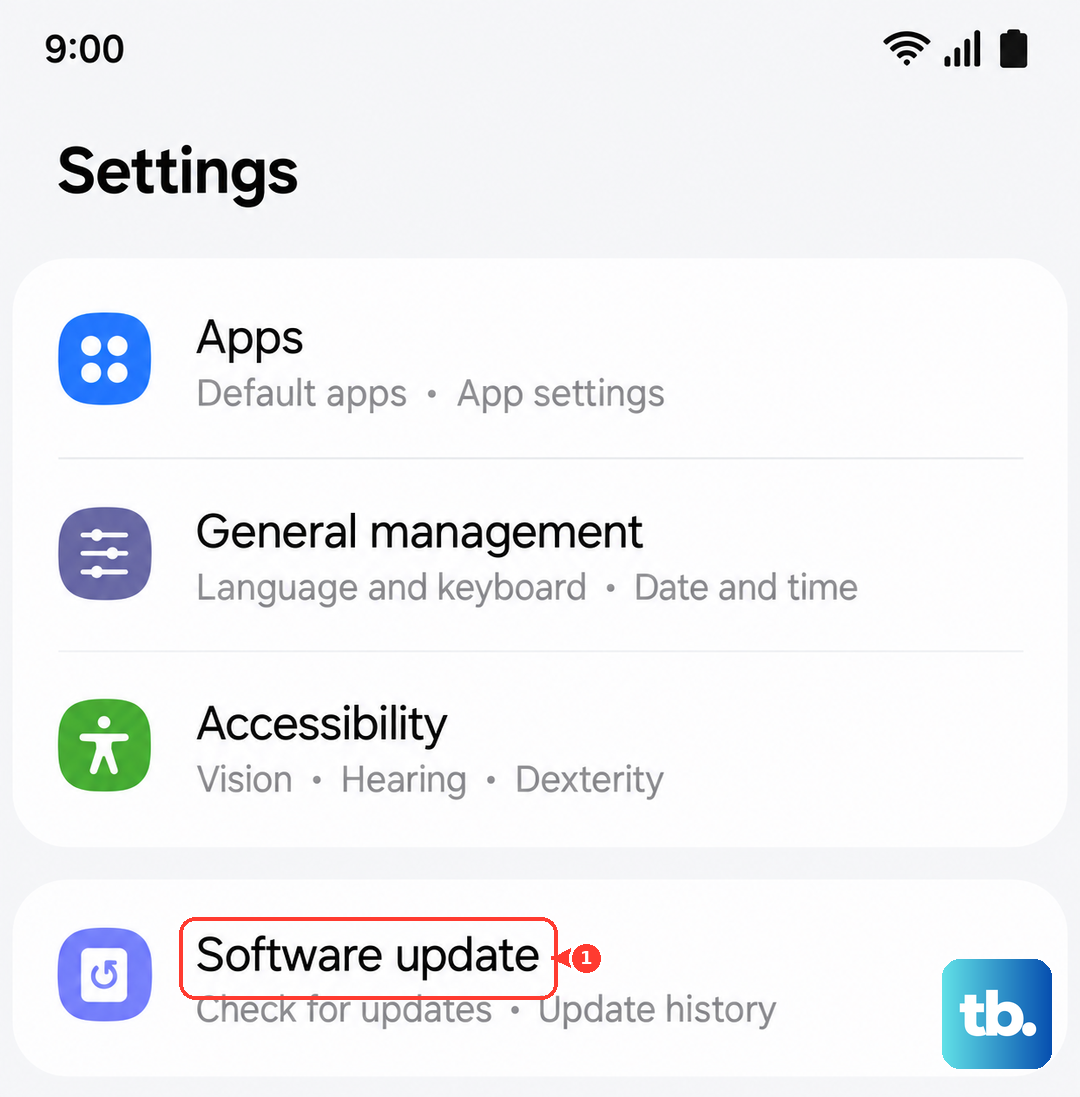
Your Z Fold 7 runs Android 15, and Samsung pushes regular updates that fix detection bugs. Go to Settings > Software update > Download and install. If there's an update waiting, install it and restart.
Reset Network Settings
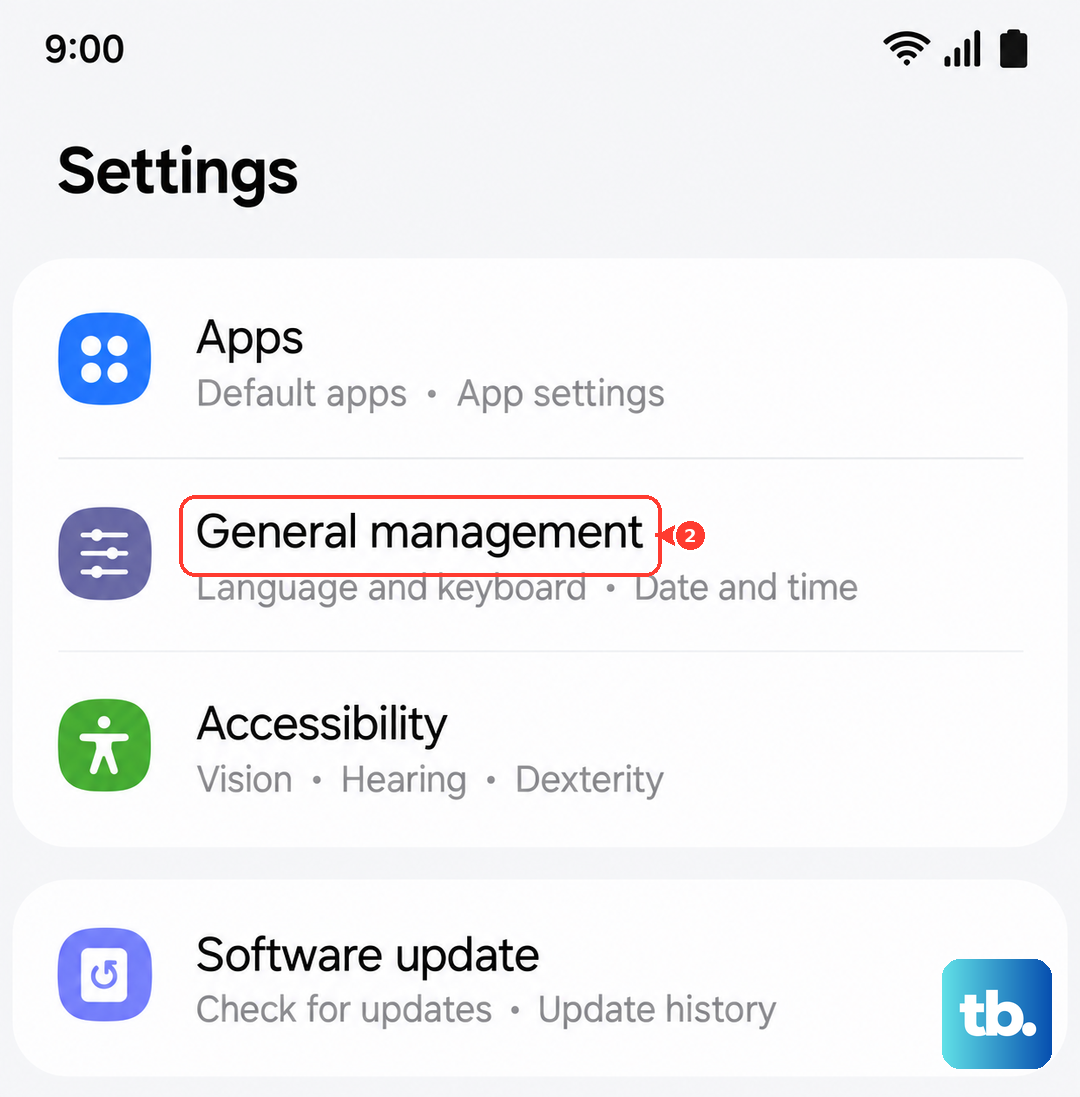
This clears out any saved Wi-Fi, Bluetooth, and mobile data configurations that might be interfering. You won't lose photos or apps. Head to Settings > General management > Reset > Reset network settings. Confirm, wait for the phone to restart, and then re-enter your Wi-Fi password if needed.
Clear the SIM App Cache
System apps that manage your SIM can get clogged up. Open Settings > Apps. Tap the three dots in the corner and select Show system apps. Scroll to find SIM Card manager and tap it. Go to Storage > Clear cache. Do the same for SIM Toolkit (or SIM Application Toolkit).
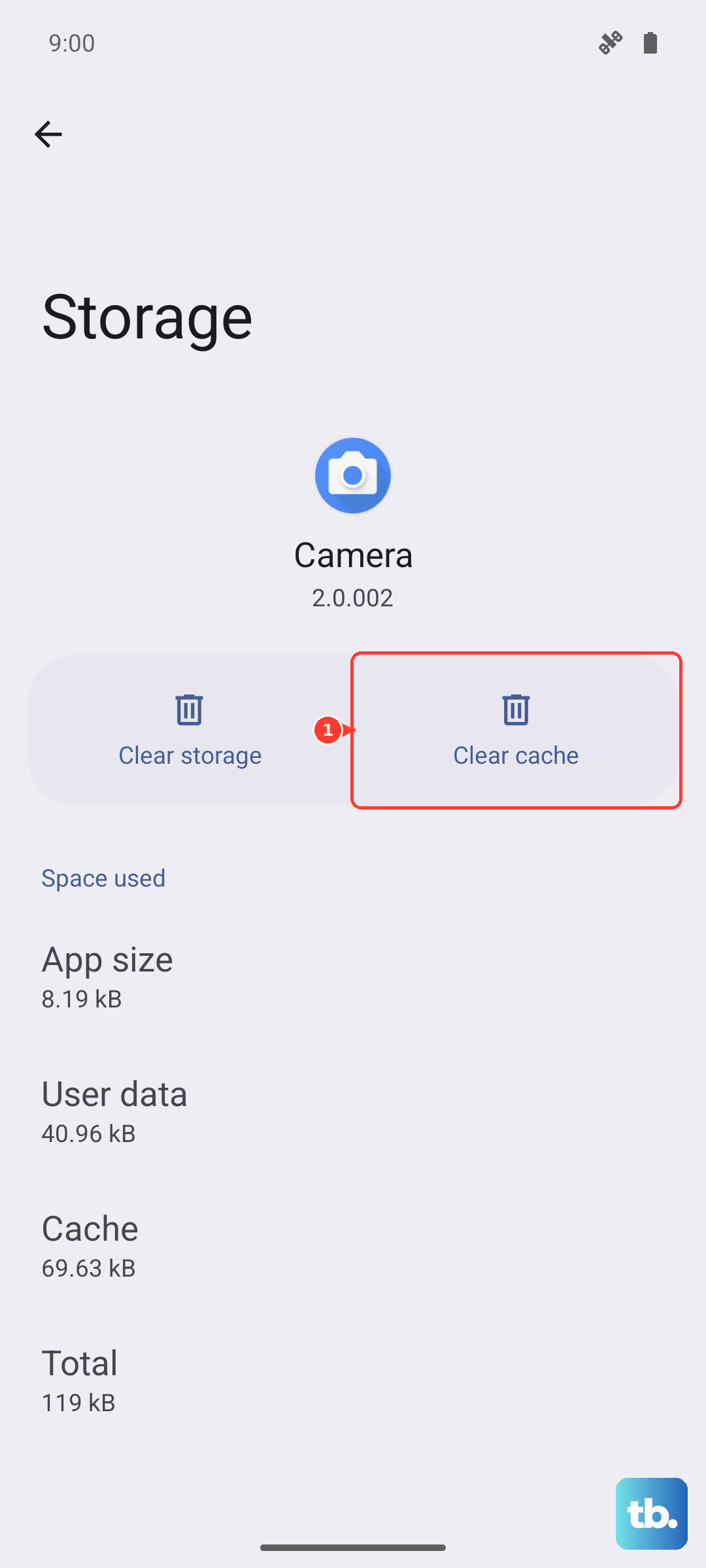
Don't tap "Clear data" unless you want to reset those apps to factory defaults. Clearing cache alone is safe and often fixes detection hiccups.
Switch Network Mode
Sometimes your phone gets stuck trying to connect to a 5G signal that's weak. Force it to a more reliable mode. Go to Settings > Connections > Mobile networks > Network mode. Choose 4G/3G/2G (auto connect). If your carrier supports 5G, you can switch back later.
Reset APN Settings
Your Access Point Name tells the phone how to connect to your carrier's data network. If it's wrong, you might get a "No SIM" error even with a good card. Navigate to Settings > Connections > Mobile networks > Access Point Names. Tap the three dots and select Reset to default.
If your carrier gave you custom APN settings (some prepaid or business plans do), you'll need to enter them again after the reset.
Manually Select Your Network
Your phone usually picks a network automatically, but that process can fail. Go back to Settings > Connections > Mobile networks and tap Network operators. Tap Search now and wait for the list to populate. Select your carrier from the list. Your Z Fold 7 will try to register manually.
Switch to eSIM as a Workaround
The Galaxy Z Fold 7 supports eSIM, so you can ditch the physical card entirely. Call your carrier and ask for a QR code or activation code to convert your line to eSIM. Many users who battled persistent physical SIM issues have found this to be a permanent fix.
Once your eSIM is active, you can remove the physical SIM tray. Just make sure your carrier supports eSIM and that you have a stable Wi-Fi connection during activation.
Factory Reset The Last Resort
If you've tried everything and your SIM still isn't recognized, a factory reset can wipe out stubborn software corruption. Back up all your data first photos, contacts, app data because this erases everything.
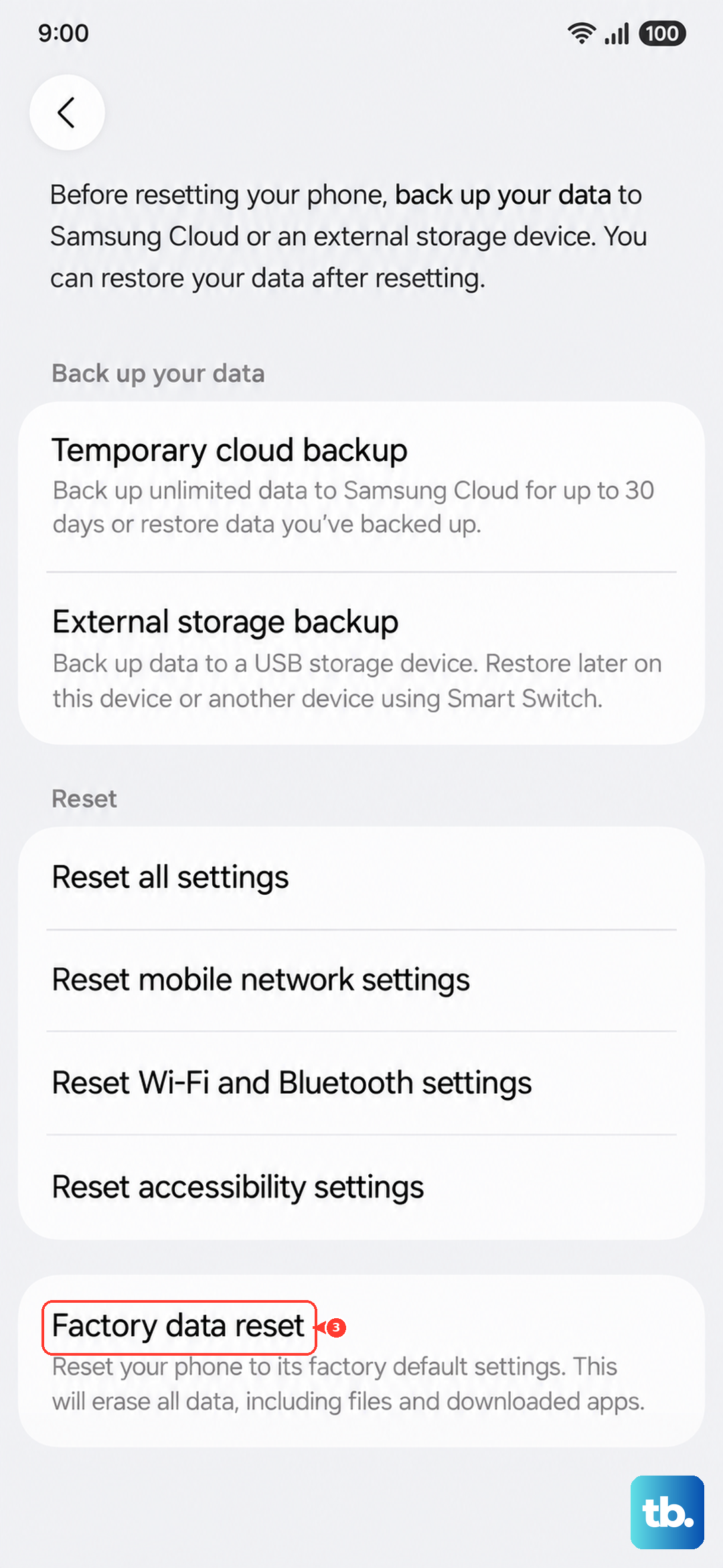
Go to Settings > General management > Reset > Factory data reset. Follow the prompts and let the phone restart fresh. After setup, your SIM should be detected.
If even a factory reset doesn't work, the issue is likely hardware a damaged SIM reader or a loose connection inside the phone. At that point, a professional repair is the only way forward. But with these steps, you've covered nearly every software and easy hardware fix available.