
When apps start crashing on your Samsung Galaxy Z Flip 7, the whole experience of using a foldable phone stops being fun real quick. You might be scrolling through Instagram, replying to a text, or trying to open your banking app when it just freezes or kicks you back to the home screen. Let's run through the fixes that actually work on this device.
Force Stop and Restart the App
This is the quickest thing to try. Go to Settings > Apps, find the app that's crashing, and tap it. Hit Force Stop, then relaunch the app from your app drawer. This kills whatever temporary glitch was going on.
If the app still won't cooperate, give the whole phone a proper restart. Press and hold Volume Down + Side key for 10 15 seconds until the Samsung logo appears and the device restarts. That's the official force restart for the Z Flip 7, and it clears out most minor software hiccups.
Update Everything (Apps and System)
Developers are constantly patching bugs, and if you're running an old version of an app, crashes are more likely. Open Google Play Store, tap your profile icon, and go to Manage apps & devices. Hit Update all if there's anything pending.
Also check your phone's system software. Go to Settings > Software update > Download and install. The Galaxy Z Flip 7 runs Android 16, and Samsung pushes regular security and stability updates. Those updates sometimes include fixes for app compatibility issues.
Clear the App Cache
Over time, apps build up temporary files that can get corrupted and cause crashes. Go to Settings > Apps, pick the problem app, then tap Storage. Hit Clear cache first. If the app is still acting up, you can also tap Clear data but that will wipe any saved logins or local settings, so you'll have to sign in again.
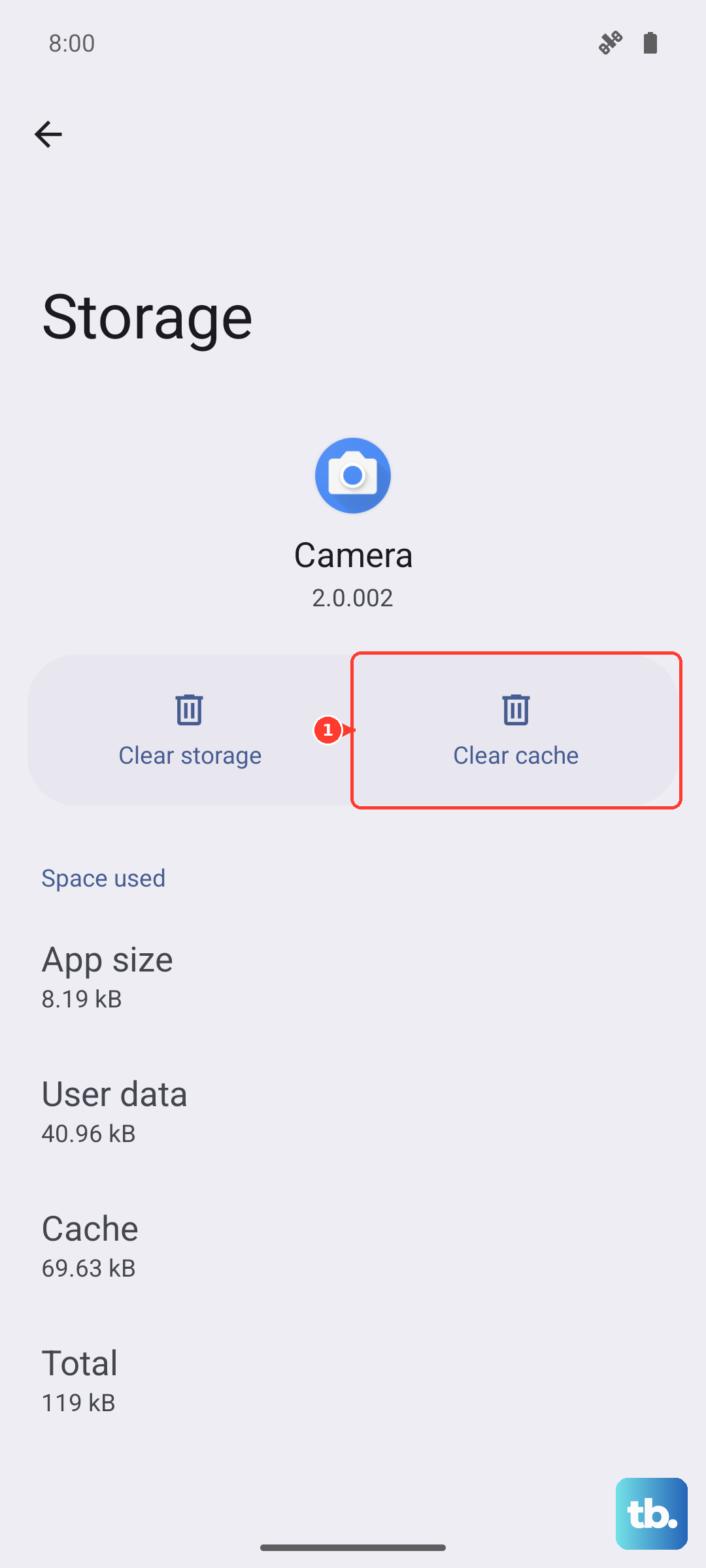
This fix is especially common for social media apps like Instagram or TikTok, which tend to cache a ton of media.
Free Up Storage Space
Low storage can make apps choke because they don't have room to run properly. The Galaxy Z Flip 7 doesn't have expandable storage, so you're stuck with whatever internal space you chose. Go to Settings > Device care > Storage to see how full your phone is.
If you're below 1GB free, start deleting stuff. Uninstall apps you never use, clear out old photos and videos (back them up to Google Photos or a cloud service first), and delete downloaded files you don't need. Even clearing downloads from your Files app can free up a surprising amount of space.
Check Your Internet Connection
Some apps crash specifically when they lose connectivity or have a weak signal. If you're on Wi-Fi, try turning it off and using mobile data for a minute. If you're on mobile data, toggle Airplane Mode on and off to refresh the connection.
Apps like YouTube, social media, and banking apps are especially sensitive to network issues. They might freeze or force-close if they can't reach their servers. Try switching between Wi-Fi and mobile data to see if the problem follows a specific network.
Remove Problematic Apps and Reinstall
If a single app keeps crashing after trying the steps above, uninstall it completely. Long-press the app icon on your home screen or app drawer, then tap Uninstall. After that, head back to the Play Store and install it fresh.
This also gives you a chance to check if the app has any known issues with the Galaxy Z Flip 7 specifically. Some apps haven't been fully optimized for the unusual aspect ratio of foldable screens yet. If that's the case, the developer usually releases an update within a few weeks.
Use the Device Care Tool
Samsung phones have a built-in optimization tool that can help. Go to Settings > Device care. Tap Optimize now this closes background apps, clears memory, and checks for battery drain. It's a one-tap fix that sometimes stops app crashes caused by too many things running at once.
While you're there, tap Memory to see how much RAM is in use. If it's consistently above 80%, try closing apps you aren't using. The Z Flip 7 has plenty of RAM, but some heavy games or multitasking setups can push it.
Boot Into Safe Mode
Safe Mode disables all third-party apps and lets you see if a background app is causing the crashes. To enter Safe Mode on the Galaxy Z Flip 7, press and hold the Side key until the power menu appears. Then tap and hold Power off until the Safe Mode prompt shows up, and tap Safe mode.
If your apps stop crashing in Safe Mode, a third-party app is the culprit. Uninstall recently downloaded apps one by one until the problem goes away. If the crashes still happen in Safe Mode, it's likely a system-level issue.
Reset App Preferences
This one resets all disabled apps, notification restrictions, and default app settings back to factory defaults. It won't delete your data or accounts. Go to Settings > Apps > tap the three dots in the top right > Reset app preferences. Confirm and then test the crashing apps.
This fix often helps when an app's permissions or defaults have been accidentally changed. For example, if a default browser or SMS app was disabled, other apps that rely on it might crash.
Factory Reset as a Last Step
If you've tried everything and apps still crash, a factory reset can wipe out any deep software corruption. Back up your data first everything on the phone will be erased. Go to Settings > General management > Reset > Factory data reset. Follow the prompts and let the phone reset.
After the reset, set up the phone as new (don't restore from a backup that might have the same issue) and install apps fresh. Most persistent crash issues are resolved this way. If they're not, it could be a hardware problem, but that's rare.











