
When the predictive text on your Galaxy Z Flip 6 stops working or starts suggesting nonsense, it can really slow you down, especially when you're trying to type quickly on that unique form factor. The suggestions might vanish, autocorrect could become overly aggressive, or the whole smart typing system might just freeze up. Here are the most reliable ways to fix it.
Restart Your Phone First
It sounds simple, but a quick restart clears out temporary glitches in the system memory. On the Z Flip 6, you can do a standard restart by holding the side key and tapping "Restart" on the screen. If the phone is completely unresponsive, you'll need to force restart it.
Press and hold the Volume Down button and the Side button together for about ten seconds. Keep holding until you see the Samsung logo appear, then let go. This is the equivalent of a hard reboot and often fixes quirky software issues like a frozen keyboard.
Clear the Keyboard's Cache
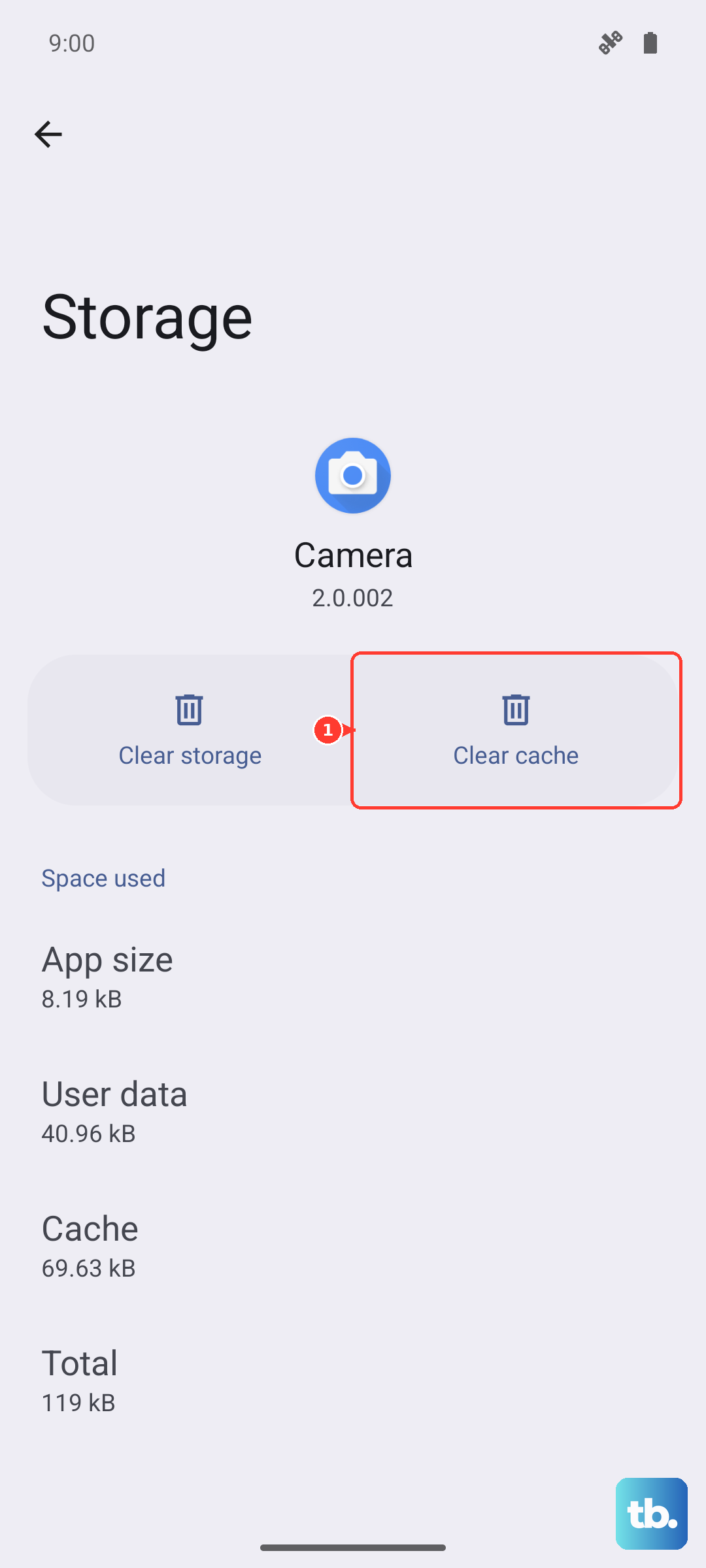
Your Samsung Keyboard stores temporary data to help it run faster. Sometimes this cache gets corrupted, which can break predictive text. Clearing it is safe and won't delete your personal dictionary or settings.
Open Settings and go to Apps. Tap the three-dot menu in the top right and select "Show system apps." Scroll down and find "Samsung Keyboard." Tap on it, then go to Storage. At the bottom, tap "Clear cache." I'd do this for both "Samsung Keyboard" and "Samsung Keyboard Neural Beta" if you see it listed.
Check Your Smart Typing Settings
It's possible a setting was accidentally changed. Head into Settings, then General Management, and select "Language and input." Tap "On-screen keyboard" and then "Samsung Keyboard." Go into "Smart typing."
Make sure the switch for "Predictive text" is turned on. While you're here, you can also review the other options. If autocorrect is acting strange, try toggling "Auto replacement" off and back on. These settings sync across your phone's displays, so changes apply whether you're typing on the main screen or the cover display.
Update the Keyboard and Language Data
Outdated software is a common culprit. First, check for a keyboard update via the Galaxy Store, as Samsung often pushes updates there. Open the Galaxy Store, tap the menu icon, and go to Updates. If "Samsung Keyboard" is listed, update it.
Next, update the language data itself. Go back to Settings > General Management > Language and input > On-screen keyboard > Samsung Keyboard. Tap "Languages and types," then "Manage input languages." Tap the three-dot menu and select "Update." This ensures the prediction engine has the latest word libraries.
Reset the Keyboard to Default
If predictive text is still broken, resetting the keyboard can wipe out any deep-seated corruption. This will erase your personalized dictionary and any custom settings you've changed, so it's a more significant step.
Navigate to Settings > General Management > Language and input > On-screen keyboard > Samsung Keyboard. Scroll to the very bottom and tap "Reset settings." Confirm your choice. After the reset, you'll need to go back into the Smart typing menu and re-enable predictive text.
Clear the Keyboard's App Data
This is the most thorough fix short of a factory reset. Clearing the app's data will reset it completely to its original, out-of-the-box state. You will lose all saved words, custom shortcuts, and keyboard layout preferences.
In Settings > Apps, show system apps and find "Samsung Keyboard." Tap Storage, and this time select "Clear data" instead of just clearing the cache. Confirm the action. Once done, open any app and tap a text field to restart the keyboard. You'll have to go through a brief setup and re-enable predictive text in the settings.