
When your Samsung Galaxy Z Flip 6 won't install apps, it can stop you from using the device the way you want. Whether you're trying to get a new app for the cover screen or something for the main display, a failed download is a roadblock. The good news is that most of these issues are temporary and can be fixed with a few specific steps.
Let's go through the solutions that work for the Z Flip 6, from quick checks to more detailed fixes.
Check Your Connection and Restart
Start with the simplest things first. A weak Wi-Fi signal or a mobile data hiccup is often the culprit. Swipe down from the top of your screen to open the Quick Panel and make sure your connection is active. If you're on Wi-Fi, try switching to your 5G or LTE data for a moment to test.
Next, give your phone a fresh start. Press and hold the Volume Down button and the Side button (power button) together for about ten seconds. You'll see the Samsung logo appear as the phone restarts. This clears out any minor software glitches that might be stopping the Play Store.
Verify Your Date and Time
Google's servers use your phone's clock to verify downloads. If the time is off, installations can fail. To fix this, open Settings and go to General Management > Date and time.
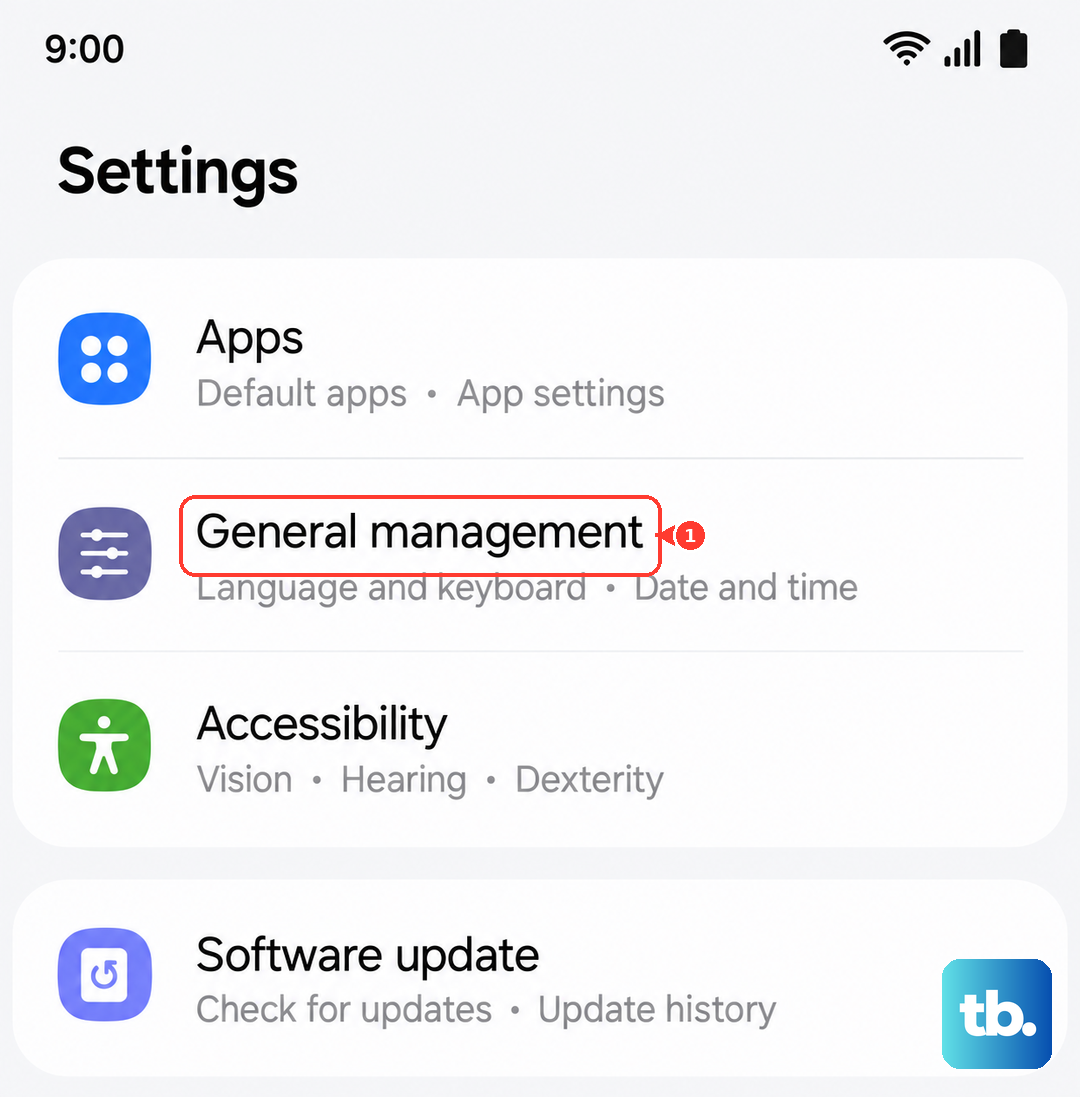
Make sure "Automatic date and time" is turned on. If it's already on and you're still having trouble, try turning it off and then back on again. This forces your Z Flip 6 to re-sync with the network time.
Clear the Google Play Store's Cache
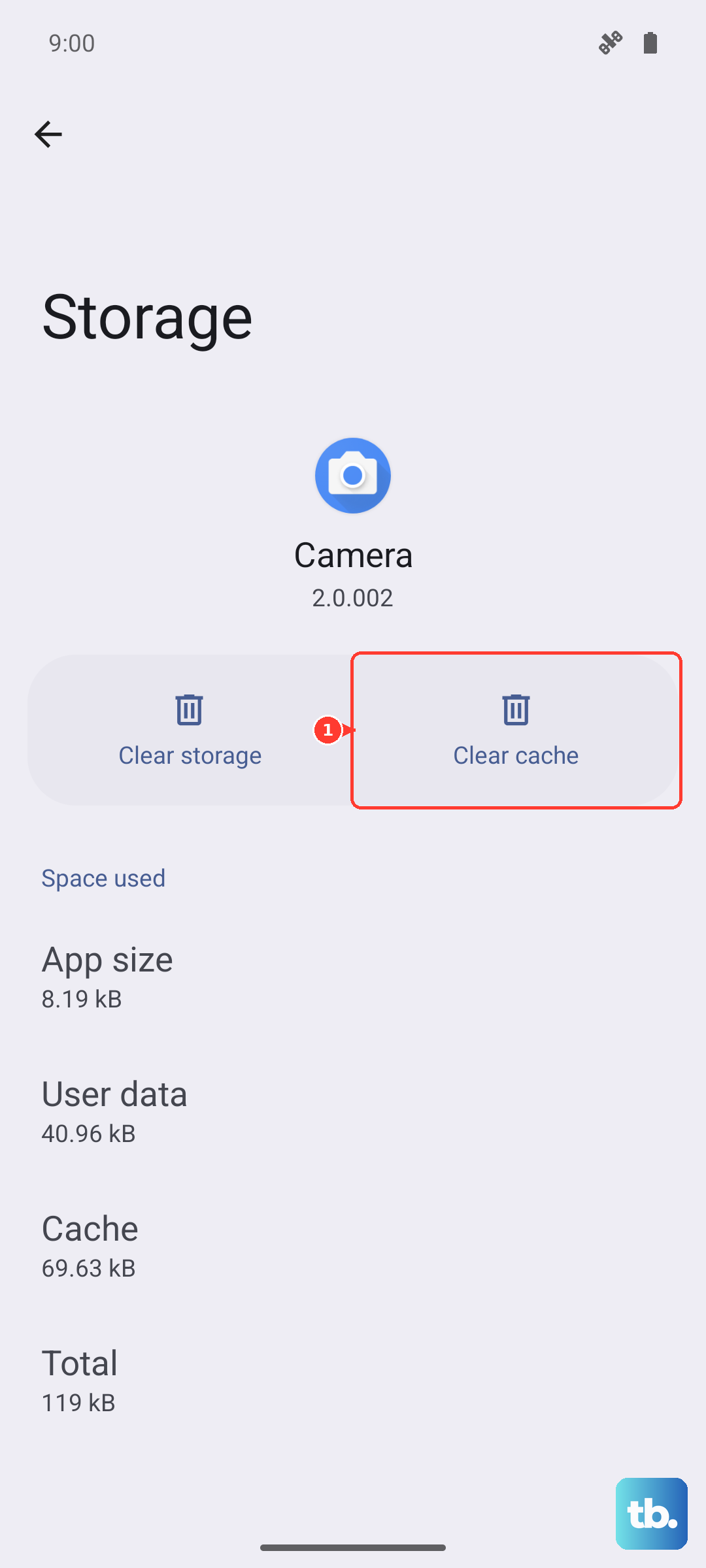
The Play Store stores temporary data that can sometimes get corrupted. Clearing this cache is a safe first step that doesn't delete your account or apps. Go to Settings > Apps, then find and select Google Play Store.
Tap on Storage and then hit Clear Cache. After doing this, open the Play Store again and try your download. If that doesn't work, you can go back and tap Clear Data. This will reset the Play Store app to its default state, so you may need to sign in again.
Manage Google Play Services
This background service is crucial for app downloads and updates. If it's acting up, it can block installations. Head back to Settings > Apps and find Google Play Services.
Tap Storage and then Clear Cache. For a more thorough reset, tap Manage Space and then Clear All Data. Don't worry, this won't delete your personal information. After this, I'd also recommend force stopping the service. From the main Google Play Services app info screen, just tap Force Stop.
Check for Software Updates
Running an outdated version of Android or One UI can cause compatibility problems with the latest apps. Samsung frequently releases updates that fix bugs. To check, open Settings and go to Software Update > Download and install.
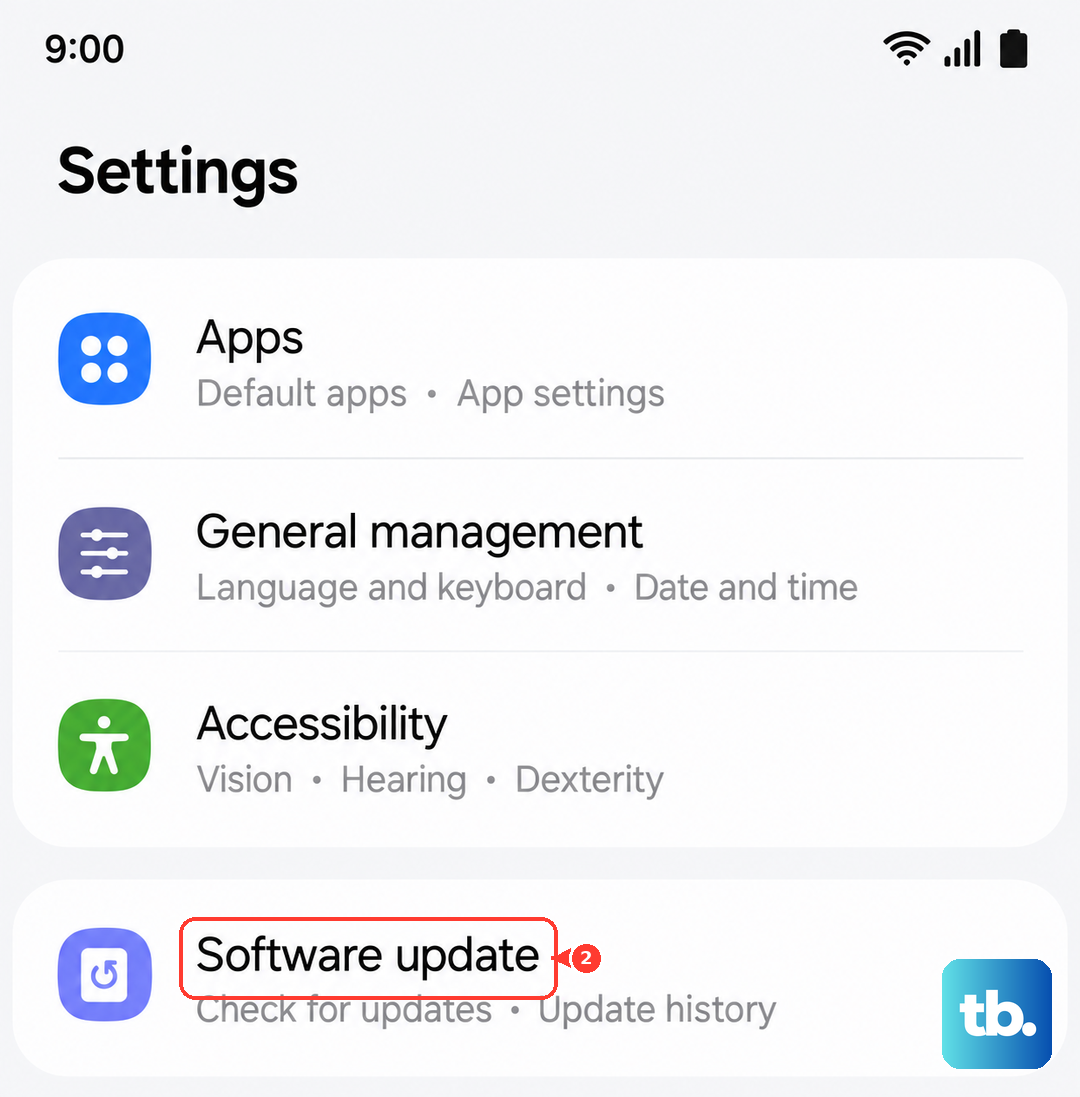
If an update is available, make sure your Z Flip 6 is charged above 50% or plugged into its 25W charger, then install it. The phone will restart, and you should try your app download again afterward.
Review Your Storage Space
The Z Flip 6 needs free space to download and unpack app files. If you're getting an "Insufficient storage" error, you'll need to make some room. Go to Settings > Device care > Storage to see what's using space.
You can clean up cached data from here directly. For bigger savings, consider offloading photos and videos to Samsung Cloud or Google Photos. Uninstalling a few large, unused games can free up a significant amount of space very quickly.
Remove and Re-add Your Google Account
This refreshes the connection between your phone and Google's servers. Go to Settings > Accounts and backup > Manage accounts. Select your Google account and tap Remove account.
Confirm the action, then go back and tap Add account to sign back in. This process only takes a minute and often resolves persistent sync or download errors.
Enable Download Manager
This system app handles all downloads on your phone. It's rarely disabled, but it's worth checking. In Settings > Apps, tap the three-dot menu and select Show system apps.
Search for "Download Manager" and select it. If the button says "Enable," tap it. If it's already enabled, you can tap Storage and then Clear Cache here as well.
Check App-Specific Permissions
Both the Play Store and Google Play Services need proper permissions. For the Play Store, go to its app info page in Settings, tap Permissions, and ensure everything is allowed. For Google Play Services, also check that it has permission to modify system settings.
On the Google Play Services app info page, look for an option like "Modify system settings" and make sure it's toggled on. This allows it to function correctly in the background.
Try a Different Installation Method
If the Play Store is completely stuck, you can try installing the app from a different source as a test. First, enable installation from unknown sources. Go to Settings > Security and privacy > More security settings and enable "Install unknown apps."
You can then try downloading the APK file for a common, trusted app (like a calculator) from a reputable website like APKMirror. If this works, it confirms the issue is isolated to the Play Store app or your Google account, helping you narrow down the problem.