
If your Samsung Galaxy Z Flip 6's fingerprint scanner isn't responding, it can lock you out of your phone and apps. The sensor is built into the side power button, and issues can pop up from simple software glitches to more persistent hardware quirks. Let's get it working again.
Start With a Quick Restart
Before anything else, give your phone a fresh start. Press and hold the Volume Down button and the Side button together for about ten seconds. You'll see the Samsung logo appear as it reboots. This clears out any temporary software bugs that might be confusing the sensor.
Once it's back on, try unlocking with your fingerprint. If it works, you're all set. If not, the next steps will help you dig a little deeper.
Check Your Finger and the Sensor
The sensor on the Z Flip 6 needs a clean, dry surface to read your print accurately. If your finger is wet, greasy, or has lotion on it, it won't work. The same goes for the sensor button itself.
Wipe your finger and the side button area with a soft, dry cloth. Avoid using any liquids or cleaners directly on the button. For a really thorough clean, you can dampen the corner of the cloth with a tiny bit of isopropyl alcohol, wipe the button gently, and let it dry completely.
Re-register Your Fingerprint
This is often the most effective fix. Your stored fingerprint data can get corrupted, or you might not have scanned it perfectly the first time. Open Settings and go to Biometrics and security > Fingerprints.
You'll need to enter your PIN, password, or pattern to continue. Tap on the fingerprint you're having trouble with and select Remove. Now, tap Add fingerprint and follow the prompts.
When you scan, make sure to roll your finger to capture the edges, not just the center. I'd recommend registering the same finger twice under different names, like "Right Thumb" and "Right Thumb Backup," for better reliability.
Update Your Phone's Software
Samsung regularly releases updates that fix bugs, including ones related to biometric sensors. Go to Settings > Software update > Download and install.
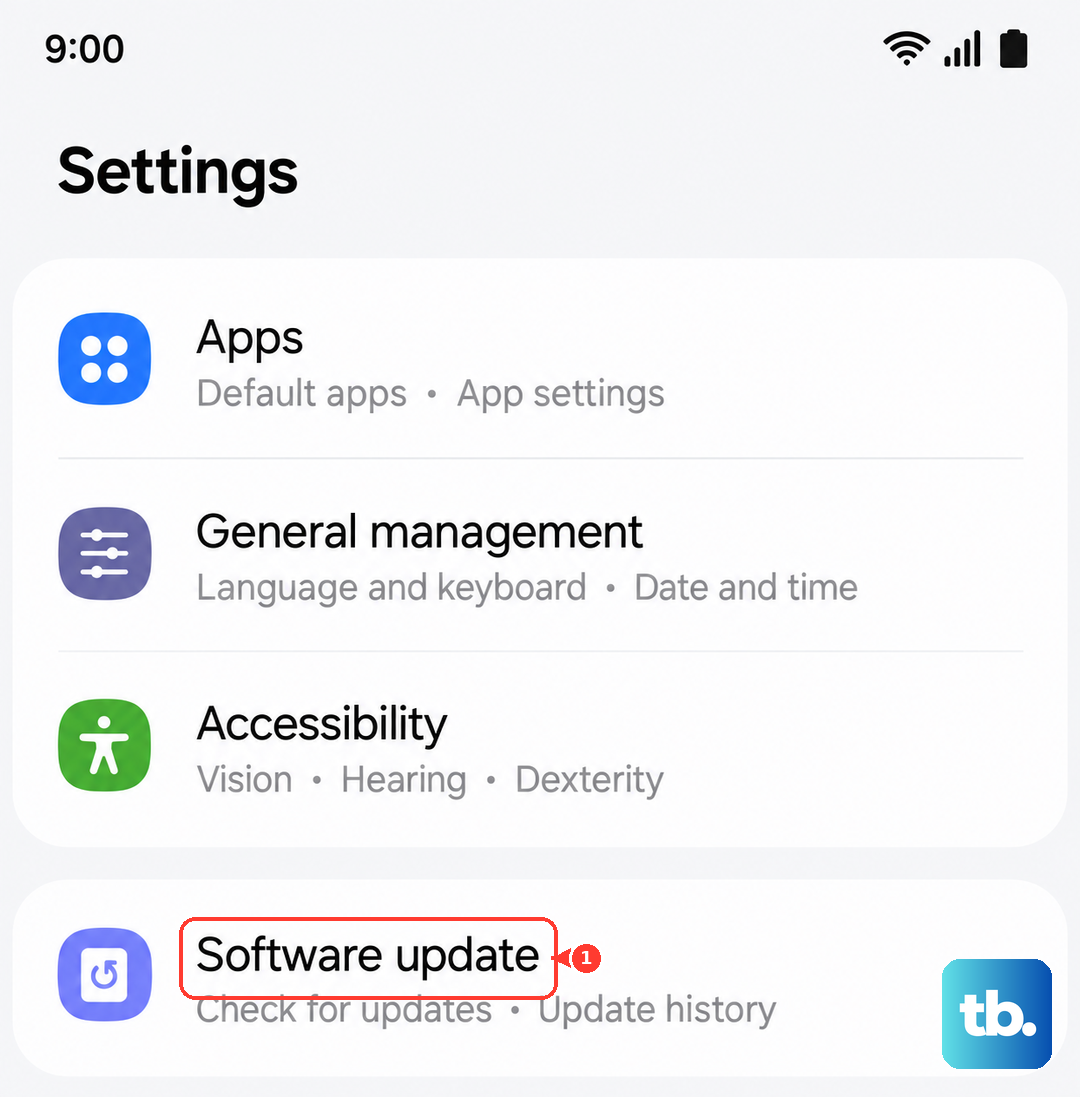
If an update is available, install it and restart your phone. It's a good idea to re-register your fingerprints after a major software update, as the algorithm for reading them can improve.
Consider Your Screen Protector
This is a common culprit. If you've installed a thick tempered glass screen protector, especially one not designed for ultrasonic sensors, it can interfere with the side button's operation or how you press it.
Try removing the screen protector temporarily to see if the fingerprint reader starts working. If it does, you'll need to look for a protector that's specifically marketed as compatible with the Z Flip 6's fingerprint sensor.
Clear the System Cache
Sometimes, cached system data gets scrambled and causes issues like this. Clearing it won't delete your personal files. First, turn off your Z Flip 6 completely.
Now, press and hold the Volume Up button and the Side button. When you see the Android recovery menu, release the buttons. Use the volume keys to highlight Wipe cache partition and press the Side button to select it. Confirm, then select Reboot system now.
Check for Interference and Settings
A couple of lesser-known things can affect the sensor. If you're using a bulky case, it might be covering the button just enough to prevent a good read. Try taking the case off and testing it.
Also, go to Settings > Advanced features and look for fingerprint sensor gestures. If you have features like "Fingerprint sensor always on" or swipe gestures enabled, try turning them off to see if it improves basic recognition.
Test in Safe Mode
This checks if a third-party app you installed is causing the problem. Press and hold the Side button and Volume Down button until the power menu appears. Then, tap and hold the Power off icon until you see the Safe Mode prompt.
Tap to restart in Safe Mode. If the fingerprint sensor works perfectly here, you know a downloaded app is the issue. You'll need to uninstall apps one by one to find the culprit, starting with any recent security, battery, or lock screen apps.