
If your Samsung Galaxy Tab S9's fingerprint scanner has suddenly stopped recognizing you, it's a real roadblock. You can't unlock your tablet or access your secure apps. The good news is that most of the time, this is a software hiccup or a simple fix you can handle yourself.
Let's jump straight into the most common solution. Give your tablet a quick restart. Press and hold the Volume Down button and the Side button together for about ten seconds until you see the Samsung logo. This clears out any temporary glitches that might be confusing the sensor.
Clean the Sensor Area Thoroughly
The fingerprint sensor on the Tab S9 is built into the power button on the side of the tablet. It's an optical sensor, which means it needs a clear view of your finger. Take a soft, dry microfiber cloth and gently wipe the entire power button area.
Pay special attention to any smudges, lotion, or dirt. Avoid using any liquids or cleaning sprays directly on the button. If there's stubborn grime, you can dampen the corner of the cloth with a tiny bit of water, but make sure the area is completely dry before testing again.
Re-register Your Problem Fingerprint
Sometimes the stored fingerprint data gets corrupted. The fastest fix is to delete the troublesome print and add it again. Open Settings and go to Biometrics and security, then tap on Fingerprints.
You'll need to enter your PIN, password, or pattern to continue. Tap on the fingerprint that isn't working and select Remove. Now, tap Add fingerprint and follow the prompts. When it asks you to place your finger, make sure to cover the entire sensor and rotate your finger slightly to capture the edges.
Check for a Conflicting Screen Protector
This is a very common culprit, especially with glass screen protectors. If your protector isn't perfectly aligned or is too thick, it can block the sensor's light. Try carefully removing the screen protector temporarily and see if the fingerprint reader starts working.
If it does, you'll need a different protector. Look for ones marketed as "fingerprint-friendly" or specifically compatible with the Galaxy Tab S9's side-mounted sensor. I've found that the thin, film-style protectors usually cause fewer issues than thick tempered glass.
Update Your Tablet's Software
Outdated software can have bugs that affect hardware like the fingerprint sensor. Samsung regularly releases updates that include fixes for these kinds of problems. Go to Settings > Software update > Download and install.
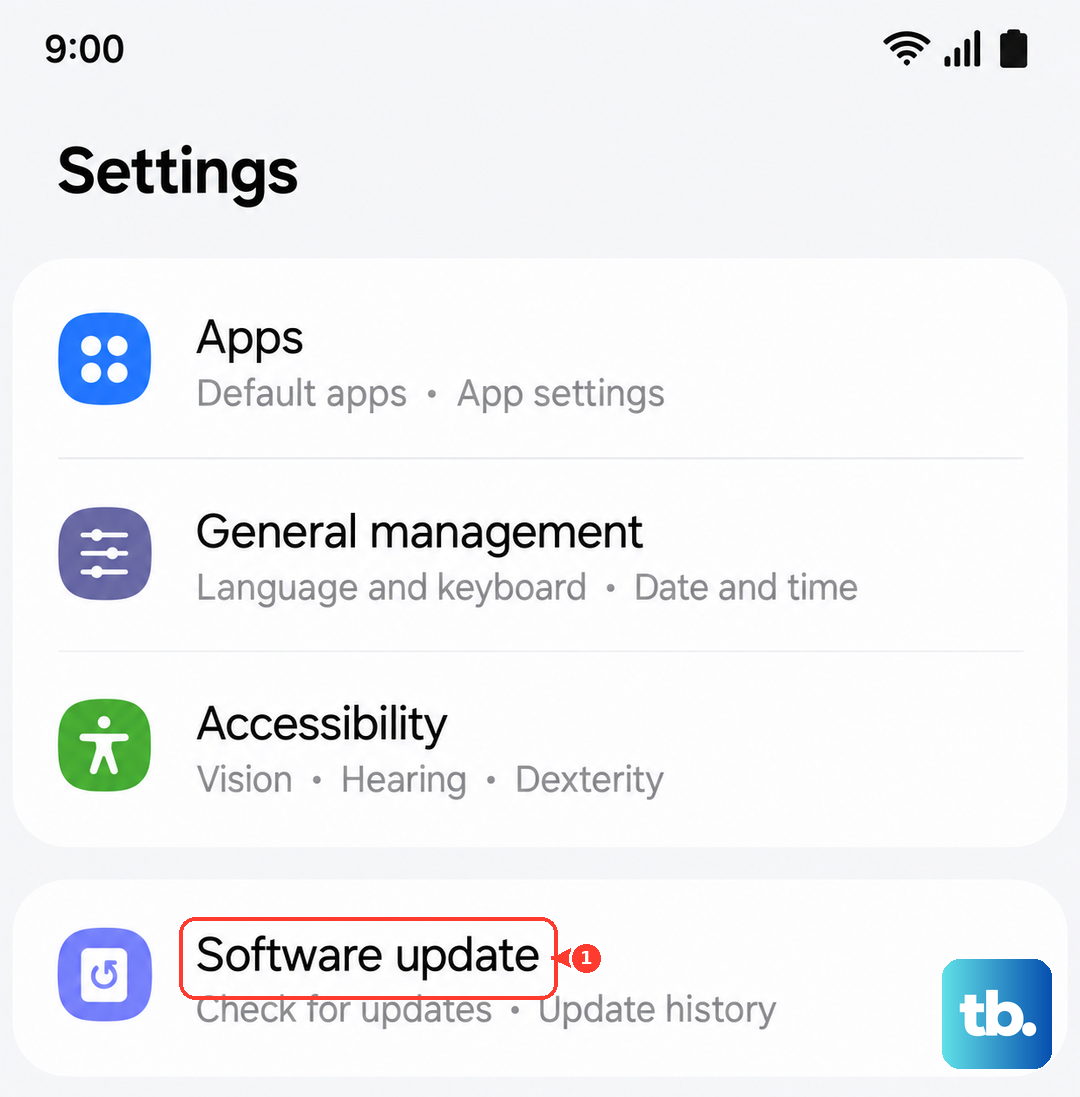
Let the tablet check for updates. If one is available, connect to Wi-Fi and let it install. After the tablet restarts, test your fingerprint again. It's a good habit to keep your tablet updated to avoid these glitches.
Clear the System Cache Partition
This is a deeper clean that doesn't delete your personal data but can fix odd software behavior. First, turn off your tablet completely. Now, press and hold the Volume Up button and the Side button at the same time.
When you see the Samsung logo, let go of both buttons. You'll boot into the recovery menu. Use the Volume Down button to highlight Wipe cache partition, then press the Side button to select it. Confirm the action, then select Reboot system now.
Review Your Fingerprint Settings
There are a couple of settings in One UI that can impact the scanner. First, go back to Settings > Biometrics and security > Fingerprints. Make sure Fingerprint unlock is toggled on.
Also, check if you have any fingerprint gestures enabled. Go to Settings > Advanced features and look for options like "Finger sensor gestures." If they're on, try turning them off, as they can sometimes interfere with the primary unlock function.
Add the Same Finger Twice
For a fingerprint you use constantly, like your primary thumb, consider registering it twice. Go through the fingerprint enrollment process and add the same finger as a second, separate entry. This gives the system more data points to recognize you from different angles or with slight variations in pressure.
It's a simple trick that often improves reliability, especially if your finger tends to be dry or you don't always hit the sensor perfectly.
Check for App-Specific Issues
Is the fingerprint scanner failing only when you try to log into a specific app, like your bank or a password manager? The problem might be with that app, not your tablet's sensor. Try using your fingerprint to unlock the tablet itself first.
If that works, go to the app's settings and look for its biometric login option. You may need to disable and re-enable it, or the app might need an update from the Galaxy Store or Google Play Store.
Consider a Factory Reset
This is your last resort software fix and will erase all data from your tablet. Before you do this, ensure everything is backed up to your Samsung account or Google Drive. If you're sure, go to Settings > General management > Reset > Factory data reset.
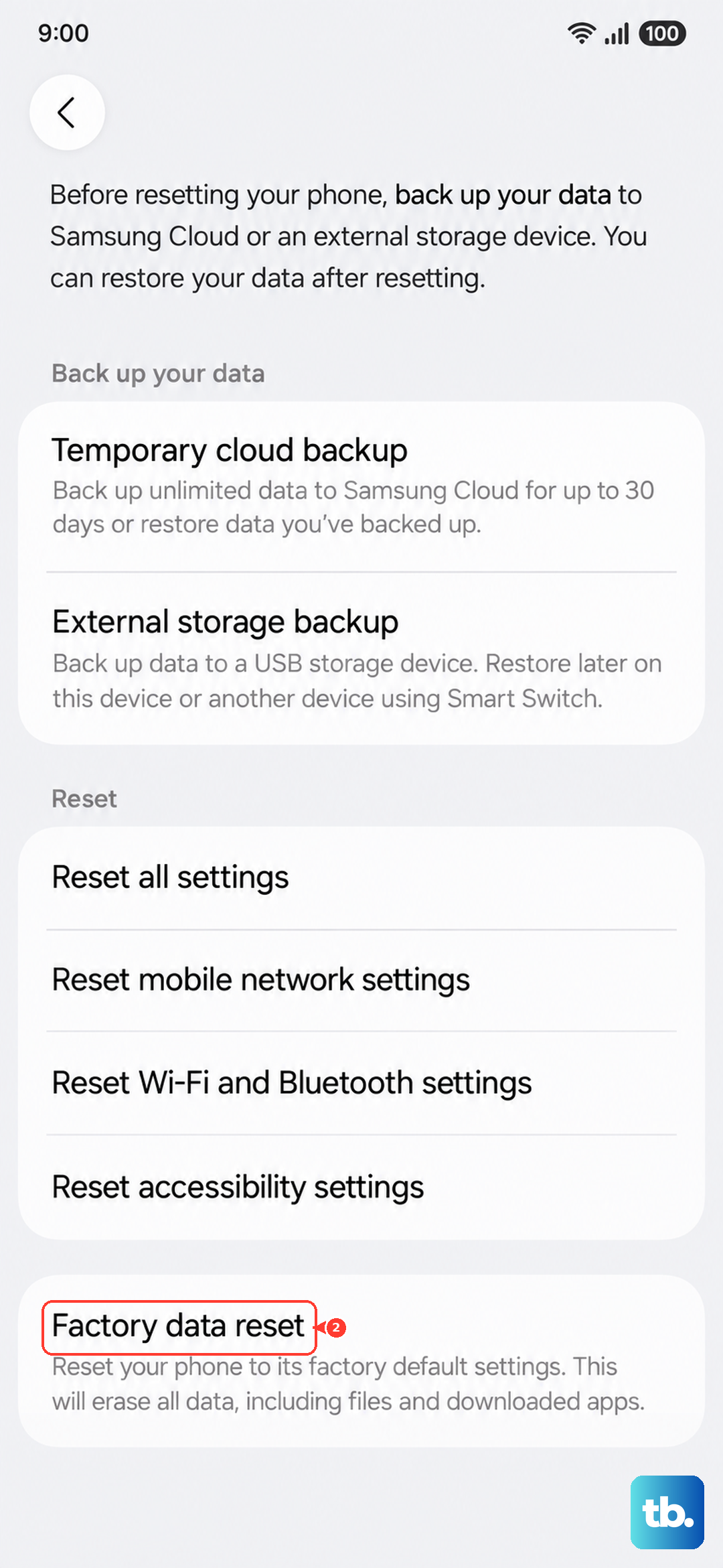
Follow the prompts to reset the device. After it restarts and you go through setup, try registering your fingerprint immediately before installing any other apps. If the sensor works on a fresh system, you'll know a previous app or setting was causing the conflict.
If the fingerprint scanner still doesn't work after a factory reset, the issue is likely hardware. The power button and fingerprint sensor are a single module on the Tab S9. You'd need to contact Samsung Support or visit an authorized repair center to have the component inspected and potentially replaced.