
When your Samsung Galaxy Tab S11 Ultra's keyboard refuses to pop up, you're stuck. Can't type a search, can't reply to a message, can't do much of anything. This is a known hiccup on tablets running Android 16, but it's almost always fixable without a trip to the service center. Here's how to get that keyboard back.
Force Stop the Keyboard App
Start with the quickest fix. Head to Settings > Apps, tap the three-dot menu up top, and select Show system apps. Scroll until you find Samsung Keyboard (or whatever keyboard you use) and tap it. Hit Force stop.
This closes the app completely. When you tap into any text field the keyboard should relaunch fresh. I've seen this resolve temporary glitches instantly on the Tab S11 Ultra.
Try a Device Restart
A simple restart can clear up system-level issues that prevent the keyboard from loading. On the Tab S11 Ultra, the force restart method is your best bet if the normal power menu isn't responding. Press and hold the Power button and Volume Down button simultaneously for 10-15 seconds until the device restarts.
If the tablet responds normally, you can also do a standard restart through the power menu. But that force restart method is the one to remember when things feel stuck.
Clear the Keyboard Cache and Data
Corrupted cache files are a common culprit. Go to Settings > Apps > Samsung Keyboard > Storage. Tap Clear cache first. If that doesn't do it, tap Clear data. You'll lose any custom keyboard settings you've saved, but your personal data stays put.
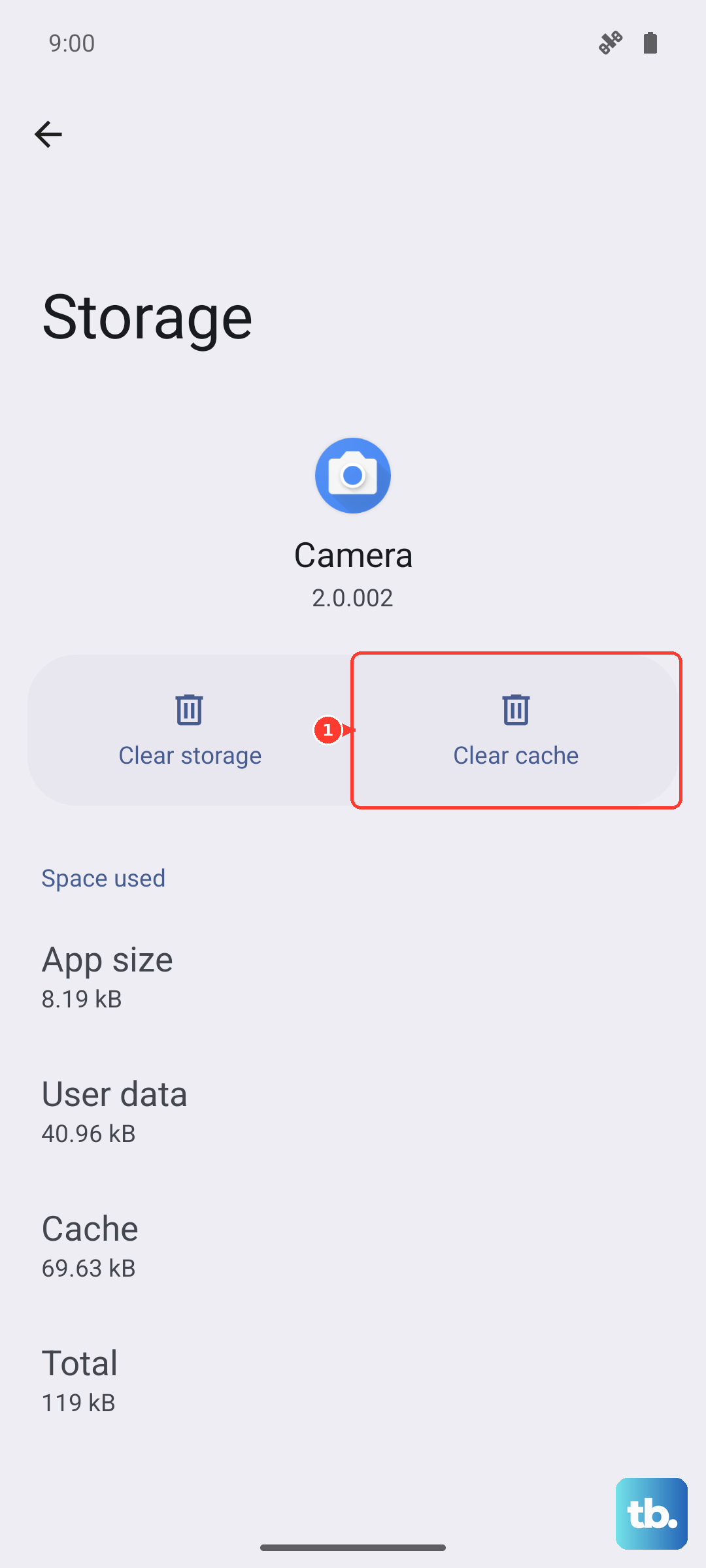
After clearing, restart the tablet and test the keyboard. This fix works for many Android 16 keyboard issues.
Don't Forget the Dictionary App
The dictionary provider runs in the background and can cause the keyboard to crash. Go to Settings > Apps > Show system apps and look for Dictionary or Dictionary Provider. Tap it, then Storage > Clear cache and Clear data.
Some users find they need to disable the dictionary provider entirely. If clearing data doesn't help, go back to the app info page and tap Disable. The keyboard will still work fine without it.
Update the Keyboard and System Software
An outdated keyboard app can develop compatibility issues with Android 16. Open the Play Store, tap your profile picture, and go to Manage apps & device. Update Samsung Keyboard if an update is available. While you're at it, check for system updates under Settings > Software update > Download and install.
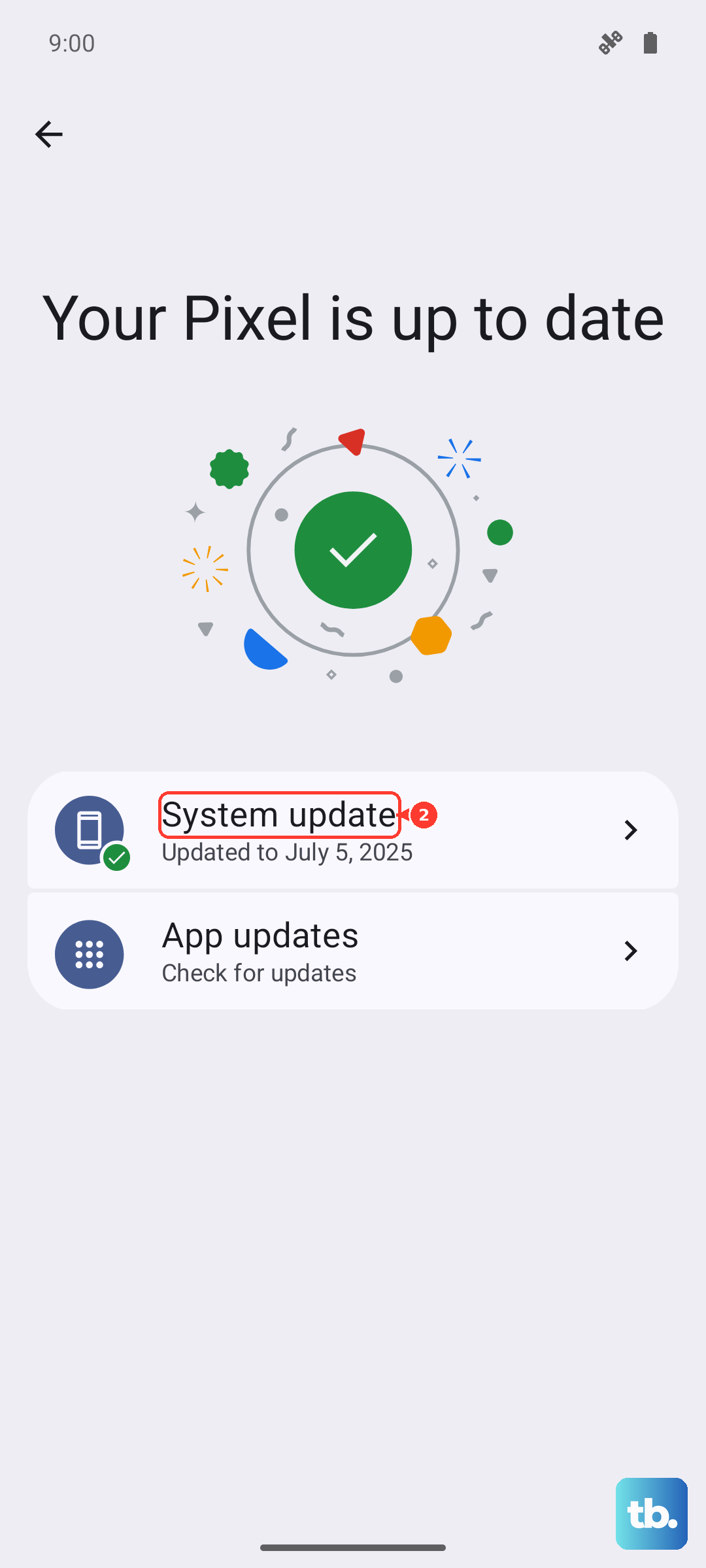
Samsung regularly pushes firmware fixes for the Tab S11 Ultra. Keeping everything current can prevent keyboard problems from cropping up in the first place.
Reset Keyboard Settings
If you've tweaked keyboard settings and something went wrong, resetting them to default can help. Go to Settings > General management > Language and input > On-screen keyboard > Samsung Keyboard. Tap Reset to default settings.
This won't erase your dictionary or personal data, just the settings back to factory defaults.
Boot Into Safe Mode
Safe mode disables all third-party apps. That way you can tell if one of them is interfering with the keyboard. On the Tab S11 Ultra, press and hold the Power button, then tap and hold Power off until you see the Safe mode prompt. Tap Safe mode to confirm.
If the keyboard works fine in safe mode, a downloaded app is the problem. Uninstall apps you added recently, one at a time, until you find the troublemaker.
Reset All Settings
This is a bigger hammer. Go to Settings > General management > Reset > Reset all settings. It doesn't delete your apps, photos, or accounts, but it resets Wi‑Fi passwords, wallpapers, and accessibility settings back to default.
If the keyboard issue stems from a system configuration conflict, this often clears it up.
When the Battery Is Critically Low
The Tab S11 Ultra has a known issue where the battery can drain completely even when the device is switched off. If your tablet won't power on at all and the keyboard never shows, the battery might be completely flat. Plug it into a wall outlet (not a power strip or extension cord) using the included USB‑C cable. The charging indicator may take up to 10 minutes to appear, so be patient.
Once the battery has enough juice, perform a force restart with Power+Volume Down for 10-15 seconds. That should bring the system back to life, and the keyboard should follow.