
If the camera app on your Galaxy Tab S11 Ultra crashes before it even opens, or freezes on a black screen, start with a force restart. This clears out any temporary glitches in the system memory that might be blocking the camera hardware. Press and hold the Power button and the Volume Down button at the same time for about 10 to 15 seconds, until the Samsung logo appears.
In my experience, this simple step solves a surprising number of sudden hardware access issues. Give the tablet a full 30 seconds to boot up before tapping the camera icon again.
Install the Latest Software Updates
Outdated software is a common reason the camera won't launch, especially on a newer device running Android 16. Go to Settings > Software update > Download and install to see if a patch is available. Samsung frequently pushes camera-specific improvements alongside monthly security updates.
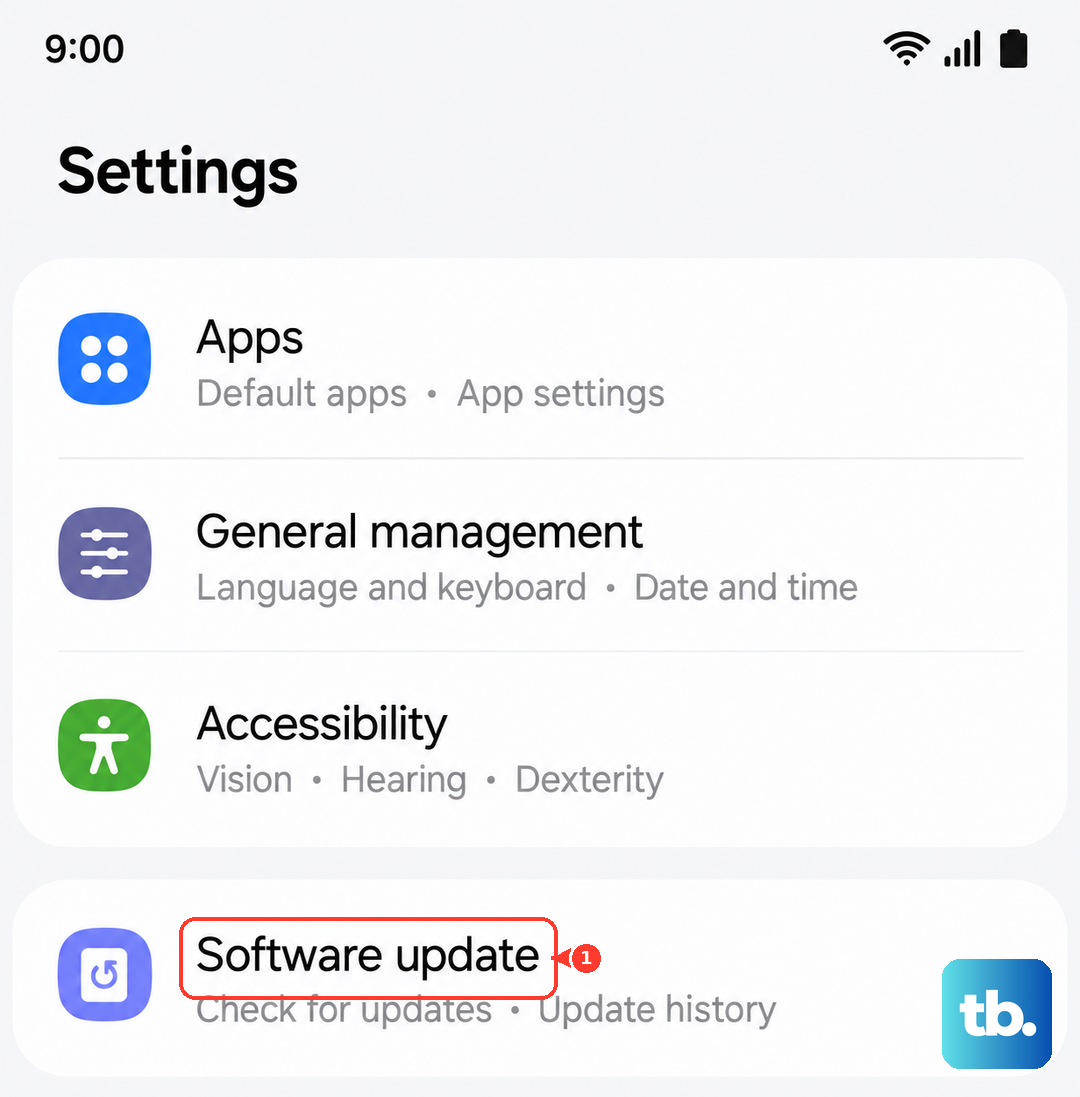
While you're at it, open the Play Store, tap your profile icon, and check for any pending updates for the Camera app itself. App developers often release quick fixes for compatibility issues after a major OS update rolls out.
Clear the Camera App's Cache and Data
Sometimes the camera app itself gets corrupted data stuck in its cache. Head to Settings > Apps > Camera > Storage and tap Clear cache first. If that doesn't do the trick, tap Clear data, just know that this will reset your camera settings to their defaults.
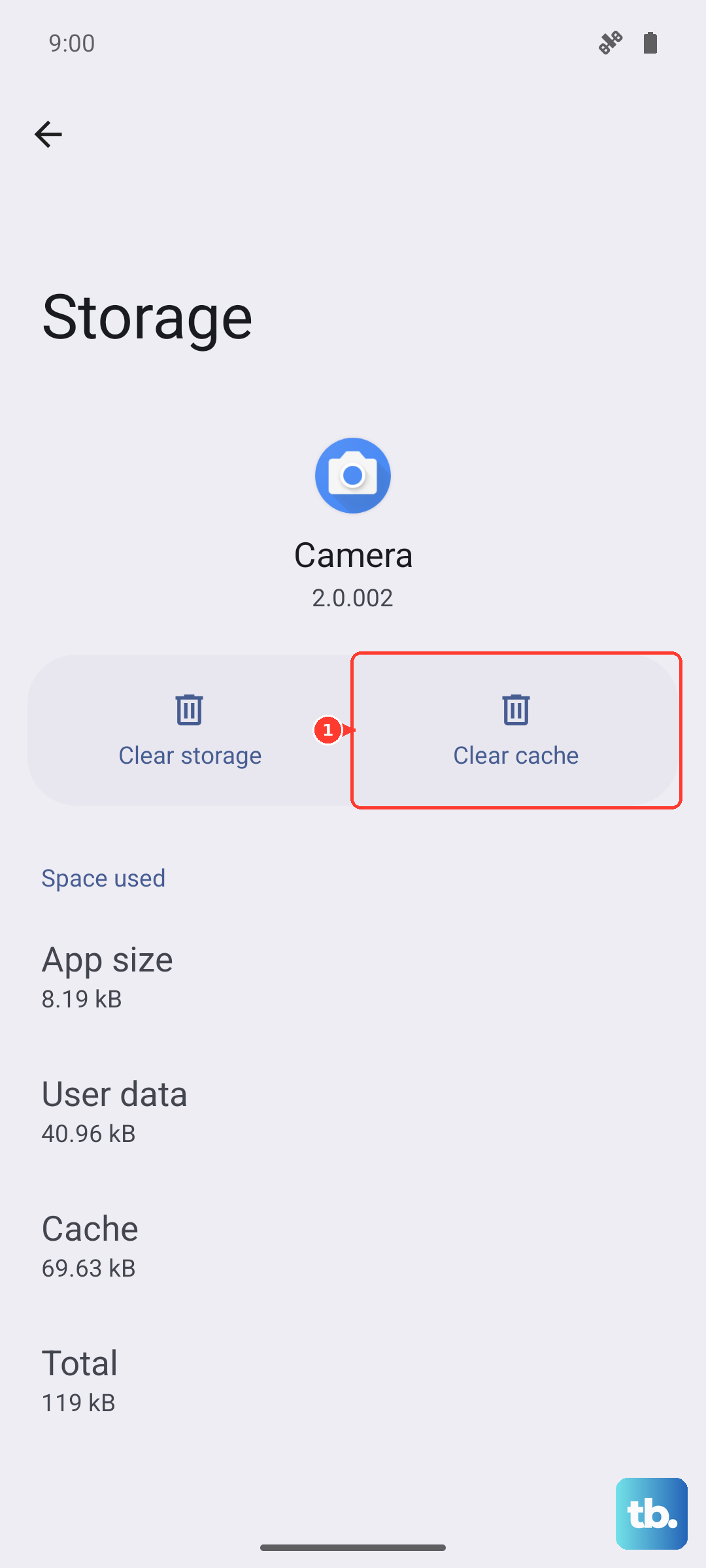
You'll need to reconfigure any custom photo ratios or timer settings you had set up before. Test the camera immediately after clearing the data to see if the issue is resolved.
Make Sure the Camera Has Permission to Open
If the app isn't allowed to use the camera hardware, it simply won't launch. Go to Settings > Apps > Camera > Permissions and make sure the toggle for Camera is turned on. Other apps that need the camera might also conflict if permissions are set incorrectly.
Revoking and re-granting the permission can sometimes refresh the system's access rights. Toggle it off, wait a few seconds, then turn it back on.
Free Up Some Storage Space
A full internal drive can prevent the camera from initializing, since it needs space to temporarily process images before saving them. Check your storage by going to Settings > Battery and device care > Storage. If your tablet is over 90% full, the camera might refuse to open entirely.
Try moving large files like movies and old downloads to a microSD card. Deleting unused apps and clearing your download folder usually frees up enough space for the camera to start working again.
Boot Into Safe Mode to Check for Conflicts
A third-party app can sometimes hijack the camera system or cause conflicts that prevent it from opening. To test this, press and hold the Power button, then tap and hold the Power off icon on the screen until the Safe Mode prompt appears. Tap Safe mode to restart the tablet.
Try opening the camera in Safe Mode. If it works normally, a recent app download is likely the culprit. Uninstall any apps you added right before the problem started, then restart the tablet normally.
Let the Tablet Cool Down
The Tab S11 Ultra's camera system will automatically disable itself if the internal temperature gets too high. Heavy gaming, video streaming, or direct sunlight can trigger this thermal protection. Let the tablet sit in a cool, shaded place for about 15 to 20 minutes, then try the camera again.
If the tablet feels hot to the touch, taking it out of its case can help it cool down faster. Do not put it in the fridge or freezer, as rapid temperature changes can cause internal condensation.
Charge the Battery Enough
A known issue with the Tab S11 Ultra is that the battery can drain completely when the device is switched off, making it unresponsive for a while. If the battery is critically low, the system may block non-essential functions like the camera to preserve power. Plug it into a wall outlet with the original charger and cable, avoid power strips or extension cords.
It can take up to 10 minutes for the charging indicator to appear on a completely drained battery. Once the tablet has charged for at least 15 minutes, press and hold the Power and Volume Down buttons to force restart it.
Factory Reset the Device
If none of the basic fixes have worked, a factory reset will wipe the system clean of any deep software corruption. Back up your photos, contacts, and app data first. Go to Settings > General management > Reset > Factory data reset.
This will erase everything on the tablet and return it to the state it was in when you unboxed it. After the reset, set it up as a new device and test the camera before restoring any backups. If the camera still doesn't open after a factory reset, it may point to a hardware fault that needs a repair.