
If your Samsung Galaxy Tab A9+ camera app won't open or shows a black screen, start with a simple restart. Press and hold the Volume Down and Power buttons together for about 10 seconds until you see the Samsung logo. I'd try this first, as it clears out temporary software glitches that can freeze the camera.
Key Points
- Restart and Update Your Tablet: A force restart is the quickest way to fix a frozen camera app.
- Clear the Camera App's Data: Corrupted app data is a common cause for the camera failing to start.
- Check for App Conflicts and Permissions: Other apps using the camera or missing permissions can block access.
- Inspect for Physical Damage and Software Issues: A damaged lens or a problematic software update can disable the camera.
- Reset App Preferences or Perform a Factory Reset: A last-resort software reset can resolve deeper system conflicts.
Give the tablet a moment to fully boot up, then try opening the camera again. If it's still stuck, don't worry, there are several other steps to try.
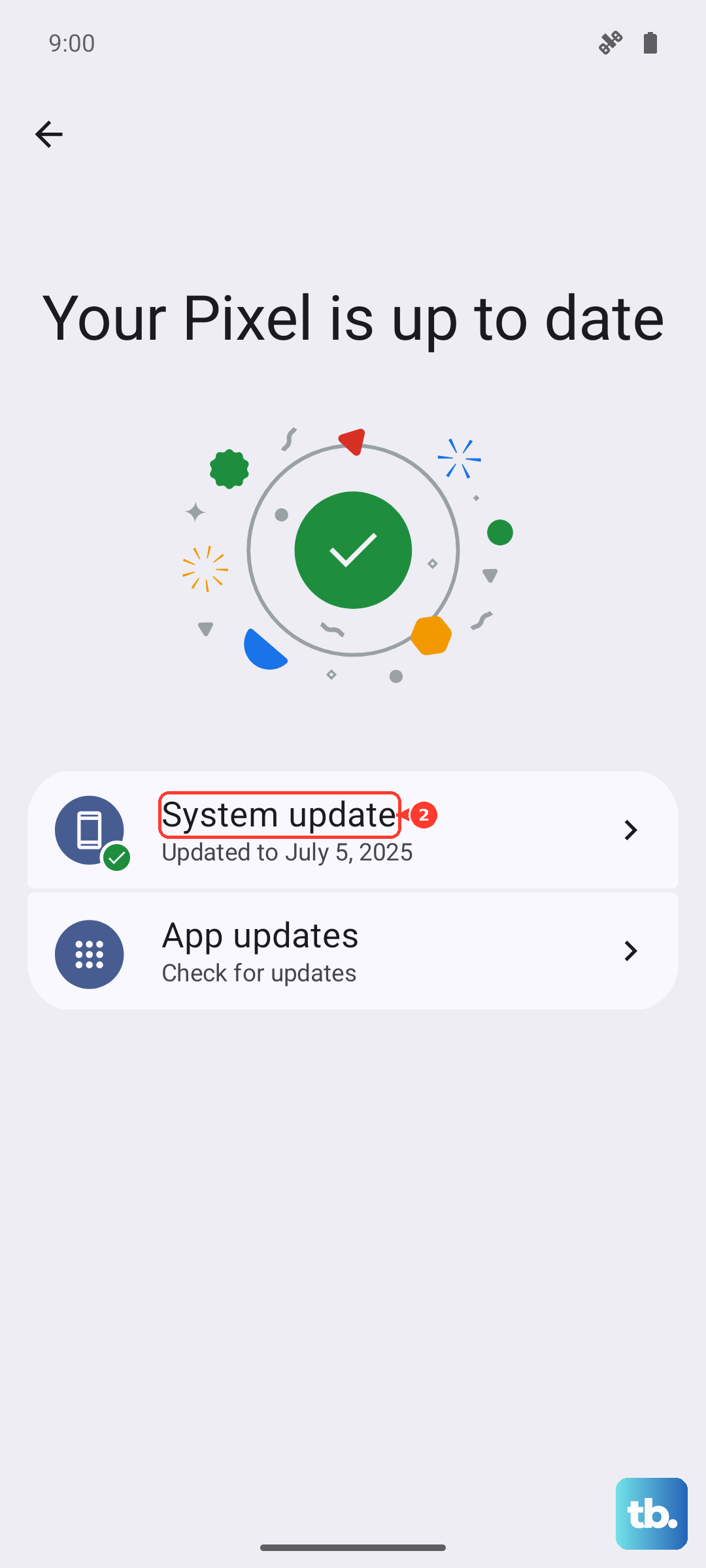
Sometimes, the issue pops up after a system update. It's a good idea to check if there's a newer patch available that might include a fix. Go to Settings > Software update and tap Download and install.
Install any available updates and restart your tablet once they finish. Keeping background apps minimal on the Tab A9+ can also help maintain smooth performance for the camera and other features.
Clear the Camera App's Data
If a restart didn't work, the next step is to clear the camera app's stored data. This is different from just clearing the cache and resets the app to its default state. Go to Settings > Apps, then find and tap on Camera.
Tap on Storage, and then tap Clear data and Clear cache. Confirm your choice. This will erase any custom settings within the camera app, but it won't delete your photos.
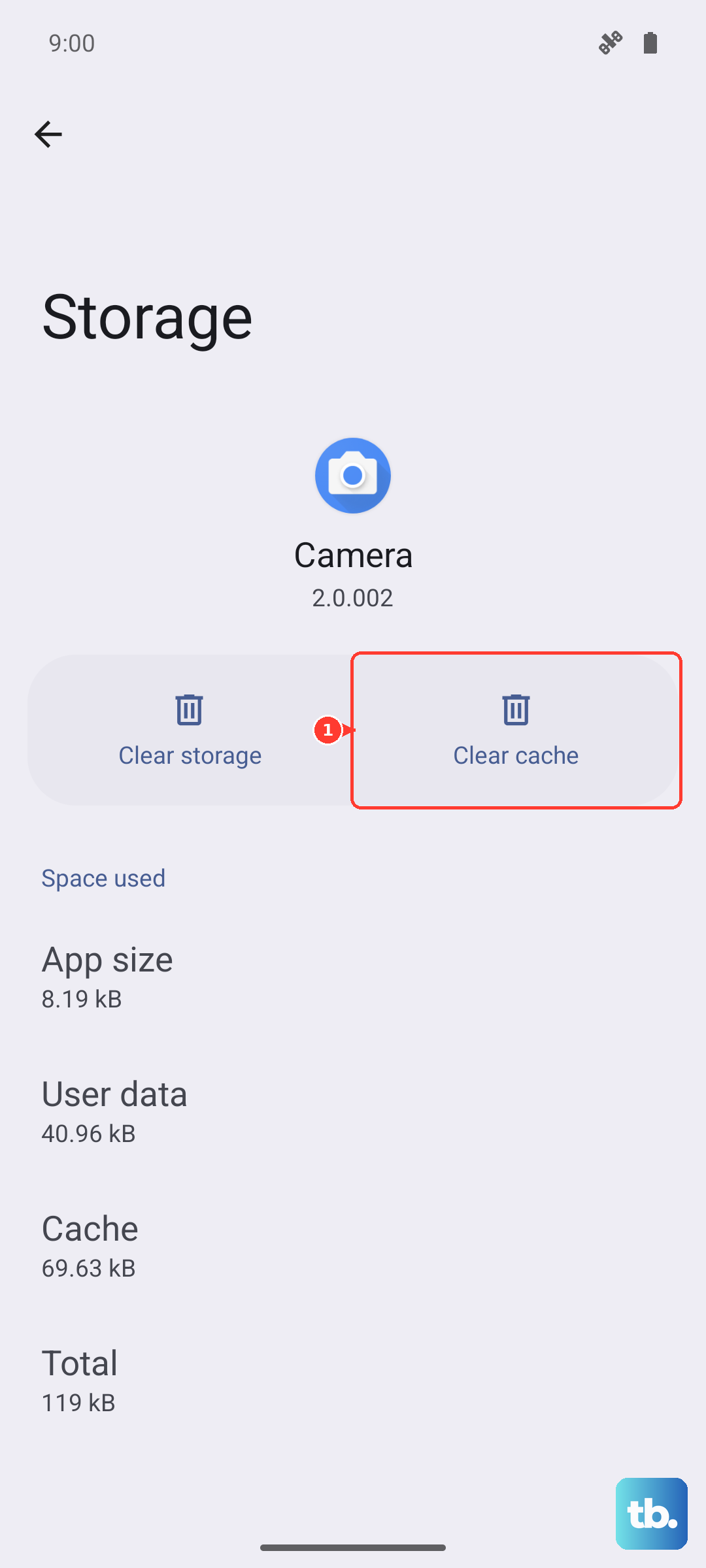
After clearing the data, open the camera app again. It will take a moment to initialize fresh. This fix resolves issues where corrupted data prevents the camera from launching properly.
Check for App Conflicts and Permissions
Another app might be holding onto the camera, preventing yours from opening. Think about any apps you recently installed that use the camera, like video chat or scanning apps. Try closing all running apps from the recent apps menu.
You can also boot into Safe Mode to check. Press and hold the power button until the power menu appears, then press and hold the "Power off" option. Tap Safe Mode to restart. If the camera works in Safe Mode, a third-party app is causing the conflict.
Also, verify the camera has the necessary permissions. Go to Settings > Apps > Camera > Permissions. Make sure the Camera permission is set to "Allow only while using the app" or "Allow all the time."
Inspect for Physical Damage and Software Issues
Take a close look at the camera lens on the back of your Tab A9+. Is it clean and free of cracks? Smudges can cause blurry photos, but a cracked lens or visible damage inside the lens module will likely require repair.
Gently clean the lens with a dry, soft microfiber cloth. Avoid using any liquids that could seep into the housing. If you see physical damage, that's almost certainly the root of the problem.
On the software side, a bad update can sometimes cause hardware sensors to fail. If the camera stopped working right after a system update, you might need to wait for a corrective update from Samsung.
Reset App Preferences or Perform a Factory Reset
If individual fixes haven't worked, resetting all your app preferences can help. This resets permissions, background restrictions, and notification settings for all apps without deleting your data. Go to Settings > Apps > tap the three-dot menu > Reset app preferences.
Tap Reset. Afterward, you'll need to re-grant permissions when you use apps for the first time. Try your camera again.
As an absolute last resort, you can perform a factory reset. This will erase all data on your tablet, so ensure you have a complete backup first. Go to Settings > General management > Reset > Factory data reset.
Tap Reset and follow the prompts. After the tablet restores itself, set it up as new and test the camera immediately before restoring your backup, in case the backup contains the corrupted setting.