
When your Samsung Galaxy A56 stops receiving or sending emails, it can feel like you're suddenly cut off. The problem could be with the Samsung Email app, your Gmail app, or your account settings on One UI 7. I'd start by checking a few quick things before we dive deeper.
First, make sure you have a solid internet connection, either on Wi-Fi or mobile data. It's also worth a quick check on your computer or another device to see if your email service itself is having an outage. If those basics are fine, the fix is usually on the phone itself.
Force Close and Reopen Your Email App
This is the digital equivalent of turning it off and on again. A temporary glitch in the app's memory can cause it to freeze or stop syncing. Swipe up from the bottom of your screen and hold to enter the recent apps view.
Find your email app, whether it's Samsung Email or Gmail, and swipe it all the way up off the screen to close it completely. Wait a few seconds, then tap the app icon to reopen it. This clears the app's working memory and often gets things moving again.
Check Your Sync and Data Settings
Your phone might have stopped syncing your email account to save battery. Open the Settings app and go to Accounts and backup > Manage accounts. Select your email account from the list.
Make sure the toggle for syncing that account is turned on. If you're trying to use mobile data, also check that the app has permission. Go to Settings > Apps, select your email app, then tap Mobile data and ensure "Allow background data usage" is enabled.
Toggle Airplane Mode to Reset Connections
This quickly resets all your phone's radios. Swipe down twice from the top of your screen to open the full Quick Settings panel. Tap the Airplane mode icon to turn it on, wait about 15 seconds, then tap it again to turn it off.
Your phone will reconnect to Wi-Fi and mobile networks. This can clear up a stuck data session that's preventing your email from connecting to its server. It's a simple trick that works for all sorts of network-related hiccups.
Verify Your Email Account Password
Sometimes passwords expire or get changed on the web, and your phone doesn't know until it tries to sync. You might see a persistent notification saying "Authentication failed" or the app might just stop showing new mail.
The best way to check is to try logging into your email account through a web browser on another device. If you can't log in there, you'll need to reset your password with your email provider. Once you have the new password, update it in your phone's account settings.
Clear the Email App's Cache and Data
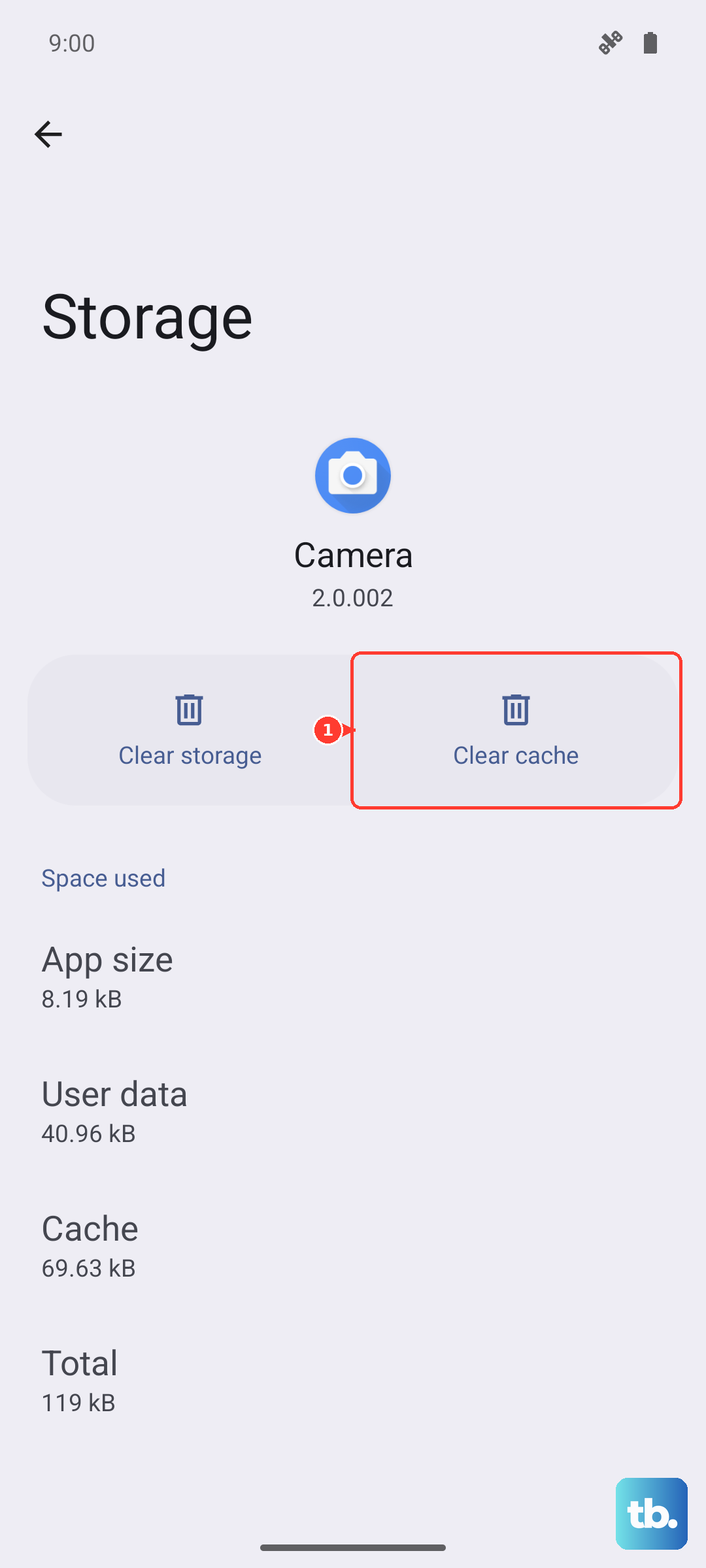
Corrupted temporary files can cause all sorts of strange behavior. This won't delete your emails from the server, but it will reset the app. Go to Settings > Apps, then find and select your email app.
Tap Storage, then tap Clear cache. If the problem persists, you can tap Clear data next. Just be aware that clearing data will remove the account from the app, so you'll need to set it up again.
Check for App and System Updates
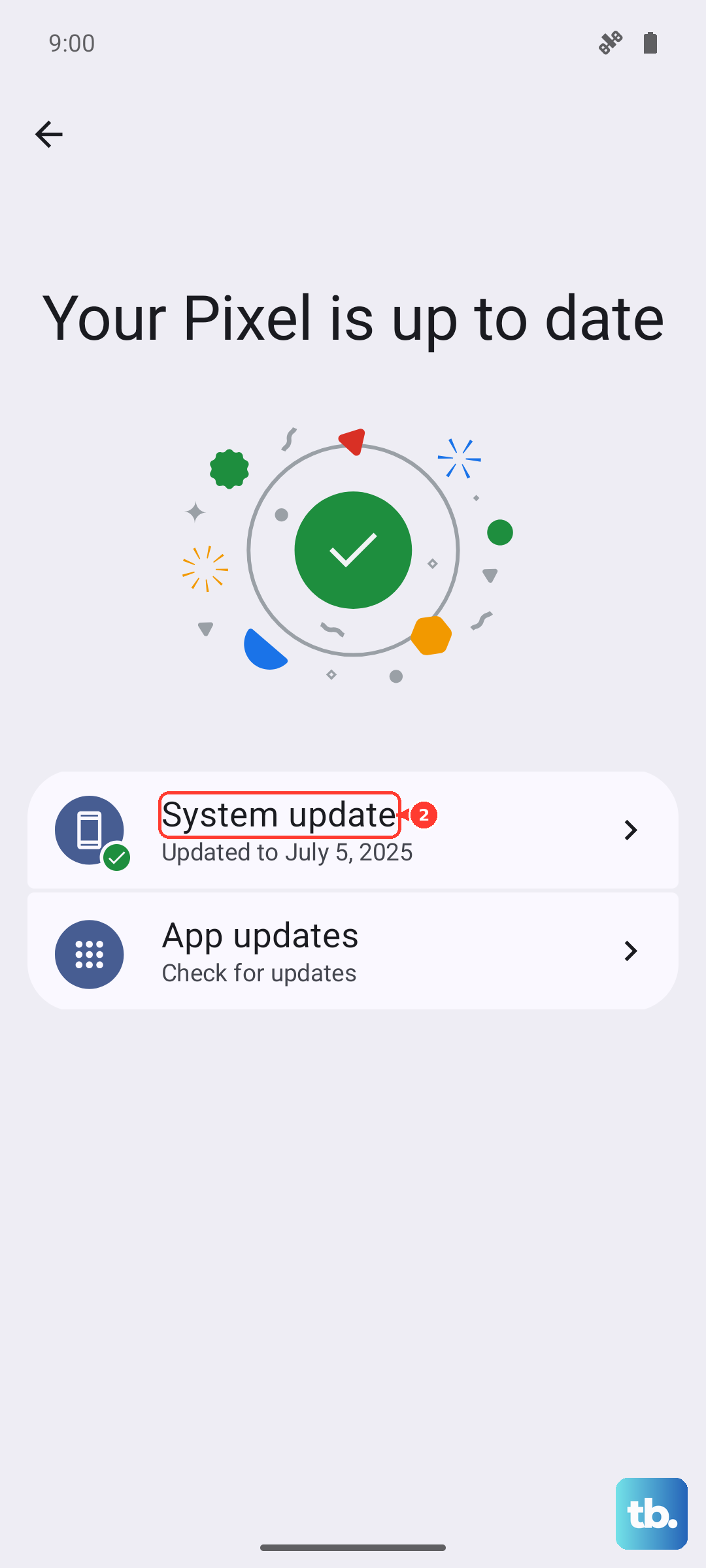
An outdated app or version of One UI can have bugs that affect email. Open the Galaxy Store to check for updates to the Samsung Email app, and the Google Play Store for updates to Gmail or other third-party clients.
For system updates, go to Settings > Software update > Download and install. Installing the latest Android 15 and One UI 7 updates can resolve known issues that might be impacting your email functionality.
Remove and Re-add Your Email Account
This is a more thorough reset that rebuilds the connection from scratch. Go to Settings > Accounts and backup > Manage accounts. Tap on the problematic email account, then tap Remove account.
Confirm the removal, then go back and tap Add account to set it up again. You'll need your full email address, password, and possibly some server settings for older IMAP or POP accounts. For services like Gmail or Outlook, it usually configures itself automatically.
Perform a Force Restart on Your Galaxy A56
If the phone's software is feeling sluggish or unresponsive, a force restart can help. Press and hold the Volume Down button and the Side key (power button) together for about 10 seconds.
You'll see the Samsung logo appear as the phone rebarts. This is different from a normal restart and can clear minor system errors that might be interfering with app performance, including email.
Review Your Notification Settings
If emails are arriving but you're not getting alerts, the notification settings might have been changed. Long-press on your email app's icon and tap App info. Then, tap Notifications.
Make sure notifications are turned on for the app overall. Then, tap on specific notification categories, like "New messages," to ensure they are enabled and set to alert you with a sound or vibration.
Disable Power Saving Modes
The Galaxy A56's power saving features can sometimes be too aggressive, stopping apps from syncing in the background. Swipe down to open Quick Settings and see if any power saving icon (like a battery with a leaf) is highlighted.
If it is, tap it to turn it off. For a deeper check, go to Settings > Battery. Here, you can ensure no adaptive or maximum power saving mode is active, as these restrict background data.
Check for Incorrect Date and Time
An incorrect system time can cause security certificates to fail, preventing your email app from connecting to its server. Go to Settings > General management > Date and time.
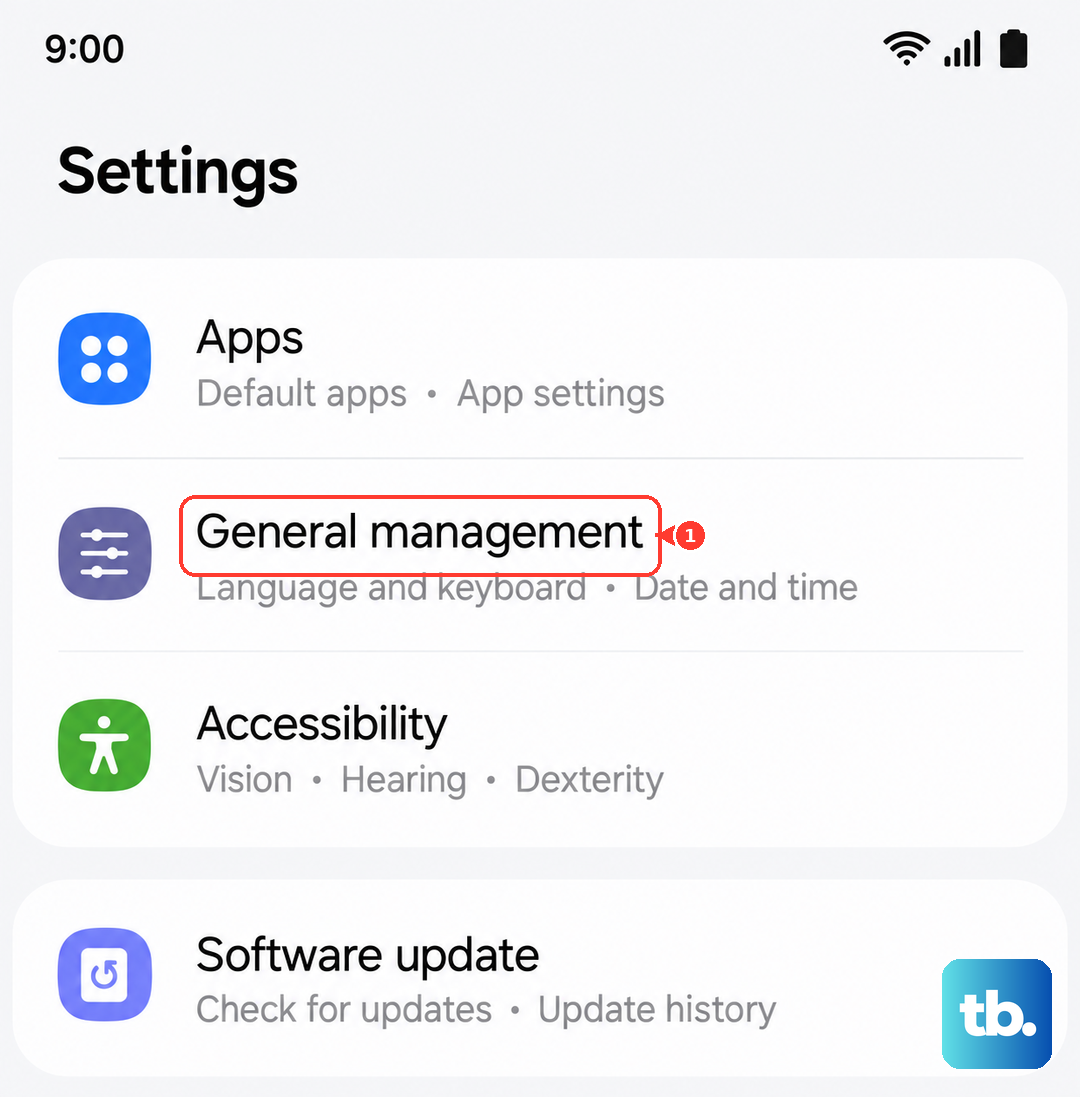
Make sure the "Automatic date and time" option is turned on. This allows your phone to set the time via your network, ensuring it's always accurate for secure connections.